Windows network monitor & firewall

See every connection.
Block what you don't trust.

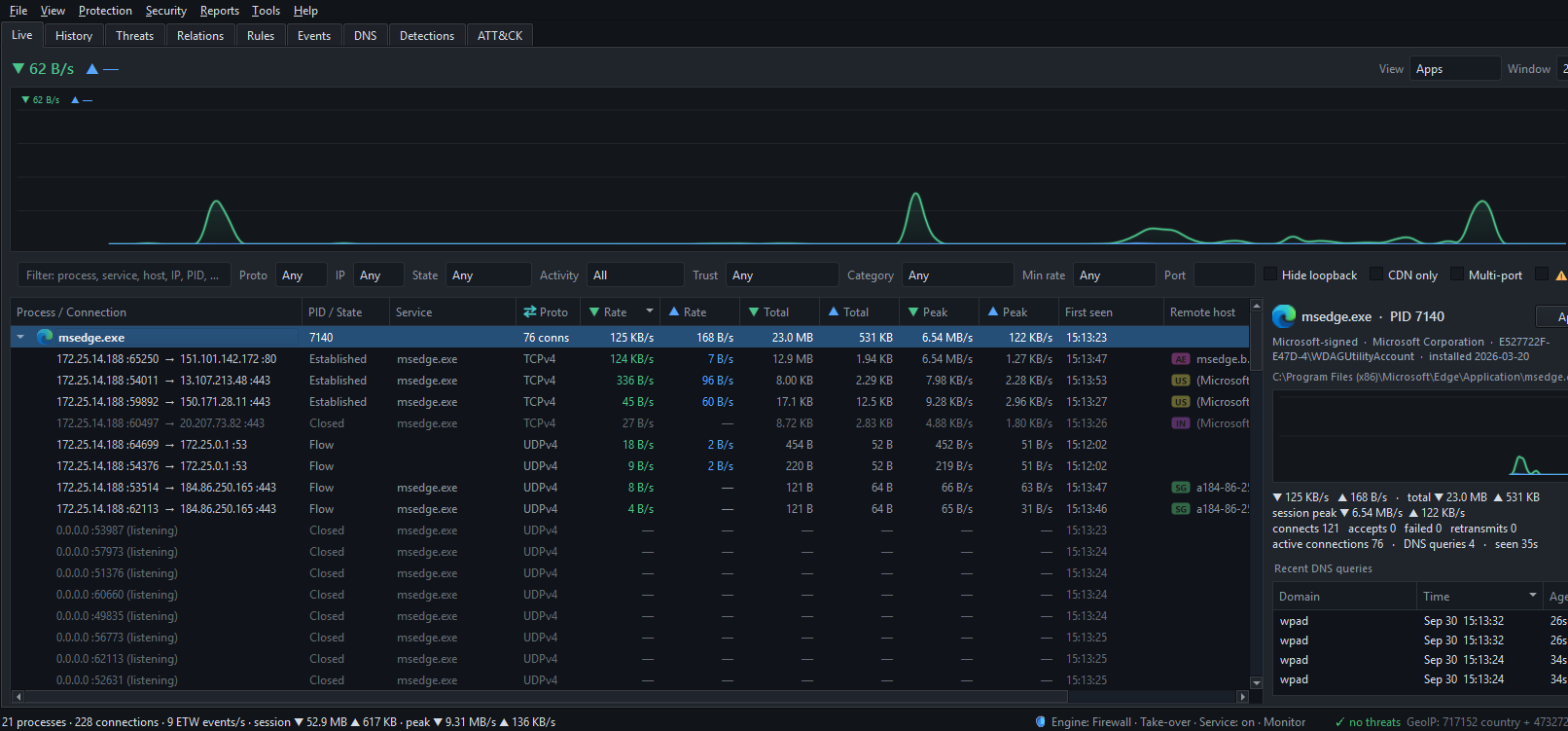
NetSecWall shows every app on your PC talking to the internet — live, by name, with where it's going and why. When something looks wrong, block it with a click — instantly, and for good.

Runs entirely on your PC · no account · no cloud · telemetry is opt-in

The whole machine, at a glance

↓ live recreation — flip the theme toggle; the app has both too

42processes watched
211live connections
<1%CPU · stays light
0packets sent anywhere

What it does

A network analyzer and a firewall, in one quiet app.

NetSecWall sits on your PC and watches the wire. Everything it can see, you can act on.

monitor

Live, per-process visibility

Every app that touches the network, by name — with the host, country, service, and live up/down rates. No guessing which "svchost" is which.

block

Block it, and mean it

Stop any app by name, address, or country — at the Windows Firewall or a deeper level. It keeps working even when another security app is already in charge.

consent

Ask-to-connect

When a new app first reaches the internet, a quiet corner notification asks: Allow, Allow once, or Block. Apps already trusted are never nagged.

detect

Catches the sketchy stuff

Flags suspicious programs, sneaky background chatter, and known-bad destinations — and tells you, in plain language, why it's worried.

sites

Every site an app visits

See exactly which sites each app looks up, with history and how new the site is — so a "photo editor" calling a stranger you've never heard of stands out.

rules

One rule editor

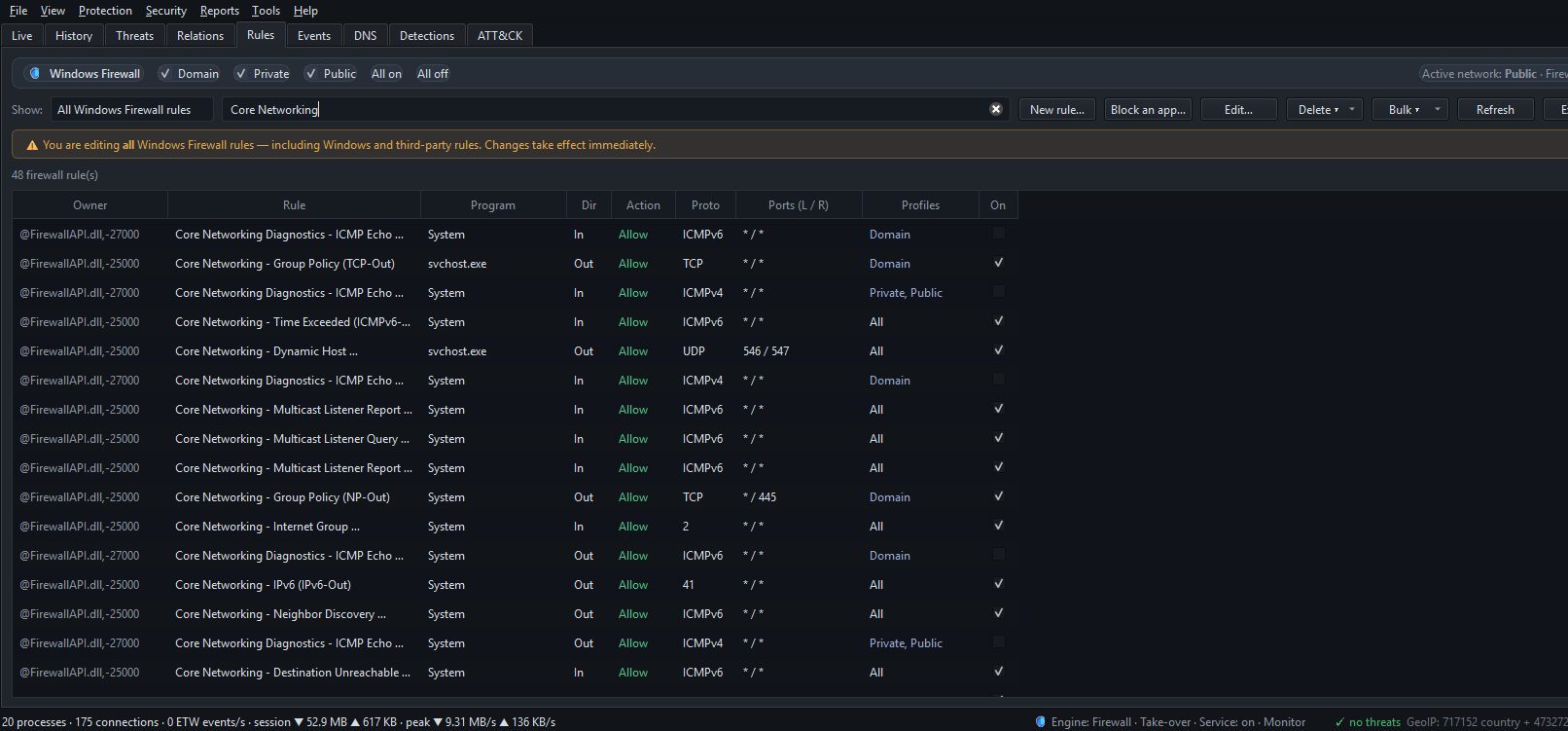
Manage every Windows Firewall rule — Windows, third-party, and NetSecWall — from a single editable list. NetSecWall becomes your single source of truth.

A closer look

Follow every connection to where it goes.

Beyond the list, NetSecWall draws the picture — which apps share which endpoints, and which of those you should worry about.

An interactive map of your traffic

  • Your apps and the places they connect, drawn as a live map — bigger dots mean more traffic.
  • Shared destinations that two or more apps talk to are flagged in amber — a classic sign worth a second look.
  • Known-bad places light up red.
  • Zoom, pan, and double-click anything to dig in — group by address, site, network, or country.
Trusted or not

Every program is checked for a valid digital signature — you see signed, unsigned, or tampered, right in the row.

Where it’s going

Each connection is tagged with its country and the company that owns the other end, so an odd destination jumps out.

History & reports

A searchable record of what talked to what, a timeline you can scrub through, and a one‑click weekly report of your top apps and destinations.

Spots hidden check‑ins

Flags steady, clock‑like traffic — the tell‑tale sign of something quietly phoning home in the background.

Block places & categories

Block a whole country, or categories like ads and trackers, from lists you can edit and add to.

Runs quietly

Light on your PC, tucked in the tray, and able to keep watching around the clock. Comes in light and dark for long sessions.

Firewall control

A real firewall — the calm kind.

See something you don’t like, and stop it. Permanently, for an hour, or everything at once. However another security tool is set up, NetSecWall fits alongside it.

Two ways to block

Stop an app at the Windows Firewall, at a deeper level, or both at once — so a block sticks even when another security app is in charge.

One list for every rule

See and edit every firewall rule on your PC — Windows’ own, other apps’, and yours — from a single editable list. NetSecWall becomes the source of truth.

Rules per network

Separate rules for home, work and public Wi‑Fi — and turn the firewall on or off for each network, right from NetSecWall.

Block for now

Cut an app off for ten minutes or an hour, then let it back automatically. Great for “why is this thing so chatty?” moments.

Cut it off instantly

Blocking closes the connection that’s already open — not just the next one — so the noise stops the moment you click.

Panic switch

One click blocks all internet. Flip it back when you’re ready. Perfect for “something’s wrong, cut everything now.”

Tamper‑proof rules

If something tries to quietly switch off a NetSecWall rule, NetSecWall puts it right back.

Plays well with others

Already run another firewall manager? Companion mode lets NetSecWall keep watching and blocking without stepping on it.

For teams · Enterprise

On-prem management for your whole fleet.

Run the NetSecWall Management Server inside your network: enrol every endpoint, deploy policy with a wizard, push silent updates — no cloud dependency, ever.

console

Your server, your data

A self-hosted management console for your whole fleet — agents, groups, licensing and analytics on a single on-prem box. Nothing leaves your network.

policy

Policy deployment wizard

Pick a template — Balanced, Strict, Kiosk or Monitor-only — adjust it, choose target groups, and roll it out to the whole fleet in one guided flow.

onboard

One-file onboarding

The server generates a netlens-mgmt.json bootstrap file. Import it in the app — or drop it beside a silent GPO/Intune install — and the device enrols itself.

update

Silent update push

Publish a release once and push it fleet-wide: SHA-256-verified, silently installed, with a per-device version trail and compliance quarantine for stragglers.

secure

mTLS-hardened agents

Every agent gets its own client certificate from the server's internal CA, with rotation and revocation built in. Remote commands arrive in near real-time.

seats

Seat-based licensing

Activate the server with one Enterprise key and it meters seats itself — block a device to free its seat. Works fully offline after activation.

Explore NetSecWall Enterprise

One key activates your server with 25 seats — $299/yr.

Pricing

Start free. Upgrade when you're ready.

Every install begins with a 3-day trial — everything unlocked, no card. After that, keep watching your network for free, or pick a plan for blocking, threat intelligence and advanced detection.

EnterpriseManaging a fleet? The self-hosted NetSecWall Management Server has its own seat-based tiers — from $299/yr for 25 seats.Explore Enterprise →

Prices shown per device · pay with crypto · the trial can't be reset by reinstalling.

Telemetry you control

Off by default. Anonymous when on.

A network tool that watched you would defeat the point. NetSecWall works fully offline — product analytics are strictly opt-in, tied to a random ID that isn't linked to you, and you can export or erase everything with one click, any time.

GDPRCCPA / CPRAAPPIPDPA

If you opt in, we collect

  • App version, Windows version, CPU architecture and UI language
  • Coarse country from your Windows region — your IP is never stored
  • Anonymous feature-usage counts (which features, not their contents)
  • Bucketed configuration: engine, mode, rule-count band
  • Crash and error categories

We never collect

  • Your traffic, domains, DNS queries or connection details
  • Names or paths of your applications
  • Firewall rule contents or any allow / block lists
  • Any name, email, account, or hardware identifier

Your rights are in the app: Settings → Privacy — turn analytics on/off, or send an instant erase request (GDPR Art. 17, CCPA/CPRA delete, APPI & PDPA withdrawal).

Get NetSecWall

Install it. Watch for a minute.
You'll see things you didn't know were talking.

Free · portable .zip — unzip & run NetSecWall.exe · activate with a key you get in ~30 seconds

v1.0.015.0 MBJuly 2026Windows 10 / 11 · 64-bit

sha256: 09d48594…6d9a463d

Requires administrator rights to capture traffic and manage the firewall. NetSecWall runs locally; no account or sign-in.

Questions

Straight answers.

Will it slow down my PC?

It shouldn't. NetSecWall watches quietly in the background instead of sitting in the middle of your traffic, so monitoring stays light. Blocking only does work when you actually block something.

Do I need administrator rights?

Yes. Windows requires elevation both to see per-process network activity and to change firewall rules, so NetSecWall runs elevated. It does not create an account or ask you to sign in.

Will it fight with my existing firewall?

No. If another manager (Windows Firewall Control, GlassWire, a third-party suite) already owns the Windows Firewall, switch NetSecWall to Companion mode: it keeps monitoring and can still block on its own, without touching the other tool's rules.

What leaves my computer?

By default, nothing. NetSecWall works fully offline. Product analytics are opt-in, anonymous, and never include your traffic, domains, app names or rules — see the Privacy section above.

Can it keep protecting me with the window closed?

Yes. Closing the window minimises to the tray and keeps monitoring. For always-on coverage — even before you sign in — install the optional 24/7 background service from the setup wizard.

Which Windows versions are supported?

Windows 10 and 11, 64-bit. NetSecWall is built specifically for Windows, so it's Windows-only by design.

How do I delete the data I've sent?

Open Settings → Privacy and choose erase — the app sends an immediate deletion request and everything tied to your anonymous ID is removed. You can also opt out of analytics entirely with one switch.