Silently deploying NetSecWall to Windows PCs
Run the installer with /VERYSILENT /SUPPRESSMSGBOXES /NORESTART /RESTARTEXITCODE=3010 from your deployment tool, check the exit code, then license each PC or add a netlens-mgmt.json file.
NetSecWall for Windows Management Server
On this page
A NetSecWall silent install is one command. Run NetSecWall-1.2.1-Setup.exe /VERYSILENT /SUPPRESSMSGBOXES /NORESTART /RESTARTEXITCODE=3010 as an administrator, or as SYSTEM, from whatever you already use to push software, then check the exit code. After that, each PC needs a license. It can have one of its own, or take a seat from a NetSecWall Management Server (beta) once you drop an onboarding file next to the install.
Why not install it by hand
Clicking through an installer on every PC works for three machines and falls apart at thirty. Choices differ from PC to PC (service or no service, desktop icon or not), someone forgets the laptop that was out of the office, and upgrades have to be done all over again. A scripted, silent install makes every PC identical and turns an upgrade into the same command run again.
The NetSecWall silent install command
The installer is an Inno Setup EXE. It's self-contained and downloads nothing, so it installs without network access. It needs Windows 10 version 1809 or later, or Windows 11, on 64-bit (x64), and it must run elevated.
| Task | Command |
|---|---|
| Install or upgrade | NetSecWall-1.2.1-Setup.exe /VERYSILENT /SUPPRESSMSGBOXES /NORESTART /RESTARTEXITCODE=3010 |
| Install without the background service | Add /MERGETASKS="!installservice" |
| Write an install log | Add /LOG="C:\path\install.log" |
| Uninstall, keep data | "%ProgramFiles%\NetSecWall\unins000.exe" /VERYSILENT /SUPPRESSMSGBOXES /NORESTART |
| Uninstall and delete all data | The uninstall command with /PURGE=1 added |
What each part does:
- Upgrades use the same command. Over an existing copy, a silent run upgrades in place and keeps the license, history database, rules and settings.
- The background service is installed by default. The service (
NetLensSvc, running as SYSTEM) monitors and enforces from boot, even when nobody is signed in. Without it, NetSecWall only works while the app is open. Keep it unless you have a reason not to. - Nothing pops up. A silent install doesn't launch the app window at the end.
- The log marks NetSecWall's own entries with
[NSW]. Attach it to any support ticket about a failed deployment. - A silent uninstall keeps data (history, rules, settings) so a later reinstall picks up where it left off.
/PURGE=1removes all of it. Either way, the uninstaller removes the service and every firewall rule NetSecWall created.
Exit codes your tool should understand
Every outcome has its own code, so a deployment tool can tell them apart:
| Code | Meaning | What to do |
|---|---|---|
| 0 | Installed or upgraded | Nothing |
| 3010 | Installed; a restart is needed (only returned when you pass /RESTARTEXITCODE=3010) |
Restart when convenient |
| 1618 | Another setup is already running | Retry later |
| 1 | Setup couldn't start: not elevated, or blocked by a policy such as AppLocker or WDAC | Run as administrator or SYSTEM; check your application policy |
| 8 | A restart is needed before setup can run | Restart, then retry |
| 4 | Fatal error while copying, for example a full disk | Check the log |
| 5 | Cancelled during copying | Retry |
Code 2 (cancelled before install) only occurs in interactive mode. The full list is on the installer exit codes page.
Pushing it with the tools you already have
NetSecWall has no MSI and no special integration with any deployment product. Any tool that can run an EXE with arguments, elevated, will do.
A Group Policy startup script
On domain-joined PCs, a computer startup script runs as SYSTEM at boot, which satisfies the elevation requirement. Put the installer on a share the computer accounts can read, and skip PCs that already have this version or newer:
$key  = 'HKLM:\SOFTWARE\Microsoft\Windows\CurrentVersion\Uninstall\{A7E3F1C2-5B94-4E27-9A1D-3F6C8B2E4D71}_is1'
$have = (Get-ItemProperty $key -ErrorAction SilentlyContinue).DisplayVersion
if (-not $have -or [version]$have -lt [version]'1.2.1') {
    $p = Start-Process '\\server\deploy\NetSecWall-1.2.1-Setup.exe' -Wait -PassThru -ArgumentList `
         '/VERYSILENT /SUPPRESSMSGBOXES /NORESTART /RESTARTEXITCODE=3010 /LOG="C:\Windows\Temp\netsecwall-install.log"'
    exit $p.ExitCode
}
That registry key is the installer's Add/Remove Programs entry. Its DisplayVersion value holds the installed version.
Intune, Configuration Manager and similar tools
Treat NetSecWall as an ordinary Win32 application. In Intune that means wrapping the EXE as a Win32 app, with the install command above and install behavior set to System. In Configuration Manager, it's an application whose deployment type runs the same command line. For a detection rule, use the file %ProgramFiles%\NetSecWall\NetSecWall.exe or the registry key above. Map 3010 to "soft reboot" and 1618 to "retry" if your tool doesn't already.
Licensing each PC
Each PC gets one 7-day trial, with every feature unlocked, starting the first time NetSecWall on it reaches netsecwall.com. Reinstalling doesn't reset it. Before the trial ends, each PC needs a license. There is no installer switch that takes a license key.
- Without a server, license each PC in the app: Help ▸ Sign in to NetSecWall…, then either sign in with the account or click Have a license key?, paste the key and choose Activate key. Plans are priced per device and billed yearly. See activating a license and which plan you need.
- With a Management Server (Enterprise, beta), the PC takes a seat from the server's license when it enrolls, and the app shows it as managed. Nobody signs in on the PC.
Adding the management file
To put PCs under a Management Server, give each one the onboarding file after the silent install.
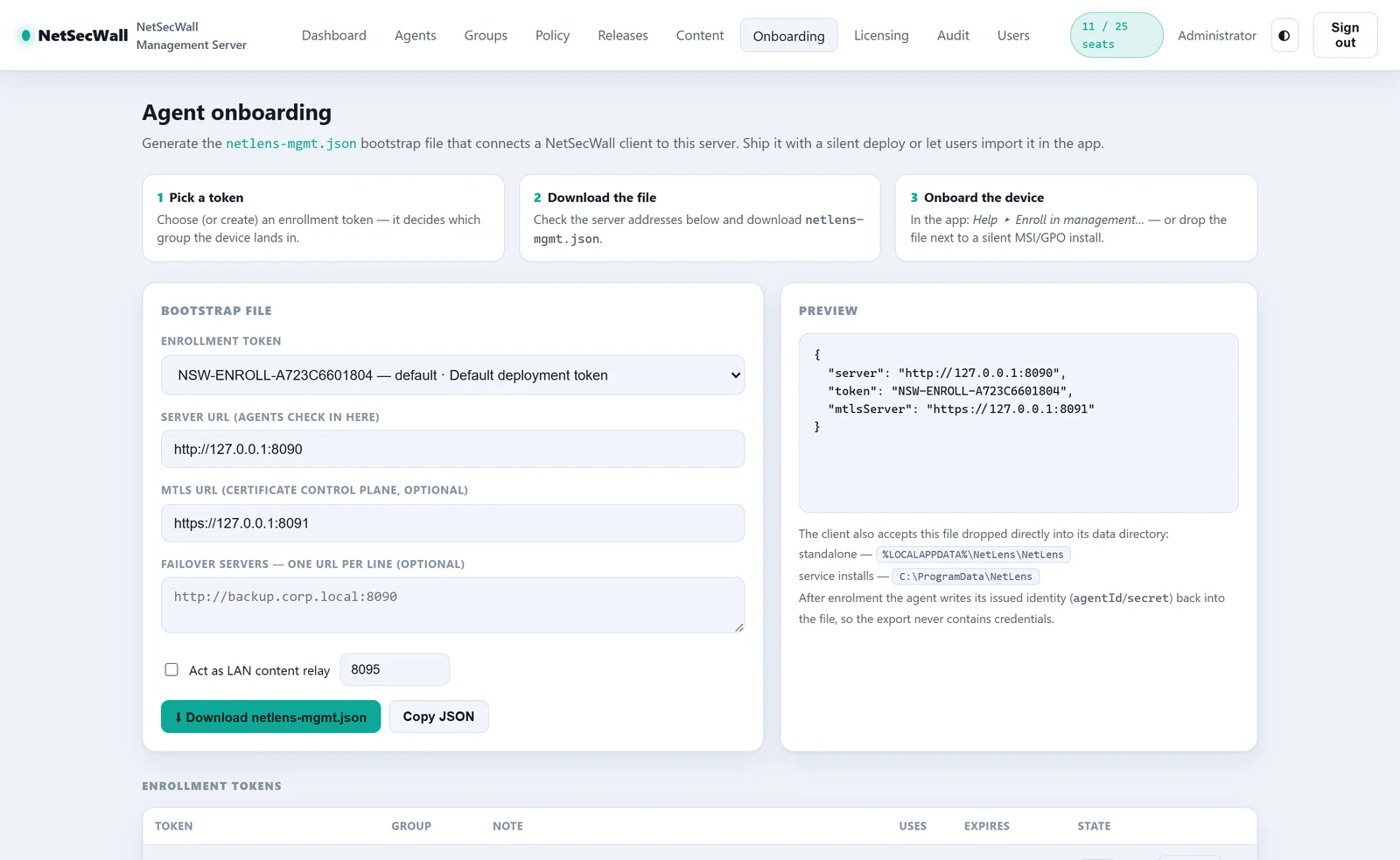
- In the console, open Onboarding ("Agent onboarding"), pick an enrollment token, and check that the server URLs use an address the PCs can reach. If you opened the console as
localhost, the file will point PCs atlocalhost. - Click Download netlens-mgmt.json.
- Copy the file to
C:\ProgramData\NetLens\netlens-mgmt.jsonon each PC. That's the location when the background service is installed, which is the default. If the folder doesn't exist yet, create it. NetSecWall restricts it to SYSTEM and Administrators the next time it runs. - The PC enrolls the next time an administrator opens NetSecWall. It then appears on the console's Agents page.
The management agent runs inside the desktop app, not in the background service. A PC enrolls, and later checks in, only while an administrator has NetSecWall open. Dropping the file in place doesn't enroll a PC on its own. Plan for someone to open the app on each PC.
Without the service, the file belongs in %LOCALAPPDATA%\NetLens\NetLens\ of the user who runs the app. That's one more reason to keep the service when you script a rollout. The onboarding file contains the enrollment token, so keep the share it sits on readable only by the accounts that need it. The details are in enrolling PCs with an onboarding file. After enrollment, pushing updates from the console replaces re-running the installer. The rest of the policy side is in managing firewall policy across dozens of PCs.
Before you roll out
Run the command on one test PC, read the log, open the app, and check the result. Then push it everywhere. The installer is on the download page.
Frequently asked questions
Can I pass a license key or enrollment token to the installer?
No. The installer has no switch for either. License each PC in the app, or place netlens-mgmt.json in the data folder for a Management Server to license it.
Does a silent upgrade keep users' rules and history?
Yes. Running the same install command over an existing copy upgrades it in place and keeps the license, history database, rules and settings.
Does NetSecWall start for the user after a silent install?
No. A silent install never opens the app window. With the background service installed, monitoring and enforcement start anyway. The app window opens when someone launches it.
How do I remove NetSecWall and everything it stored?
Run "%ProgramFiles%\NetSecWall\unins000.exe" /VERYSILENT /SUPPRESSMSGBOXES /NORESTART /PURGE=1. Without /PURGE=1, a silent uninstall keeps the history and settings for a later reinstall.
Is there an MSI version?
No. NetSecWall ships as a single EXE installer. Deployment tools that accept an EXE with a command line can install it.
Keep reading
 Managing firewall policy across dozens of PCs without a cloud console
Group the PCs on a Management Server you host yourself, set one policy with the wizard, lock what users mustn't change, and let each PC apply it at its next check-in. No cloud console.
Managing firewall policy across dozens of PCs without a cloud console
Group the PCs on a Management Server you host yourself, set one policy with the wizard, lock what users mustn't change, and let each PC apply it at its next check-in. No cloud console.
 Why some organizations keep security management on their own servers
Self-hosting keeps fleet data, policy and admin access inside your network. NetSecWall's Management Server (beta) contacts netsecwall.com once, to activate. Managed PCs still check for updates.
Why some organizations keep security management on their own servers
Self-hosting keeps fleet data, policy and admin access inside your network. NetSecWall's Management Server (beta) contacts netsecwall.com once, to activate. Managed PCs still check for updates.
 How to cut an infected PC off the network in one step
Contain first: stop the PC talking to the network so malware can't take orders, send data out or spread. On one PC, use Block all outbound (panic). On a managed fleet, use Isolate (beta).
How to cut an infected PC off the network in one step
Contain first: stop the PC talking to the network so malware can't take orders, send data out or spread. On one PC, use Block all outbound (panic). On a managed fleet, use Isolate (beta).
 Network visibility for a small office without an IT department
Watch three things on each PC: programs you don't recognize going online, unusually large uploads, and threat-list hits. Then add phone alerts and a 15-minute weekly review. No IT staff needed.
Network visibility for a small office without an IT department
Watch three things on each PC: programs you don't recognize going online, unusually large uploads, and threat-list hits. Then add phone alerts and a 15-minute weekly review. No IT staff needed.