Enroll PCs with an onboarding file
Download netlens-mgmt.json from the console's Onboarding page. Import it in NetSecWall with Help ▸ Enroll in management…, or copy it into the data folder after a silent install.
Management ServerOn this page
To enroll PCs in the management server, you create an onboarding file, netlens-mgmt.json, on the console's Onboarding page. Then either import it on each PC with Help ▸ Enroll in management…, or copy it into NetSecWall's data folder after a silent install. The PC contacts the server, takes a seat, and from then on gets its license, policy and updates from your server. The Management Server is part of NetSecWall Enterprise, which is in beta.
The management agent runs inside the NetSecWall desktop app, not the background service. A PC enrolls and checks in only while an administrator has NetSecWall open on it. The app doesn't start by itself when someone signs in, and there's no MSI and no installer switch that takes a token. Plan your rollout around that.
Before you enroll PCs in the management server
- The server is installed, its ports are open, and PCs can reach it by the name you'll put in the file. See installing the Management Server.
- Each PC has NetSecWall installed, ideally 1.2.1, which you can get from the download page.
- There's a free seat for each new PC.
Create the onboarding file
- In the console, open Onboarding ("Agent onboarding").
- Under Enrollment token, pick a token. The token decides which group the PC joins. To make a new one, use Create token at the bottom of the page, with a Note, Group, Expires (days) (365 by default, 0 means never) and Max uses (0 means unlimited).
- Check the three addresses: Server URL (agents check in here) on port 8090, mTLS URL (certificate control plane, optional) on 8091, and Enrollment URL (HTTPS, pinned to this server's CA) on 8443.
- You can leave the optional Failover servers box empty and Act as LAN content relay unticked.
- Click ⬇ Download netlens-mgmt.json, or Copy JSON.
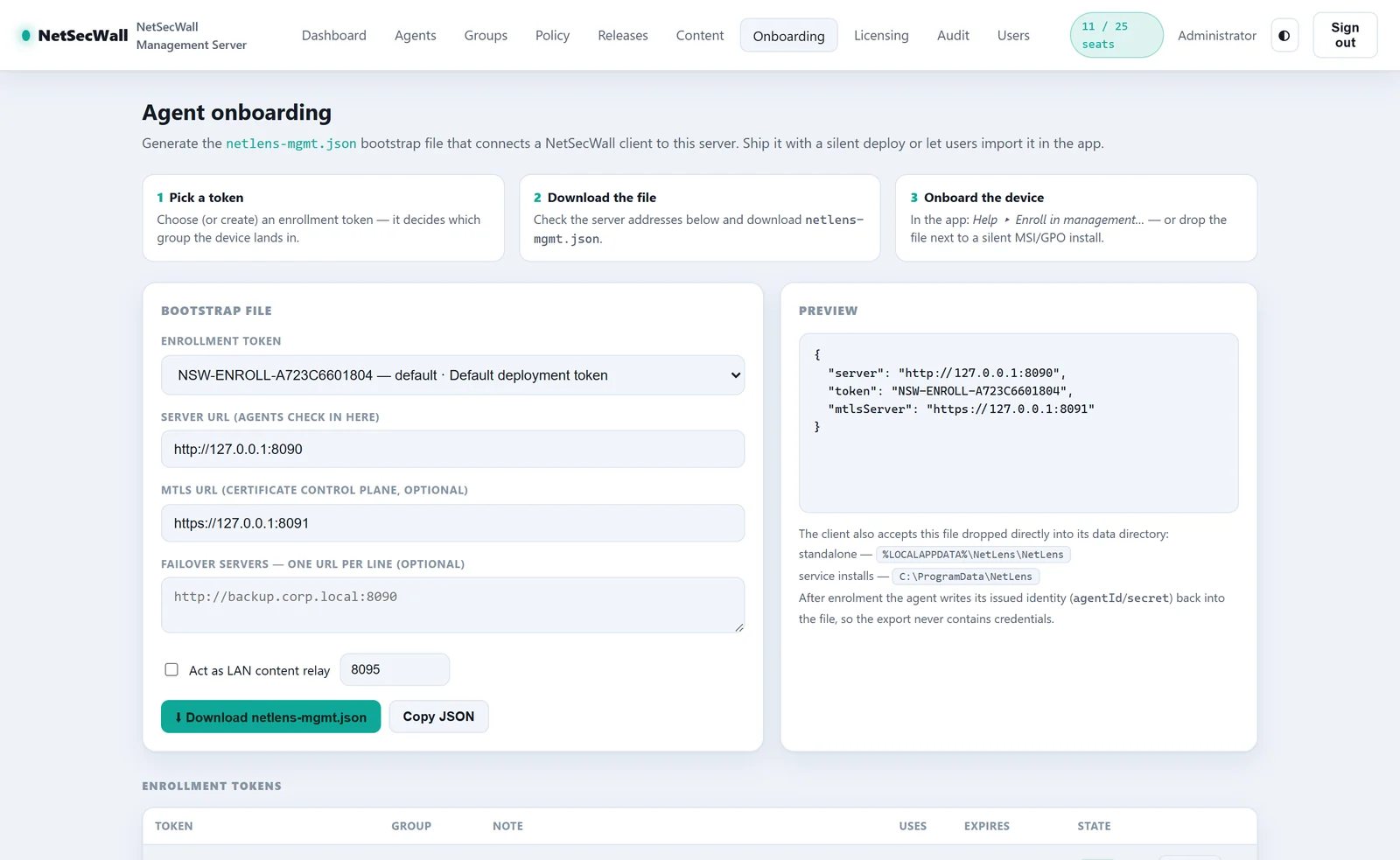
The addresses are filled in from however you opened the console. If you browsed to it as localhost, the file tells every PC to look for the server on itself. Open the console by the server's real name, or fix the fields before you download.
The token in the file looks like NSW-ENROLL-<12 characters>-<52 characters>. The long tail is your server's certificate fingerprint, so the PC enrolls over HTTPS and trusts only your server. Older short tokens without the tail enroll over plain HTTP.
Enroll a PC from the app
- Open NetSecWall on the PC. It runs with administrator rights.
- Choose Help ▸ Enroll in management…. It asks for the settings password if one is set.
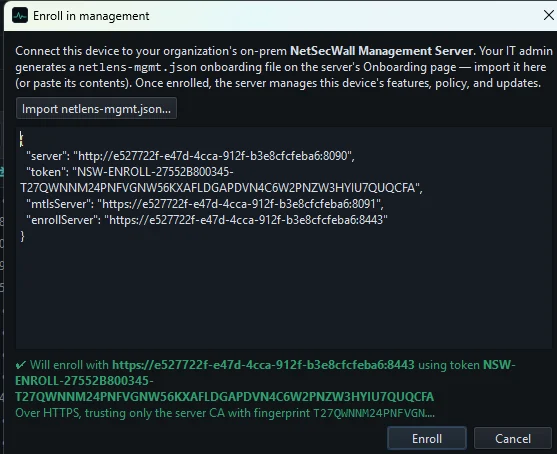
- Click Import netlens-mgmt.json… and pick the file, or paste its contents into the box.
- Check the green line "✔ Will enroll with server using token token". With a current token it adds "Over HTTPS, trusting only the server CA with fingerprint …".
- Click Enroll.
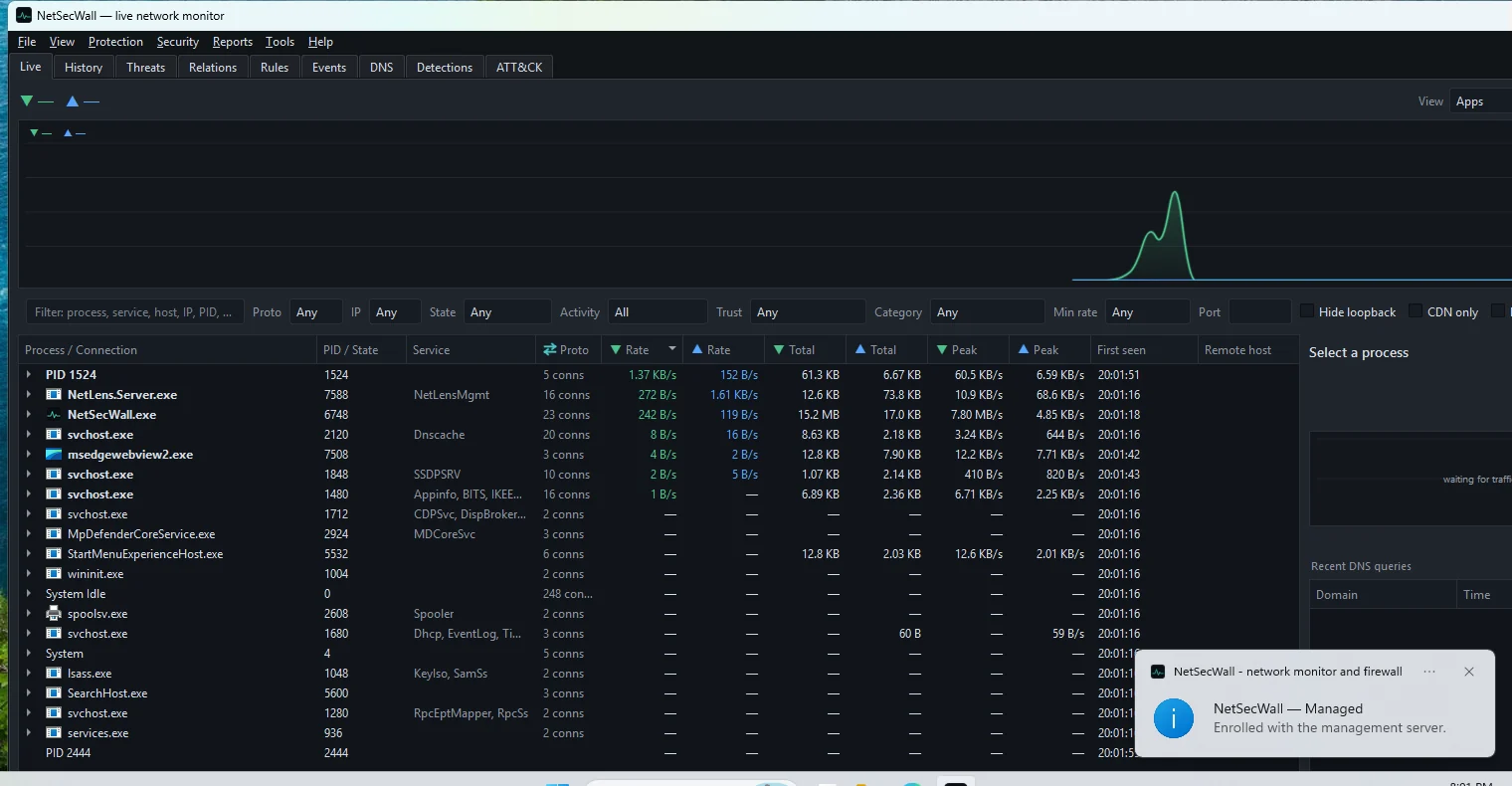
The tray shows "NetSecWall — Enrolling", then "NetSecWall — Managed", or "NetSecWall — Enrollment failed" with the reason, for example "The organization's agent seat limit has been reached."
What changes on a managed PC
- The plan shows as Managed. The trial and upgrade banner disappears, and the sign-in dialog is replaced by "This PC is managed by your organization…".
- The status bar shows Policy (N) once a policy applies. Settings your policy locks say "Locked by your management server's policy."
- Updates you push from the server install silently.
- The PC checks in every two minutes, and commands reach it right away while it's online.
- There's no option in the app to leave management.
At check-in the PC sends its device fingerprint, host name, Windows version, app version, policy state and the features in use. The current client doesn't send its alerts or detections to the server, so the dashboard's event figures stay empty.
Deploy to many PCs silently
- Install NetSecWall silently, for example
NetSecWall-1.2.1-Setup.exe /VERYSILENT /SUPPRESSMSGBOXES /NORESTART /RESTARTEXITCODE=3010. The background service is installed by default. The silent install page lists every switch and exit code. - Copy
netlens-mgmt.jsontoC:\ProgramData\NetLens\netlens-mgmt.json. If you installed without the service (/MERGETASKS="!installservice"), use%LOCALAPPDATA%\NetLens\NetLens\netlens-mgmt.jsonfor that user instead. - The PC enrolls the next time an administrator opens NetSecWall on it.
After enrolling, the agent writes its own identity back into that file. More on rollouts in silently deploying NetSecWall.
Seats
Each new PC takes a seat, and when none are free the server refuses it. Enrolling a PC the server already knows keeps its seat and gives it fresh credentials. Blocking a PC on the Agents page frees its seat straight away. The header shows seats in use, and Licensing lets owners and admins change the limit.
Frequently asked questions
Can a PC enroll when nobody is signed in?
No. The agent lives in the desktop app, so enrollment and check-ins happen only while an administrator has NetSecWall open.
How do I move a PC to another group?
On the Agents page, change its Group in the row, or tick several PCs and use Bulk action ▸ Move to group…. Policies then follow the new group. See policies and groups.
What happens to enrolled PCs if I revoke a token?
Nothing. Revoke stops new PCs from enrolling with that token. PCs already enrolled keep working.
Can a user take their PC out of management?
Not from the app. There's no leave-management option. To stop a PC counting against your seats, block it on the Agents page.