Push NetSecWall updates to managed PCs
Copy the signed installer into the server's releases folder, register it on the Releases page, then click Publish and Push. Managed PCs install it silently at their next check-in.
Management ServerOn this page
To push NetSecWall updates to managed PCs, copy the signed installer into the Management Server's releases\ folder, register it on the Releases page, and click Publish and then Push. At its next check-in, each managed PC on an older version downloads the installer from your server, checks it, and installs it silently. The Management Server is part of NetSecWall Enterprise, which is in beta.
Get the right installer
Download the installer from the NetSecWall download page, for example NetSecWall-1.2.1-Setup.exe, and don't repackage it. From version 1.2.1, a managed PC refuses any installer that isn't signed by the same publisher as the copy it's running. PCs still on 1.2.0 or older only check the file's SHA-256 fingerprint. What's new in each version is on the changelog.
The Releases page has no upload button. The file has to be in the releases\ folder next to NetLens.Server.exe before you register it.
Push NetSecWall updates: register, publish, push
- Copy the installer into the server's
releases\folder, for exampleC:\NetLens\releases\. - In the console, open Releases ("Releases & silent update push").
- Under Register a release, fill in:
- Version, for example
1.2.1. - Channel: stable or beta.
- Installer file (in releases/): the file name, for example
NetSecWall-1.2.1-Setup.exe. - Silent args: keep the default
/VERYSILENT /SUPPRESSMSGBOXES /NORESTART /RELAUNCH=1. - Release notes and Mandatory are optional.
- Version, for example
- Click Register. The server records the file's size and SHA-256 fingerprint from the copy in
releases\. - Click Publish in the release's row. Its state changes from draft to published.
- Click Push. The row shows "pushing".
Keep /RELAUNCH=1 in the silent arguments. It starts NetSecWall again after the update, and the management agent runs inside the app. Without it, the PC stops checking in until someone opens NetSecWall.
What happens on each PC
At its next check-in, every managed PC on an older version is offered the newest release that's both published and pushed. The PC then:
- Downloads the installer from your server, not from the internet.
- Checks its SHA-256 fingerprint against the one the server recorded.
- From 1.2.1, checks it's signed by the same publisher as the running copy.
- Runs it silently. NetSecWall closes, updates and reopens, keeping its settings and history.
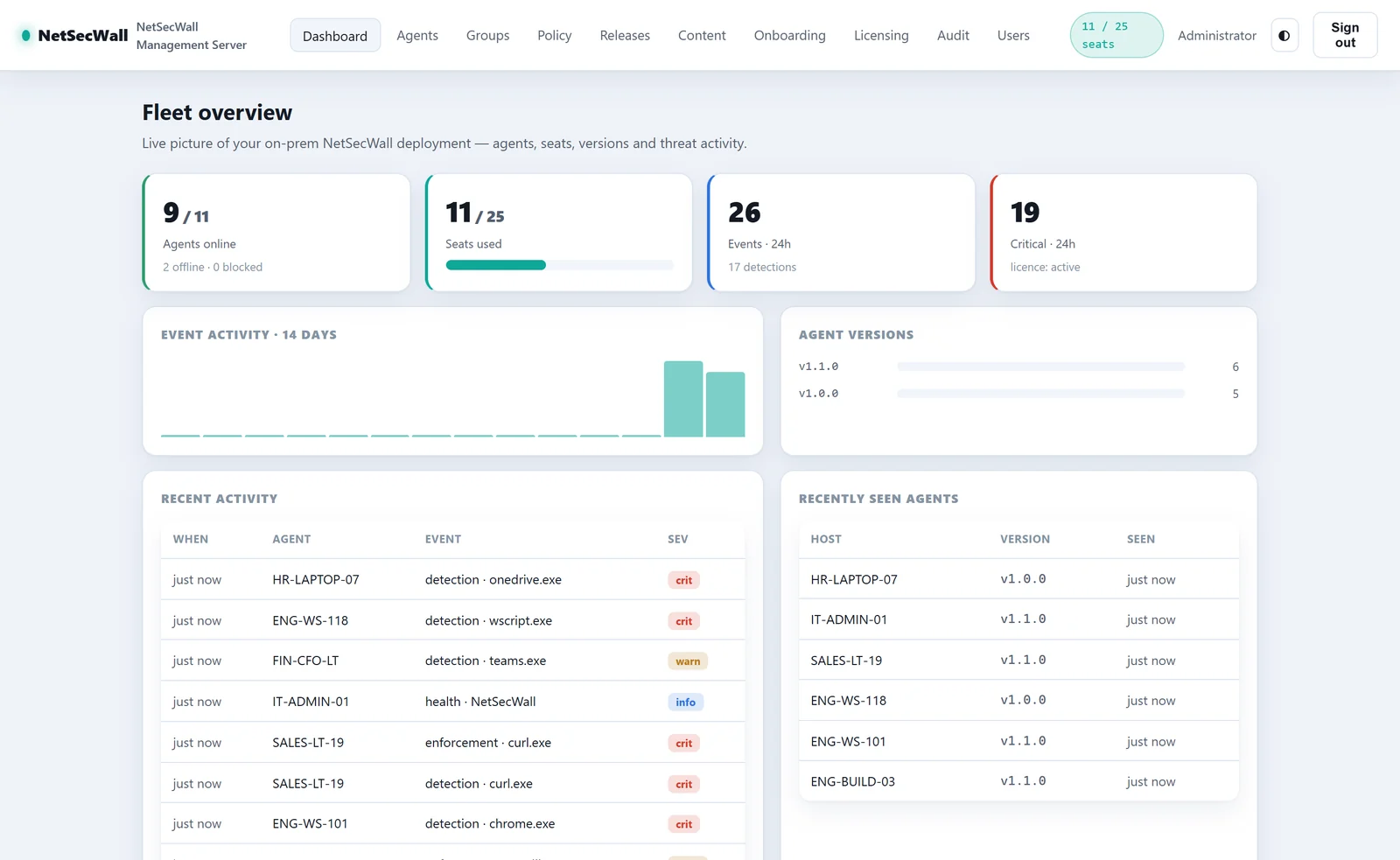
If a check fails, the PC keeps its current version and shows "NetSecWall — update not installed" with the reason. Watch the rollout in the Version column on the Agents page, the Agent versions card on the dashboard, and each PC's Version trail on its Agent detail page.
What pushing doesn't do
- Reach PCs where NetSecWall isn't open. The agent runs inside the desktop app, so a PC only checks in, and updates, while an administrator has NetSecWall open.
- Staged or partial rollouts. Every managed PC on an older version gets the newest pushed release. There's no percentage rollout and no per-group targeting, and the Channel field doesn't limit who gets it. To pause, click Stop push or Unpublish.
- Roll back. PCs are only offered versions newer than the one they run.
- Microsoft Store installs. A Store install would be updated only by the Store (the Store version isn't published yet). The console shows a "Store" badge on such PCs, refuses Push update for them, and skips them in bulk pushes.
The Push update command
The Push update button on the Agents page, on a PC's Agent detail page, or under Bulk action ▸ Push update tells an online PC to install the release it's been offered now, instead of waiting for its next check-in. It doesn't choose a version. The Releases page decides that. The command history shows whether each PC acknowledged it, or skipped it.
A Host Integrity Minimum agent version quarantines PCs below it, and a quarantined PC blocks all its own traffic, including traffic to your server. It then can't download the update that would fix it. Only raise the minimum once the pushed version is installed. See policies and groups and isolate and release.
Frequently asked questions
Can I push an update to one group first?
No. Pushing applies to every managed PC on an older version. For a trial run, update a few PCs by hand with the same installer before you click Push.
Does an update keep the PC's settings and enrollment?
Yes. Installing over an existing copy upgrades it in place, keeping settings, rules, history and the management enrollment. See updating NetSecWall for how updates work outside management.
Why didn't a PC update?
Usually NetSecWall wasn't open on it, it's a Microsoft Store install, it was already on that version, or the installer failed a check. The tray message "NetSecWall — update not installed" gives the reason.
Why does the signature check matter?
A PC on 1.2.1 or later only installs an installer signed by NetSecWall's publisher, even if someone swaps or alters the file on your server. The 1.2.1 release notes explain the change.