Managing firewall policy across dozens of PCs without a cloud console
Group the PCs on a Management Server you host yourself, set one policy with the wizard, lock what users mustn't change, and let each PC apply it at its next check-in. No cloud console.
Management Server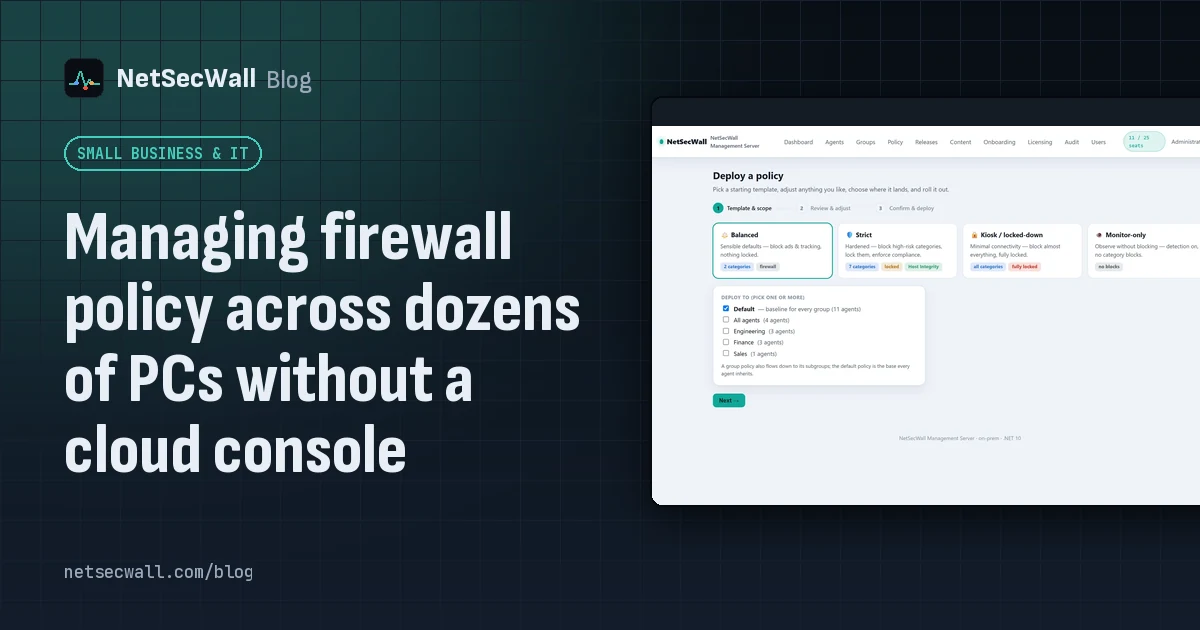
On this page
- Why policy drifts when every PC is set up by hand
- The built-in options, and where they stop
- Setting firewall policy for many PCs from one console
- Groups and inheritance
- What a policy can set
- Deploying a policy with the wizard
- Locks: stopping local changes
- Keeping every PC on the same version
- What "beta" means here
- Where to start
Firewall policy for many PCs drifts when each PC is set up by hand. Settings end up depending on who configured the machine and when. The NetSecWall Management Server fixes that from a machine inside your own network. You put PCs in groups, define a policy once, lock the parts users mustn't change, and each PC applies it at its next check-in, every two minutes. It contacts netsecwall.com once, to activate, and is currently in beta.
Why policy drifts when every PC is set up by hand
Dozens of PCs rarely get configured the same way. One was set up the week you bought it, another by a colleague who has since left, a third from memory after a reinstall. Someone switched a block off to get an app working and never switched it back. Versions differ, because updates were clicked on some machines and postponed on others.
The result is a question you can't answer quickly: what exactly is blocked on the accounting PCs right now? You find out one machine at a time, which means you mostly don't find out.
The built-in options, and where they stop
If your PCs are joined to an Active Directory domain, Group Policy can push Windows Defender Firewall settings and rules to them. It costs nothing extra and it works. But it manages rules, not visibility. It won't tell you which programs talk to where. It has no idea what a "gambling site" is, and it gives you no one-click response when a PC misbehaves. Many small organizations have no domain at all.
Cloud endpoint-management services can push firewall settings too. The price is that the console controlling every endpoint lives on someone else's servers. Some organizations can't or won't accept that, for reasons covered in why some organizations keep security management on their own servers.
Setting firewall policy for many PCs from one console
The Management Server is a Windows service you run on your own hardware, with a web console and a check-in API for the PCs. Each PC runs the normal NetSecWall app and joins the server with an onboarding file. See enrolling PCs.
Groups and inheritance
The Groups page holds a tree of groups, like folders. Every PC sits in one group. A PC's settings come from a chain: the default policy, then each parent group, then its own group, then an optional override for the network location it's on (for example on-site versus off-site).
Two rules decide how the chain combines. Blocked categories and locks accumulate down the tree, so a subgroup can add blocks but not remove its parent's. The enforcement engine, isolation, detection settings and host-integrity settings take the nearest value, so a subgroup can override them. The Policy page shows an Effective policy preview, so you can see what a group actually receives before you save.
What a policy can set
- Which of the 13 content categories are blocked (ads, tracking, adult, gambling, scam, and so on).
- The enforcement engine: Windows Firewall, the WFP packet filter, or both.
- Isolate: block all outbound traffic.
- Detection auto-response and its risk threshold (40–100).
- Locks on categories, engine and isolation.
- Host Integrity: a minimum app version, and quarantine when a PC's policy drifts.
A policy can't set app block rules, custom firewall rules, custom blocklists, parental controls, Learning mode, alert settings or allowlists. Those stay per PC. Plan for that.
Deploying a policy with the wizard
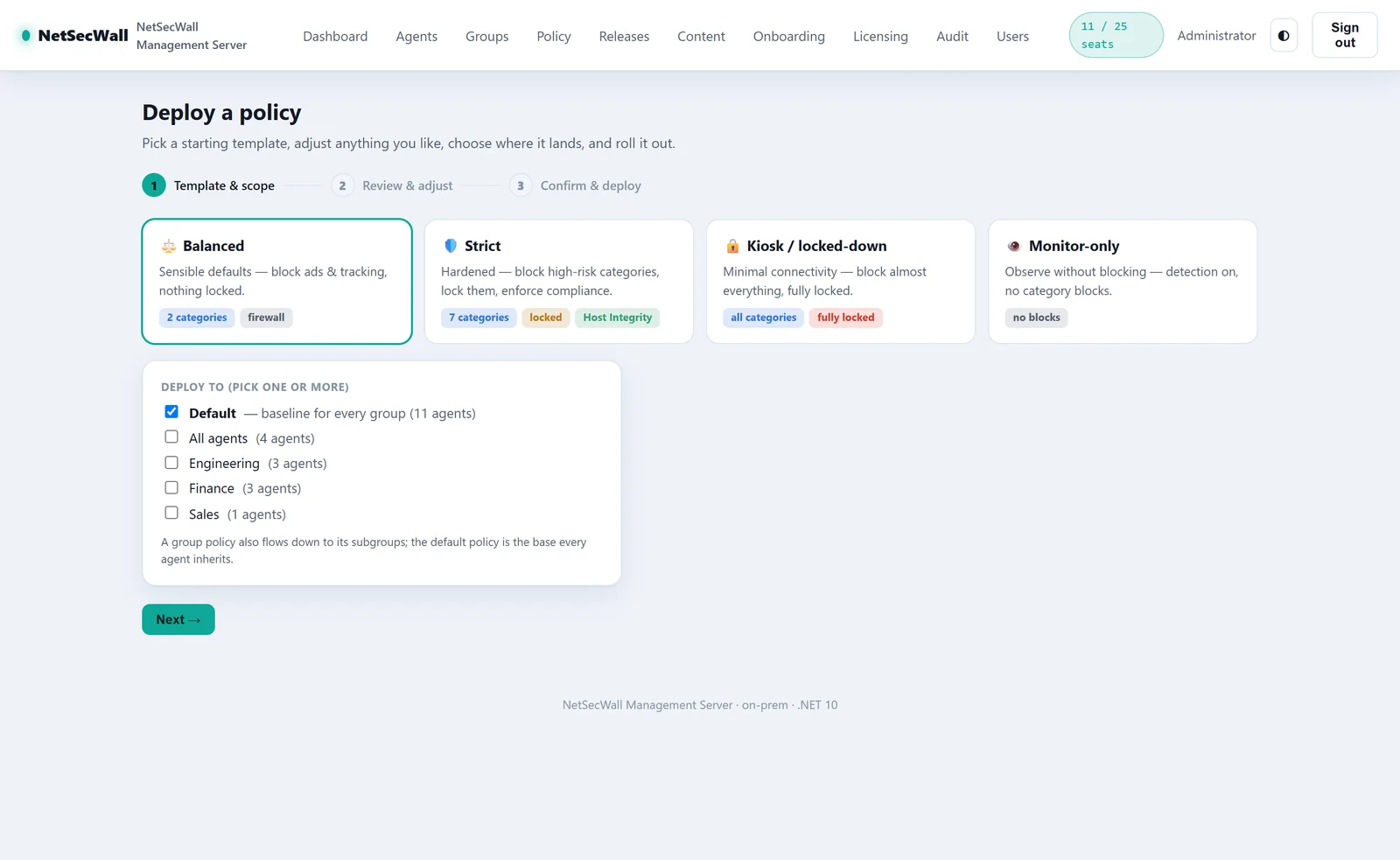
The wizard walks through three steps: Template & scope, Review & adjust, Confirm & deploy.
- Open Policy and choose Deploy with wizard.
- Pick a template (see the table below).
- Under Deploy to (pick one or more), tick the target groups and check the Agents in scope estimate.
- In Review & adjust, change the categories, engine and locks to fit.
- In Confirm & deploy, tick Push now if you want online PCs to apply it immediately rather than at their next check-in.
- Click Deploy policy.
| Template | Blocks | Engine | Locks and extras |
|---|---|---|---|
| Balanced | Ads and tracking | Windows Firewall | Categories locked |
| Strict | Ads, tracking, adult, gambling, scam, crypto-mining, piracy | Both | Categories and engine locked; minimum version and drift checks; auto-block at risk 75 |
| Kiosk / locked-down | All 13 categories | Both | Everything locked; minimum version and drift checks; auto-block at risk 70; does not isolate |
| Monitor-only | Nothing | — | — |
The step-by-step version with every field is in deploying policy to groups.
Saving a policy doesn't reach PCs instantly. Each PC picks it up at its next check-in, every two minutes, unless you send a resync with Push now.
Locks: stopping local changes
Anything a policy doesn't lock, the person at the PC can change, provided they have the rights to run NetSecWall. A locked item shows "Locked by your management server's policy." in the app, and the status bar marks the PC as running under a policy. Lock what matters to you, typically categories and the engine. Leave the rest flexible so people can get their work done.
Keeping every PC on the same version
Policy drift has a twin: version drift. The console's Releases & silent update push page handles it.
- Copy the new NetSecWall installer into the server's
releases\folder. There is no upload button. - Choose Register a release, enter the version, pick the file, and keep the default silent arguments.
- Publish it, then Push it.
Every PC on an older version (except Microsoft Store installs) installs the newest pushed release silently at its next check-in. Before installing, it checks the file's SHA-256. From 1.2.1 it also checks that the installer is signed by NetSecWall's publisher. There is no staged or per-group rollout, so test a release on one PC before you push it. The Agents page shows each PC's version, state, compliance and last check-in. Instructions: push NetSecWall updates to managed PCs.
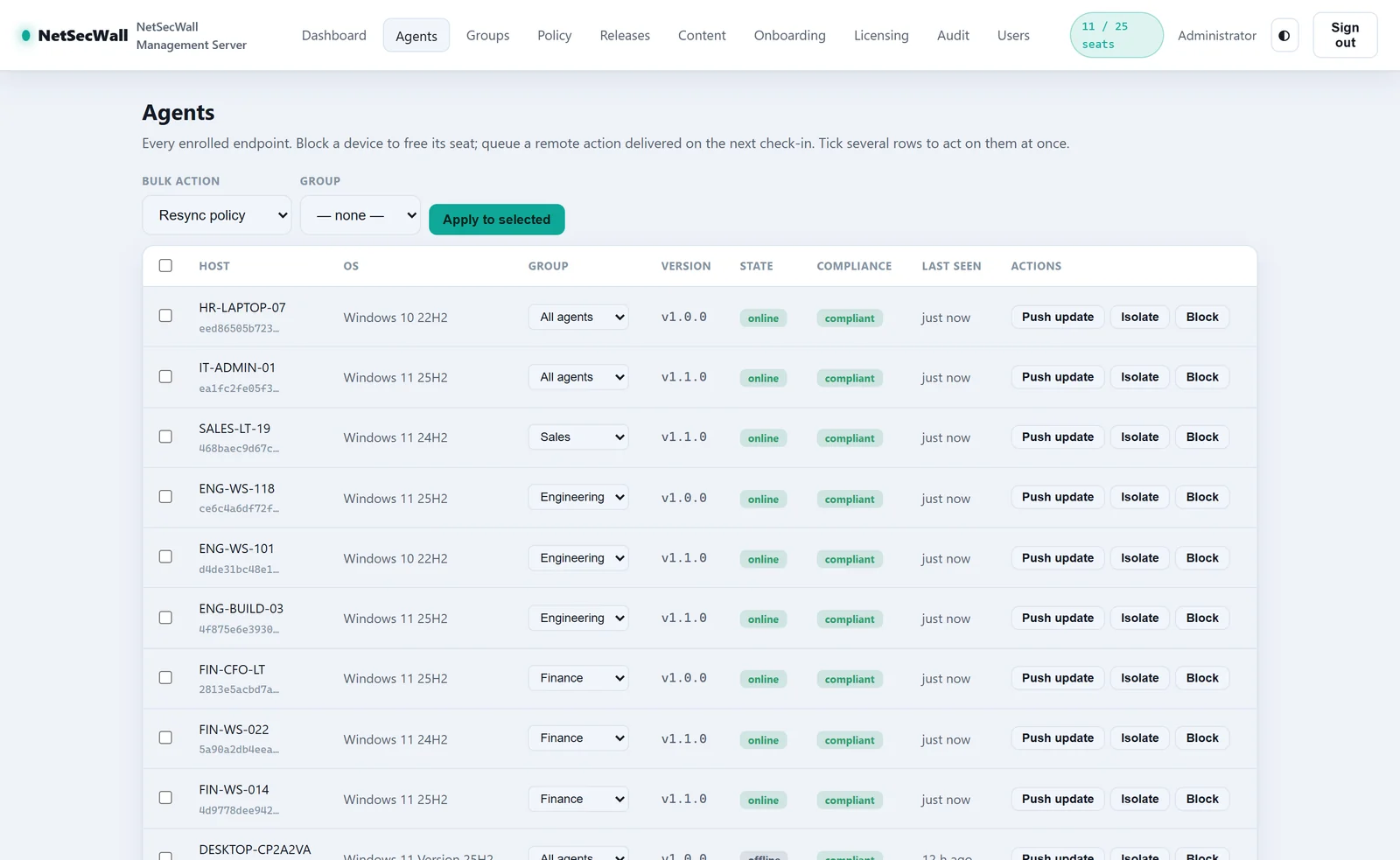
If Host Integrity quarantines PCs below a minimum version, a quarantined PC blocks all of its own traffic, including traffic to a server on another machine. It then can't fetch the update that would fix it. Push the release first, wait until the Agents page shows the PCs have updated, and only then raise the minimum.
What "beta" means here
Enterprise is in beta and sold through sales, with indicative pricing from $299 a year for 25 seats. Know the current limits before you plan a rollout:
- The agent lives in the desktop app. It doesn't run in the background service, so a PC enrolls and checks in only while an administrator has NetSecWall open. There is no headless enrollment.
- No events reach the server yet. The client doesn't send alerts or detections, so the dashboard's event figures stay empty and investigation happens on each PC.
- Isolation cuts off the server too. Isolating a PC blocks every address, including a management server on another machine. See cutting an infected PC off the network.
- The server runs on Windows only, uses its own certificate authority, and can't load your own certificate. Put a reverse proxy with a proper certificate in front of the console.
- No MSI and no token switch in the installer. You install the normal EXE silently and add the onboarding file. See silently deploying NetSecWall.
Where to start
Pilot it with one group of a few PCs. The setup is in installing the NetSecWall Management Server, and pilots are arranged through the Enterprise page.
Frequently asked questions
Does the Management Server need internet access?
Once, to activate its license with your Enterprise key. After that the server never contacts netsecwall.com. The managed PCs themselves may still reach netsecwall.com for the app's update check and hosted blocklists.
Can I push my own firewall rules to every PC?
Not today. A policy sets blocked content categories, the engine, isolation, detection auto-response, locks and host integrity. App rules and custom firewall rules stay per PC.
Do the PCs have to be in an Active Directory domain?
No. PCs join the server with an onboarding file and an enrollment token, not through domain membership.
How quickly does a policy change reach the PCs?
At each PC's next check-in, every two minutes, while an administrator has NetSecWall open on it. Ticking Push now in the wizard sends a resync so online PCs apply it straight away.
Can a user undo the policy on their own PC?
Only the parts you didn't lock. Categories, engine and isolation can each be locked. A locked setting can't be changed from the PC.
Keep reading
 Silently deploying NetSecWall to Windows PCs
Run the installer with /VERYSILENT /SUPPRESSMSGBOXES /NORESTART /RESTARTEXITCODE=3010 from your deployment tool, check the exit code, then license each PC or add a netlens-mgmt.json file.
Silently deploying NetSecWall to Windows PCs
Run the installer with /VERYSILENT /SUPPRESSMSGBOXES /NORESTART /RESTARTEXITCODE=3010 from your deployment tool, check the exit code, then license each PC or add a netlens-mgmt.json file.
 Why some organizations keep security management on their own servers
Self-hosting keeps fleet data, policy and admin access inside your network. NetSecWall's Management Server (beta) contacts netsecwall.com once, to activate. Managed PCs still check for updates.
Why some organizations keep security management on their own servers
Self-hosting keeps fleet data, policy and admin access inside your network. NetSecWall's Management Server (beta) contacts netsecwall.com once, to activate. Managed PCs still check for updates.
 How to cut an infected PC off the network in one step
Contain first: stop the PC talking to the network so malware can't take orders, send data out or spread. On one PC, use Block all outbound (panic). On a managed fleet, use Isolate (beta).
How to cut an infected PC off the network in one step
Contain first: stop the PC talking to the network so malware can't take orders, send data out or spread. On one PC, use Block all outbound (panic). On a managed fleet, use Isolate (beta).
 How to block a country on Windows
Windows has no country switch, so you block the country's IP ranges with firewall rules. NetSecWall does it with one right-click; geolocation is approximate, and CDNs and VPNs blur borders.
How to block a country on Windows
Windows has no country switch, so you block the country's IP ranges with firewall rules. NetSecWall does it with one right-click; geolocation is approximate, and CDNs and VPNs blur borders.