Network visibility for a small office without an IT department
Watch three things on each PC: programs you don't recognize going online, unusually large uploads, and threat-list hits. Then add phone alerts and a 15-minute weekly review. No IT staff needed.
NetSecWall for Windows
On this page
- Why small offices can't see their own network
- What is worth watching, and what isn't
- What Windows already gives you
- Setting up small office network visibility, PC by PC
- Which plan an office needs
- A 15-minute weekly routine
- When a Management Server makes sense
- Tell the people whose PCs you monitor
- Getting started
In an office of three to twenty people, watching the network is usually nobody's job, so problems get noticed late. Small office network visibility doesn't need a security team. You need three things: a per-PC view of which programs talk to the internet and how much they send, a few alerts that only fire when something deserves a look, and fifteen minutes a week to review them.
Why small offices can't see their own network
The router is the one device that sees all the traffic, and it tells you the least. Most small-office routers list connected devices and maybe total data. They don't say which program on which PC is doing the talking.
Meanwhile the PCs fill up with software nobody chose centrally. A PDF converter someone found online. A remote-support tool a vendor installed two years ago and never removed. A browser extension that came bundled with something else. In small offices people often have administrator rights on their own PC, so anything can be installed, and anything installed can connect out. Windows Firewall allows outbound connections by default, so none of it has to ask. See why outbound traffic matters.
Nobody looks until something breaks: the internet feels slow, a client gets a strange email "from you", or the bank calls.
What is worth watching, and what isn't
You don't need to understand every connection. Most of it is ordinary: browsers talking to dozens of content networks, Windows updating itself, cloud storage syncing. Three things are worth your attention:
- Programs you don't recognize going online. A new program, or one without a valid publisher signature, reaching the internet. Most are harmless. The point is that you find out. Unsigned programs deserve a closer look than signed ones.
- Uploads far bigger than usual. Office PCs mostly download. A PC that suddenly sends out hundreds of megabytes is either backing up, syncing, or leaking. Know which programs are supposed to upload, and question the rest. The upload pattern that should worry you explains what to look for.
- Connections to addresses on threat lists. Public lists of known malware servers, botnet control servers and attackers. A match is a lead, not a verdict, but it is the cheapest early warning there is.
What you can mostly ignore: which country each content network happens to be in, and the dozens of short connections Windows makes in the background.
What Windows already gives you
Windows has some of this built in. Resource Monitor (search for resmon) has a Network tab that lists processes with open connections right now. In an elevated Command Prompt, netstat -b prints connections with the program that owns each one.
Both are snapshots. Neither keeps a history, neither tells you what a program uploaded yesterday, and neither alerts you. They're good for answering "what is this PC doing right now?" when you are already sitting at it. They don't help with the question a small office actually has: "did anything odd happen this week?"
Setting up small office network visibility, PC by PC
NetSecWall runs on each Windows PC and records which program connected where, and how much it sent and received. It reads connection metadata only. It doesn't capture or decrypt what's inside the traffic. Here is a setup that works without an IT department.
- Install NetSecWall on each PC. By default the installer adds the background service, which records and enforces from boot, even with nobody signed in. For more than a few PCs, see silently deploying NetSecWall.
- Leave Protection ▸ Filtering mode ▸ Monitor only (no blocking) on for the first week and just watch. Your first week with NetSecWall explains what normal looks like.
- Open Security ▸ Alerts & detection…. Under Alerts, tick New app connects to the internet, Unsigned app connects to the internet and App uploads more than the threshold. Two alerts are already on: Suspicious process online (LOLBins · masquerade · MITRE ATT&CK) and App binary changed / signature regressed (supply-chain).
- Under Thresholds, set Upload alert threshold: to something that fits your office. The default is 100 MB.
- Under Remote alerts, tick Enable remote alerts, enter an ntfy topic: (or an HTTPS Webhook URL:), and click Send test.
- Set a password with Protection ▸ Settings password… so the settings can't be changed by whoever sits at the PC.

Give each PC its own ntfy topic with a hard-to-guess name, and subscribe to all of them in the ntfy app. The push carries the alert's title and text but not the PC's name, and anyone who knows an ntfy.sh topic name can subscribe to it.
The settings password can't be recovered or reset by support. Store it somewhere the office can find it.
After the first week, consider switching to Learning — ask when a new app connects. New programs are then held offline until someone answers an Allow / Allow once / Block pop-up. With a settings password set, allowing needs the password, so a new program stays offline until you approve it. Programs already online when you switch it on are approved automatically.
Which plan an office needs
NetSecWall is priced per device and billed yearly. These are the current introductory prices:
| Plan | Per device, per year | What it adds for an office |
|---|---|---|
| Monitor | $50 | Live monitoring and searchable history |
| Plus | $100 | Threat-list matching and behavioral detection |
| Family | $150 | Blocking (apps, countries, categories, everything) and parental controls |
| Pro | $200 | Alerts & 24/7 service (phone and webhook alerts) and the packet filter engine (WFP) |
The routine in this post uses Pro, because remote alerts are part of it. Payment is currently cryptocurrency only (USDC or USDT). Details are on the pricing page.
A 15-minute weekly routine
Pick a day. On each PC:
- Open Reports ▸ Last 7 days…. The report opens in your browser with totals downloaded and uploaded, the number of apps, alert events and threat endpoints, and the top apps and endpoints by data. It is generated when you ask for it. Nothing is emailed.
- Open the Threats tab and set the range to Last 7 days. An empty week reads "No threat-feed matches recorded in this range." For any row, double-click to open the IP dashboard and see which program made the connection.
- Open the Events tab, set Min severity to Medium+, and read what fired.
- Open the History tab, set Group by to Apps and Range to Last 7 days, and scan the upload totals for anything you can't explain.
- Glance at the Detections tab for programs with a high risk score.
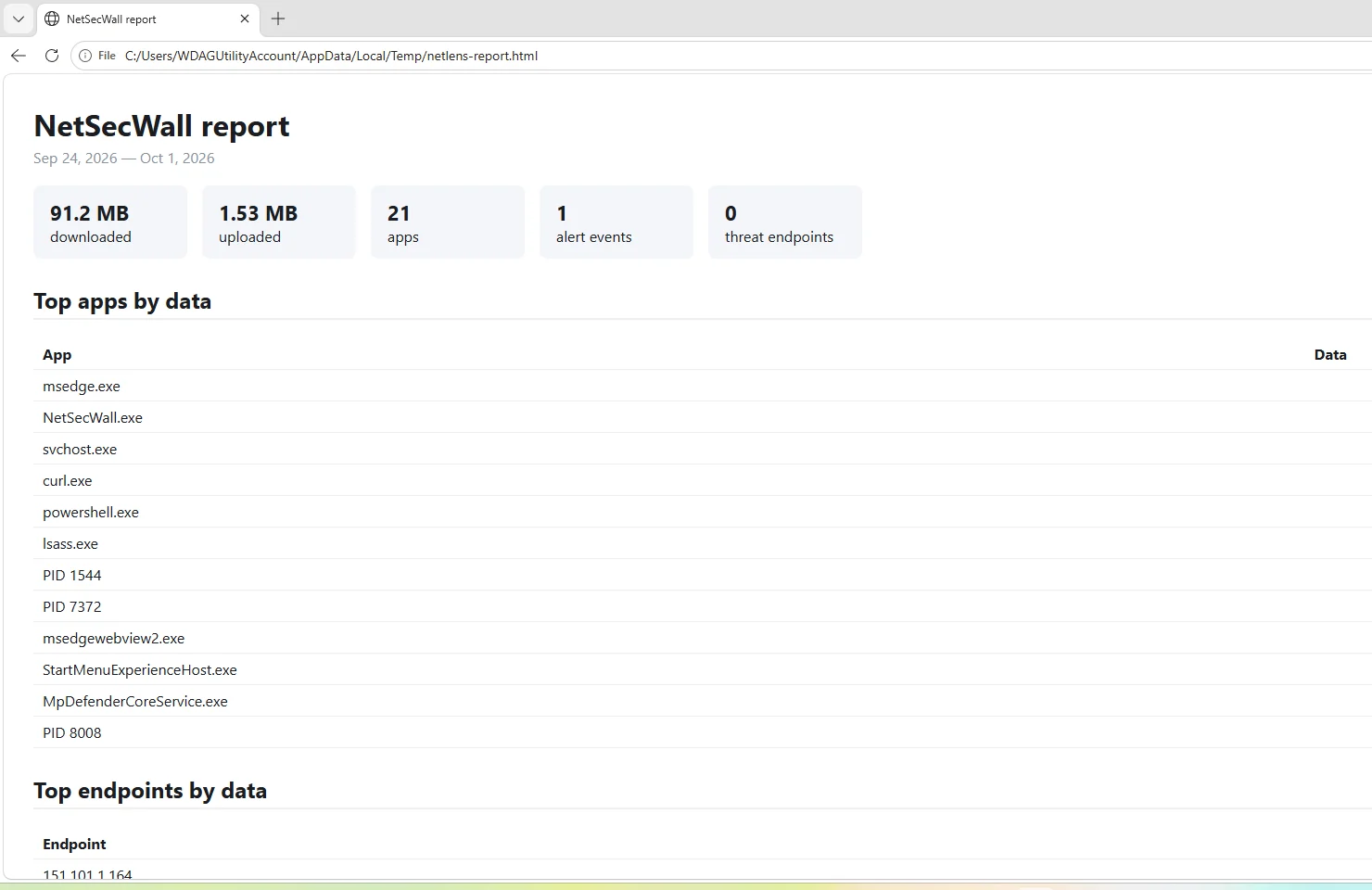
If something doesn't add up, network activity reports and choosing your alerts go into more detail.
When a Management Server makes sense
Walking to every PC works for a handful of machines. Past ten or so, it gets old. The NetSecWall Management Server is a console you host yourself. It holds PCs in groups, pushes one policy to all of them, pushes app updates silently and counts seats. It is part of NetSecWall Enterprise, which is in beta and sold through sales. Indicative pricing starts at $299 a year for 25 seats, with every desktop feature on every seat.
Be clear about what the beta does today:
- You run the server on a Windows machine of your own.
- The management agent runs inside the desktop app, so a PC enrolls and checks in only while an administrator has NetSecWall open.
- The current client doesn't send its alerts or detections to the server, so the weekly review above still happens on each PC.
- A policy covers blocked categories, the enforcement engine, isolation, detection auto-response and locks. It doesn't cover app rules or alert settings.
If that fits, read managing firewall policy across dozens of PCs and the Enterprise page.
Tell the people whose PCs you monitor
NetSecWall shows programs, addresses, domains and amounts of data, not the contents of anything. It is still monitoring, and people should know about it. Tell your staff what runs on their PCs and why. NetSecWall's acceptable-use terms expect it.
Getting started
Try it on one PC for a week before rolling it out. Download the 7-day trial. Every feature is unlocked, and it needs no card and no sign-up.
Frequently asked questions
Can NetSecWall show which websites an employee visited?
It shows which domains each program looked up and connected to, not page addresses or page contents. Browsers that use encrypted DNS hide even the domain names from the DNS log. It is a network monitor, not a staff-surveillance tool.
Does this replace our antivirus?
No. NetSecWall watches the network. It doesn't scan files or remove malware. Run it alongside Microsoft Defender or your antivirus of choice.
Do we need a server to use NetSecWall in an office?
No. Each PC runs NetSecWall on its own with its own license. The Management Server (beta) is optional and only worth it once visiting each PC becomes a chore.
Will monitoring slow the PCs down?
It shouldn't. NetSecWall reads connection information from Windows instead of sitting in the path of the traffic, so it adds no delay to connections.
Can alerts go to our team chat?
NetSecWall posts a small JSON payload to any HTTPS webhook URL you enter. Whether a chat tool accepts it directly depends on the format that tool expects, so use Send test to check.
Keep reading
 Is my computer being tracked? What your network traffic says
Almost certainly, by ad and analytics services, which is normal and mostly happens in your browser. Signs of worse are specific: unknown programs, steady check-ins and flagged addresses.
 Newly registered domains: a quiet warning sign
Phishing and malware campaigns tend to use domains registered days earlier, before blocklists catch up. A very young domain proves nothing alone, but it adds weight when an app already looks wrong.
 How to spot malware by its network traffic
Almost all malware has to talk to someone. Look for unknown or unsigned programs online, odd ports, check-ins on a timer, lopsided uploads, threat-listed addresses and Windows tools going online.
 Threat-intelligence IP lists: what they catch and what they miss
Threat-intelligence IP lists name addresses already tied to botnets, hacked machines, spam networks or Tor. They catch known infrastructure well but miss new servers and can mislabel shared addresses.