How to cut an infected PC off the network in one step
Contain first: stop the PC talking to the network so malware can't take orders, send data out or spread. On one PC, use Block all outbound (panic). On a managed fleet, use Isolate (beta).
NetSecWall for Windows Management Server
On this page
If you suspect malware, isolate an infected PC before you investigate it. Stop it talking to the network, so whatever is on it can't take instructions from its server, send your data out, or reach other machines. The quickest way is to unplug the cable or switch off Wi-Fi. When you can't, NetSecWall's Block all outbound (panic) mode blocks every outbound connection with one click. On PCs managed by a NetSecWall Management Server (beta), the console's Isolate command does the same from a distance, with one important catch.
Why containment comes first
Incident-response playbooks put containment ahead of cleanup. The order is contain, then investigate, then clean up or rebuild. The reasons are practical:
- Malware that can't reach its server can't be told what to do next. Much of it checks in with a command server for instructions. That is what beaconing is.
- Data that can't leave isn't stolen. An upload in progress is the thing you most want to stop.
- An isolated PC can't spread. It can't reach shared folders, other PCs or the servers it has credentials for.
Two things not to do in a hurry. Don't switch the PC off unless you must, because some evidence only exists in memory and a shutdown destroys it. And don't sign in to other accounts from it.
Unplugging: the built-in way
The Windows way to isolate a PC is physical. Pull the network cable, turn on airplane mode, or switch off Wi-Fi. It works, it's free, and for a desktop in front of you it's often the right first move.
It has limits. A laptop user can switch Wi-Fi back on without thinking. Windows may reconnect to a known network by itself. A PC in another building or at someone's home can't be unplugged by you. And once the cable is out, there is no switch to flip back from a distance when you've finished.
How to isolate an infected PC on its own
On a PC running NetSecWall, one menu item blocks every outbound connection.
- Open NetSecWall on the affected PC.
- Choose Protection ▸ Filtering mode ▸ Block all outbound (panic).
- Check the tray message "Block-all ON" and the status bar, which shows that Block-all is on.
There's a quicker switch on the tray icon: right-click it and choose Block ALL internet. It needs a plan with blocking (Family or Pro) or the trial. If a settings password is set, it asks for it.

By default, programs can still talk to other programs on the same PC (loopback), which some software needs to keep working. If you want a literal block-everything, untick Protection ▸ Filtering mode ▸ Block-all: allow local (loopback) traffic.
Block all outbound cuts remote sessions, including the one you may be using to reach the PC. Remote Desktop, SSH and remote-support tools all drop. Only switch it on from the PC itself, or when someone can get to the keyboard to switch it off. It stays on until you change the filtering mode. It is not a timer.
Two honest limits. First, this blocks connections the PC starts. It doesn't change which inbound connections Windows Firewall accepts, and those rules still decide what can connect in. Second, NetSecWall is not an antivirus. Blocking stops the malware reaching the network. It doesn't remove it. More in cutting all internet access.
Isolating a managed PC from the console (beta)
If your PCs are enrolled in a NetSecWall Management Server, you can isolate one without walking to it. Enterprise is in beta.
- In the console, open Agents and find the PC.
- Click Isolate on its row. For several PCs, tick them and choose Bulk action ▸ Isolate ▸ Apply to selected.
- Watch the command move from pending to delivered to acknowledged.
On the PC, Isolate turns on the same Block ALL internet switch as the tray menu. The command arrives straight away if the PC has a live connection to the server, otherwise at its next check-in, within two minutes. Like every check-in, that only happens while an administrator has NetSecWall open on the PC, because the management agent runs inside the desktop app.
The catch: isolation also cuts off your management server
Isolation blocks every address, and that includes the Management Server when it runs on another machine. Once a PC is isolated, it can't hear the console's Release command (NetSecWall 1.2.1 and later) or receive a pushed update. Plan to end an isolation at the PC:
- When the PC is clean, sign in at its keyboard.
- Right-click the NetSecWall tray icon and untick Block ALL internet. If a settings password is set, you'll need it.
That local switch works both ways. The person at the PC can also turn isolation off, unless a settings password is set or the policy locks isolation. Set a password on PCs where that matters. Don't treat isolation as tamper-proof: it is a local block that an administrator on that PC can reverse.
Isolation set inside a policy, rather than sent as a command, stays until the policy changes, and an isolated PC can't fetch the changed policy from a server on another machine. For incident response, use the Isolate command. The full procedure is in isolating and releasing a device.
After containment
Blocking buys you time. Use it in this order.
- Look at what happened. NetSecWall keeps its record of the PC's activity before the block. The Detections and ATT&CK tabs show risk-scored programs and correlated incidents, the Threats tab shows hits on threat lists, and History shows what each program sent and where. Reading the ATT&CK tab and spotting malware by its network traffic help here.
- Scan with your antivirus. Microsoft Defender's offline scan is built into Windows Security.
- Change passwords from a different, clean device, starting with anything used on the infected PC.
- Decide whether to clean or rebuild. If you can't explain what ran, reinstalling Windows is the safer answer.
- Lift the block last, once you're satisfied.
Be ready before you need it
Isolation is only one click if the switch is already installed. Set NetSecWall up on your PCs now, while nothing is wrong. Download the 7-day trial.
Frequently asked questions
Is unplugging the network cable enough?
For a desktop in front of you, it's a good first step. It doesn't stop the PC from reconnecting over Wi-Fi, and it can't be done from a distance. A software block covers both.
Does Block all outbound remove the malware?
No. It stops programs on the PC from opening network connections, so malware can't reach its server or spread. Removing it is a job for your antivirus, or for a reinstall.
Does the block stay on after a restart?
If you switched it on with Protection ▸ Filtering mode, yes. The filtering mode is a saved setting that NetSecWall reapplies every time it starts. With the background service installed, which is the default, that happens from boot. Check the status bar after any restart to be sure.
Is the console's Block button the same as Isolate?
No. Block on the Agents page refuses the PC at the server and frees its seat. It doesn't touch the PC's internet. Isolate is the command that cuts the PC off the network.
Can I release an isolated PC from the console?
Only if the PC can still reach the server. Isolation blocks the connection to a server on another machine too, so in practice you end it at the PC from the tray menu.
Keep reading
 Why is an app on my PC talking to a Tor exit node?
Usually because something on your PC accepts connections arriving through Tor, a peer-to-peer app met a Tor user, or a program uses Tor itself. Malware does too, so check the app and direction.
Why is an app on my PC talking to a Tor exit node?
Usually because something on your PC accepts connections arriving through Tor, a peer-to-peer app met a Tor user, or a program uses Tor itself. Malware does too, so check the app and direction.
 Why you need a firewall and an antivirus, and what each one misses
An antivirus judges files and program behavior; a firewall judges connections. Each misses what the other sees, from a clean-looking tool phoning out to malware that never touches the network.
Why you need a firewall and an antivirus, and what each one misses
An antivirus judges files and program behavior; a firewall judges connections. Each misses what the other sees, from a clean-looking tool phoning out to malware that never touches the network.
 Living off the land: when Windows' own tools go rogue
Attackers often skip custom malware and use tools Windows already ships, such as PowerShell, certutil and mshta. The files are genuine, so the tell is behavior, like those tools reaching the internet.
Living off the land: when Windows' own tools go rogue
Attackers often skip custom malware and use tools Windows already ships, such as PowerShell, certutil and mshta. The files are genuine, so the tell is behavior, like those tools reaching the internet.
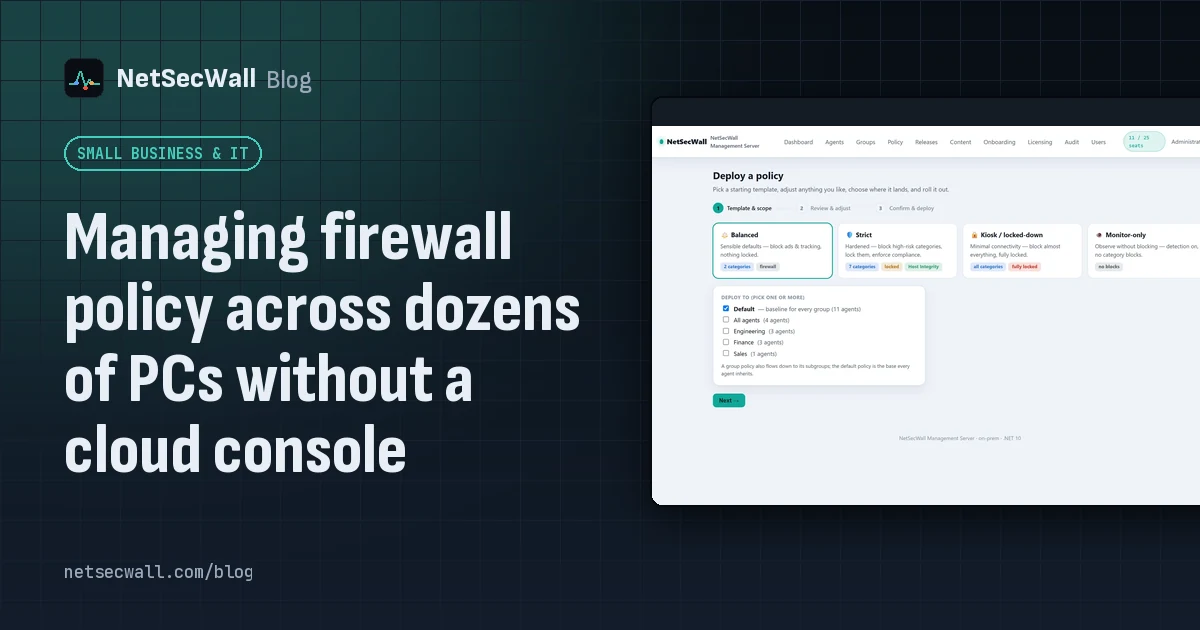 Managing firewall policy across dozens of PCs without a cloud console
Group the PCs on a Management Server you host yourself, set one policy with the wizard, lock what users mustn't change, and let each PC apply it at its next check-in. No cloud console.
Managing firewall policy across dozens of PCs without a cloud console
Group the PCs on a Management Server you host yourself, set one policy with the wizard, lock what users mustn't change, and let each PC apply it at its next check-in. No cloud console.