Sign in or activate a license key
Open Help ▸ Sign in to NetSecWall…, then sign in with your account email and password, or click Have a license key?, paste your key and click Activate key. It needs internet once.
NetSecWall for WindowsOn this page
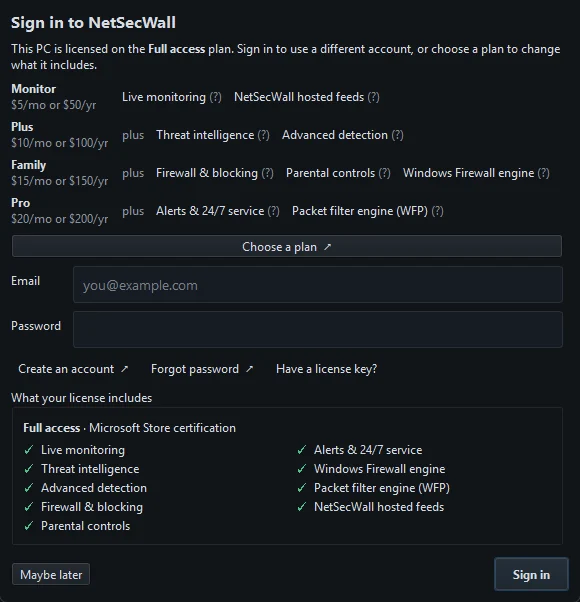
To activate a NetSecWall license key or sign in after you buy a plan, open Help ▸ Sign in to NetSecWall…. Either sign in with the email and password of your NetSecWall account, or click Have a license key?, paste the key from your email and click Activate key. The PC needs to be online for this once; after that NetSecWall keeps working offline.
Where to find your license key
- It is shown on screen as soon as your payment is confirmed.
- It is emailed to the address you entered at checkout at the same moment.
- If you've lost it, your account page on netsecwall.com can email your keys to you again.
A key looks like NETSECWALL-XXXX-XXXX-XXXX-XXXX. Your purchase also comes with a NetSecWall account under the same email address. If the purchase created it, a password was emailed to you, and Forgot password in the sign-in dialog resets it.
Option 1: sign in with your account
- Open NetSecWall and choose Help ▸ Sign in to NetSecWall…. On the lock screen or the trial banner, the Sign in button opens the same dialog.
- Type your Email and Password.
- Click Sign in. NetSecWall says it has signed you in and is checking your license.
- When the check comes back, the What your license includes box lists your plan and the features it unlocks. Click Done.
Signing in with your account binds the license to this PC, and it also enables Help ▸ Open my account in browser…, which opens your account on netsecwall.com without typing the password again.
Option 2: activate a NetSecWall license key
- Choose Help ▸ Sign in to NetSecWall….
- Click Have a license key?. A key box appears.
- Paste the key. Upper or lower case doesn't matter, and spaces around it are ignored.
- Click Activate key, or press Enter.
- NetSecWall reports that the license is activated and names the plan. Check the What your license includes box, then click Done.
Copy the key from the email rather than typing it. Most "key isn't recognized" errors are a mistyped character.
What "What your license includes" shows
The box lists the plan name and every feature that is switched on for this PC, each with a tick, for example Live monitoring, Threat intelligence or Parental controls. Hover over a feature to see what it does. This is what NetSecWall's server actually granted, so if something you paid for is missing here, open a support ticket.
During the trial, the box adds how many trial days are left. A plan activated during the trial doesn't shorten it: everything stays unlocked until the 7 days are up, then your plan's features apply. See how the free trial works.
"Verify this PC in your browser"
Sometimes the server asks for a quick human check before it accepts a sign-in from the app. A Verify this PC in your browser button then appears in the dialog. Click it, complete the one-click check in your browser, then click Sign in again.
After activation: going offline
NetSecWall saves your entitlement on the PC and checks it again at launch and every 24 hours when it can reach the server. Without internet it keeps working on the saved copy until the license's own end date. The details of what the check sends are in exactly what NetSecWall sends over the internet.
Signing out releases the license
If you signed in with your account, the dialog shows a Sign out button. Signing out releases the license seat for this PC so you can use it on another one. Protection stops unless the PC is still inside its trial. Move your license to another PC walks through a move, including a PC that was activated with a key only.
On a PC managed by an organization, this dialog is replaced by a message that the PC is managed and there is nothing to sign in to.
If activation fails
- "That key isn't recognized." Check it against your email and try again.
- "That key has expired." Renew it from your account.
- "That key has been revoked." The message gives the reason; contact support.
- "Couldn't reach the server." Check the PC's internet connection, and any firewall rule you made that might block NetSecWall itself.
More causes and fixes are in license key errors and the lock screen.
Frequently asked questions
Do I need an account, or is the license key enough?
The key is enough to activate a PC. Signing in with your account does the same and adds two conveniences: Sign out to release the license, and Open my account in browser….
Where do I enter my NetSecWall license key?
In Help ▸ Sign in to NetSecWall…. Click Have a license key?, paste the key into the box that appears and click Activate key.
Does NetSecWall need the internet to stay activated?
Only now and then. It checks at launch and every 24 hours when it can, and keeps working offline on the saved entitlement until the license expires.
I bought a plan during the trial. Did I lose the remaining trial days?
No. Everything stays unlocked until the trial's 7 days end. After that, you have the features of the plan you bought.