Install the NetSecWall Management Server
The beta Management Server has no installer. Copy NetLens.Server.exe and appsettings.json to a Windows machine, register it as a service with sc.exe, open ports 8090, 8091 and 8443, then sign in.
Management ServerOn this page
To install the NetSecWall Management Server, you copy one self-contained program, NetLens.Server.exe, and its appsettings.json to a Windows machine and register it as a service with sc.exe. There's no installer. Then you open ports 8090, 8091 and 8443 in that machine's firewall and sign in to the console at https://<server>:8443 as admin@netlens.local with the password admin, which you're made to change straight away.
NetSecWall Enterprise, including the Management Server, is in beta and sold through sales rather than online checkout. Pricing starts at $299/yr for 25 seats. See Enterprise.
What you need
- A Windows x64 machine. It can be Windows Server 2016 to 2025 or a Windows 10/11 workstation. The server is Windows-only because it runs as a Windows service and protects its keys with Windows' own encryption. It doesn't run on Linux.
- The server files:
NetLens.Server.exe(self-contained, so no .NET runtime to install) andappsettings.json. If you don't have them, ask through Enterprise support. - Administrator rights on that machine, and a network path from your PCs to it on the three ports below.
- An Enterprise license key, when you're ready to activate. Until then the server runs on a built-in demo license.
No CPU, memory or disk figures are published for the beta.
Install the NetSecWall Management Server as a service
-
Create a folder such as
C:\NetLensand copyNetLens.Server.exeandappsettings.jsoninto it. The database,certs\,releases\andcontent\folders are created next to the program. -
Open an elevated Command Prompt and register and start the service:
sc.exe create NetLensMgmt binPath= "C:\NetLens\NetLens.Server.exe" start= auto sc.exe description NetLensMgmt "NetSecWall on-prem fleet management server" sc.exe start NetLensMgmtsc.exeneeds the space afterbinPath=andstart=. -
Open the ports in the server's firewall. The server doesn't do this itself. In an elevated PowerShell:
New-NetFirewallRule -DisplayName "NetSecWall Management Server" -Direction Inbound -Protocol TCP -LocalPort 8090,8091,8443 -Action Allow -
Check it's up:
http://localhost:8090/healthzshould answer with"ok":true.
| Port | Protocol | Used for |
|---|---|---|
| 8090 | HTTP | Agent check-ins, enrollment with older tokens, and the console behind a proxy |
| 8091 | HTTPS with mutual TLS | The agent control plane. Each PC presents its own client certificate. |
| 8443 | HTTPS | The admin console, and enrollment pinned to the server's certificate authority |
The ports are fixed and can't be changed.
Sign in for the first time
- Browse to
https://<server-name>:8443. - Get past the certificate warning (explained below).
- Sign in as
admin@netlens.localwith the passwordadmin. - Set a new password of at least 10 characters. The console won't open anything else until you do ("This account still uses the default password. Set a new one to continue.").
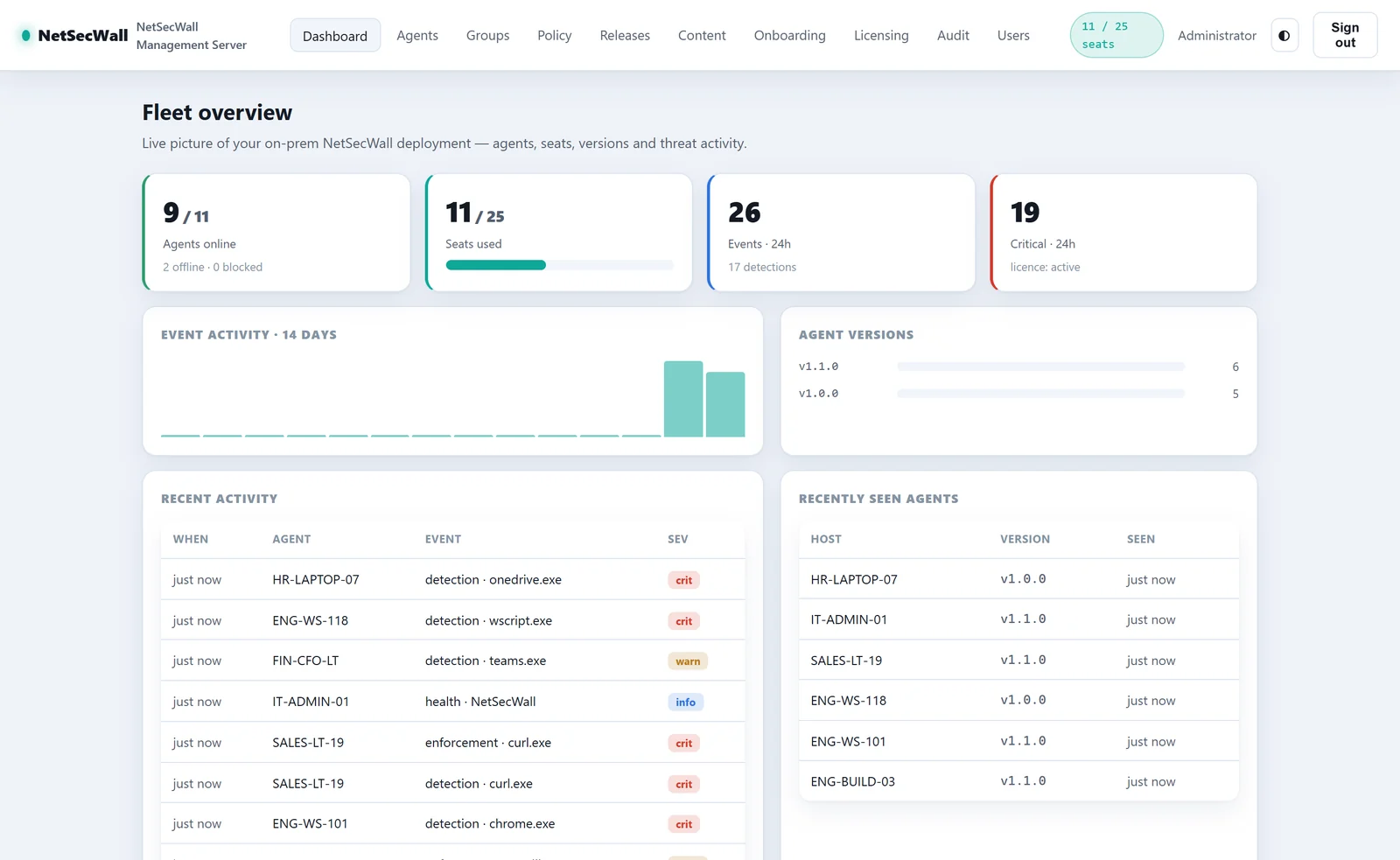
The first run also creates a demo license (25 seats, all features, valid for one year), a group called "All agents", an enrollment token, and a "Default policy" that blocks ads and tracking with the Windows Firewall engine and locks categories. Add more console users on the Users page, with the owner, admin, operator or viewer role. Five failed sign-ins from one IP address lock that account for 15 minutes.
The certificate warning
On first run the server creates its own certificate authority, "NetLens Management CA", and a server certificate for localhost, netlens-mgmt, the machine's name and full domain name, and 127.0.0.1. Browsers don't trust that authority, so they warn on port 8443. You can't load your own certificate into the server. For production, put a reverse proxy with a real certificate in front of the console, or have your admin machines trust the internal authority.
PCs don't depend on browser trust. Their enrollment token carries the authority's fingerprint, and they trust only that. If PCs will reach the server by another DNS name, add it to ServerHostnames in appsettings.json and restart the service. The server certificate is reissued to cover it, and the authority stays the same.
Settle the host and its name before you enroll PCs. The certificate authority is created on first run and sealed to this machine, and every enrollment token carries its fingerprint.
Choose the database
By default the server uses a SQLite file, netlens-mgmt.db, next to the program. For SQL Server, set NetLens:Database:Provider to "sqlserver" in appsettings.json and put your connection string in ConnectionStrings:Db. The database migrations are included. All configuration lives in that file, so restart the service after editing it. Events and finished commands older than 90 days are pruned (NetLens:Retention:EventDays, 0 keeps everything). The audit log is never pruned.
Activate your license
- Open Licensing ("Licensing & seats").
- Paste your Enterprise key (
NETSECWALL-…) in Activate with a NetSecWall cloud key (Enterprise plan). - Click Activate.
This makes one outbound HTTPS call to netsecwall.com to fetch your plan, features, seat cap and expiry. After that the server doesn't contact NetSecWall again. There's no offline license file, so the server needs internet access once for this step. If you never activate, the demo license expires a year after first run and every managed PC locks. Activating a new key replaces the current license. Keys don't add together.
Next: enroll your PCs and set up groups and policy.
Frequently asked questions
Does the Management Server need internet access?
Only once, to activate your key. After that it runs entirely on your network. Managed PCs may still contact netsecwall.com themselves, for the update check and the hosted blocklists.
Can I run the server on Linux?
No. It's Windows-only, because it runs as a Windows service and seals its keys with Windows data protection.
Can I use my own TLS certificate?
Not in the server itself. Put a reverse proxy with your certificate in front of the console. Agents keep using the server's internal authority.
Where do updates for managed PCs come from?
You register client installers on the server's Releases page and push them. See pushing updates to managed PCs, and read why some organizations keep management on their own servers.