Isolate a device and release it
Click Isolate on the Agents page to turn on Block ALL internet on that PC, and Release (NetSecWall 1.2.1 and later) to end it. Isolation also cuts the PC off from a server on another machine.
Management ServerOn this page
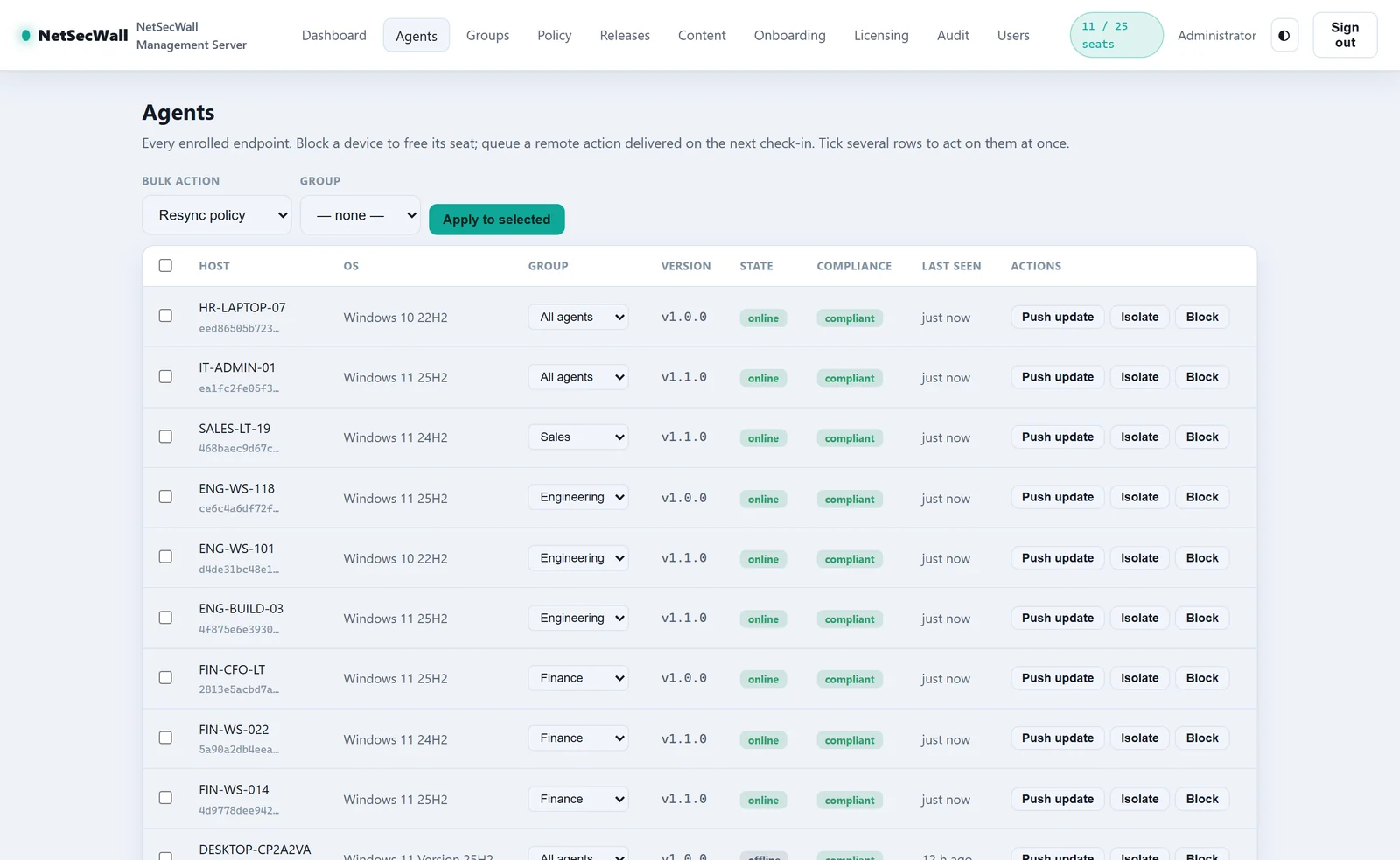
To isolate a device, click Isolate next to it on the Agents page of the NetSecWall Management Server. The PC switches on Block ALL internet and every outbound connection stops. To end it, click Release, which works for PCs running NetSecWall 1.2.1 or later. One thing to plan for before you rely on it: isolation blocks the PC's connection to your Management Server too, if the server is on another machine. The Management Server is part of NetSecWall Enterprise, which is in beta.
What isolation does on the PC
Isolate turns on the same Block ALL internet switch that's in the app's tray menu. Every outbound connection is refused, to the internet and to your local network. By default, only traffic within the PC itself (loopback) is exempt. NetSecWall keeps monitoring, so you can still see what tries to connect. The status bar shows ⛔ Block-all ON, and Block ALL internet is ticked in the tray menu.

Isolation doesn't scan, clean or wipe anything. NetSecWall doesn't do those. It stops the PC talking to the network while you work out what happened. Keep your antivirus for the rest. See cutting all internet access for how Block all works on a single PC.
Isolate a device from the console
- Open Agents in the console.
- Find the host and click Isolate in its row.
You can also open the host to reach its Agent detail page and click Isolate there. For several PCs at once, tick them, choose Bulk action ▸ Isolate, and click Apply to selected.
A PC that's online gets the command immediately. Others get it at their next check-in, every two minutes while NetSecWall is open on them. A PC where NetSecWall isn't open gets it the next time an administrator opens the app. The Command history on the Agent detail page shows each command moving from pending to delivered to acked, or skipped if the PC couldn't carry it out.
Plan for the catch: the PC can't hear you any more
Isolation blocks every address, including your Management Server's when the server runs on another machine. Once isolated, the PC can't check in. It won't receive Release, a policy change or an update from the console until the block is lifted on the PC itself. Before you isolate a PC, know how you'll reach it:
- Someone at the PC can untick Block ALL internet in the tray menu. If a settings password is set, they need it (see settings password).
- If the policy locks isolate (Lock isolate, or the Kiosk / locked-down wizard template), the tray switch is greyed out and the user can't turn it off. Only lock isolate on PCs you can get to another way.
The flip side is that isolation isn't tamper-proof. Without a lock, anyone at the PC who knows the settings password (or any user, if none is set) can undo it.
Release a PC
Release ends an isolation that was started from the console. If the policy itself has Isolate switched on, that isolation stays until you change the policy.
- Open Agents.
- Click Release in the PC's row, or on its Agent detail page. For several PCs, use Bulk action ▸ Release isolation.
The Release button only appears for PCs running NetSecWall 1.2.1 or later that have told the server they support it. Older versions would acknowledge the command and ignore it. The server keeps that list in memory, so after the server restarts, Release comes back once the PC checks in again. On the Agent detail page, the button stays greyed out until then. For older PCs, push an update first, or end the isolation at the PC.
Quarantine is different
Host Integrity quarantine is set by policy, not by a button. A PC below the minimum version, or one that hasn't applied the current policy, blocks all of its own traffic and shows "⚠ NetSecWall — Quarantined" with the reason. The user can't switch it off. It lifts itself when the PC is compliant again ("NetSecWall — Compliant"). The same catch applies: a quarantined PC can't reach a remote server to fetch the fix. See policies and groups.
Frequently asked questions
Does an isolated PC keep monitoring?
Yes. Monitoring and history carry on. Only outbound connections are blocked.
Can the PC's user undo an isolation?
Yes, from the tray, unless the policy locks isolate. With a settings password set, they need that password.
Why is there no Release button for a PC?
Either it runs a NetSecWall version older than 1.2.1, or the server has restarted and the PC hasn't checked in since. An isolated PC on a remote server can't check in, so end the isolation at the PC.
Can an isolated PC still reach file shares on the local network?
No. Block ALL internet blocks every outbound connection, local network included. Only traffic within the PC itself is exempt. For the wider picture, read how to cut an infected PC off the network.