Deploy policy to groups with the policy wizard
Build a group tree, then open Policy ▸ Deploy with wizard: pick a template, adjust it, choose the groups and deploy. PCs apply it at their next check-in, or at once if you push a resync.
Management ServerOn this page
To deploy policy to groups on the NetSecWall Management Server, organize PCs into groups, then open Policy ▸ ✨ Deploy with wizard. Pick a template, adjust it, choose which groups it goes to, and click Deploy policy. Each PC applies it at its next check-in, or straight away if you leave Push now ticked. The Management Server is part of NetSecWall Enterprise, which is in beta.
Groups and how inheritance works
On the Groups page you build a tree. Under New group, type a Group name and click Create group. Then set its parent in the Inherits from column, where "— default —" means it sits at the top. Edit policy → opens that group's policy. PCs land in a group through the enrollment token they used. You can move them later with the Group drop-down on the Agents page, or with Bulk action ▸ Move to group….
A PC's policy is built from the top down: the Default policy, then each parent group, then the PC's own group, then any location override.
- Blocked categories and locks add up down the tree. A group can add blocks and locks, but it can't remove ones it inherits.
- Engine, isolate, detection and Host Integrity take the value from the nearest level that sets them.
The first-run Default policy blocks Ads and Tracking and locks categories. Every group inherits those two blocks and the lock. To lift them, edit the Default policy itself.
The Policy page shows an Effective policy preview for whatever you have selected: "what agents in scope actually receive". It lists the blocked categories (inherited ones are marked "· inherited"), the engine, isolate, auto-block and the locks.
What a policy can set, and what it can't
A policy can set:
- Content categories to block. These are the same 13 categories as the Windows app.
- Engine: Windows Firewall, WFP packet filter, or Both.
- Isolate — block ALL outbound traffic.
- Auto-block highest-risk / known-bad processes, with a threshold from 40 to 100.
- Locks on categories, engine and isolate, so the PC's user can't change them.
- Host Integrity: a minimum agent version, and quarantine when a PC hasn't applied the current policy.
- Location overrides: raw JSON keyed by a network location defined in
appsettings.json. By default the only location isonsite, which covers private address ranges.
A policy can't set firewall or app rules, custom blocklists or feed addresses, parental controls, the filtering mode (Learning), the Take over or Companion stance, alert settings, allow lists or DNS. Anything a policy doesn't lock, the PC's user can still change locally.
Deploy policy to groups with the wizard
- Open Policy and click ✨ Deploy with wizard. The wizard is called "Deploy a policy".
- Template & scope: pick a template. Under Deploy to (pick one or more), tick Default and/or any groups. The count shows how many PCs are in scope, subgroups included.
- Review & adjust: change the categories, engine, isolate, locks, auto-block and Host Integrity settings.
- Confirm & deploy: check the summary. Leave ⚡ Push now — send a resync so online agents apply immediately ticked (it's on by default), then click Deploy policy.
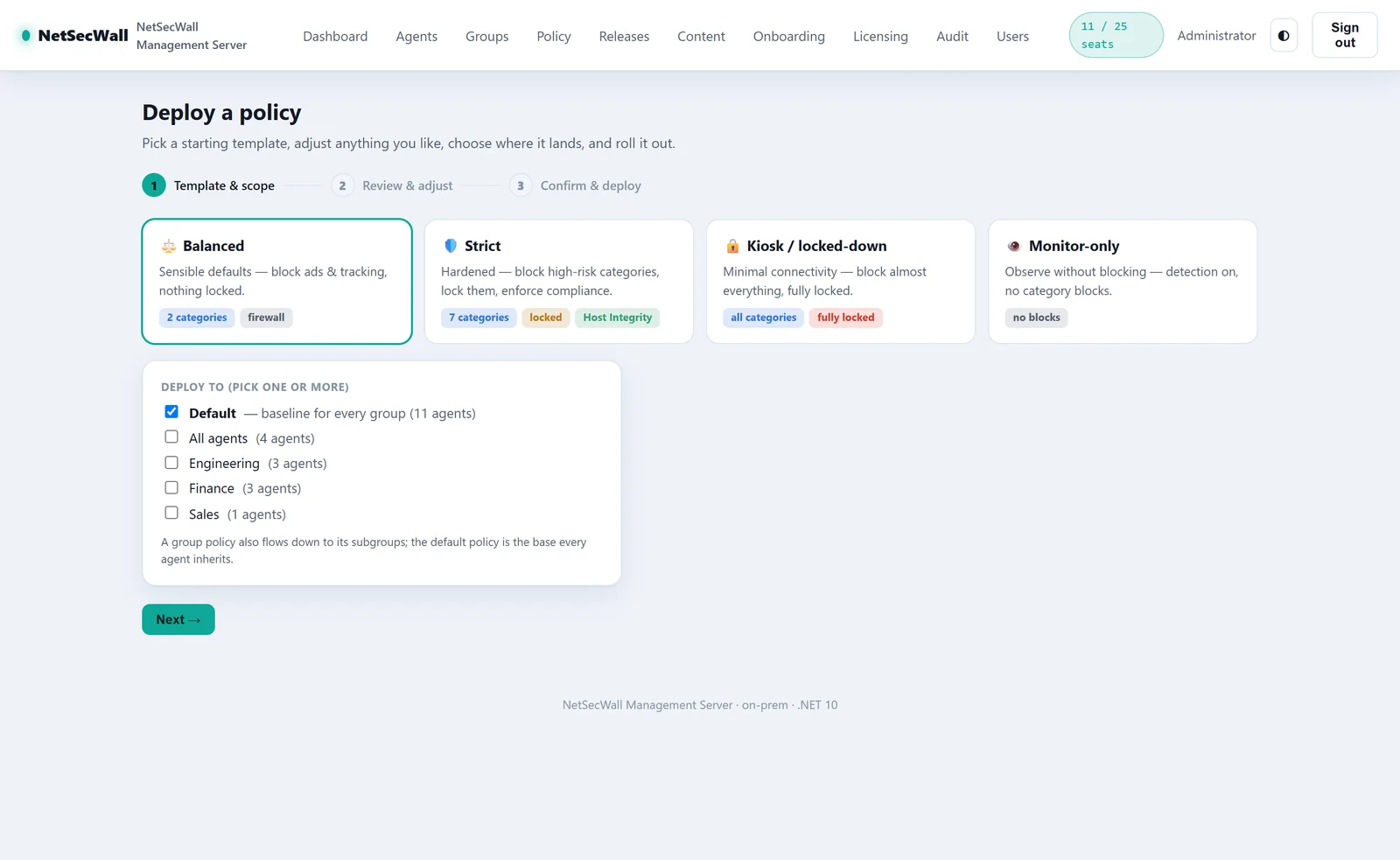
| Template | Blocks | Engine | Locks | Also |
|---|---|---|---|---|
| Balanced | Ads, Tracking | Windows Firewall | Categories | None |
| Strict | Ads, Tracking, Adult, Gambling, Scam/Phishing, Crypto-mining, Piracy | Both | Categories, engine | Minimum version and drift quarantine. Auto-block at risk 75. |
| Kiosk / locked-down | All 13 categories | Both | Categories, engine, isolate | Minimum version and drift quarantine. Auto-block at 70. It doesn't isolate the PC. |
| Monitor-only | Nothing | Windows Firewall | None | None |
These four template names exist only in the Management Server's wizard. The Windows app has no Balanced, Strict or Kiosk profiles. Deploying Monitor-only to a group doesn't unblock what the group inherits from the Default policy.
Host Integrity quarantine makes a failing PC block all of its own traffic, including traffic to a Management Server on another machine. A quarantined PC can't fetch the update or policy that would fix it. Only set a minimum version your PCs already run. See isolating and releasing a device.
When PCs apply a policy
Save & push to scope on the Policy page saves the policy. PCs apply it at their next check-in, which happens every two minutes while NetSecWall is open on them. The wizard's Push now also sends a resync so PCs that are online apply it immediately. You can send one yourself with Agents ▸ Bulk action ▸ Resync policy. A PC where NetSecWall isn't open picks up the policy the next time an administrator opens it (see enrolling PCs).
On the PC, the tray shows "Policy applied" with the number of categories blocked, and the status bar shows Policy (N).
Frequently asked questions
Can I push firewall rules or blocked apps to PCs?
No. A policy covers categories, engine, isolate, detection auto-block, locks, Host Integrity and location overrides. App and custom rules stay local to each PC.
What can a user change on a managed PC?
Anything the policy doesn't lock. Locked items show "Locked by your management server's policy." A settings password on the PC protects the rest. See block website categories for what each category covers.
Which engine should a policy use?
Windows Firewall suits most PCs. Choose WFP packet filter or Both when another tool manages Windows Firewall on those PCs. See enforcement engines.
How do I see what a group really gets?
Select the group on the Policy page and read the Effective policy preview. It includes everything the group inherits.