Reading the ATT&CK tab: incidents and kill-chain tactics
The ATT&CK tab fuses warning signs from a parent program and the programs it launched into one incident, scores it by how many attack stages it spans, and maps it on a 12-tactic matrix.
NetSecWall for WindowsOn this page
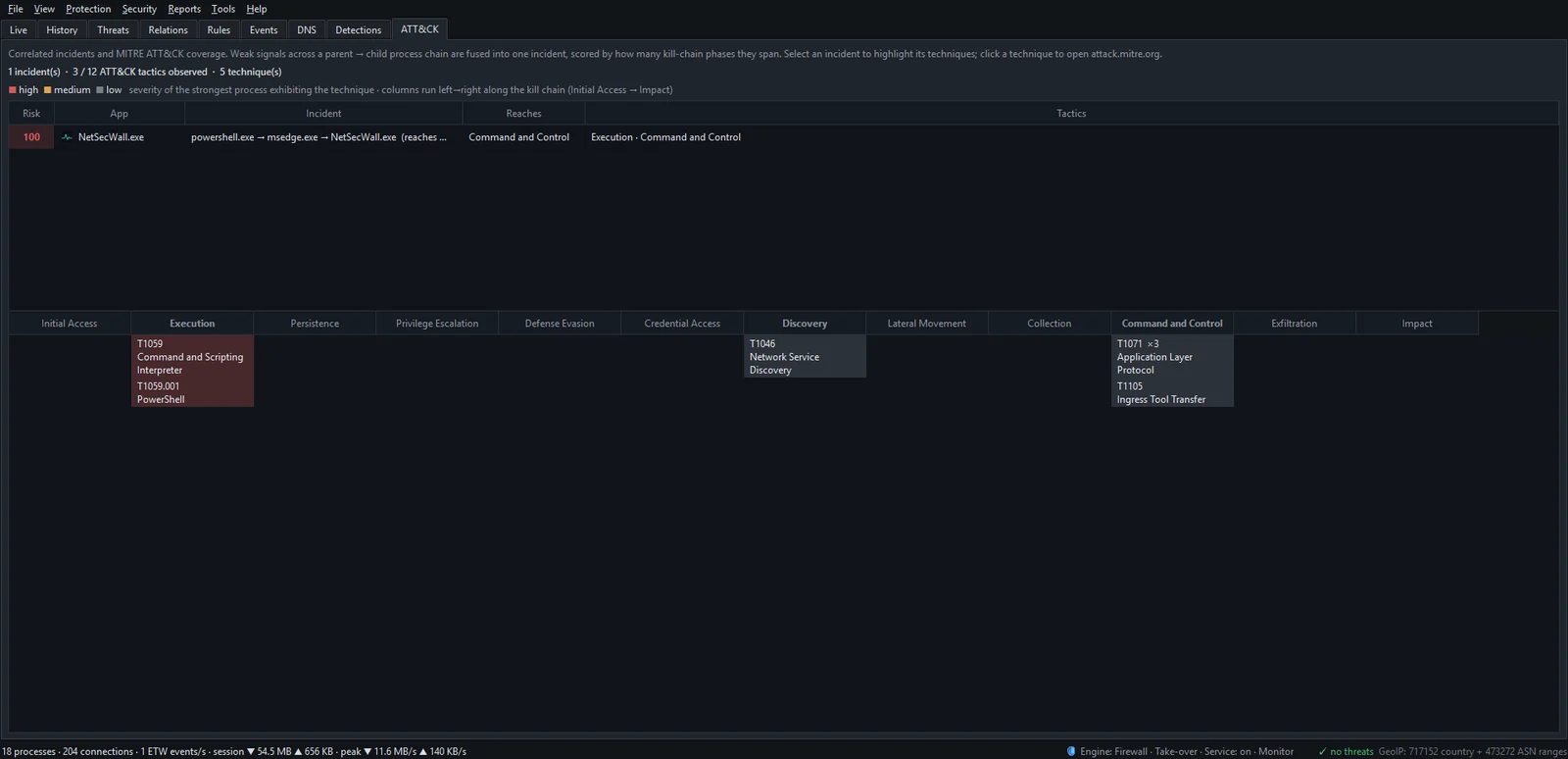
The ATT&CK tab turns scattered warning signs into MITRE ATT&CK incidents. When a program and the program it launched both look suspicious, for example Word starting PowerShell which then connects out, NetSecWall fuses them into one incident and scores it higher the more attack stages it spans. Below the incident list, a matrix of the 12 ATT&CK tactics shows which techniques are being seen right now. Click a technique to read about it on attack.mitre.org.
The ATT&CK tab is part of Advanced detection, included in the Plus, Family and Pro plans and the trial.
What the ATT&CK tab shows
From top to bottom:
- A summary line, such as "1 incident(s) · 3 / 12 ATT&CK tactics observed · 4 technique(s)".
- A color legend: high, medium and low severity.
- The incidents table, with the columns Risk, App, Incident, Reaches and Tactics.
- The matrix: one column per tactic, with the techniques seen in each.
Like the Detections tab, it is live. It is built from the programs that have a connection open to an outside address right now. Whitelisted programs are left out. It is not a history: past alerts are on the Events tab.
How MITRE ATT&CK incidents are built
- Score each program. Every program online right now gets its behavioral risk score from the 21 signals.
- Follow the family tree. NetSecWall links flagged programs to flagged parents, so a chain like
winword.exe → powershell.exebecomes one incident instead of two separate alerts. If the first flagged program was launched by a document or archive app that isn't flagged itself, that app is shown at the head of the chain. - Score the incident. The incident takes the highest score in the chain and adds 12 points for each extra tactic it reaches, up to 100. A chain scoring 75 that spans Execution and Command and Control becomes 87.
- Drop the noise. An incident is kept only if it is a chain of two or more programs, spans two or more tactics, or contains one program scoring 40 or more.
How to read the columns:
- Incident: the chain ("winword.exe → powershell.exe (reaches Command and Control)"), or for a single program, its name and its two strongest signals.
- Reaches: the furthest tactic in kill-chain order.
- Tactics: every tactic involved, in order.
- App: the program at the end of the chain. Hover it for the path, publisher and command line. Hover the risk or incident text for every signal behind the score.
The 12 tactics in the matrix
The columns follow the attack lifecycle, left to right: Initial Access, Execution, Persistence, Privilege Escalation, Defense Evasion, Credential Access, Discovery, Lateral Movement, Collection, Command and Control, Exfiltration, Impact.
- A tactic heading is bright when something was seen under it and dim when nothing was.
- Each technique chip shows its ID and name, plus "×2" or more when several programs show it.
- The chip color is the severity of the strongest program showing that technique: red for high (risk 70 or more), amber for medium (40 to 69), grey for low.
- Select an incident, and its techniques light up while the rest fade.
- Click any technique to open its page on attack.mitre.org.
NetSecWall's signals map to five tactics: Execution, Defense Evasion, Discovery, Command and Control, and Exfiltration. The other seven columns normally stay empty. An empty column means NetSecWall doesn't look for that stage, not that it is covered.
When the ATT&CK tab is empty
"No correlated incidents — nothing suspicious is reaching the network." This is the normal state on a healthy PC. It only speaks for programs that use the network. NetSecWall cannot see a program that never connects.
The MITRE ATT&CK techniques reference
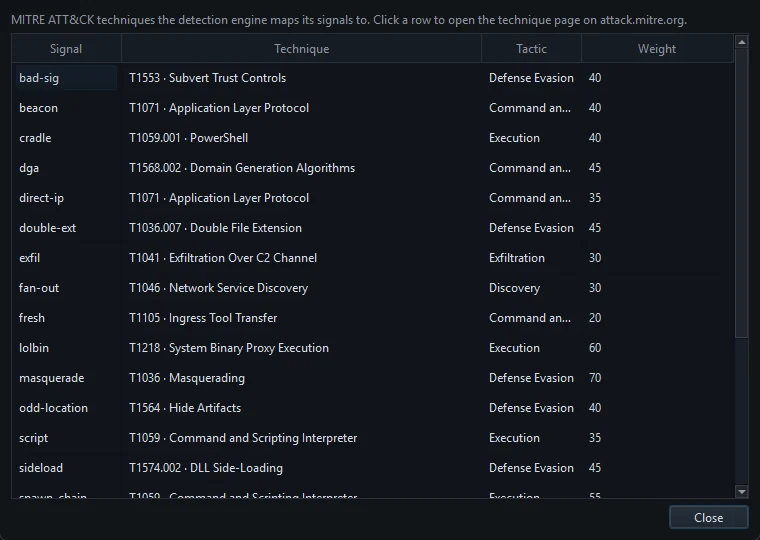
Security ▸ MITRE ATT&CK techniques… opens "MITRE ATT&CK — techniques NetSecWall detects": a table of every signal with its Signal, Technique, Tactic and Weight. Click a row to open the technique on attack.mitre.org. The table reflects any changes you made in Security ▸ Detection rules…. Switched-off signals have their weight dimmed.
What to do with an incident
- Read the chain. Did you open that document, or run that script, just now? An incident that matches something you did is usually explained.
- Hover the App column. Check the path, the publisher and the command line.
- Look at the destinations. In the Live tab, see where the program is connecting.
- Act from the Detections tab. The ATT&CK tab has no buttons. Select the same program on the Detections tab and use Block selected or Allowlist selected, or right-click it in the Live tab and block the app.
If it matches a tool you trust, whitelist it so it stops appearing. For background on why Windows' own tools show up here, read living off the land.
Frequently asked questions
What is a kill chain?
It is the sequence of stages an attack typically goes through, from getting in to acting on its goal. ATT&CK calls the stages tactics. An incident that reaches later stages, such as Command and Control, is further along.
Why are most of the ATT&CK columns empty?
NetSecWall watches network behavior, and its signals map to five of the 12 tactics. Columns such as Persistence or Credential Access stay empty because NetSecWall doesn't detect those stages.
Does the ATT&CK tab keep a history of incidents?
No. It shows what is happening now, among programs currently online. The alerts that incidents raise are kept on the Events tab.
Do I need to know MITRE ATT&CK to use this tab?
No. The Incident column describes what happened in plain words. The technique IDs are there if you want to read more or share the finding with someone who works in security.