Is my computer being tracked? What your network traffic says
Almost certainly, by ad and analytics services, which is normal and mostly happens in your browser. Signs of worse are specific: unknown programs, steady check-ins and flagged addresses.
NetSecWall for Windows
On this page
- Two very different kinds of tracking
- Everyday tracking
- Tracking aimed at you
- What you can check with Windows' built-in tools
- Is my computer being tracked? Checking the traffic in NetSecWall
- See the trackers: the By Category view
- See the names: the DNS tab
- Check the warning signs
- What network traffic can't tell you
- What to do if something looks wrong
- The short version
If you use a web browser, your computer is being tracked in the everyday sense: ad networks and analytics services record which sites you visit and what you do there. That's worth reducing, but it isn't someone watching your PC. Signs of something worse are more specific: a program you don't recognize connecting out, a steady check-in to one server, uploads you can't explain, or connections to addresses on threat lists. Your network traffic can show all of those.
Two very different kinds of tracking
Everyday tracking
Websites and apps embed code from advertising and analytics companies. Loading one page can contact several of them, each recording the page, your device details and an identifier that lets them recognize you across sites. Desktop apps do a version of the same thing with analytics libraries built in. Almost all of it runs over encrypted connections to companies whose whole business is measurement. It's legal, widespread, and reducible, but it's not aimed at you personally.
Tracking aimed at you
Stalkerware, remote-access tools someone installed without telling you, and information-stealing malware are programs running on your PC. To be of any use to whoever put them there, they have to send what they collect somewhere. That means network connections from a program on your machine, and those are visible if you know where to look.
What you can check with Windows' built-in tools
Windows gives you a few useful starting points:
- Settings ▸ Privacy & security ▸ General has the advertising ID switch that lets apps personalize ads.
- Settings ▸ Privacy & security ▸ Location, Camera and Microphone show which apps have access and, on current versions of Windows 11, which ones used it recently.
- Settings ▸ Apps ▸ Installed apps is where to look for remote-access or monitoring software you don't remember installing.
- Resource Monitor (
resmon, Network tab) andnetstat -abnoin an administrator terminal list which programs have connections open right now, and to which addresses. - Your browser's own tracking-protection settings cut down on the everyday kind.
The limits are that Resource Monitor and netstat show a moment, not a history, and an address like 104.18.x.x doesn't tell you whether it belongs to an analytics company, a CDN or something worse.
Is my computer being tracked? Checking the traffic in NetSecWall
NetSecWall watches every connection each program makes, names the domain and network owner behind it, and keeps a history on your PC. That lets you separate the ordinary from the odd.
See the trackers: the By Category view
In the Live tab, set View to By Category. Connections are grouped by the content category of the domain they reach. Ads, Tracking and Social media are labeled by default; you can switch labeling on for the other categories in Protection ▸ Content categories… (the Monitor column).
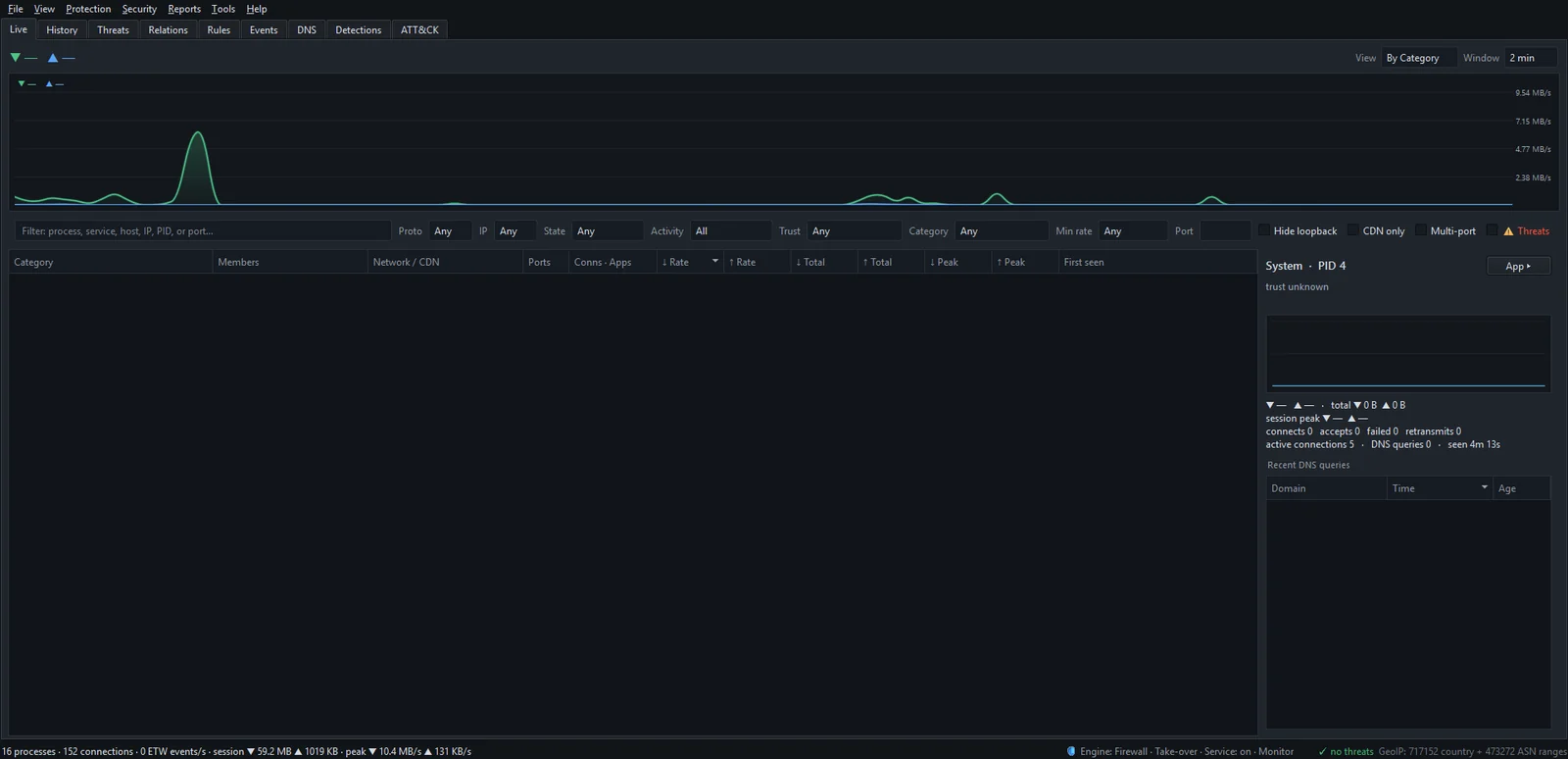
Expand Tracking to see which programs are talking to tracking domains. Mostly it will be your browsers. A non-browser program in that list has analytics built in, which is useful to know, not alarming.
See the names: the DNS tab
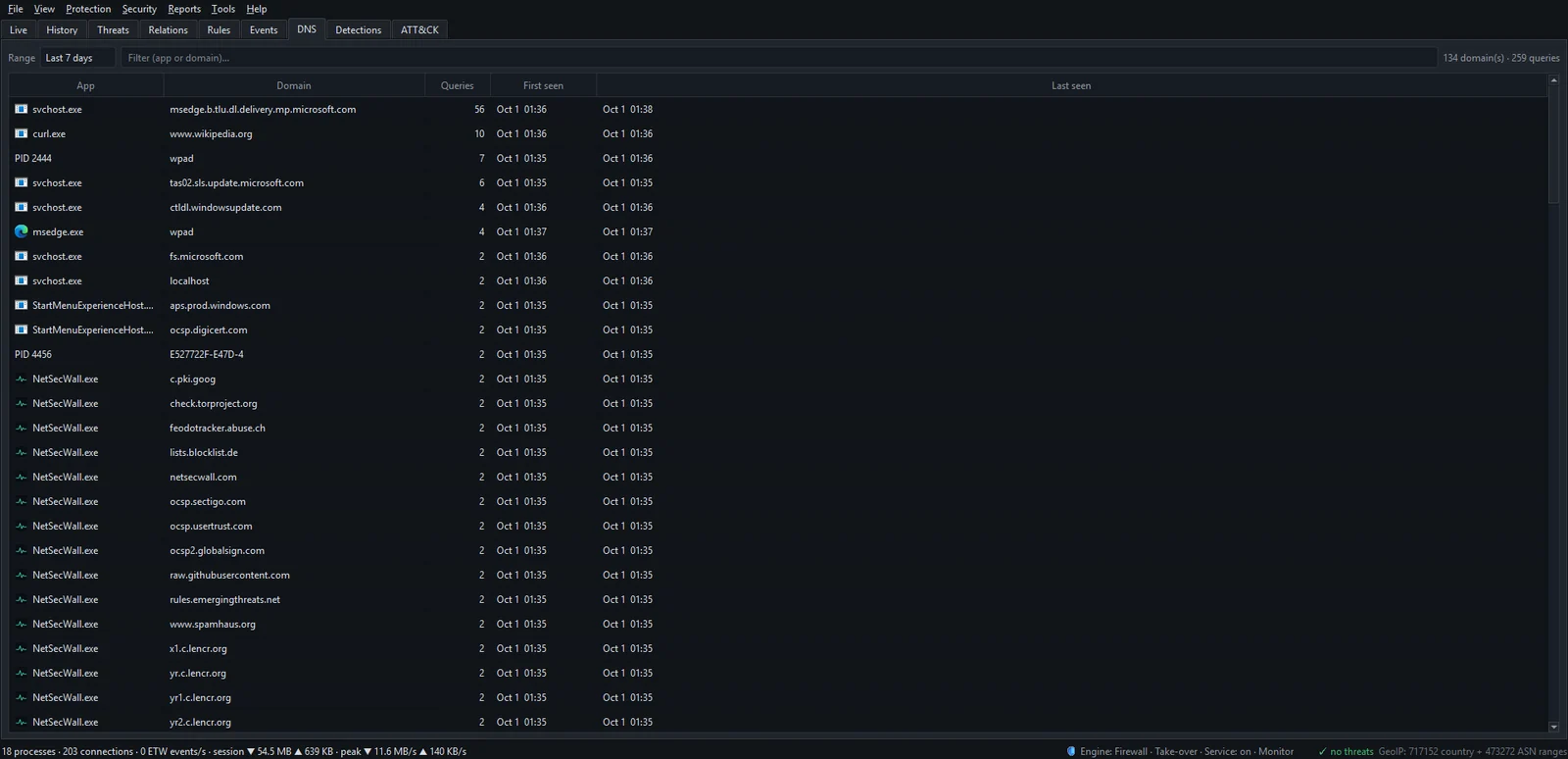
The DNS tab lists every domain each app looked up, with query counts and first and last seen. It's the quickest way to spot a program contacting names you don't recognize. More on reading it in the DNS log.
Check the warning signs
- Unknown or unsigned programs. In the Live tab's filter bar, set Trust to Unsigned. Anything unsigned, running from a temp or downloads folder, and connecting out deserves a closer look.
- Threat-listed addresses. The Threats tab records every connection to an address on one of six public threat-intelligence lists: malware hosts, botnet command servers, compromised hosts, Tor exit nodes, hijacked networks and known attackers. "No threat-feed matches recorded in this range" is the result you want.
- Behavior that looks like an attack. The Detections tab scores each program that reaches the network from 0 to 100, using signals such as regular check-ins on a timer, a system-sounding name in the wrong folder, or connections to raw addresses with no DNS lookup.
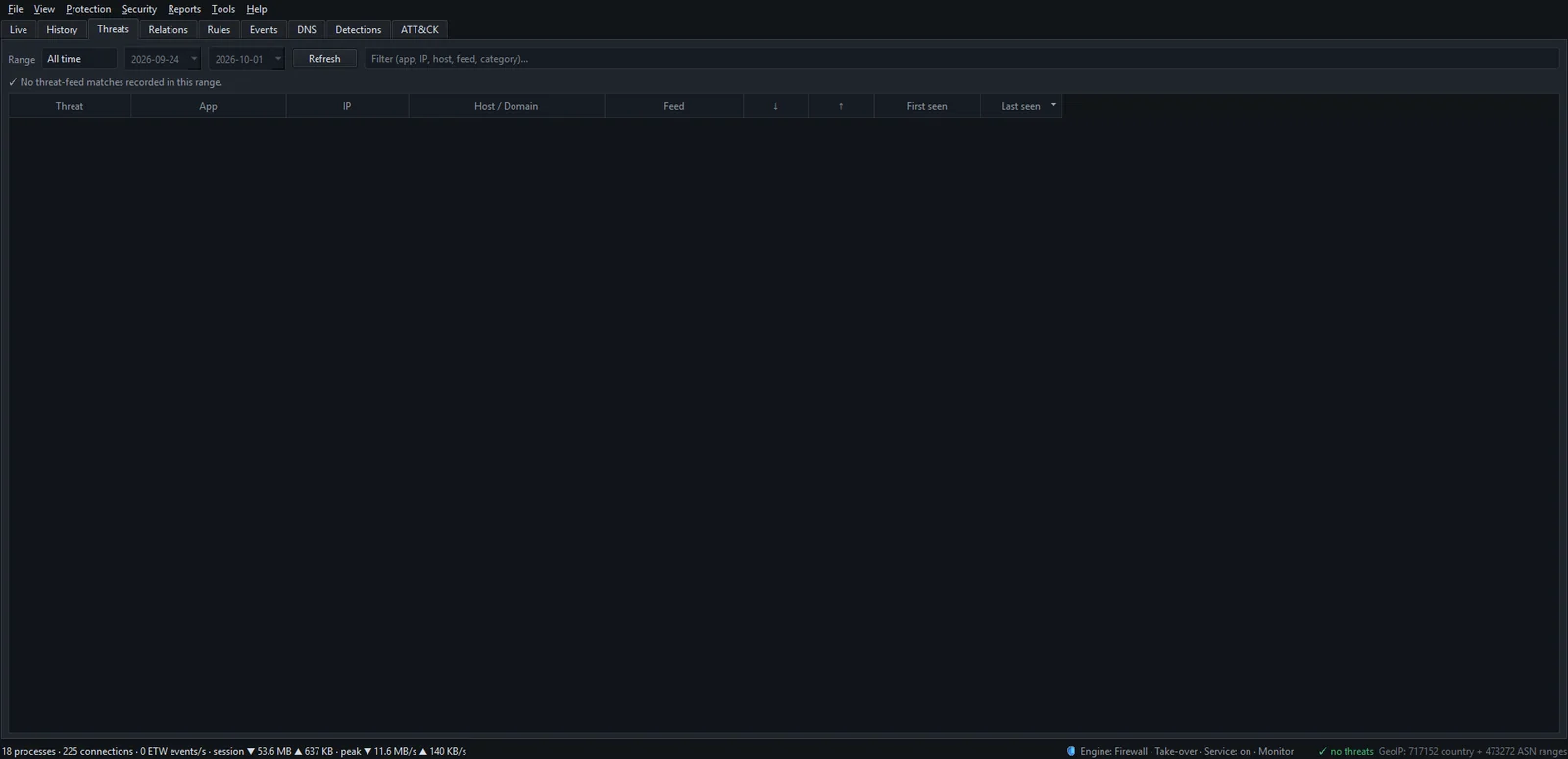
The Threats and Detections tabs are part of the Plus, Family and Pro plans, and of the trial. Threat intelligence and detection explains how to read them, and what beaconing is covers the most telling pattern.
What network traffic can't tell you
Being honest about the limits matters here, because "nothing looks wrong" is not the same as "nothing is wrong".
- Contents. NetSecWall reads which program connected where, and how much it sent. It doesn't decrypt traffic, so it can tell you an app talked to an analytics domain, not what it said.
- First-party tracking. A site that collects data through its own domain looks exactly like the site.
- Tracking that happens elsewhere. Your internet provider, the websites you visit, and the accounts you're signed in to all see things that never show up as a program on your PC.
- Ordinary-looking channels. A tool that uploads through a mainstream cloud service can look like ordinary sync traffic, especially if it isn't sending much.
- Files. NetSecWall is not an antivirus. It doesn't scan files or remove anything. If the traffic points at a program you don't trust, run a full scan with Microsoft Defender or your antivirus as well.
What to do if something looks wrong
- Select the program in the Live tab and note its path, publisher and signature from the details pane.
- Right-click one of its connections and use Investigate IP ▸ to open the address in VirusTotal, AbuseIPDB, IPinfo or Shodan.
- If you want it offline while you decide, right-click the program and choose Block this app (firewall) ▸ Block for 1 hour (Family and Pro plans, and the trial).
- Run a full antivirus scan, and check Settings ▸ Apps ▸ Installed apps for anything you didn't install.
How to spot malware by its network traffic goes further into what separates a bad connection from a busy one.
The short version
Tracking by ad and analytics companies is normal, reducible, and mostly in your browser. Tracking aimed at you has to use the network, and that's where you can catch it. If you'd like to check your own PC, download NetSecWall and use every feature free for 7 days.
Frequently asked questions
Can someone track my computer through my IP address?
Your IP address tells the sites you visit roughly where you connect from and which provider you use. It's approximate, and it doesn't give anyone access to your PC. Getting into a PC takes a program running on it or a service you've exposed to the internet.
Does private browsing stop tracking?
Only partly. Private or incognito mode doesn't keep cookies and history after you close the window, but sites and trackers still see your visits during the session, and your network traffic looks the same.
Would a keylogger show up in network traffic?
Only when it sends what it recorded. A keylogger that stores keystrokes and uploads rarely may not show up until it does, which is why a network monitor belongs alongside an antivirus, not instead of one.
Is Windows diagnostic data a form of tracking?
It's data collection that Microsoft documents and lets you reduce. You can switch off optional diagnostic data in Settings; cutting telemetry without breaking Windows Update walks through what's safe.
Does a VPN stop tracking?
A VPN hides your traffic from your local network and your provider, and changes the IP address websites see. It doesn't stop trackers embedded in pages, because those still load inside your browser.
Keep reading
 Newly registered domains: a quiet warning sign
Phishing and malware campaigns tend to use domains registered days earlier, before blocklists catch up. A very young domain proves nothing alone, but it adds weight when an app already looks wrong.
Newly registered domains: a quiet warning sign
Phishing and malware campaigns tend to use domains registered days earlier, before blocklists catch up. A very young domain proves nothing alone, but it adds weight when an app already looks wrong.
 Why is an app on my PC talking to a Tor exit node?
Usually because something on your PC accepts connections arriving through Tor, a peer-to-peer app met a Tor user, or a program uses Tor itself. Malware does too, so check the app and direction.
Why is an app on my PC talking to a Tor exit node?
Usually because something on your PC accepts connections arriving through Tor, a peer-to-peer app met a Tor user, or a program uses Tor itself. Malware does too, so check the app and direction.
 Encrypted DNS (DoH): what it hides, and from whom
DNS over HTTPS encrypts the names your PC looks up, so the Wi-Fi owner and your ISP can't read them. The resolver you use still sees every name, and the addresses you then connect to stay visible.
Encrypted DNS (DoH): what it hides, and from whom
DNS over HTTPS encrypts the names your PC looks up, so the Wi-Fi owner and your ISP can't read them. The resolver you use still sees every name, and the addresses you then connect to stay visible.
 How NetSecWall sees every connection without a driver
NetSecWall reads what Windows already records: kernel network events through ETW, DNS answers, and the TCP and UDP tables. It sees which app talks to which address without capturing a single packet.
How NetSecWall sees every connection without a driver
NetSecWall reads what Windows already records: kernel network events through ETW, DNS answers, and the TCP and UDP tables. It sees which app talks to which address without capturing a single packet.