How to spot malware by its network traffic
Almost all malware has to talk to someone. Look for unknown or unsigned programs online, odd ports, check-ins on a timer, lopsided uploads, threat-listed addresses and Windows tools going online.
NetSecWall for Windows
On this page
- Why network traffic gives malware away
- How to spot malware by network traffic: six tells
- 1. A program you don't recognize, or can't vouch for
- 2. Odd ports
- 3. A steady heartbeat
- 4. Uploads much bigger than downloads
- 5. Addresses on threat lists
- 6. Windows' own tools going online
- What you can check with Windows alone
- A ten-minute triage routine with NetSecWall
- Reading the result without panicking
- What this approach can't see
- Try the routine on your own PC
You can often spot malware by network traffic alone, because nearly every piece of malware has to connect somewhere: to get instructions, download more code, or send your data out. The tells are a program you don't recognize going online, connections on unusual ports, check-ins on a steady timer, uploads far bigger than downloads, addresses that appear on threat lists, and Windows' own admin tools reaching the internet. None of them proves an infection alone. Two or three together deserve a closer look.
Why network traffic gives malware away
Malware can hide a lot on the PC itself. It can use a harmless-sounding name, live in a folder nobody opens, or run inside a legitimate Windows tool. What it usually can't avoid is the network. An attacker needs to reach the machine to control it, and whatever it collects is worth nothing until it leaves.
Every connection carries metadata that encryption doesn't hide: which program opened it, the remote address and port, when it happened, how often it repeats and how many bytes went each way. HTTPS keeps the content private. It doesn't hide the fact that an unfamiliar program in your Downloads folder talks to the same server every 60 seconds.
That metadata is what you can read, with Windows tools or with a monitor such as NetSecWall.
How to spot malware by network traffic: six tells
1. A program you don't recognize, or can't vouch for
Look at the path. Software you installed lives under C:\Program Files. Programs running from AppData\Local\Temp, Downloads, C:\Users\Public or the Recycle Bin are unusual. So is an executable created a few minutes ago, a file with no valid signature, or a name that imitates Windows, like svchost.exe running outside System32. See when an unsigned program is worth worrying about.
2. Odd ports
Most everyday traffic uses 443 (HTTPS), 80 (HTTP) and 53 (DNS). Some ports have a long history with remote-access tools and botnets: 4444 (the default listener in a popular penetration-testing framework), 1337, 31337, and the IRC ports 6667 and 6697. High random ports are normal for games, calls and peer-to-peer apps, so a port on its own is a weak tell.
3. A steady heartbeat
Malware typically checks in with its command-and-control (C2) server on a timer. People are irregular; a program that contacts one address every minute, with tiny payloads, day and night, is a pattern. That's beaconing.
4. Uploads much bigger than downloads
Data theft looks like one program sending hundreds of megabytes out while little comes back. Backup and sync tools look exactly the same, which is why context matters.
5. Addresses on threat lists
Public lists name addresses already tied to botnet servers, compromised machines, hijacked networks and Tor exits. A match is strong evidence of contact with known-bad infrastructure, and occasionally a false alarm on a shared address. What those lists catch and miss is worth knowing before you act on one.
6. Windows' own tools going online
certutil.exe, mshta.exe and regsvr32.exe rarely need the internet on a home PC. When one of them connects out, or when Word launches PowerShell, someone may be living off the land: using genuine Windows files to do the attacker's work.
Two more are worth adding: a program that connects to raw IP addresses without ever looking up a name, and lookups of long, random-looking domain names, which is how some malware finds its servers.
What you can check with Windows alone
Windows gives you snapshots. Resource Monitor (resmon) has a Network tab listing processes with network activity and their TCP connections. In an administrator Command Prompt, netstat -abno lists connections with the owning program and process ID. These help if you already suspect something, but they show only this moment: no history, no timing, no reputation. If you find something, run a full scan in Windows Security, and consider a Microsoft Defender Offline scan, which runs before Windows starts.
A ten-minute triage routine with NetSecWall
NetSecWall watches every connection per program, keeps a local history, checks addresses against six public threat lists and scores programs against 21 behavioral signals. Here's a routine that uses those pieces in order.
- Open the Threats tab and set Range to Last 7 days. Each row is a connection to a listed address. Read the Threat and Feed columns first: a Botnet C2 or Malware match is not the same as a Tor exit.
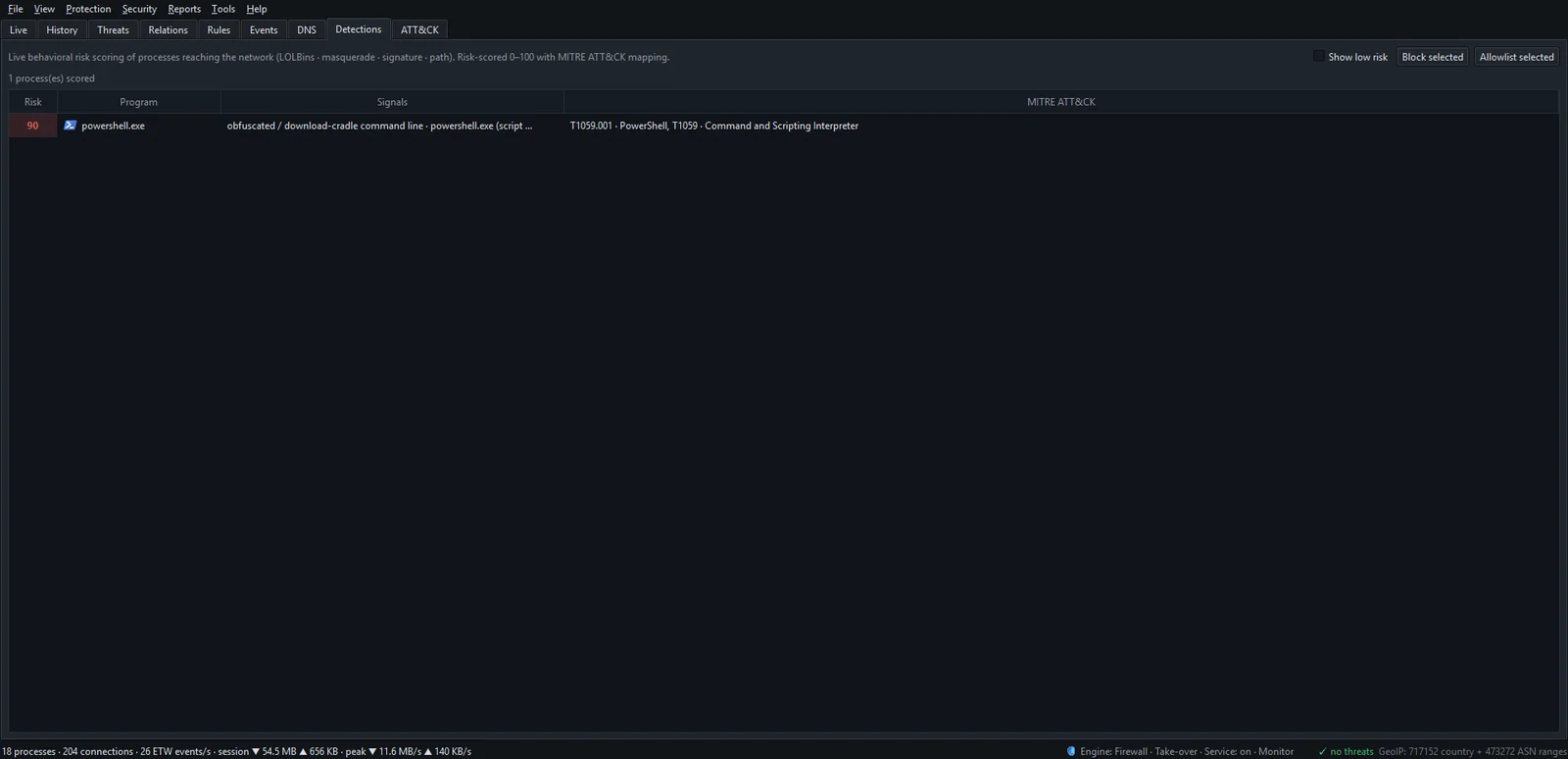
- Open the Detections tab. Programs scoring 40 or more are listed, with the Signals column saying why and the MITRE ATT&CK column naming the technique.
- Open the ATT&CK tab. If a parent program launched a child that also looks wrong, the two are fused into one incident, and Reaches shows how far along an attack it got.
- Go to the Live tab and set Trust in the filter bar to Unsigned. Read the Path and First seen columns for anything new or oddly placed.
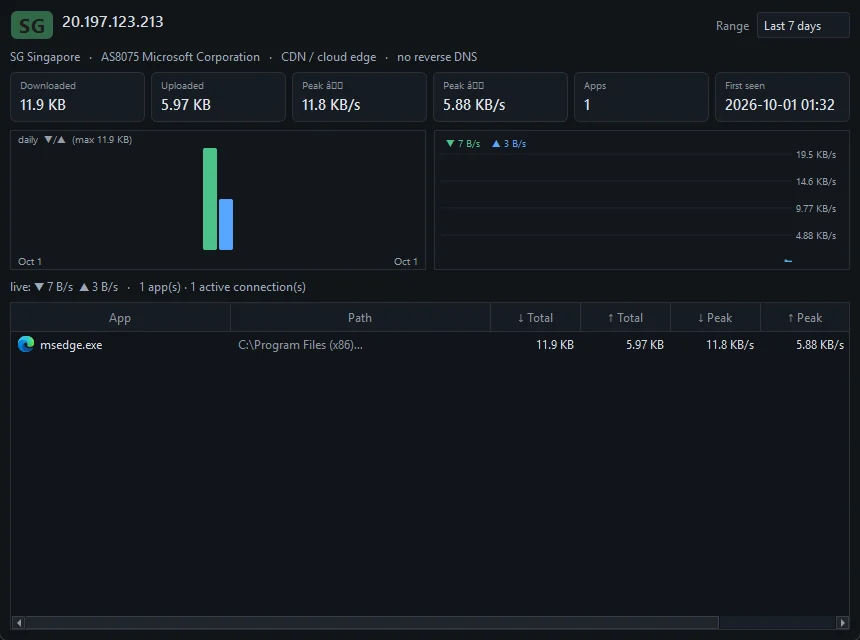
- Right-click a suspicious connection and choose Open IP dashboard to see reverse DNS, the network owner, any threat line, and which other programs used that address.
- For a second opinion, right-click the connection and choose Investigate IP ▸ AbuseIPDB or VirusTotal. The site opens in your browser; NetSecWall doesn't look anything up on its own.
- If you're still unsure, right-click the program and choose Block this app (firewall) ▸ Block for 1 hour. That contains it while you run a Defender scan.
Reading the result without panicking
Weight the combination, not the single signal. A signed updater that checks in every few minutes is normal. A signed browser on a threat-listed CDN address is usually a shared-address false alarm. An unsigned program in Temp, created ten minutes ago, connecting to a raw IP on port 4444, is not normal, and each of those facts on its own would have been easy to dismiss.
NetSecWall scores it the same way: the signals add up, and only 40 or more raises the "Suspicious process" alert, which is on by default. For what a score means in detail, see the Detections tab and risk scores.
What this approach can't see
Honest limits matter here. NetSecWall is not an antivirus: it doesn't scan files, remove malware or read the content of your traffic. Malware injected into a trusted program looks like that program. A quiet stealer that sends a few kilobytes once, or talks only to a mainstream cloud service, may not stand out. Browsers using encrypted DNS hide their lookups. A clean network picture lowers the odds of an infection; it doesn't rule one out. Keep Microsoft Defender or your antivirus running alongside, as covered in why you need a firewall and an antivirus.
Try the routine on your own PC
The best time to learn what normal looks like is before anything is wrong. The 7-day trial unlocks every tab used above, with no card and no account.
Frequently asked questions
Can malware hide its network traffic completely?
Not completely. It can hide content with encryption and blend in by using common ports and big cloud services, but a connection still belongs to a program and has an address, timing and volume. Malware that runs inside a legitimate process borrows that process's identity, which is the hardest case.
Is a connection to an unknown IP address a sign of malware?
Rarely on its own. Apps talk to CDNs and cloud servers whose addresses mean nothing to most people. Check which program owns the connection, who owns the address, and whether other tells line up.
Does antivirus catch malware that phones home?
Often, when it recognizes the file or its behavior. It can miss new malware and attacks that use genuine Windows tools, which is where watching the network helps.
What should I do if I find a suspicious connection?
Block the program's internet access, run a full antivirus scan, and look at the program's history to see what else it contacted. If you think data left the PC, change important passwords from a different, clean device.
Does NetSecWall read my traffic to do this?
No. It reads connection metadata from Windows: program, address, port, timing and byte counts. It doesn't capture packets, decrypt HTTPS or send your connection list anywhere to be checked.
Keep reading
 Why is an app on my PC talking to a Tor exit node?
Usually because something on your PC accepts connections arriving through Tor, a peer-to-peer app met a Tor user, or a program uses Tor itself. Malware does too, so check the app and direction.
Why is an app on my PC talking to a Tor exit node?
Usually because something on your PC accepts connections arriving through Tor, a peer-to-peer app met a Tor user, or a program uses Tor itself. Malware does too, so check the app and direction.
 The upload pattern that should worry you
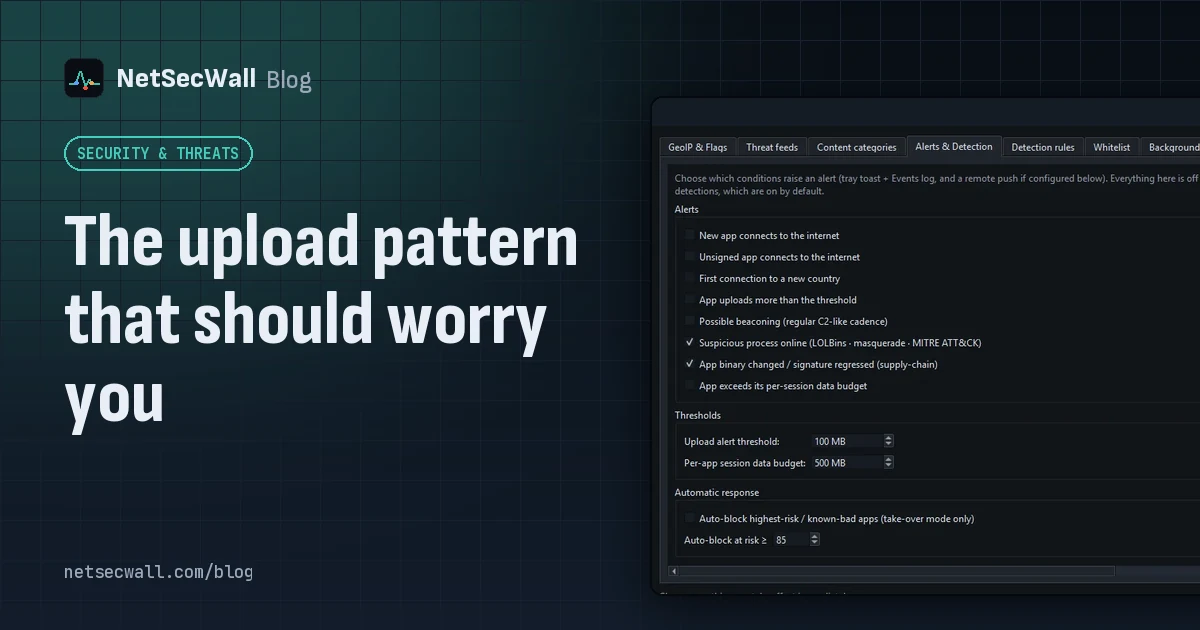
Worry when one program uploads far more than it downloads, in bulk, to a place you can't explain. That's the shape of data theft. Backups and sync look the same, so context decides.
The upload pattern that should worry you
Worry when one program uploads far more than it downloads, in bulk, to a place you can't explain. That's the shape of data theft. Backups and sync look the same, so context decides.
 Is my computer being tracked? What your network traffic says
Almost certainly, by ad and analytics services, which is normal and mostly happens in your browser. Signs of worse are specific: unknown programs, steady check-ins and flagged addresses.
Is my computer being tracked? What your network traffic says
Almost certainly, by ad and analytics services, which is normal and mostly happens in your browser. Signs of worse are specific: unknown programs, steady check-ins and flagged addresses.
 Living off the land: when Windows' own tools go rogue
Attackers often skip custom malware and use tools Windows already ships, such as PowerShell, certutil and mshta. The files are genuine, so the tell is behavior, like those tools reaching the internet.
Living off the land: when Windows' own tools go rogue
Attackers often skip custom malware and use tools Windows already ships, such as PowerShell, certutil and mshta. The files are genuine, so the tell is behavior, like those tools reaching the internet.