How to block a country on Windows
Windows has no country switch, so you block the country's IP ranges with firewall rules. NetSecWall does it with one right-click; geolocation is approximate, and CDNs and VPNs blur borders.
NetSecWall for Windows
On this page
Windows Firewall has no setting for countries. To block a country on Windows, you find every IP address range a GeoIP database assigns to that country and put those ranges into firewall rules. You can do that by hand with PowerShell, or with one right-click in NetSecWall. Either way the result is approximate: geolocation is an estimate, and servers behind CDNs, cloud platforms and VPNs don't always sit where you'd expect.
Why people block countries
The reasons are usually practical:
- An app keeps connecting somewhere unexpected. You'd rather it didn't, and you have no dealings in that country.
- Less noise. Cutting traffic to regions you never use makes what's left easier to read.
- Policy. An organization has decided certain destinations are off limits for its PCs.
- A service you expose. You run something reachable from the internet, such as a game server or remote desktop, and see connection attempts from far away.
It helps to be clear about what country blocking doesn't do. It won't stop a determined attacker, who can rent a server or a VPN exit in any country, including yours. And it doesn't keep your data "in" a country; it only stops your PC connecting to addresses located somewhere. Treat it as a coarse filter, not a wall.
Blocking a country by hand
1. Get the country's IP ranges
You need a list of address ranges for the country. Free GeoIP datasets such as the db-ip.com lite tables map ranges to countries. The Regional Internet Registries also publish which ranges they allocated to organizations in each country, which is related but not the same as where those addresses are used.
2. Turn the ranges into firewall rules
For a handful of ranges, the wizard works: in wf.msc, click Outbound Rules ▸ New Rule…, choose Custom, All programs, protocol Any, then on the Scope page choose These IP addresses under the remote addresses and Add… each range. Choose Block the connection, keep all profiles, and name it.
A country can have thousands of ranges, so PowerShell is the realistic route. With one range per line in a text file, run this as administrator:
$ranges = Get-Content C:\geo\xx-ranges.txt
New-NetFirewallRule -DisplayName "Block XX" -Direction Outbound -Action Block -RemoteAddress $ranges
Very long lists are easier to manage split across several rules. NetSecWall, for comparison, puts up to 800 ranges in each rule.
3. Decide about inbound
Windows Defender Firewall already refuses unsolicited incoming connections unless an allow rule lets them in. If you have opened a port, add a matching rule with -Direction Inbound; a block rule beats an allow rule when both match.
4. Keep it current
Address allocations and GeoIP data change. A list you built today will drift, so plan to rebuild the rules from a fresh list now and then.
How to block a country on Windows with NetSecWall
NetSecWall already knows the country of every connection, from GeoIP tables it downloads and keeps up to date. Blocking one is a right-click away.
- Open the Live tab and set View to By Country.
- Find the country. The view is built from live connections, so a country is listed while something on your PC is connected there.
- Right-click the country and choose Block all IP ranges of XX, where XX is its two-letter code.
- Confirm the prompt, which tells you how many ranges will be blocked: "Create firewall rules blocking all XX IP ranges (N ranges)?"
- If you've set a settings password, enter it.
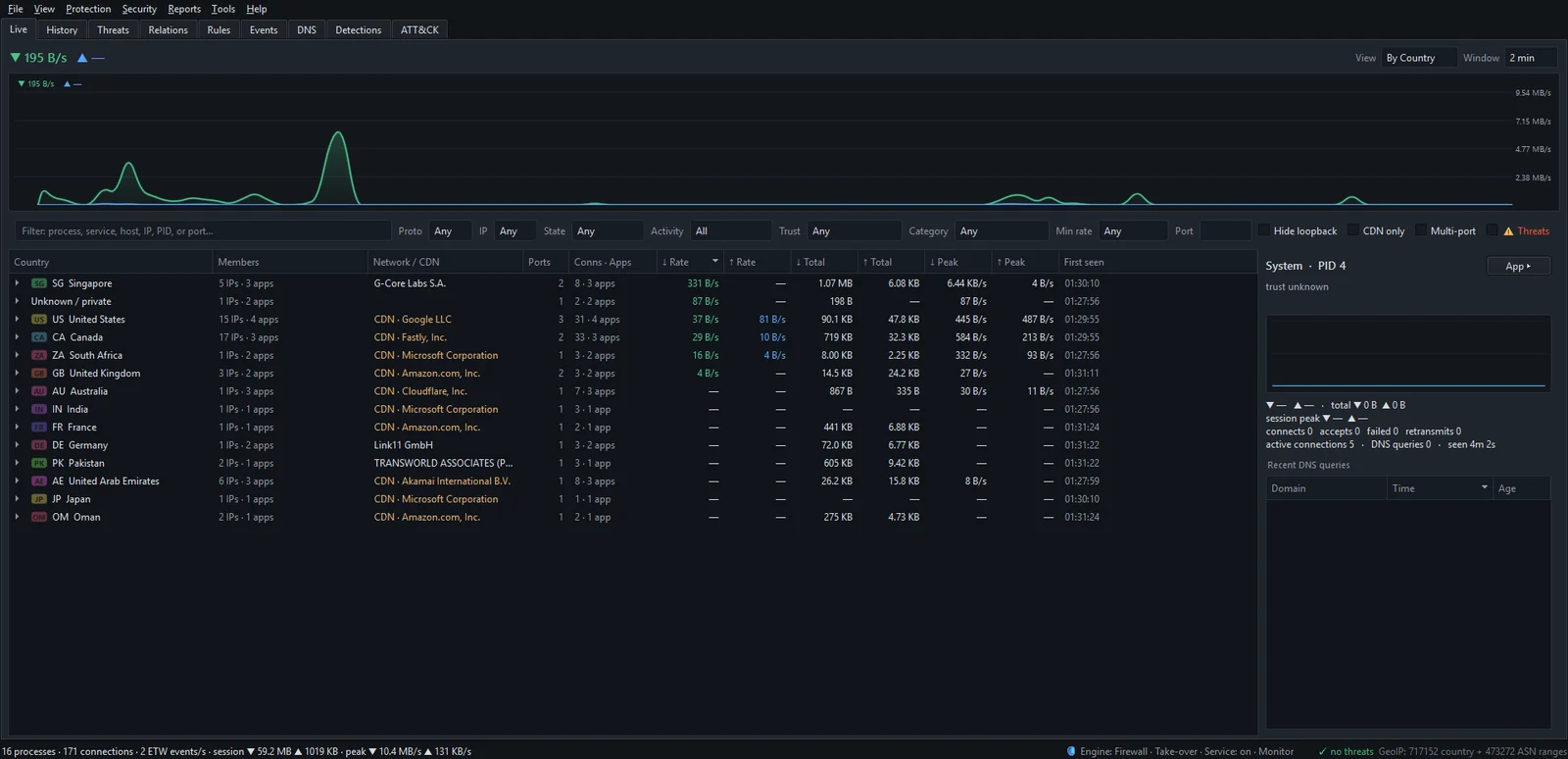
NetSecWall writes Windows Firewall rules named NetLens Geo Block: XX 1, NetLens Geo Block: XX 2 and so on, each an outbound block for all protocols on every profile. They appear in the Rules tab under NetSecWall rules. To lift the block, right-click the country and choose Unblock XX. A blocked country often drops out of the By Country view, since nothing can connect there any more; in that case open the Rules tab, type Geo Block into the filter, select the rules and delete them. Blocking a country's IP ranges has the details.
Blocking is part of the Family and Pro plans, and of the 7-day trial.
The caveats, honestly
- Outbound only. The one-click block stops your PC connecting to the country. It doesn't add inbound rules. If you've opened a port to the internet and want to keep a country out of it, build an inbound rule from its ranges the manual way shown above. For a few specific addresses, a custom firewall rule, made in
wf.mscor with New rule… in the Rules tab, does the job. - IPv4 only. The ranges come from NetSecWall's IPv4 GeoIP table. Connections over IPv6 to that country aren't covered.
- Geolocation is approximate. Some ranges are placed in the wrong country, and ranges change hands. How accurate IP geolocation is goes into why.
- CDNs and cloud platforms. A country that hosts a big CDN edge or cloud region carries traffic for many unrelated companies, so blocking it can break sites and apps you didn't mean to touch. The reverse also happens: a service based in the country may reach you from an edge server somewhere else, and stay unblocked. See why apps connect to CDNs.
- VPNs and proxies. With a VPN or proxy in the path, some destinations show up as the VPN or proxy server, so country rules mean much less.
- The engine matters. Country blocks are Windows Firewall rules. They need the Windows Firewall (rules) or Both engine; with Packet filter (WFP) alone, or in Companion mode, they wait until the Windows Firewall engine is back.
- It lasts while NetSecWall runs. Unlike app blocks, a country block isn't remembered across a restart of NetSecWall or of the PC. Apply it again afterward. The same goes for GeoIP updates: a block uses the ranges known when you made it.
When country blocking is the wrong tool
If one program is the problem, block the program instead. It's precise, it's remembered, and it doesn't catch unrelated traffic that happens to share a country. See block an app from the internet. And if you're not yet sure which countries your apps reach, start with which countries your apps are sending data to.
The short version
A country block is a list of address ranges in firewall rules. By hand it's a data-wrangling job; in NetSecWall it's a right-click on the country you can see your PC talking to. To try it, download NetSecWall and use every feature free for 7 days.
Frequently asked questions
Can I block a country for incoming connections?
Not with the one-click block, which is outbound only. Create an inbound block rule from the country's ranges yourself, most practically with PowerShell and -Direction Inbound.
Will blocking a country stop hackers from that country?
It stops your PC connecting to addresses located there. Attackers can use servers, cloud accounts and VPNs anywhere, so treat country blocking as noise reduction, not protection.
Why did blocking a country break a website from somewhere else?
The website probably uses a CDN or cloud provider with servers in the country you blocked. Many sites share those addresses, so a country rule catches them too.
How many IP ranges does a country have?
It varies enormously, from a handful for small countries to many thousands for large ones. NetSecWall shows the exact count in its confirmation prompt before it creates any rules.
Does a country block survive a reboot?
A rule you make yourself in wf.msc or with PowerShell does. NetSecWall's country block doesn't: it applies while NetSecWall is running, so apply it again after a restart.
Keep reading
 How to block a program in Windows Firewall, two ways
Create an outbound rule for the program's .exe in Windows Defender Firewall with Advanced Security, set to Block the connection. Or right-click the program in NetSecWall and choose Block.
 Keep the app, cut its internet: blocking without uninstalling
Block the program's outbound connections instead of removing it. The app still opens and works offline; it just can't reach the internet until you lift the block.
 Cutting telemetry without breaking Windows Update
Use Windows' own diagnostic data settings for Windows, and block telemetry one app at a time for everything else. Blocking svchost.exe or Microsoft domains wholesale is what breaks Update.
 Why you need a firewall and an antivirus, and what each one misses
An antivirus judges files and program behavior; a firewall judges connections. Each misses what the other sees, from a clean-looking tool phoning out to malware that never touches the network.