Lock NetSecWall with a settings password
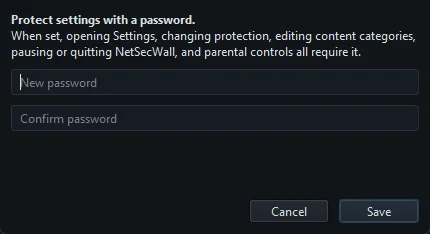
Open Protection ▸ Settings password…, type a password twice and click Save. Settings, protection changes, parental controls, the Rules tab, quitting and allowing new apps then need it.
NetSecWall for WindowsOn this page
A NetSecWall settings password stops anyone else at the PC from switching your protection off. Open Protection ▸ Settings password…, type the password twice and click Save. From then on, opening Settings, changing protection, editing content categories or parental controls, opening the Rules tab, pausing or quitting NetSecWall, and allowing a new app all ask for it. There is no way to recover a forgotten password, so write it down somewhere that isn't this PC.
Set a password
- Open Protection ▸ Settings password….
- Type the password in New password and again in Confirm password.
- Click Save.
If the fields are empty or don't match, the dialog says "Enter a password." or "The passwords don't match." Once a password is set, the mode chip in the status bar shows a padlock.
The app sometimes calls this the parental password. The prompts are titled "Parental password". It is the same single password.
What the NetSecWall settings password locks
| Area | What needs the password |
|---|---|
| Settings and setup | Opening Settings (Tools ▸ Settings… and the Security menu items), Import settings…, re-running the Setup wizard…, Enroll in management…, installing a downloaded update |
| Protection | Filtering mode, Enforcement engine, the Take over / Companion choice, Protect NetSecWall rules from tampering, the loopback option, applying a Profile, Content categories…, Parental controls…, the Enable Windows Firewall button |
| Rules and blocking | Viewing or changing the Rules tab at all, blocking an app (right-click or Block selected), blocking or unblocking a country |
| Learning mode | Both Allow and Allow once on the new-app pop-up. They show a padlock. Block needs no password. |
| Running | Pause monitoring and Block ALL internet in the tray, quitting NetSecWall, stopping or uninstalling the background service |
With a password set, the Rules tab shows "Rules are protected — The firewall rules can only be viewed or changed with the parental password." and an Unlock… button. Closing the window just hides NetSecWall to the tray, and quitting asks for the password.
On the Learning-mode pop-up, saying no is deliberately easier than saying yes: anyone can click Block, but letting a new program online takes the password.
The two-minute grace period
After you enter the password correctly, other protected actions don't ask again for 2 minutes, so one task doesn't mean five prompts. The Rules tab locks again when those 2 minutes are up, or as soon as you switch to another tab. Setting a new password also starts a 2-minute window.
Don't walk away from the PC in the two minutes after entering the password. Anyone who sits down in that window can change things without being asked.
Change or remove the password
- Open Protection ▸ Settings password….
- Enter the current password when asked.
- To change it, type the new one twice and click Save. To remove it, click Remove password.
If you forget the password
There is no recovery. The password is stored only on this PC, as a salted PBKDF2-SHA256 hash in NetSecWall's settings. We never receive it, and support can't reset it. Restore factory defaults… doesn't remove it, and opening Settings needs the password anyway.
The only way out is to remove NetSecWall together with its data, then reinstall:
- Open Windows Settings ▸ Apps (Installed apps on Windows 11, Apps & features on Windows 10) and uninstall NetSecWall. This needs Windows administrator rights.
- When asked "Also delete your NetSecWall settings, history and downloaded lists from this PC?", choose Yes.
- Download and install NetSecWall again from the download page.
You lose your settings, rules, parental controls, history and downloaded lists. Your license is tied to the device on our server, so it isn't lost. If the app asks, sign in or activate your key again. More on the uninstall options in uninstalling NetSecWall.
What the password doesn't protect against
The password is a lock on NetSecWall, not on Windows. Anyone with Windows administrator rights can uninstall NetSecWall, as above, or change Windows Firewall directly. On a child's PC, give the child a standard Windows account and keep the administrator account for yourself. See setting up parental controls.
Frequently asked questions
Can NetSecWall support reset my settings password?
No. The password never leaves your PC, so there is nothing for us to reset. If you forget it, uninstall NetSecWall with its data and reinstall, as described above.
Is the settings password the same as the parental password?
Yes. There is one password. The app calls it the parental password in its prompts, and it protects settings and parental controls alike.
Does the password stop someone uninstalling NetSecWall?
It stops the background service being stopped or removed from inside NetSecWall. It can't stop a Windows administrator uninstalling the app from Windows Settings.
Why didn't NetSecWall ask for my password the second time?
You were inside the 2-minute grace period that follows a correct entry. After 2 minutes, protected actions ask again.