Block ads and trackers on Android without root
Without root, the practical method is DNS filtering: Android's Private DNS setting pointed at a filtering provider, or an app that filters lookups through a local VPN. Neither catches every ad.
NetSecWall for Android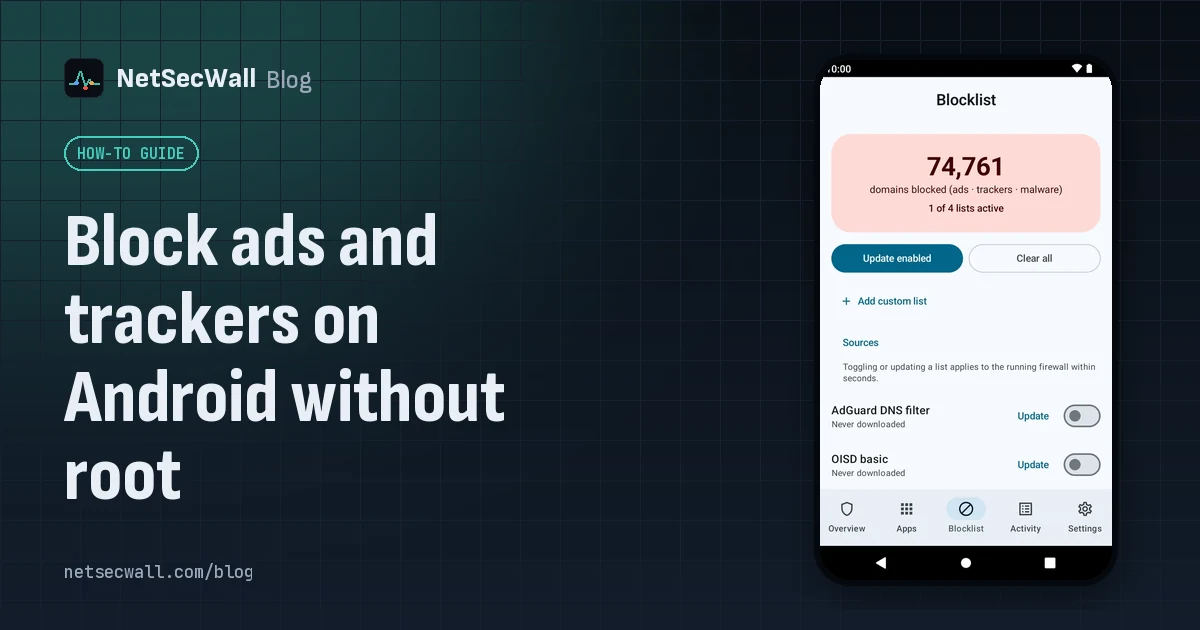
On this page
You can block ads on Android without root by filtering DNS, the lookups apps make before they connect to an ad or tracking server. There are two ways to do it: Android's built-in Private DNS setting pointed at a provider that filters, or an app that runs a local VPN and answers lookups from blocklists kept on the phone. Both remove a large share of ads and trackers, and both miss some.
Why ads and trackers are hard to stop on a phone
On a computer, a browser extension can hide ads inside web pages. On a phone, most ads and trackers live inside apps. Developers add advertising and analytics code that contacts its own servers, and you have no extension slot to stop it.
Android also keeps apps apart: without root, one app can't inspect or filter another app's traffic. The exception is Android's VPN interface. With your permission, an app can ask Android to route traffic through it, and that is how most no-root firewalls and ad blockers on Android work.
How DNS-based blocking works
Before an app can contact ads.example.com, it asks a DNS server for that name's address. A DNS filter sits in the middle of that question. If the name is on a blocklist, the filter answers "no such domain" (or an empty address such as 0.0.0.0), so the app never connects. The ad slot stays empty and the tracker never gets its data.
The blocklists are public, community-maintained lists of advertising, tracking and malware domains, often hundreds of thousands of entries long.
What DNS filtering can't do:
- Ads served from the same domain as the content. If an app or site delivers ads from the servers that deliver everything else, blocking the domain would break the whole service, so lists leave it alone.
- Hide things inside a page. DNS works at the level of whole domain names, not page elements.
- Catch apps that bring their own DNS. An app that uses its own encrypted DNS (DNS over HTTPS) or a hard-coded resolver skips the filter entirely. Encrypted DNS explained covers why.
It also occasionally breaks something, such as a link in a shopping app that goes through a tracking domain before reaching the store. The fix is to allow that one domain.
Option 1: Android's Private DNS setting
Android 9 and later have a system setting that sends every lookup to a DNS provider you choose, encrypted with DNS over TLS.
- Open Settings ▸ Network & internet ▸ Private DNS. On some phones it is under Connections ▸ More connection settings.
- Choose Private DNS provider hostname.
- Enter the hostname that a filtering DNS service publishes for its ad-blocking resolver.
- Save.
Good: no app to install, nothing running in the background, and it covers every app that uses the system resolver.
Limits: the provider sees every name your phone looks up, and you get their blocklist, not yours. You can't see which app looked up what, and allowing a single domain depends on what the provider offers. Apps with their own DNS still bypass it. If a network blocks encrypted DNS, lookups can fail until you switch the setting off.
Option 2: a local VPN DNS filter
A filter app uses Android's VPN interface, but instead of sending your traffic to a remote server, it keeps it on the phone. It routes only DNS lookups through itself, checks each name against lists stored on the device, answers blocked names itself, and forwards the rest to a normal DNS server.
Good: the lists and your exceptions live on your phone, you can add your own lists, and on Android 10 and later the app can show which app made each lookup.
Limits: Android runs one VPN at a time, so turning on a real VPN (for work, say) turns the filter off. If Private DNS is set to a provider hostname, lookups go straight to that provider and skip the local filter; leave Private DNS on Off or Automatic when you use one. Apps with their own DNS still bypass it.
How NetSecWall for Android does it
NetSecWall for Android is a free, no-root DNS firewall of the second kind. It is in beta and coming to Google Play; it isn't available to install yet. The Android page will link to the listing when it goes live.
Its default engine, VPN filter (DNS), routes only DNS lookups into the local tunnel. All other traffic goes out as normal, and nothing is sent to a NetSecWall server. There's no account and no analytics in the app.
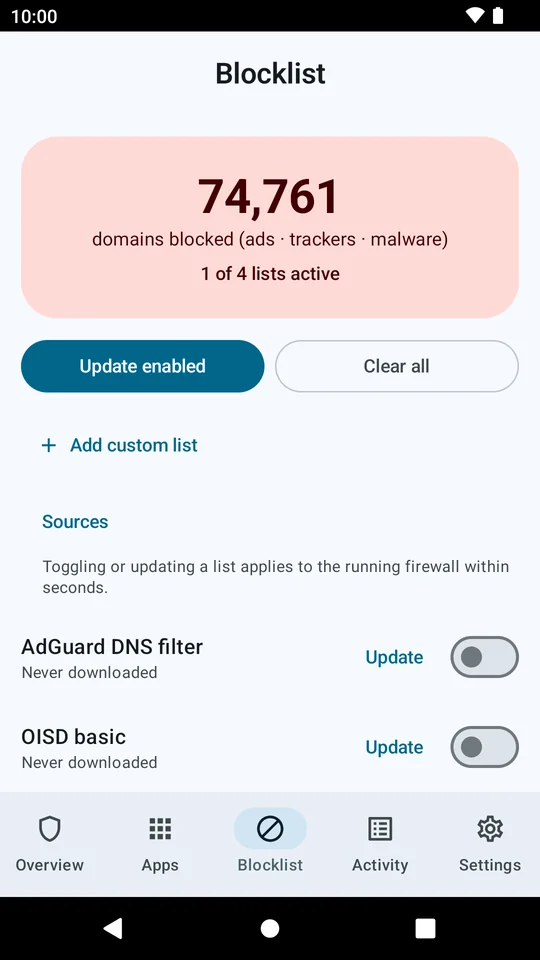
- Blocklists. The Blocklist tab has four built-in lists: StevenBlack (ads + malware), on by default, plus OISD basic, AdGuard DNS filter and URLhaus (malware). You can add your own lists as hosts files, plain domain lists or
||domain^lines. Lists aren't downloaded on first run; tap Update enabled to fetch them. - Your exceptions. My overrides lets you always allow or always block a domain, and your choice wins over the lists.
- The answer. Blocked names get "no such domain" (NXDOMAIN) by default; you can switch to 0.0.0.0 or REFUSED.
- Upstream DNS. Allowed lookups go to 1.1.1.1 by default, or to a DNS-over-HTTPS server if you turn that on.
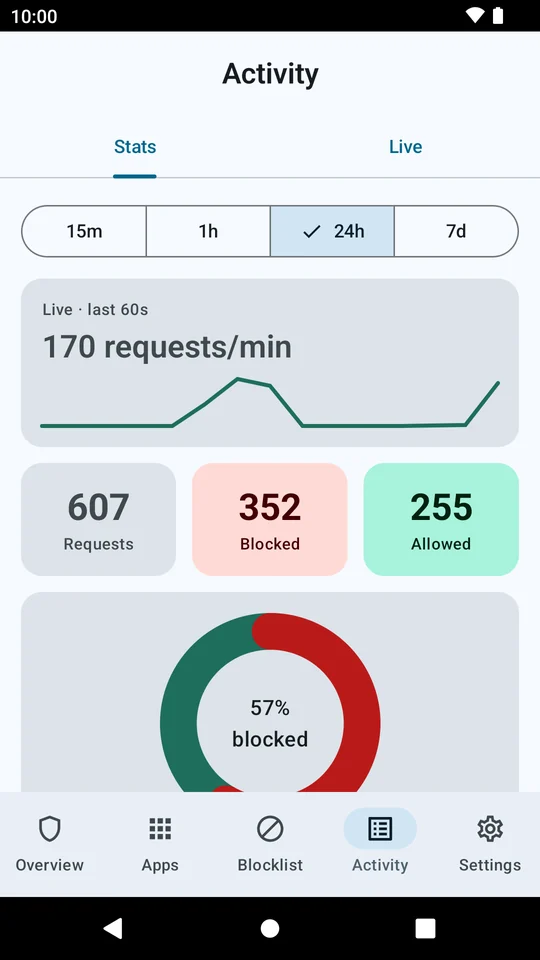
The Activity screen shows what the filter is doing: Stats has the share of lookups blocked, requests by hour, the top domains and the top apps, and Live is a searchable running log. On Android 10 and later, each lookup is tied to the app that made it, which is often the most surprising part: you see which game or utility contacts ad networks, and how often.
The same limits as any local DNS filter apply. It blocks by domain for the whole phone, not per app. Apps with their own encrypted DNS skip it, a Private DNS hostname skips it, and starting another VPN turns it off. NetSecWall for Android: what it does and blocklists, overrides and DNS settings go into detail.
Which approach to choose
If you want nothing installed and are happy with a provider's list, Private DNS is simple and light. If you want your own lists, your own exceptions, and a view of which app looks up what, a local VPN filter gives you that, at the cost of occupying Android's one VPN slot. Don't combine them: a Private DNS hostname sends lookups past the local filter.
Either way, DNS blocking is a strong first layer, not a complete one. It removes a large share of ads and trackers and shows you what your lookups reveal, and it will never catch everything. To see what's coming to the Android app, visit the Android page.
Frequently asked questions
Is a DNS ad blocker a real VPN? Does it hide my IP address?
No. A local VPN filter only uses Android's VPN interface to see DNS lookups on the phone. Your traffic isn't encrypted or sent anywhere new, and websites see your normal IP address.
Will DNS blocking break some apps?
Occasionally. An app may fail to load a page or a link may stop working if it depends on a blocked domain. Allowing that one domain usually fixes it.
Why do I still see some ads?
Some ads come from the same servers as the content, and some apps use their own encrypted DNS. A DNS filter can't block either without breaking the app.
Can I use a DNS filter app with my work VPN?
Not at the same time. Android runs one VPN at a time, so starting another VPN turns the filter off until you switch back.
When can I install NetSecWall for Android?
It's in beta and coming to Google Play. There's no APK download; the Android page will link to the Play listing once it's live.
Keep reading
 Why is an app on my PC talking to a Tor exit node?
Usually because something on your PC accepts connections arriving through Tor, a peer-to-peer app met a Tor user, or a program uses Tor itself. Malware does too, so check the app and direction.
Why is an app on my PC talking to a Tor exit node?
Usually because something on your PC accepts connections arriving through Tor, a peer-to-peer app met a Tor user, or a program uses Tor itself. Malware does too, so check the app and direction.
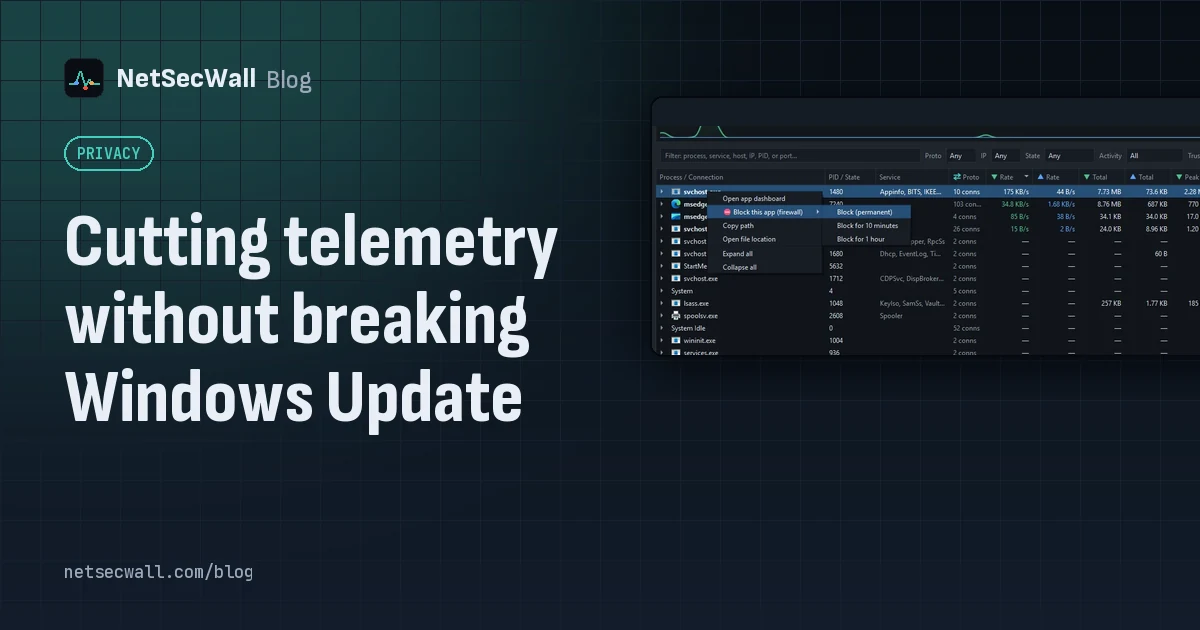 Cutting telemetry without breaking Windows Update
Use Windows' own diagnostic data settings for Windows, and block telemetry one app at a time for everything else. Blocking svchost.exe or Microsoft domains wholesale is what breaks Update.
Cutting telemetry without breaking Windows Update
Use Windows' own diagnostic data settings for Windows, and block telemetry one app at a time for everything else. Blocking svchost.exe or Microsoft domains wholesale is what breaks Update.
 Encrypted DNS (DoH): what it hides, and from whom
DNS over HTTPS encrypts the names your PC looks up, so the Wi-Fi owner and your ISP can't read them. The resolver you use still sees every name, and the addresses you then connect to stay visible.
Encrypted DNS (DoH): what it hides, and from whom
DNS over HTTPS encrypts the names your PC looks up, so the Wi-Fi owner and your ISP can't read them. The resolver you use still sees every name, and the addresses you then connect to stay visible.
 How accurate is IP geolocation?
IP geolocation is usually right about the country and often wrong about the city. It's an educated guess from registry records and network measurements, and CDNs, anycast and VPNs throw it off.
How accurate is IP geolocation?
IP geolocation is usually right about the country and often wrong about the city. It's an educated guess from registry records and network measurements, and CDNs, anycast and VPNs throw it off.