Cutting telemetry without breaking Windows Update
Use Windows' own diagnostic data settings for Windows, and block telemetry one app at a time for everything else. Blocking svchost.exe or Microsoft domains wholesale is what breaks Update.
NetSecWall for Windows
On this page
- What Windows telemetry is
- Start with Windows' own settings
- Why blocking svchost.exe backfires
- Block telemetry one app at a time
- How NetSecWall helps you block telemetry safely
- Tell services apart before you touch anything
- Block a program, and test with a timer first
- Filter tracking domains across all apps
- One thing NetSecWall doesn't do
- If something already broke
- The short version
The safe way to block telemetry on Windows comes in two parts. For Windows itself, use the diagnostic data and privacy settings Microsoft provides; they reduce what's collected without touching the services Windows needs. For third-party apps, cut telemetry one app at a time: the app's own opt-out first, then a firewall block on the app or its helper program. What breaks Windows is blocking broadly, whether that's the svchost.exe process or a long list of Microsoft domains.
What Windows telemetry is
Windows sends diagnostic data to Microsoft. There are two levels. Required diagnostic data covers the device, its configuration, whether updates installed, and errors. Optional diagnostic data adds more detailed information about how you use Windows and apps. On a PC, most of it is sent by a Windows service called Connected User Experiences and Telemetry (its short name is DiagTrack), which runs inside svchost.exe alongside dozens of other services.
That last detail is why this topic goes wrong so often. The process that carries telemetry also carries the services that keep Windows working.
Start with Windows' own settings
On Windows 11:
- Open Settings ▸ Privacy & security ▸ Diagnostics & feedback.
- Turn off Send optional diagnostic data. Windows then sends required diagnostic data only.
- Turn off Tailored experiences, so your diagnostic data isn't used to personalize tips and offers.
- Use Delete diagnostic data to ask Microsoft to delete what it has collected from this device.
- Open Settings ▸ Privacy & security ▸ General and turn off the advertising ID and any suggestions you don't want.
- Check Settings ▸ Privacy & security ▸ Activity history and turn off storing your activity history if you don't use it.
If you want to see what's being sent, View diagnostic data on the Diagnostics & feedback page turns on the Diagnostic Data Viewer.
On Home and Pro editions, required diagnostic data can't be switched off from Settings. Enterprise and Education editions let administrators go further through Group Policy. That's a supported setting; blocking the traffic is not.
Why blocking svchost.exe backfires
svchost.exe is a container. Windows runs many services inside copies of it, and from the outside they all look like the same program. Block svchost.exe in a firewall and you block all of them at once, including:
- Windows Update, and with it security fixes.
- Time synchronization, so the clock slowly drifts. A clock that is far enough off breaks secure connections.
- Activation and license checks for Windows and for Store apps.
- Network connectivity checks, so Windows starts reporting "No internet" when you have it.
Community blocklists of Microsoft domains cause a slower version of the same problem. Microsoft serves many things from shared domains and shared cloud infrastructure, so a name on a telemetry list can also serve something you need. The breakage often shows up weeks later as an update that fails with an unhelpful error code, long after you've forgotten the list was there.
What svchost.exe is doing on your network explains how to tell its services apart.
Block telemetry one app at a time
Third-party apps are a different story. Most don't share a process with anything important, so a block affects only that app. A conservative order:
- Use the app's own setting. Look for "send usage statistics", "help improve" or "crash reports" in its options.
- Find out what it contacts. The list of domains an app looks up usually makes its analytics and crash-reporting services obvious.
- Block the helper, not the app. Many apps ship their updater or crash reporter as a separate
.exein the program folder. Blocking just that one leaves the app working. - Block the whole app if it doesn't need the internet at all.
- Block tracking domains for everyone if you want a blanket filter on third-party analytics.
How NetSecWall helps you block telemetry safely
Tell services apart before you touch anything
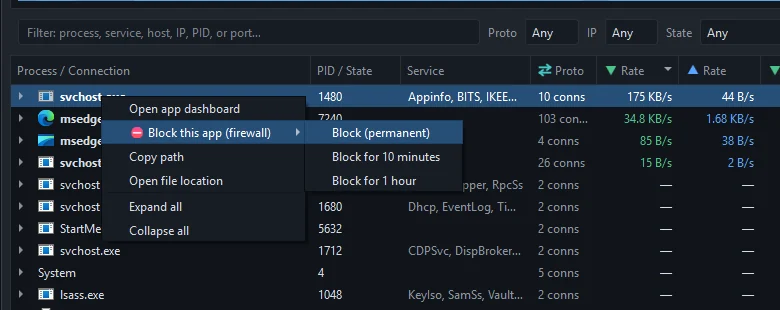
In the Live tab, svchost.exe connections come with a Service column that names the Windows service behind each one. Telemetry, Windows Update and time sync stop looking identical. The DNS tab shows which domains each app looks up; see the DNS log.
Block a program, and test with a timer first
Right-click a program in the Live tab and choose Block this app (firewall) ▸ Block for 1 hour. Use the app normally. If nothing you care about breaks, come back and choose Block (permanent). Blocks are keyed to the executable's path, so you can block SomeAppCrashReporter.exe and leave the app itself online.
Filter tracking domains across all apps
Open Protection ▸ Content categories… and tick Block for Tracking (and Ads, if you like). Connections from any app to domains on those lists are then blocked. What it catches depends entirely on the list; it isn't a Windows telemetry switch. See blocking website categories.
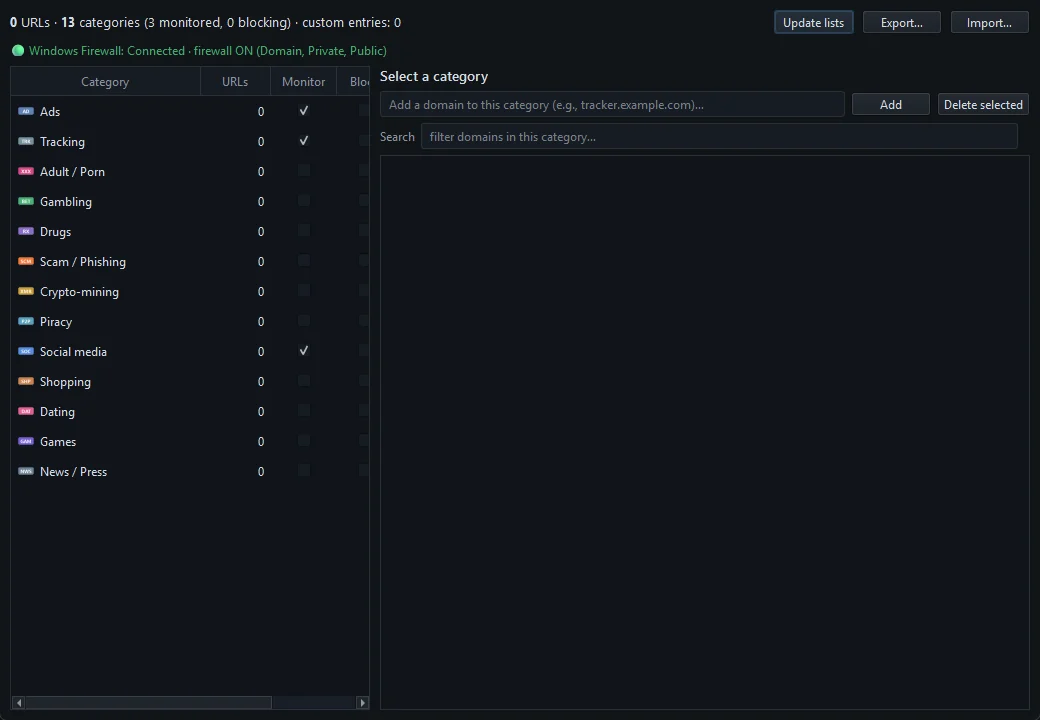
Category blocking works on the IP addresses a domain resolves to. The first packets to a brand-new address can get through, and a shared CDN address can occasionally carry something harmless along with a tracker.
Blocking is part of the Family and Pro plans, and of the 7-day trial.
One thing NetSecWall doesn't do
NetSecWall shows a single Windows service's traffic, but its app blocks work on whole programs, and that means all of svchost.exe. If you decide to block one Windows service anyway, Windows Defender Firewall with Advanced Security can scope a rule to a single service: in the rule's properties, Programs and Services ▸ Services ▸ Settings… ▸ Apply to this service. Do it with care, test it, and write down what you changed.
If something already broke
If Windows Update fails or an app stops connecting after a round of blocking, look at your rules before anything else. In NetSecWall, the Rules tab lists every block it made; remove the recent ones and try again. No internet after blocking something? walks through the checks in order.
The short version
Settings for Windows, narrow blocks for apps, timers before permanent rules, and never svchost.exe wholesale. If you'd like to see exactly which services and apps are sending what before you change anything, download NetSecWall and try every feature free for 7 days.
Frequently asked questions
Can I turn off Windows telemetry completely?
Not on Home or Pro from Settings. You can switch off optional diagnostic data, which leaves the required level. Organizations on Enterprise or Education editions can go lower through Group Policy.
Will blocking telemetry make my PC faster?
Rarely in any way you'd notice. Telemetry traffic is small and runs in the background. Blocking it is a privacy choice, not a performance tweak.
Should I use a hosts file to block telemetry domains?
A short list you understand is manageable. Long community lists are where breakage comes from, because some of the names they include serve more than telemetry. If you do use one, remember it's there when something fails.
How do I know if I broke Windows Update?
Open Settings ▸ Windows Update and check for updates. An error there after you added blocks is the clue. Remove your most recent blocks and try again before searching for the error code.
Does NetSecWall send telemetry of its own?
Its usage analytics are optional and off unless you switch them on under Help ▸ Privacy & telemetry…. The license check does send a device hash, version numbers, the PC name, a coarse country and the plan features in use. Exactly what NetSecWall sends lists all of it.
Keep reading
 How to stop apps from phoning home on Windows
See what each app contacts, decide which calls you'd miss, then block the rest: the whole app, just its updater or crash reporter, or ad and tracking domains across every app.
How to stop apps from phoning home on Windows
See what each app contacts, decide which calls you'd miss, then block the rest: the whole app, just its updater or crash reporter, or ad and tracking domains across every app.
 How to block a country on Windows
Windows has no country switch, so you block the country's IP ranges with firewall rules. NetSecWall does it with one right-click; geolocation is approximate, and CDNs and VPNs blur borders.
How to block a country on Windows
Windows has no country switch, so you block the country's IP ranges with firewall rules. NetSecWall does it with one right-click; geolocation is approximate, and CDNs and VPNs blur borders.
 How to block a program in Windows Firewall, two ways
Create an outbound rule for the program's .exe in Windows Defender Firewall with Advanced Security, set to Block the connection. Or right-click the program in NetSecWall and choose Block.
How to block a program in Windows Firewall, two ways
Create an outbound rule for the program's .exe in Windows Defender Firewall with Advanced Security, set to Block the connection. Or right-click the program in NetSecWall and choose Block.
 Keep the app, cut its internet: blocking without uninstalling
Block the program's outbound connections instead of removing it. The app still opens and works offline; it just can't reach the internet until you lift the block.
Keep the app, cut its internet: blocking without uninstalling
Block the program's outbound connections instead of removing it. The app still opens and works offline; it just can't reach the internet until you lift the block.