Encrypted DNS (DoH): what it hides, and from whom
DNS over HTTPS encrypts the names your PC looks up, so the Wi-Fi owner and your ISP can't read them. The resolver you use still sees every name, and the addresses you then connect to stay visible.
NetSecWall for Windows
On this page
DNS over HTTPS explained in one line: it puts your PC's name lookups inside an encrypted web connection, so people on the same Wi-Fi and your internet provider can no longer read which names you look up or tamper with the answers. It does not hide those names from the DNS resolver you send them to, and it doesn't hide the addresses you connect to afterwards. It also changes what monitoring tools on your own PC can see, which is why lookups a browser makes over DoH never appear in NetSecWall's DNS log.
How ordinary DNS works
DNS is the internet's phone book. Before your browser can reach example.com, something has to turn that name into an IP address.
On Windows, apps normally ask the built-in DNS Client service. It checks its cache and, if it doesn't know the answer, asks a recursive resolver: usually your router or internet provider, or a public service you've chosen such as Cloudflare's 1.1.1.1, Google's 8.8.8.8 or Quad9's 9.9.9.9. The resolver does the legwork and sends back the address.
Classic DNS travels unencrypted, over UDP port 53 (TCP 53 for large answers). Anyone on the path, such as the café Wi-Fi, your provider or a compromised router, can read every name you look up and could even change the answers. What your DNS lookups reveal shows how much those names give away.
DNS over HTTPS explained, and its cousins
Encrypted DNS wraps the same questions and answers in encryption. There are three common forms:
- DNS over HTTPS (DoH), standardized as RFC 8484 in 2018, sends DNS messages as HTTPS requests, normally on port 443. To anyone watching, it looks like ordinary web traffic.
- DNS over TLS (DoT), RFC 7858, uses a dedicated port, TCP 853. It's just as private, but easy to spot and block because of that port.
- DNS over QUIC (DoQ), RFC 9250, is a newer option built on the same transport as HTTP/3.
The privacy effect of all three is the same: the questions are sealed between your device and the resolver.
What encrypted DNS hides, and from whom
| Who | With plain DNS | With DoH or DoT |
|---|---|---|
| Others on your Wi-Fi, your internet provider | See every name you look up | See only that you're talking to a DNS resolver |
| The resolver you use | Sees every name | Still sees every name |
| Anyone watching the connection that follows | Sees the server's address, and usually the site name in the connection setup | The same, unless the site and browser use ECH |
| Tools on your PC that read Windows' DNS events | See every name looked up through Windows | See names looked up through Windows, but not a browser's own DoH lookups |
Three limits are worth spelling out:
- The resolver sees everything. Encrypted DNS moves your trust from your network to whoever runs the resolver. Choose one whose privacy policy you're comfortable with.
- The destination address is still visible. After the lookup, your PC connects to the address it got back, and that address travels in the clear. On a shared CDN address that says less than you'd think; on a dedicated server it says plenty.
- The site name usually travels in the clear too. When an HTTPS connection starts, the browser names the site it wants in a field called SNI, unencrypted, so the right certificate comes back. Encrypted Client Hello (ECH) hides it, but only when both the browser and the site support it, and browsers generally pair it with secure DNS.
Browser DoH and Windows DoH are not the same thing
In a browser. Chrome and Edge call the setting Use secure DNS, in their privacy and security settings; Firefox has a DNS over HTTPS section under Privacy & Security. When it's on, the browser does its own lookups over HTTPS and skips Windows' DNS Client entirely. Chrome's default mode switches to DoH only if the resolver you already use supports it; Firefox turns DoH on by default in some countries. Either way, it only covers that browser's lookups, not the rest of your apps.
In Windows 11. Windows 11 can encrypt lookups for the whole PC. The lookups still go through the DNS Client service; only the trip to the resolver is encrypted. To turn it on:
- Open Settings ▸ Network & internet and select Wi-Fi or Ethernet.
- For Wi-Fi, open Hardware properties. For Ethernet, the settings are on the same page.
- Next to DNS server assignment, click Edit.
- Choose Manual and turn on IPv4.
- Enter a resolver that supports DoH as Preferred DNS, for example
1.1.1.1,8.8.8.8or9.9.9.9. - Set DNS over HTTPS to on and click Save. On early Windows 11 builds this option is called Preferred DNS encryption.
The automatic option works only for resolvers Windows already knows the HTTPS address of; netsh dns show encryption lists them, and recent builds also accept one you type in yourself. Windows 10 doesn't offer DoH in its settings.
Why NetSecWall can't see names a browser looks up over DoH
NetSecWall doesn't sit in your traffic. It learns names by reading the events Windows' DNS Client records for each completed lookup; how NetSecWall sees every connection explains the method. That has a simple consequence:
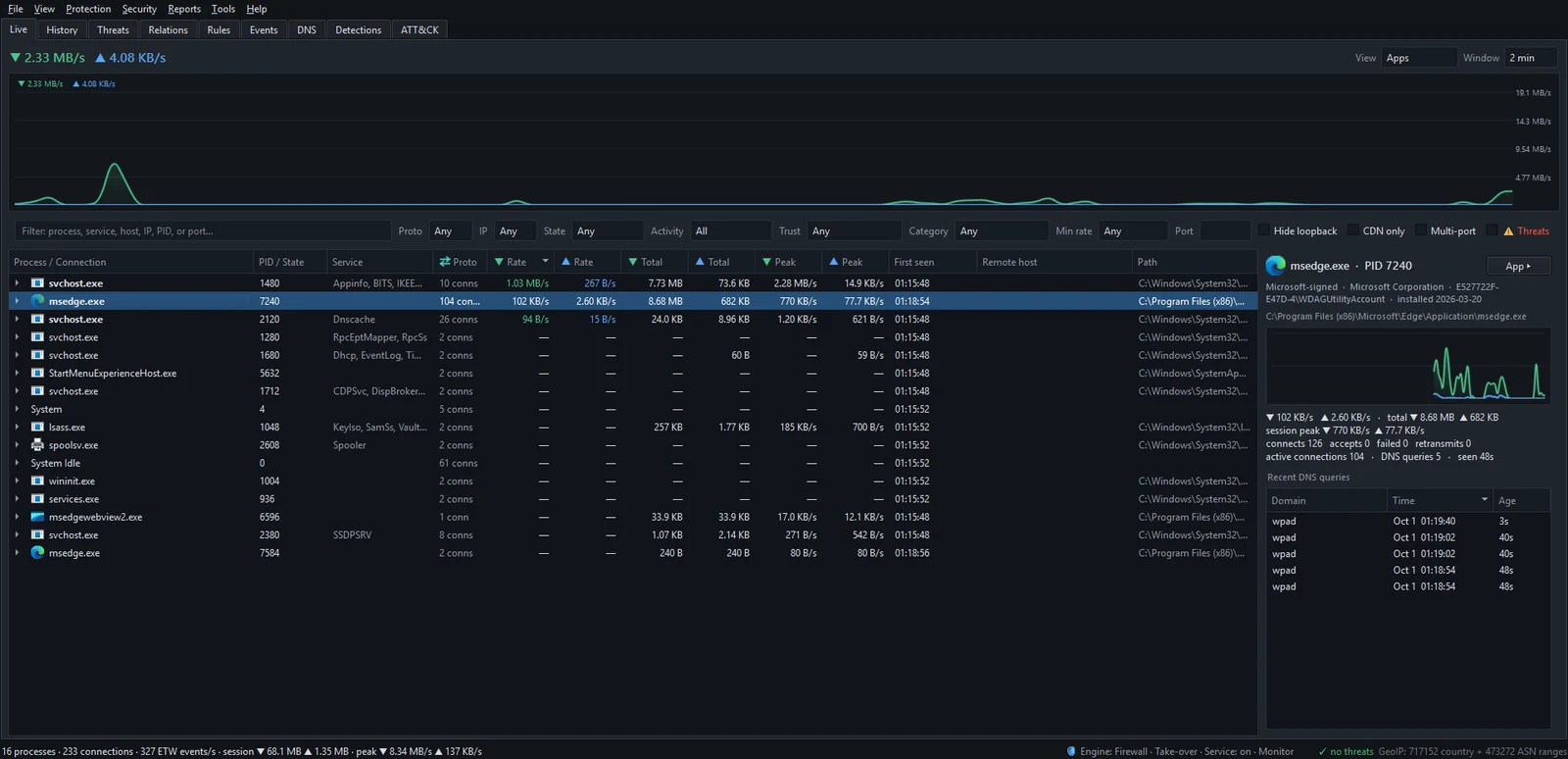
- Lookups through Windows, including Windows 11's own DoH, still pass through the DNS Client, so they appear in the DNS tab and in each app's Recent DNS queries.
- Lookups a browser makes over its own DoH never touch the DNS Client. NetSecWall doesn't see those names. What you see instead is the browser holding an HTTPS connection to the resolver, often with a lookup for the resolver's own name first, such as
dns.googleormozilla.cloudflare-dns.com.
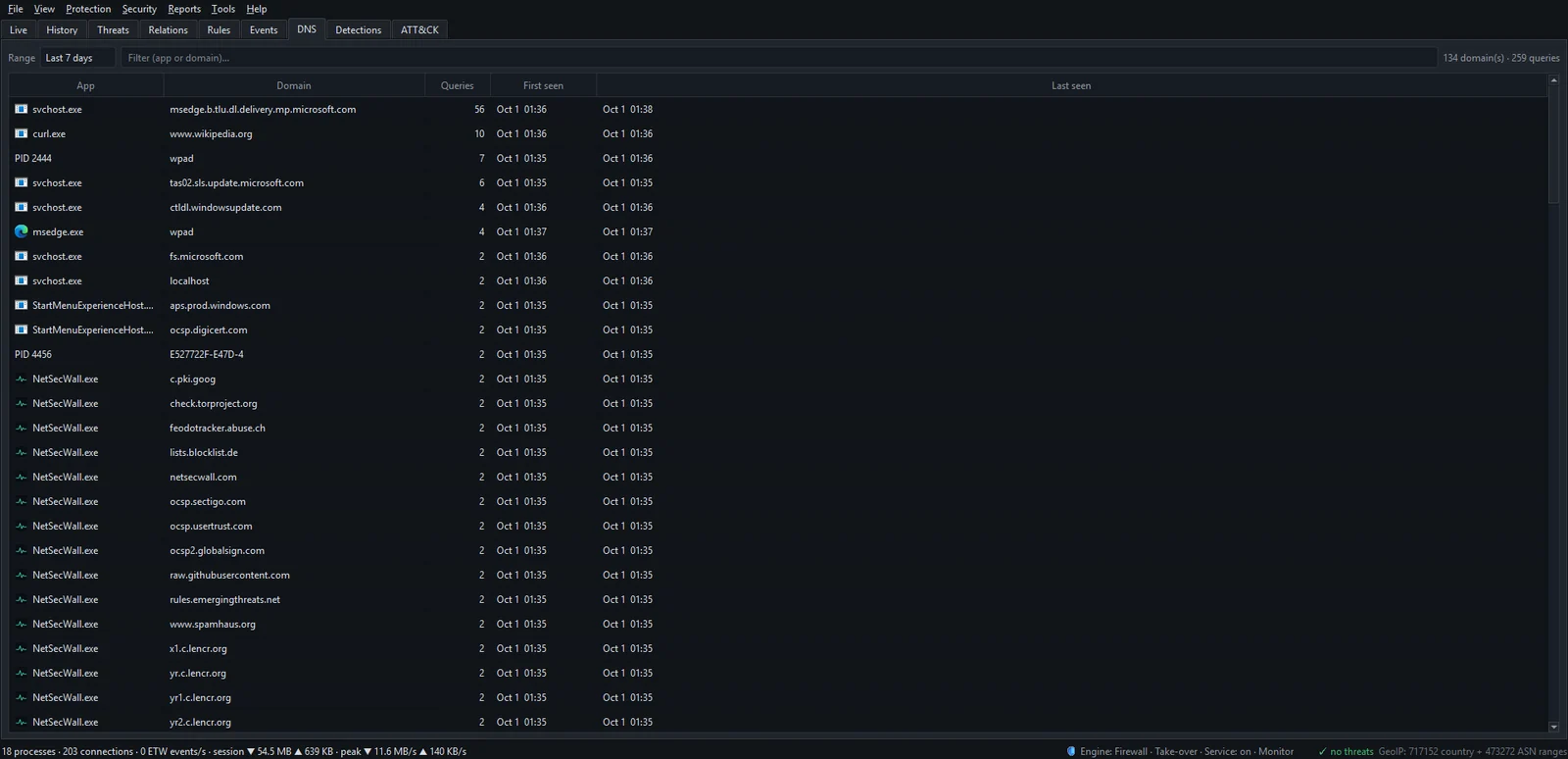
The browser's actual connections still show in the Live tab, with their addresses, network owners and traffic. They just lack the site name, so Remote host falls back to reverse DNS, which for CDN addresses names the CDN rather than the site; see why apps connect to CDNs.
There's a knock-on effect for blocking. NetSecWall's website categories work by watching which addresses category domains resolve to. If a browser resolves names privately over DoH, NetSecWall can't learn those addresses from that browser's lookups, so category labels and category blocks become unreliable for that browser. NetSecWall itself doesn't encrypt or filter DNS.
Choosing a setup
You're trading visibility on your network against visibility on your PC. Two reasonable setups:
- Browser DoH on. Your browsing lookups are hidden from the network, and from local tools like NetSecWall. Fine if you mainly care about the café Wi-Fi or your provider.
- Browser secure DNS off, Windows 11 DoH on. Lookups are still encrypted on the wire, but every name passes through Windows, so the DNS log, category labels and category blocks keep working. This is the better fit on a family PC that relies on parental controls.
The short version
Encrypted DNS hides your lookups from the network in between, not from the resolver, and not the addresses you visit. A browser's own DoH also hides them from software on your PC; Windows 11's DoH doesn't. To see which names your apps look up through Windows, download the 7-day trial and open the DNS tab, or read how the DNS log works.
Frequently asked questions
Does DNS over HTTPS hide my browsing from my internet provider?
It hides the names you look up, but your provider still sees the addresses you connect to and, on most sites, the site name at the start of each secure connection. A VPN hides more, by moving all of that to the VPN provider.
Is DoH the same as a VPN?
No. DoH only encrypts name lookups. A VPN tunnels all your traffic to another server, so your provider sees only the tunnel, and the VPN provider sees what your provider used to.
Does encrypted DNS slow down browsing?
Usually not noticeably. The first lookup may take slightly longer while the encrypted connection is set up, but browsers and Windows reuse that connection for later lookups.
Can malware use DNS over HTTPS?
Yes, some does, to keep its lookups out of sight. It still has to connect to its server afterwards, and that connection, the program making it and its timing remain visible to a tool that watches connections.
Does Windows 10 support DNS over HTTPS?
Not through its settings. Built-in DoH arrived with Windows 11. On Windows 10 you can still use a browser's own secure DNS setting.
Keep reading
 What your DNS lookups reveal about the apps on your PC
Before most connections, an app asks DNS for a name. A per-app list of those names shows which services each program uses, what it checks in with, and odd lookups worth a second look.
What your DNS lookups reveal about the apps on your PC
Before most connections, an app asks DNS for a name. A per-app list of those names shows which services each program uses, what it checks in with, and odd lookups worth a second look.
 How NetSecWall sees every connection without a driver
NetSecWall reads what Windows already records: kernel network events through ETW, DNS answers, and the TCP and UDP tables. It sees which app talks to which address without capturing a single packet.
How NetSecWall sees every connection without a driver
NetSecWall reads what Windows already records: kernel network events through ETW, DNS answers, and the TCP and UDP tables. It sees which app talks to which address without capturing a single packet.
 How to find which app is using a port on Windows
Run netstat -ano to get the process ID (PID) that owns the port, then look that PID up in Task Manager. PowerShell's Get-NetTCPConnection and Resource Monitor give the same answer.
How to find which app is using a port on Windows
Run netstat -ano to get the process ID (PID) that owns the port, then look that PID up in Task Manager. PowerShell's Get-NetTCPConnection and Resource Monitor give the same answer.
 How accurate is IP geolocation?
IP geolocation is usually right about the country and often wrong about the city. It's an educated guess from registry records and network measurements, and CDNs, anycast and VPNs throw it off.
How accurate is IP geolocation?
IP geolocation is usually right about the country and often wrong about the city. It's an educated guess from registry records and network measurements, and CDNs, anycast and VPNs throw it off.