How to block adult websites on Windows 10 and 11
Use a family DNS filter on your router, a filter on the PC, or both. NetSecWall blocks its Adult / Porn category, around 900,000 domains, for every browser and app on the PC, behind a password.
NetSecWall for Windows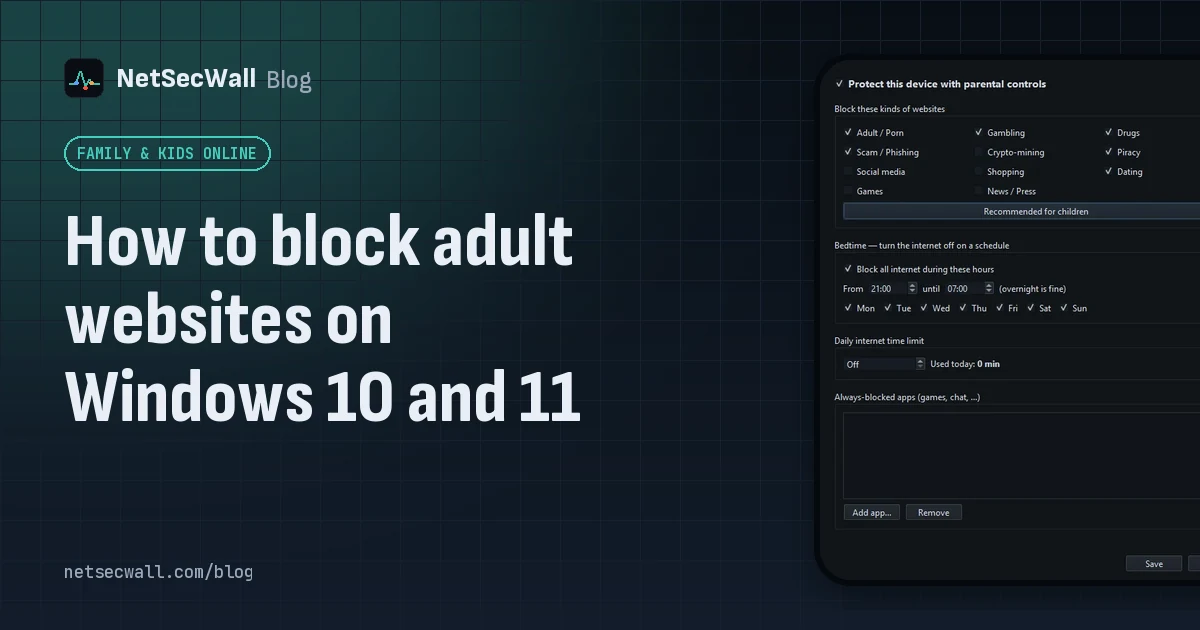
On this page
To block adult websites on Windows, use a filter that refuses to connect to domains on an adult-content list. You can apply one at the network level, with a family DNS service or your router, or on the PC itself. NetSecWall does the second: tick Adult / Porn in its parental controls and every browser and app on the PC is blocked from around 900,000 listed domains, with the setting locked behind your password.
Why no filter catches everything
It helps to start with honest expectations. Adult sites number in the millions, new domains appear every day, and many sites run mirror copies under other names. Every filter works from a list someone built, by hand or by script, and every list has gaps.
Some adult content also sits inside sites that aren't adult sites at all: image search results, social networks, forums and video platforms. A filter that blocks whole domains can't remove one image from an allowed site. For that, turn on SafeSearch in the search engines your child uses and use the safety settings of the platforms themselves.
So think of a filter as a strong first layer that stops most accidental and casual exposure. The rest comes from supervision that fits your child's age, and from conversations.
Your options
A family DNS filter
Several public DNS services offer a family filter: you point your router, or the PC's network settings, at their resolver, and they refuse to look up adult domains. Set on the router, it covers every device on your Wi-Fi.
Limits: it only works while the device uses that DNS. Browsers that use their own encrypted DNS skip it, phones on mobile data skip it, and you see nothing about which app tried what. Changing the PC's DNS settings needs an administrator, which also means a standard account can't undo it.
Router parental controls
Some routers include category filtering or a filtered DNS option in their app. It covers the home network and nothing outside it.
A filter on the PC
Software on the PC applies wherever the PC goes, including a phone hotspot, and can't be avoided by switching networks. It covers only that PC.
Windows' built-in option is Microsoft Family Safety, which needs Microsoft accounts for you and your child; its web filter works through Microsoft Edge.
These layers combine well. A router or DNS filter for the house, and an on-PC filter for the child's own computer, cover different gaps.
Block adult websites with NetSecWall
Parental controls are part of NetSecWall's Family and Pro plans, and of the 7-day trial.
- Open Protection ▸ Settings password… and set a password first.
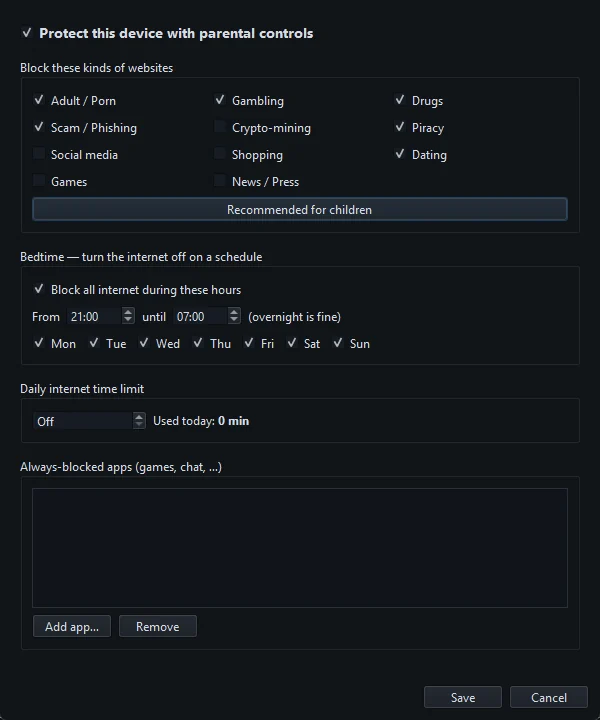
- Open Protection ▸ Parental controls… and tick Protect this device with parental controls.
- Under Block these kinds of websites, tick Adult / Porn. Or click Recommended for children, which ticks Adult / Porn, Gambling, Drugs, Scam / Phishing, Piracy and Dating.
- Click Save. The first time, NetSecWall downloads the lists, which can take a minute.
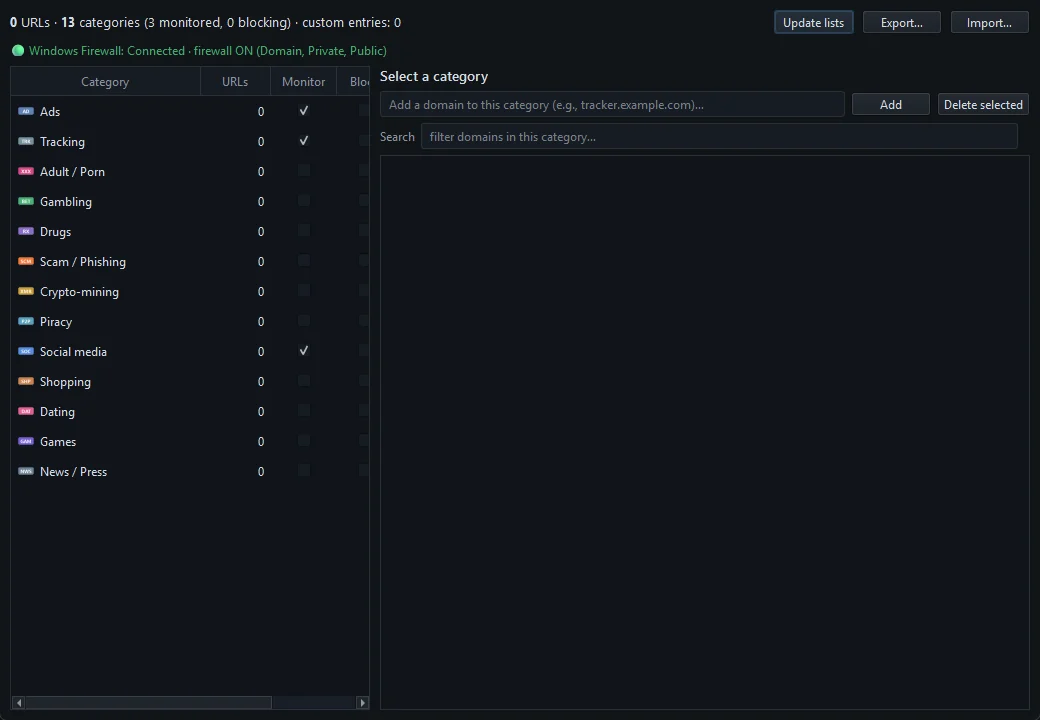
If you don't need the other parental tools, Protection ▸ Content categories… does the same job on its own: tick Block next to Adult / Porn. That window also shows how many domains each list holds. To add a site the list misses, select the category, type the domain in the "Add a domain to this category" box above its list, and click Add. Domains you add are kept when the lists update. Blocking website categories covers the window in full.
How the blocking works, and where it falls short
The Adult / Porn list comes from a public blocklist project and is served from NetSecWall's own servers, refreshed automatically about once a day. When any program on the PC looks up a domain on the list, NetSecWall adds the addresses that name resolves to into its firewall block. From then on, no browser or app on the PC can connect to those addresses.
That design has four consequences you should know:
- It's reactive. The block lands just after the lookup, so the very first moment of a first visit can slip through before the address is blocked.
- It's address-based. Some sites share addresses with others on the same hosting or content network. Blocking one can block a harmless neighbor, and a site missing from the list isn't blocked at all.
- It needs to see the lookup. NetSecWall learns names through Windows' own DNS client. If a browser uses its own encrypted DNS (Chrome and Edge call the setting Use secure DNS; Firefox lists it as DNS over HTTPS), those lookups are invisible to it and the filter can miss sites. Turn that setting off in each browser on your child's account, and check it now and then. Encrypted DNS explained has the background.
- It's not page filtering. NetSecWall never reads page contents, so it can't block one page or picture on an allowed site.
VPNs and proxy extensions route around any domain filter, on the PC or the network. Can kids get around parental controls? covers those and how to make them harder.
Make it stick
- Give your child a standard Windows account, so they can't stop NetSecWall or remove its rules. The steps are in setting up parental controls on a child's PC.
- Keep the settings password private. There's no recovery, so store it somewhere other than the PC.
- Keep NetSecWall installed with its background service, which keeps the category blocks in force from startup.
- Tell your child the filter is there and why. If something upsetting gets through, you want to be the first person they tell, not the last.
The same steps block gambling sites too; see how to block gambling sites on a PC. To try it, download the 7-day trial.
Frequently asked questions
Does the block work in private or incognito windows?
Yes. The block is in the Windows firewall, not the browser, so private windows are covered the same way, as long as the browser uses Windows' DNS rather than its own encrypted DNS.
Will it block adult content on social media or search engines?
No. It blocks whole domains, and those sites aren't on adult lists. Turn on SafeSearch and use each platform's own safety settings for that.
How often are the lists updated?
Automatically, about once a day, when Tools ▸ Feeds ▸ Auto-update feeds daily is on (the default). Tools ▸ Feeds ▸ Update category lists now fetches them immediately.
Why is a harmless site blocked?
Usually because it shares an address with a listed site on the same hosting or content network. Blocking works on addresses, so neighbors can be caught.
Does it work in every browser?
Yes. The firewall block applies to every browser and app on the PC. The one exception to watch is a browser with its own encrypted DNS switched on.
Keep reading
 How to block gambling sites on a PC
Block the Gambling website category on the PC and lock the setting behind a password someone else holds. No filter catches every gambling site, so pair the block with support beyond the computer.
How to block gambling sites on a PC
Block the Gambling website category on the PC and lock the setting behind a password someone else holds. No filter catches every gambling site, so pair the block with support beyond the computer.
 Block games during homework time
Block the game programs themselves, not just gaming websites. NetSecWall can cut a game's internet for good or for an hour, block gaming sites, and hold new apps until you approve them.
Block games during homework time
Block the game programs themselves, not just gaming websites. NetSecWall can cut a game's internet for good or for an hour, block gaming sites, and hold new apps until you approve them.
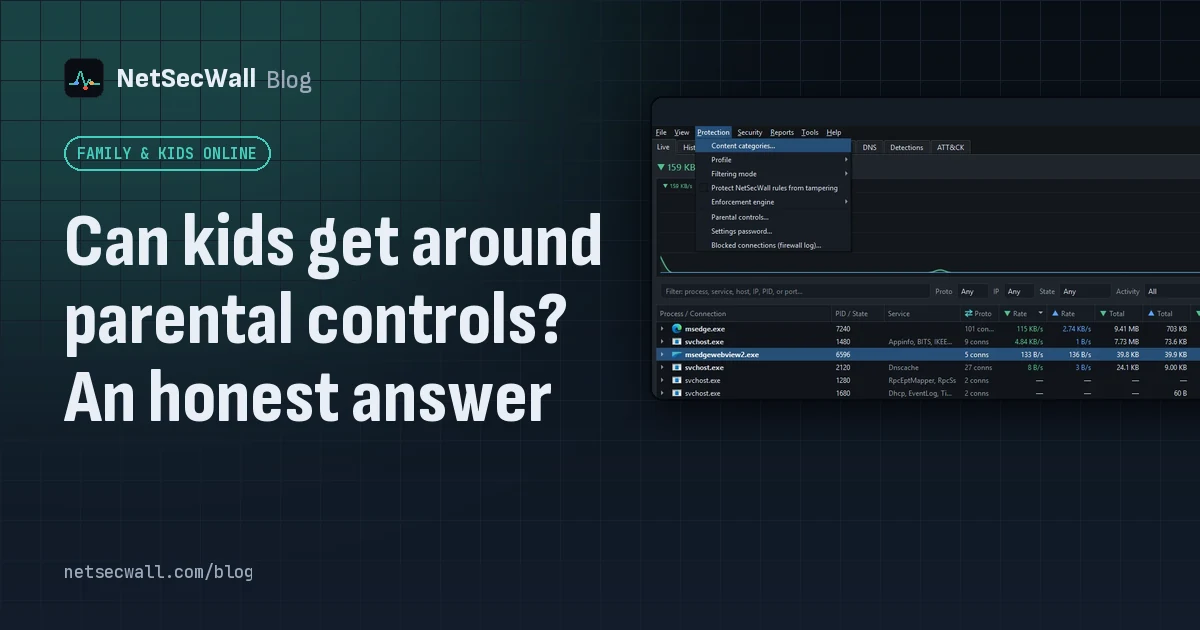 Can kids get around parental controls? An honest answer
Yes. A determined child can get around almost any parental control, especially with admin rights, another device or a VPN. You can make it much harder, and talking to them does more than any setting.
Can kids get around parental controls? An honest answer
Yes. A determined child can get around almost any parental control, especially with admin rights, another device or a VPN. You can make it much harder, and talking to them does more than any setting.
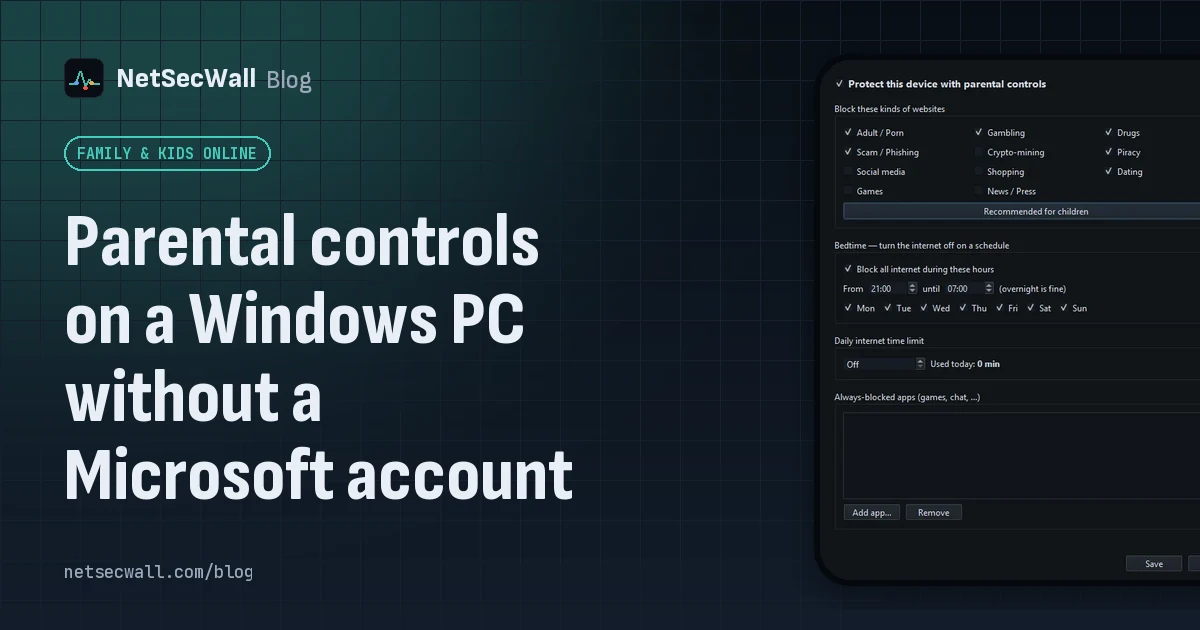 Parental controls on a Windows PC without a Microsoft account
Windows' own family features need Microsoft accounts. Without them, give your child a standard local account and use an on-PC tool that filters sites and sets a bedtime and daily limit.
Parental controls on a Windows PC without a Microsoft account
Windows' own family features need Microsoft accounts. Without them, give your child a standard local account and use an on-PC tool that filters sites and sets a bedtime and daily limit.