What your DNS lookups reveal about the apps on your PC
Before most connections, an app asks DNS for a name. A per-app list of those names shows which services each program uses, what it checks in with, and odd lookups worth a second look.
NetSecWall for Windows
On this page
A DNS lookup is a program asking "what's the address for this name?" before it connects. Because almost every connection starts with one, a per-app list of lookups is a readable map of what each program talks to: its update server, its analytics provider, its ad network, the cloud service behind it. Windows keeps only a short-lived cache with no program names attached. NetSecWall's DNS tab keeps the whole list, per app, on your PC.
What DNS is, briefly
Computers connect to IP addresses. Programs and people use names. Before an app connects to api.example.com, it asks a DNS resolver, usually your router, your internet provider, or a service you chose, for that name's address. On Windows, most programs ask through the built-in DNS Client service, which also caches the answers for a while so the same name isn't looked up every second.
Traditional DNS travels unencrypted, so your resolver and anyone on the network path can see the names you look up. Encrypted DNS changes that, with trade-offs covered in encrypted DNS (DoH) explained.
What a lookup log tells you about each app
What DNS lookups reveal is less about you than about your software. A lookup log answers questions that are hard to answer any other way:
- Which services an app depends on. Names often say what they are for: something with "update", "telemetry", "api" or "cdn" in it is a strong hint. Not a guarantee, but a hint.
- Which third parties are built in. Analytics, crash-reporting and ad services each have their own domains. An app's lookups show which ones it carries, even when every connection is encrypted.
- Quiet background check-ins. An app you haven't opened today that has looked up the same name two hundred times is running something in the background.
- Attempts that went nowhere. A lookup is recorded even if the connection that should follow never happens because it was blocked, failed, or the app gave up. The log shows intent, not just traffic.
- Warning signs. Long, random-looking names are typical of domain generation algorithms, a technique some malware uses to find its server. Names under freshly registered domains are another; see newly registered domains. So is a program that connects out without looking up any name at all, going straight to a raw address.
Treat names as evidence, not proof. A harmless service can have a sinister-sounding name, and the reverse.
Seeing DNS lookups with Windows tools
Windows has two built-in options, neither made for this job:
ipconfig /displaydnsin a terminal prints the DNS cache: names looked up recently, with no program names, and entries disappear as they expire.- Event Viewer has a DNS Client log under Applications and Services Logs ▸ Microsoft ▸ Windows ▸ DNS Client Events ▸ Operational. It's off by default; right-click it and choose Enable Log. It records every query, one event each, which makes it thorough and hard to read. You also have to match process IDs back to programs yourself.
If you enable the DNS Client log for a test, disable it again afterward. It fills quickly, and older events are overwritten.
The per-app DNS log in NetSecWall
NetSecWall reads the same DNS Client events Windows produces, ties each answer to the program that asked, and stores the result in its local database. Nothing is sent anywhere to be looked up.
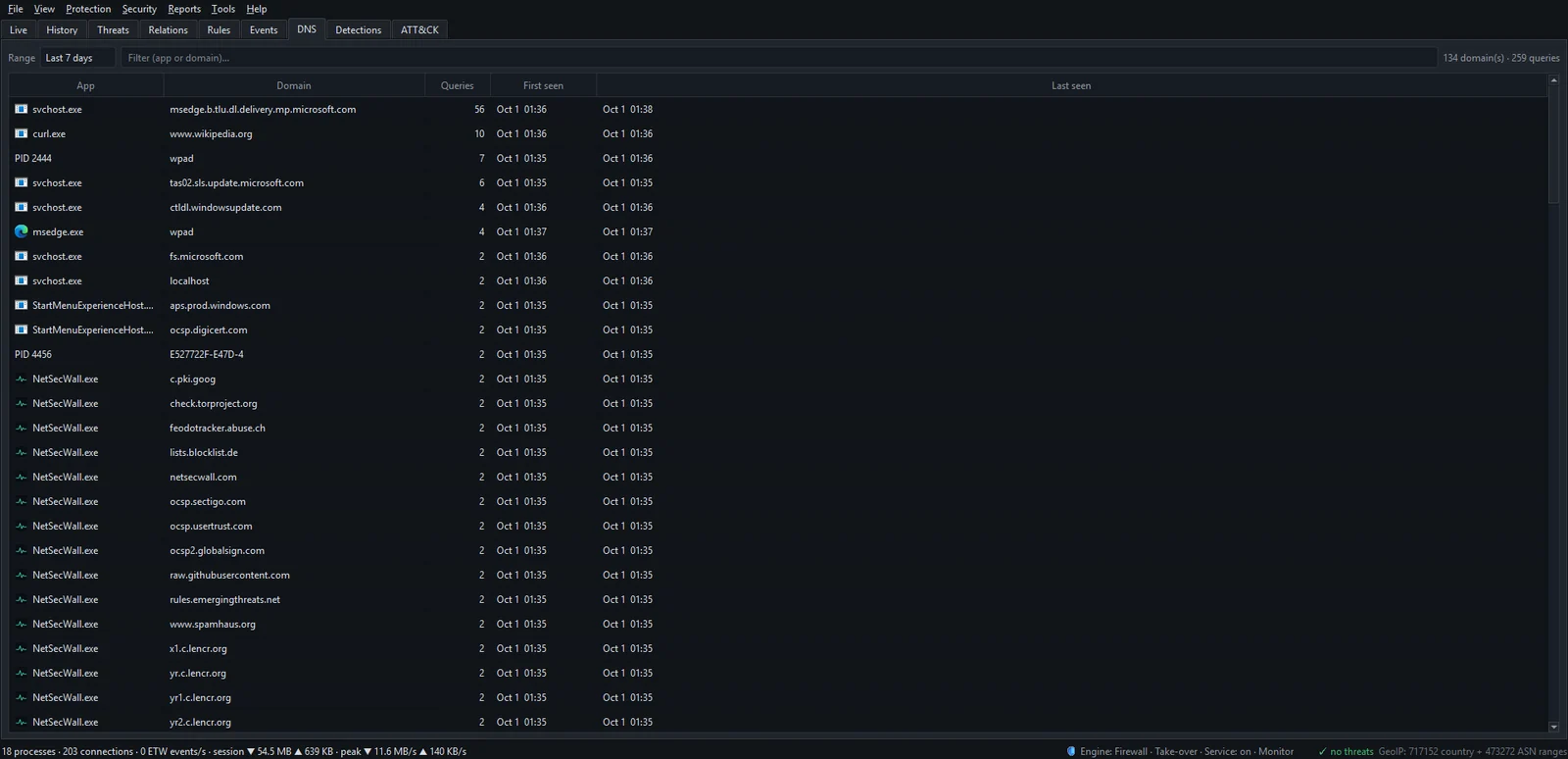
- Open the DNS tab.
- Pick a Range: Today, Last 7 days, Last 30 days or All time.
- Type an app or a domain into Filter (app or domain)….
- Sort by Queries to find the chattiest names, or by First seen to find what's new.
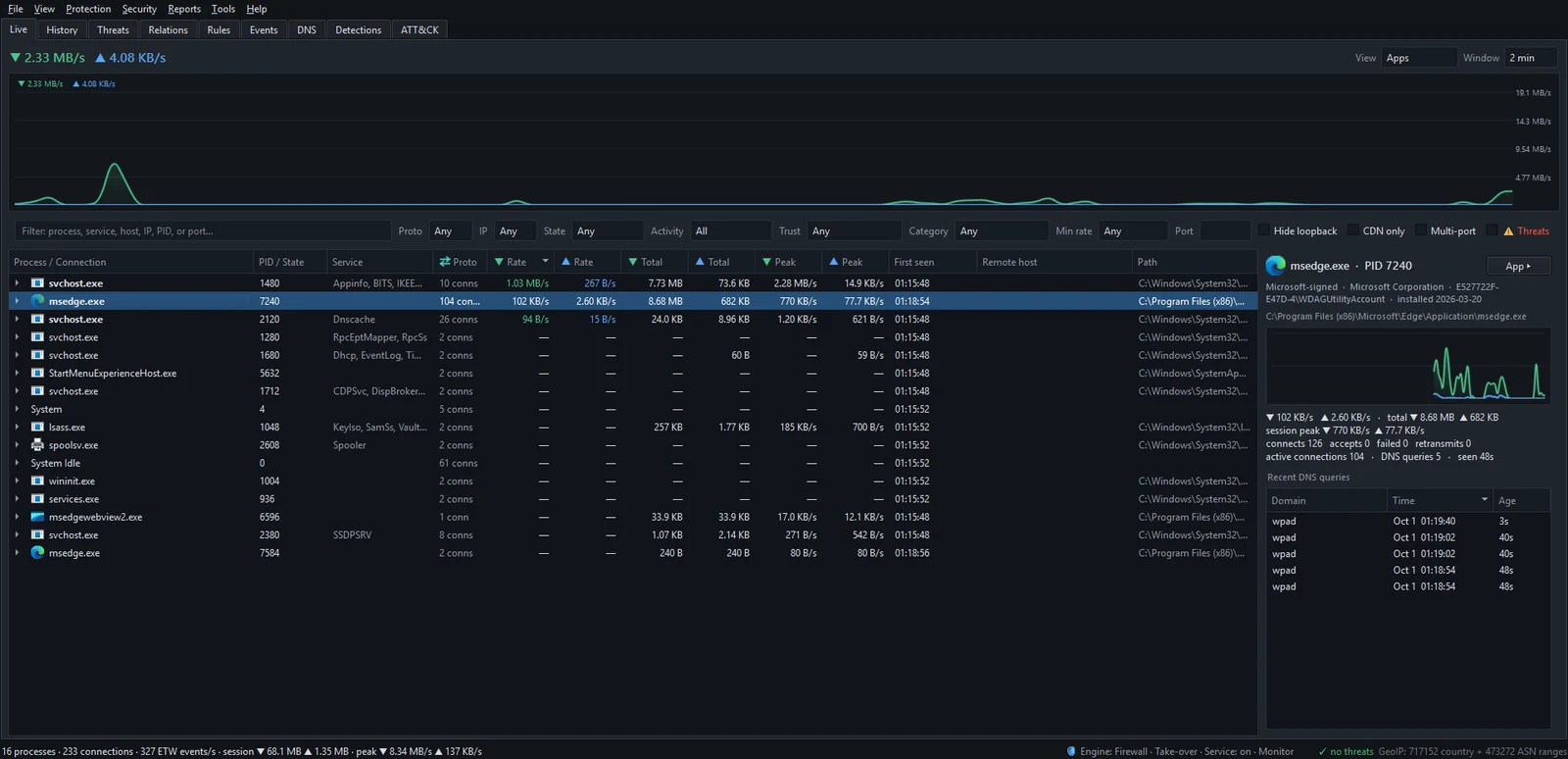
For the program you're looking at right now, select it in the Live tab. The details pane on the right has a Recent DNS queries table with each domain, when it was looked up, and how long ago.
Two related views help too. The Live tab's By Domain view groups current traffic under the name it went to, and the History tab with Group by set to Domains totals traffic per domain over any range. See which domains each app looks up covers the DNS tab in detail.
The encrypted-DNS blind spot
If a browser uses its own DNS over HTTPS, its lookups skip Windows' DNS Client service, which is where NetSecWall reads them. You'll see the browser's HTTPS connection to the DNS provider, but not the names inside it. The same applies to any app that brings its own resolver.
The connections themselves still show up in the Live tab with their addresses, network owners and countries. You lose the names, not the traffic. If you want browser lookups in the log, the browser's secure DNS setting is what controls it, and you'd be trading some privacy on the network for visibility on your PC.
NetSecWall reads DNS; it doesn't change it. It doesn't encrypt, filter or redirect lookups. To encrypt DNS for the whole PC, Windows 11 has an option under Settings ▸ Network & internet, in your connection's DNS server assignment settings, for resolvers that support it.
Acting on what you find
If a name in the log belongs to something you'd rather an app didn't contact, you have two main options. Block the whole app if it doesn't need the internet, or add the domain to a content category set to Block, so it's blocked for every app; see blocking a specific domain. For a broader approach to chatty software, read how to stop apps from phoning home.
The short version
DNS lookups are the table of contents for your apps' network activity. They show which services each program uses and which ones it checks in with while you're not looking. To keep that list for your own PC, download NetSecWall and try every feature free for 7 days.
Frequently asked questions
Does NetSecWall log the websites I visit?
It logs the domain names programs look up through Windows' DNS Client, per program, on your PC. That includes your browser's lookups unless the browser uses its own encrypted DNS. It records names, not full web addresses or page contents.
Why does one app look up so many different domains?
Modern apps are assembled from services: a CDN for downloads, an API for data, analytics, crash reporting, sometimes ads. Browsers are the extreme case, because each web page pulls from many domains.
Does flushing the DNS cache delete this history?
No. ipconfig /flushdns empties Windows' short-term cache. NetSecWall's DNS log lives in its own database on your PC and isn't affected.
Can my internet provider see my DNS lookups?
If they go to your provider's resolver unencrypted, yes, and anyone on the path can see them too. Encrypted DNS hides the names from the network, though the resolver you send them to still sees them.
Is it suspicious when an app connects without any DNS lookup?
It can be. Most legitimate software connects by name. A program reaching raw addresses directly is one of the signals NetSecWall's detection engine scores, though some games, peer-to-peer apps and system tools do it for ordinary reasons.
Keep reading
 Encrypted DNS (DoH): what it hides, and from whom
DNS over HTTPS encrypts the names your PC looks up, so the Wi-Fi owner and your ISP can't read them. The resolver you use still sees every name, and the addresses you then connect to stay visible.
Encrypted DNS (DoH): what it hides, and from whom
DNS over HTTPS encrypts the names your PC looks up, so the Wi-Fi owner and your ISP can't read them. The resolver you use still sees every name, and the addresses you then connect to stay visible.
 How NetSecWall sees every connection without a driver
NetSecWall reads what Windows already records: kernel network events through ETW, DNS answers, and the TCP and UDP tables. It sees which app talks to which address without capturing a single packet.
How NetSecWall sees every connection without a driver
NetSecWall reads what Windows already records: kernel network events through ETW, DNS answers, and the TCP and UDP tables. It sees which app talks to which address without capturing a single packet.
 How to find which app is using a port on Windows
Run netstat -ano to get the process ID (PID) that owns the port, then look that PID up in Task Manager. PowerShell's Get-NetTCPConnection and Resource Monitor give the same answer.
How to find which app is using a port on Windows
Run netstat -ano to get the process ID (PID) that owns the port, then look that PID up in Task Manager. PowerShell's Get-NetTCPConnection and Resource Monitor give the same answer.
 How accurate is IP geolocation?
IP geolocation is usually right about the country and often wrong about the city. It's an educated guess from registry records and network measurements, and CDNs, anycast and VPNs throw it off.
How accurate is IP geolocation?
IP geolocation is usually right about the country and often wrong about the city. It's an educated guess from registry records and network measurements, and CDNs, anycast and VPNs throw it off.