Blocklists, overrides and DNS settings on Android
Turn lists on in the Blocklist tab and tap Update enabled to download them. Add overrides to always allow or block a domain, and set the resolver, DNS-over-HTTPS and block response in Settings.
NetSecWall for AndroidOn this page
NetSecWall for Android keeps its DNS blocklist settings in two places. The Blocklist tab decides which domains get blocked, and Settings ▸ DNS decides where allowed lookups go. Turn on the lists you want and tap Update enabled to download them. Lists aren't fetched automatically. Use My overrides to always allow a domain a list broke, or always block one no list covers. The app is in beta, included with every NetSecWall plan for Windows and the free trial, and installed as a signed APK from the Android page. It filters only once it's linked to your PC. See the app overview first if you're new to it.
DNS blocklist settings in the Blocklist tab
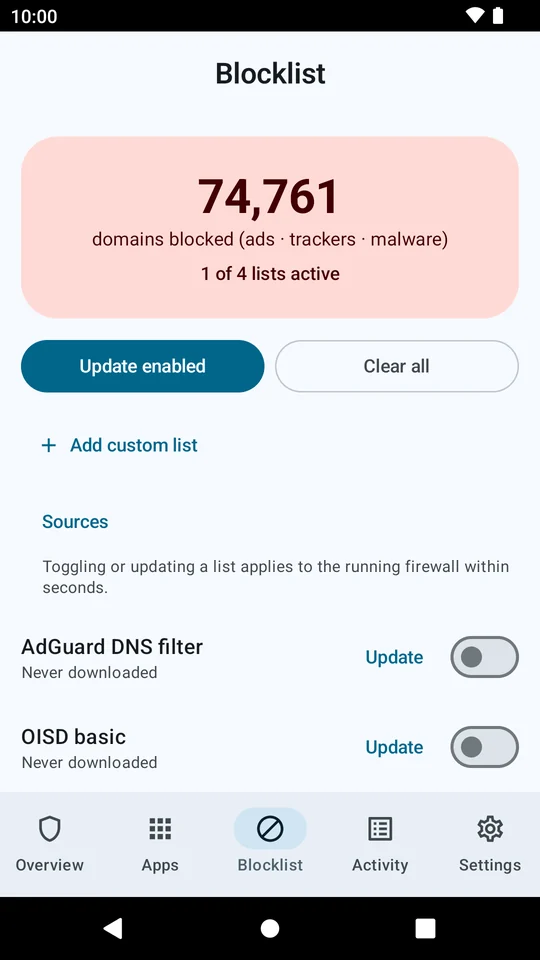
The top of the tab shows how many domains are blocked right now ("domains blocked (ads · trackers · malware)"). Below that are Update enabled, Clear all and Add custom list, and then the Sources list. Each source shows its domain count and when it was last updated ("Never downloaded" if it hasn't been), with an Update button and an on/off switch. "Toggling or updating a list applies to the running firewall within seconds."
| Built-in list | On by default | What it covers |
|---|---|---|
| StevenBlack (ads + malware) | Yes | Ads and malware |
| OISD basic | No | Broad coverage with little breakage |
| AdGuard DNS filter | No | Ads and trackers |
| URLhaus (malware) | No | Live malware hosts |
Download the lists
- Open the Blocklist tab.
- Switch on the lists you want.
- Tap Update enabled. Each list's row shows its domain count once it's downloaded.
To keep the lists fresh, set Settings ▸ Auto-update lists to Every 6h, Every 12h, Daily or Weekly. It's Off by default, and it only runs on unmetered networks such as Wi-Fi. Clear all removes every downloaded domain. Tap Update enabled afterwards to fetch them again. The Use blocklists switch in Settings must also be on for lists to apply.
Add your own list
- Tap Add custom list.
- Enter a Name and the list's address in URL (hosts/ABP), then tap Add.
- Tap Update on the new row to download it.
Three formats are understood: hosts files (0.0.0.0 ads.example.com or 127.0.0.1 … lines), plain lists with one domain per line, and AdBlock Plus-style ||ads.example.com^ lines. Lines starting with # or ! are ignored. Wildcards and regular expressions aren't supported. You don't need them anyway, because blocking a domain already blocks all of its subdomains. A custom list has a delete button on its row.
My overrides
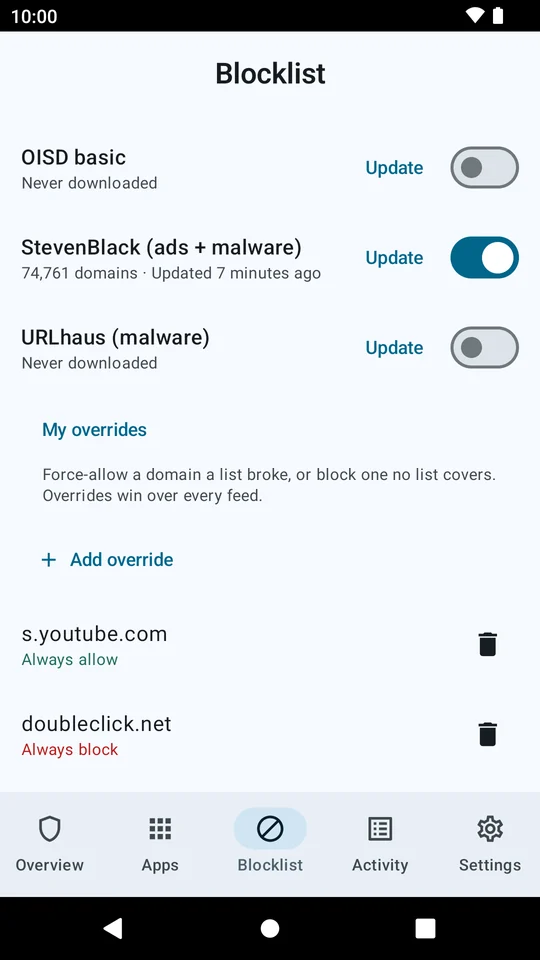
Overrides beat every list. Tap Add override, type a domain (for example example.com), choose Allow or Block next to Action:, and tap Add. Each override shows as Always allow or Always block, and you remove it with its delete button. Overrides apply to every app, because there are no per-app domain rules. Like list entries, they cover subdomains too.
DNS settings
These are under Settings ▸ DNS:
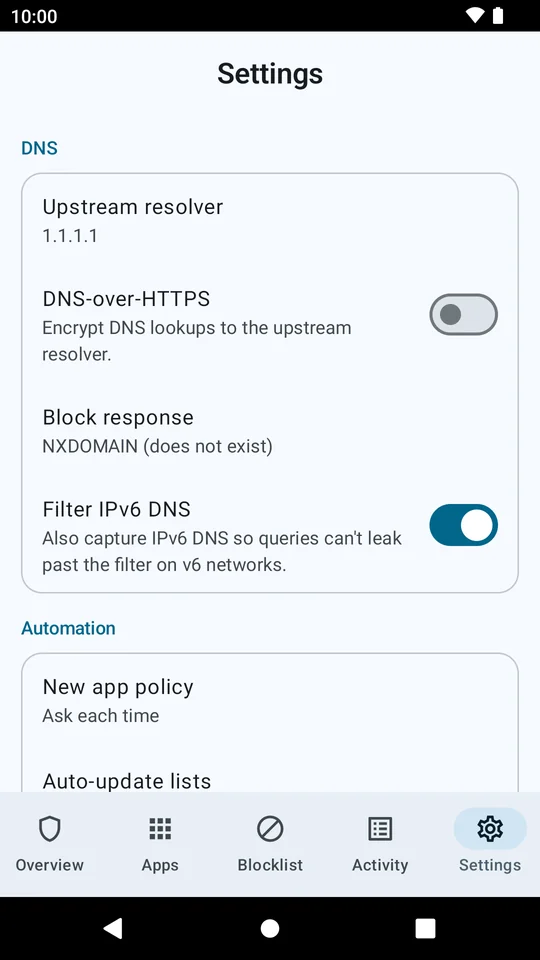
- Upstream resolver. The IP address that allowed lookups go to. The default is 1.1.1.1, over plain DNS. You can type any resolver's address.
- DNS-over-HTTPS. Encrypts allowed lookups on their way to the resolver. When it's on, DoH endpoint shows the address it uses. The default is
https://cloudflare-dns.com/dns-query. - Block response. What a blocked lookup gets back: NXDOMAIN (does not exist) (the default), 0.0.0.0 sinkhole, or REFUSED. NXDOMAIN suits most setups. If an app misbehaves when a name is blocked, try one of the others.
- Filter IPv6 DNS. On by default. It catches IPv6 lookups too, so they can't slip past the filter on IPv6 networks. Leave it on.
There's one resolver at a time. DNS-over-TLS isn't available as an upstream, and the app doesn't cache answers. For what encrypted DNS does and doesn't hide, see encrypted DNS explained.
When lookups get past the filter
The default engine only sees DNS that goes through Android's normal path. These get past it:
- Android's Private DNS set to a specific hostname. Android then sends lookups straight to that server. Set Private DNS to Off or Automatic instead. Where to find the setting depends on your phone.
- Apps with their own encrypted DNS, or a DNS server built into the app.
- DNS over TCP.
- Another VPN. Only one VPN runs at a time, and starting another one turns NetSecWall off.
Settings ▸ Lockdown (block everything) blocks every lookup on this engine. If nothing resolves at all, check it's off.
Frequently asked questions
How many domains will be blocked?
It depends on which lists you switch on. The count at the top of the Blocklist tab shows the real number after Update enabled.
Can I block a domain for just one app?
No. Blocklists and overrides apply to every app on the phone. Per-app rules exist only in the experimental engines, and they work per app and network, not per domain.
Can I send lookups to my own DNS server?
Yes. Type its IP address in Upstream resolver, or its DNS-over-HTTPS address in DoH endpoint with DNS-over-HTTPS switched on.
Why do I still see some ads?
Either the app fetched it from a domain that isn't on your lists, or its lookups went around the filter (see above). Add the domain as an Always block override. Blocking ads and trackers on Android without root covers the limits in more detail.