How-to guides
Practical, step-by-step fixes for everyday network and privacy problems on Windows and Android.
 How to block a country on Windows
Windows has no country switch, so you block the country's IP ranges with firewall rules. NetSecWall does it with one right-click; geolocation is approximate, and CDNs and VPNs blur borders.
How to block a country on Windows
Windows has no country switch, so you block the country's IP ranges with firewall rules. NetSecWall does it with one right-click; geolocation is approximate, and CDNs and VPNs blur borders.
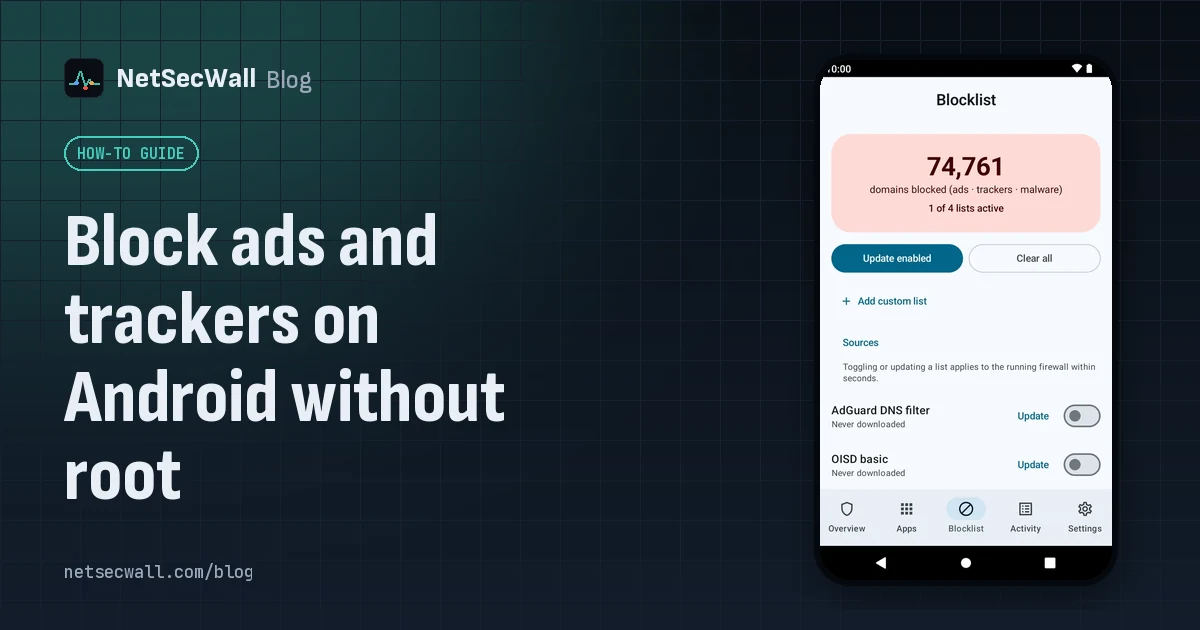 Block ads and trackers on Android without root
Without root, the practical method is DNS filtering: Android's Private DNS setting pointed at a filtering provider, or an app that filters lookups through a local VPN. Neither catches every ad.
Block ads and trackers on Android without root
Without root, the practical method is DNS filtering: Android's Private DNS setting pointed at a filtering provider, or an app that filters lookups through a local VPN. Neither catches every ad.
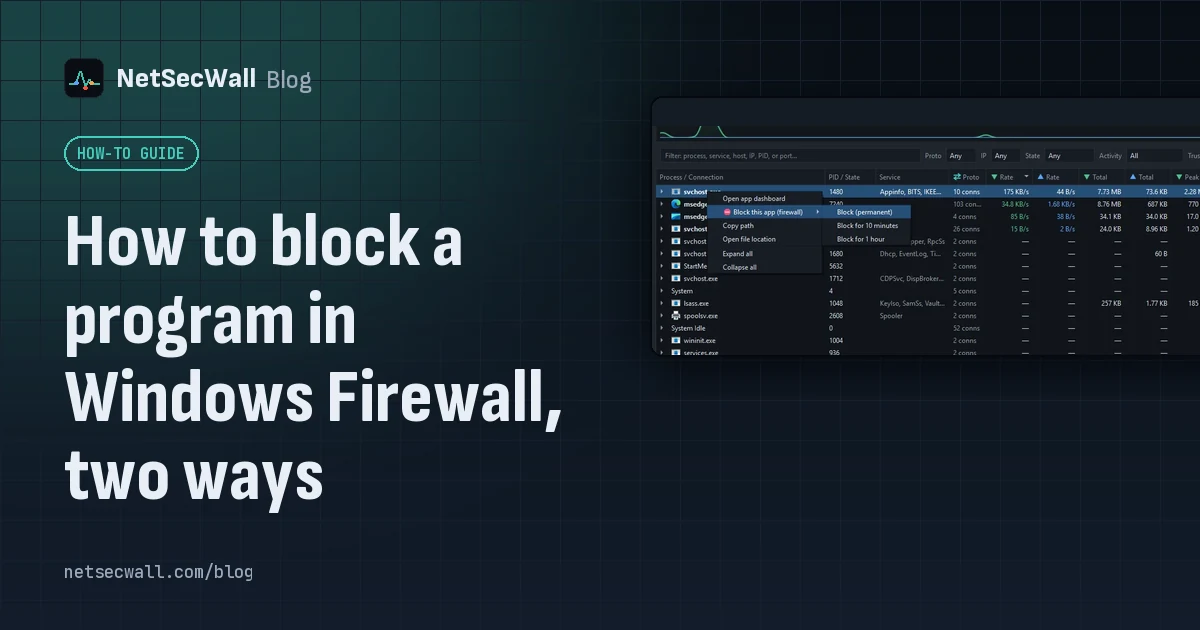 How to block a program in Windows Firewall, two ways
Create an outbound rule for the program's .exe in Windows Defender Firewall with Advanced Security, set to Block the connection. Or right-click the program in NetSecWall and choose Block.
How to block a program in Windows Firewall, two ways
Create an outbound rule for the program's .exe in Windows Defender Firewall with Advanced Security, set to Block the connection. Or right-click the program in NetSecWall and choose Block.
 Keep the app, cut its internet: blocking without uninstalling
Block the program's outbound connections instead of removing it. The app still opens and works offline; it just can't reach the internet until you lift the block.
Keep the app, cut its internet: blocking without uninstalling
Block the program's outbound connections instead of removing it. The app still opens and works offline; it just can't reach the internet until you lift the block.
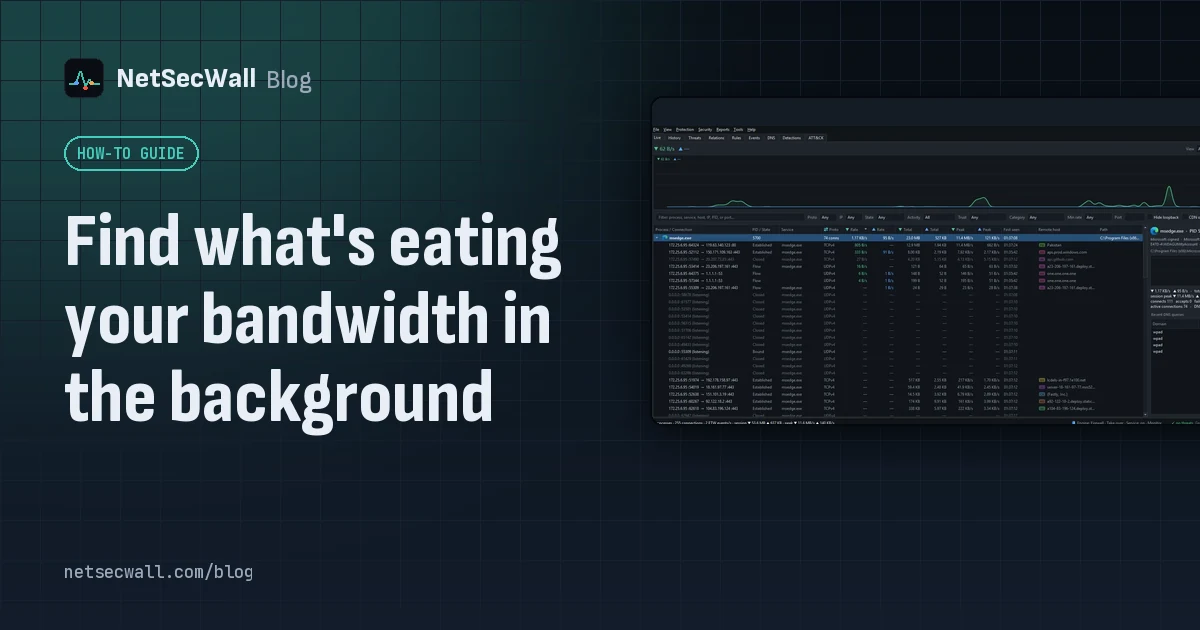 Find what's eating your bandwidth in the background
Sort Task Manager's Network column or Resource Monitor's Network Activity to catch what is using your bandwidth right now. To catch what used it an hour ago, you need per-app history.
Find what's eating your bandwidth in the background
Sort Task Manager's Network column or Resource Monitor's Network Activity to catch what is using your bandwidth right now. To catch what used it an hour ago, you need per-app history.
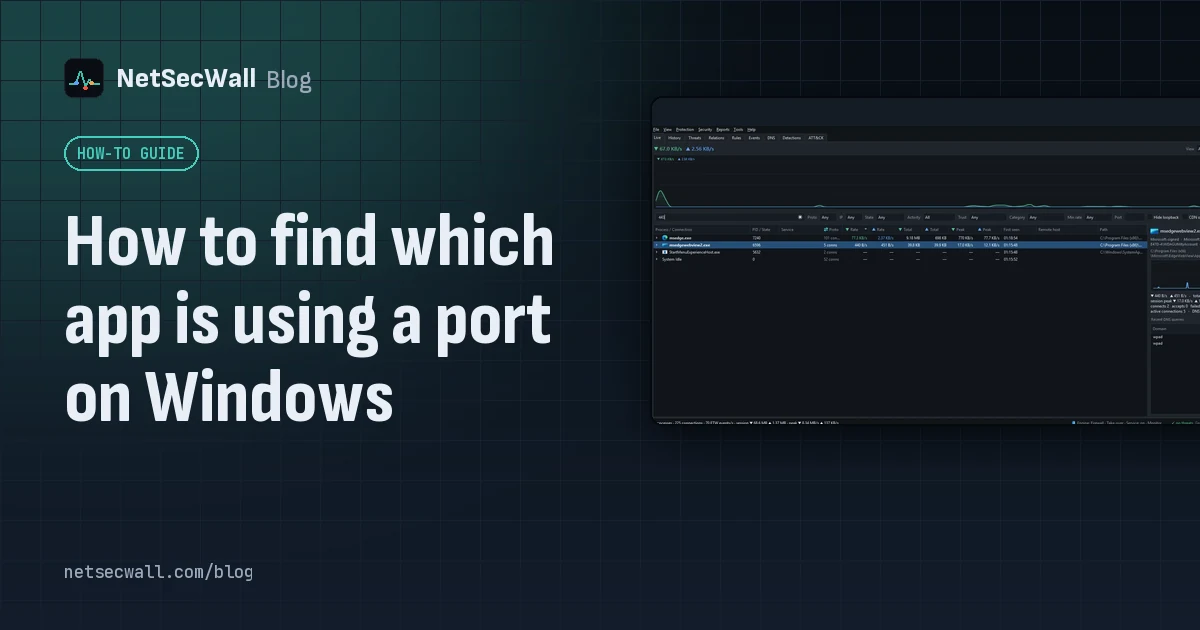 How to find which app is using a port on Windows
Run netstat -ano to get the process ID (PID) that owns the port, then look that PID up in Task Manager. PowerShell's Get-NetTCPConnection and Resource Monitor give the same answer.
How to find which app is using a port on Windows
Run netstat -ano to get the process ID (PID) that owns the port, then look that PID up in Task Manager. PowerShell's Get-NetTCPConnection and Resource Monitor give the same answer.
 How to monitor network traffic per app on Windows
Task Manager and Resource Monitor show a live per-app figure. To see where each app connects, how much it sends, and what it did yesterday, you need a per-app monitor that keeps history.
How to monitor network traffic per app on Windows
Task Manager and Resource Monitor show a live per-app figure. To see where each app connects, how much it sends, and what it did yesterday, you need a per-app monitor that keeps history.
 On a hotspot or metered connection? Stop background apps burning data
Mark the network as metered, pause updates and sync, then watch what still uses data. NetSecWall's session data cap warns you at 80% and 100%, and a timed block silences one app for an hour.
On a hotspot or metered connection? Stop background apps burning data
Mark the network as metered, pause updates and sync, then watch what still uses data. NetSecWall's session data cap warns you at 80% and 100%, and a timed block silences one app for an hour.
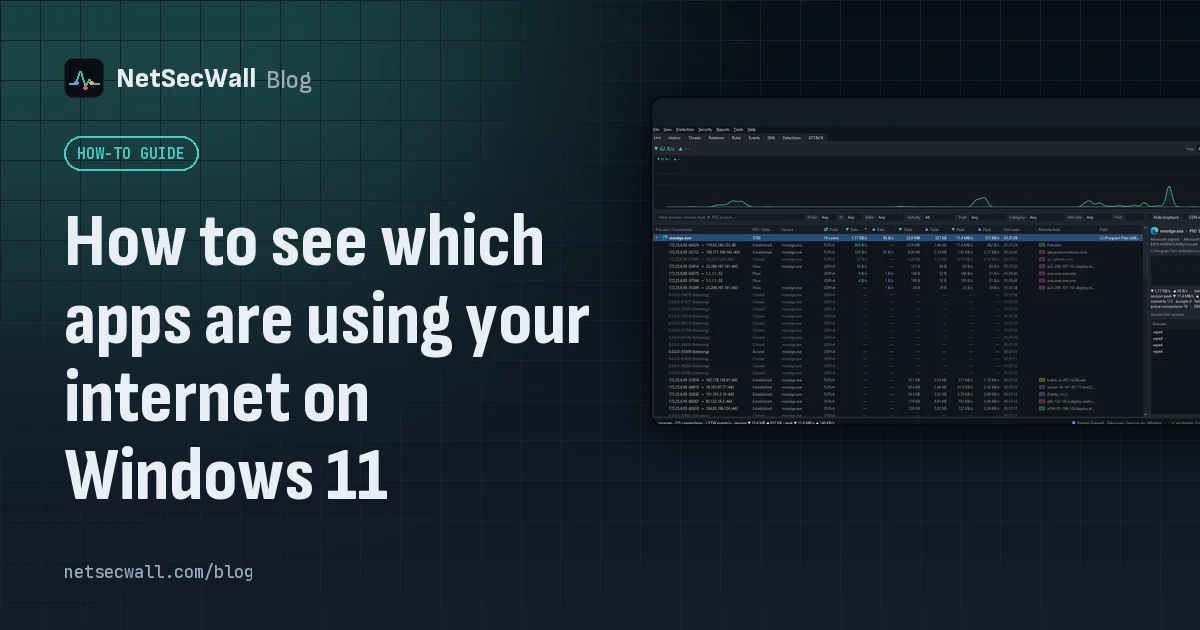 How to see which apps are using your internet on Windows 11
Task Manager's Network column shows which apps are busy right now; Resource Monitor and netstat show where each one connects. For history, countries and alerts you need a per-app monitor.
How to see which apps are using your internet on Windows 11
Task Manager's Network column shows which apps are busy right now; Resource Monitor and netstat show where each one connects. For history, countries and alerts you need a per-app monitor.