Parental controls on a Windows PC without a Microsoft account
Windows' own family features need Microsoft accounts. Without them, give your child a standard local account and use an on-PC tool that filters sites and sets a bedtime and daily limit.
NetSecWall for Windows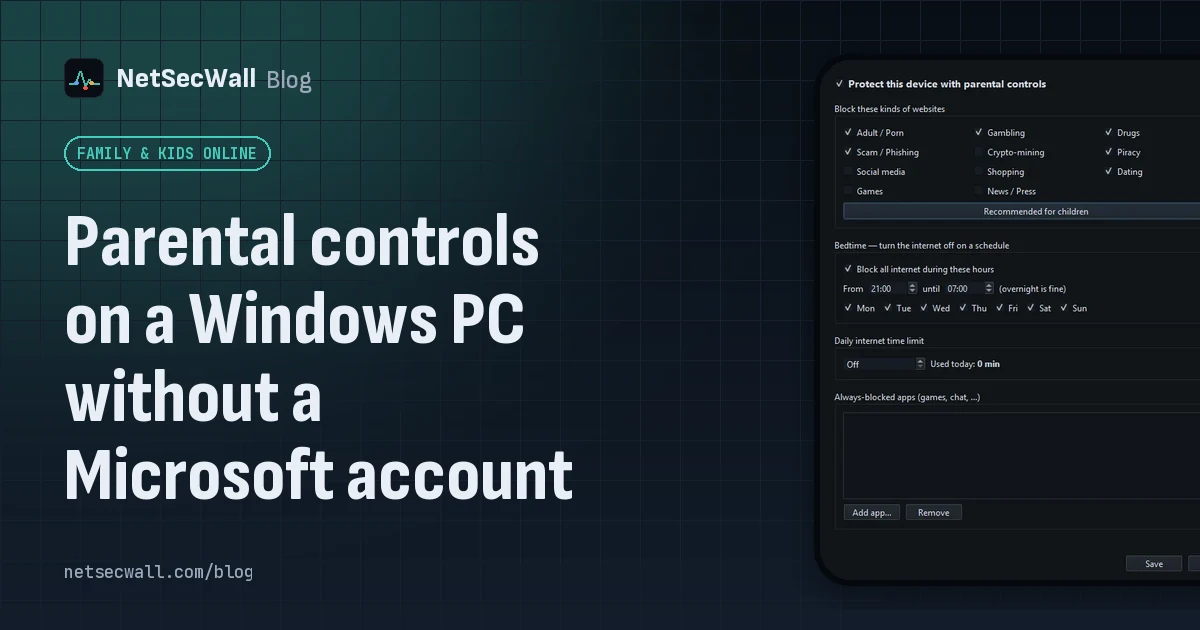
On this page
You can set up parental controls without a Microsoft account in two parts. First, give your child their own standard local Windows account, so they can't change system settings or remove software. Then add a tool that works on the PC itself: one that filters categories of websites, switches the internet off at bedtime, limits daily online time, and keeps those settings behind a password you hold.
Windows' built-in option, and why some families skip it
Windows' own family features work through Microsoft Family Safety. You and your child each need a Microsoft account, your child joins your family group, and you manage screen time and content filters online or in the Family Safety app. For many families that works well.
Others would rather not. A young child may have no email address and no reason for an online account. A shared family PC may already use local accounts. Some parents simply prefer settings that live on the PC instead of in a cloud service. None of that is a problem, because the most important control, the account type, is built into Windows and needs no Microsoft account at all.
Step one: a standard local account for your child
A standard account can use the PC normally but can't install software for everyone, change system settings, stop services or delete firewall rules without an administrator's password. That is the foundation every local control rests on. If your child signs in as an administrator, any control on the PC is only as strong as their patience.
On Windows 11:
- Open Settings ▸ Accounts ▸ Other users and click Add account.
- Choose I don't have this person's sign-in information.
- Choose Add a user without a Microsoft account.
- Enter a user name and password for your child, and answer the security questions.
- Back in Other users, check the new account shows as a standard user. New accounts are standard by default; Change account type switches it if needed.
On Windows 10, the same steps start from Settings ▸ Accounts ▸ Family & other users ▸ Add someone else to this PC.
Make sure your own administrator account has a password your child doesn't know, and type it where they can't see. A standard account is only a barrier if the administrator password is private.
What controls on the PC can and can't do
A tool on the PC can block categories of sites for every browser and app, cut specific programs off the internet, switch the internet off on a schedule and cap daily online time. It follows the PC to any network, including a phone hotspot.
It can't reach other devices. A phone on mobile data, a school laptop or a friend's tablet are outside it. It also can't read pages or messages, and no list-based filter catches everything. It is a strong fence around one PC, not a guarantee.
Setting up NetSecWall's parental controls
NetSecWall is a per-app firewall for Windows 10 and 11, and its parental controls keep everything on the PC. You don't need a Microsoft account or a NetSecWall account for your child, and there's no online dashboard. Parental controls are included in the Family and Pro plans and in the 7-day trial.
- Install NetSecWall from your administrator account, and leave Enable always-on background protection ticked in the installer. That installs the background service, which keeps blocks in force from startup.
- Open Protection ▸ Settings password… and set a password. Do this first, so nothing below can be undone without it.
- Open Protection ▸ Parental controls… and tick Protect this device with parental controls.
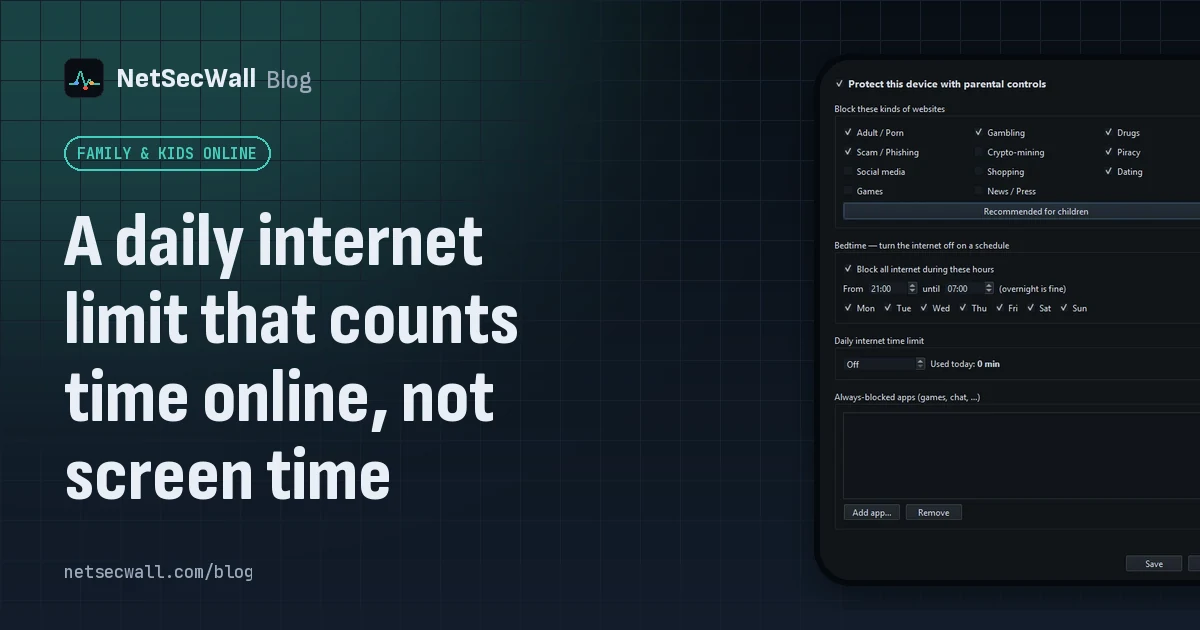
- Under Block these kinds of websites, click Recommended for children. It ticks Adult / Porn, Gambling, Drugs, Scam / Phishing, Piracy and Dating. Add others, such as Social media or Games, if they fit your family.
- Under Bedtime — turn the internet off on a schedule, tick Block all internet during these hours and set From and until, for example 21:00 until 07:00, and the days it applies.
- Under Daily internet time limit, set a number of minutes, or leave it Off.
- Under Always-blocked apps (games, chat, …), click Add app… for any program that should never go online.
- Click Save. The first time, NetSecWall downloads the website lists, which can take a minute.
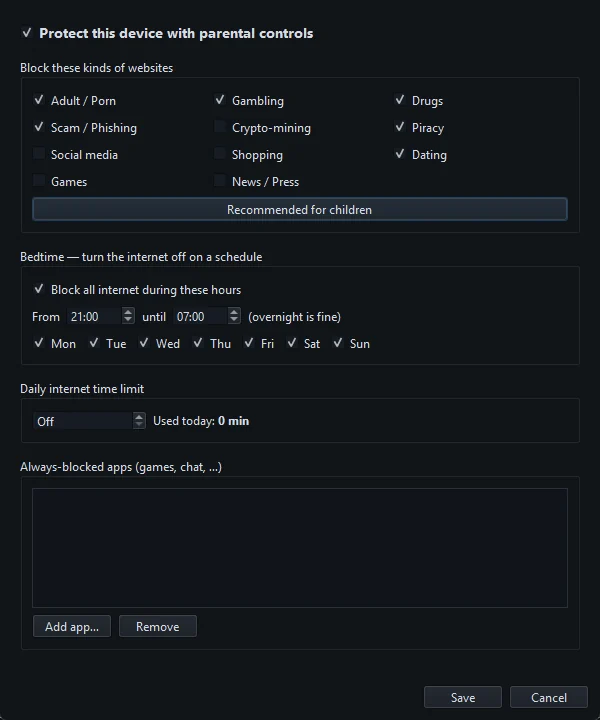
The step-by-step Help Center guide, setting up parental controls on a child's PC, covers each setting in more detail.
The password that holds it together
The settings password is what makes the rest stick. Once it's set, opening Settings or Parental controls, changing website categories or the filtering mode, pausing or quitting NetSecWall, turning Block ALL internet off from the tray, viewing the Rules tab, and allowing a new app all ask for it. After you type it correctly, it stays unlocked for two minutes.
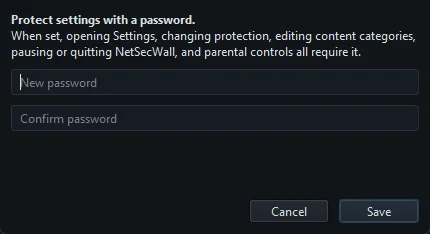
There is no password recovery. NetSecWall stores only a one-way hash on the PC, and support can't reset it. Write it down somewhere that isn't this computer. More in locking NetSecWall with a settings password.
Keep NetSecWall running
Two parts of NetSecWall share the work, and it helps to know which does what.
- The background service starts with Windows and keeps the website category blocks in force for every account on the PC, before anyone signs in. See the background service and the tray.
- Bedtime, the daily limit and the always-blocked apps are applied by the NetSecWall app itself, so it needs to be running on the PC. In the tray is fine: closing the window hides it there, and quitting needs your password.
The app needs administrator rights and doesn't start by itself when someone signs in. After the PC restarts, open NetSecWall again so those three come back. If your child's standard account is signed in, Windows asks for an administrator password when it starts, and that's yours to type.
For a program that should never go online, you can also right-click it in the Live tab and choose Block this app (firewall) ▸ Block (permanent). The background service remembers that kind of block and applies it from startup, whether or not the app is open.
What your child sees
A blocked website simply doesn't load. A blocked app behaves as if the internet is down. If NetSecWall is running on their desktop, a notification says Parental controls — internet paused when bedtime starts or the daily limit runs out, and another says the internet is back on when it lifts.
Be open about it
Tell your child the controls are there and why. NetSecWall's acceptable use policy expects that the person using a family device knows the controls exist, and it's also what works. Hidden controls teach a child that they're being watched; open ones teach that the internet has limits, the way the rest of the house does.
Technical controls help, but they don't replace conversation. A determined teenager with another device, or with an administrator's password, will get around any control on one PC. Keep talking, agree the rules together where you can, and make it easy for them to come to you when something online worries them. Can kids get around parental controls? goes through the common workarounds honestly.
To try this on your child's PC, download the 7-day trial. Parental controls and every other feature are unlocked, no card needed.
Frequently asked questions
Can I use Windows parental controls with a local account?
Microsoft Family Safety needs Microsoft accounts for you and your child. A local account on its own gets none of those features, which is why on-PC tools and the standard account type matter.
Does NetSecWall need an account for my child?
No. The parental settings and password live on the PC. NetSecWall itself needs an internet connection once to start the trial or activate a license, and checks the license daily.
Do the controls work in every browser?
Yes. Blocking happens at the Windows firewall, so it covers every browser and app on the PC. The website filter can miss sites when a browser uses its own encrypted DNS, so switch that setting off in your child's browsers.
What happens if I forget the settings password?
There is no recovery or reset. Store the password somewhere safe outside the PC before you rely on it.
Does this work on Windows 10?
Yes. NetSecWall runs on Windows 10 and 11, 64-bit, and needs an administrator account to install and run it.
Keep reading
 How to block adult websites on Windows 10 and 11
Use a family DNS filter on your router, a filter on the PC, or both. NetSecWall blocks its Adult / Porn category, around 900,000 domains, for every browser and app on the PC, behind a password.
How to block adult websites on Windows 10 and 11
Use a family DNS filter on your router, a filter on the PC, or both. NetSecWall blocks its Adult / Porn category, around 900,000 domains, for every browser and app on the PC, behind a password.
 Block games during homework time
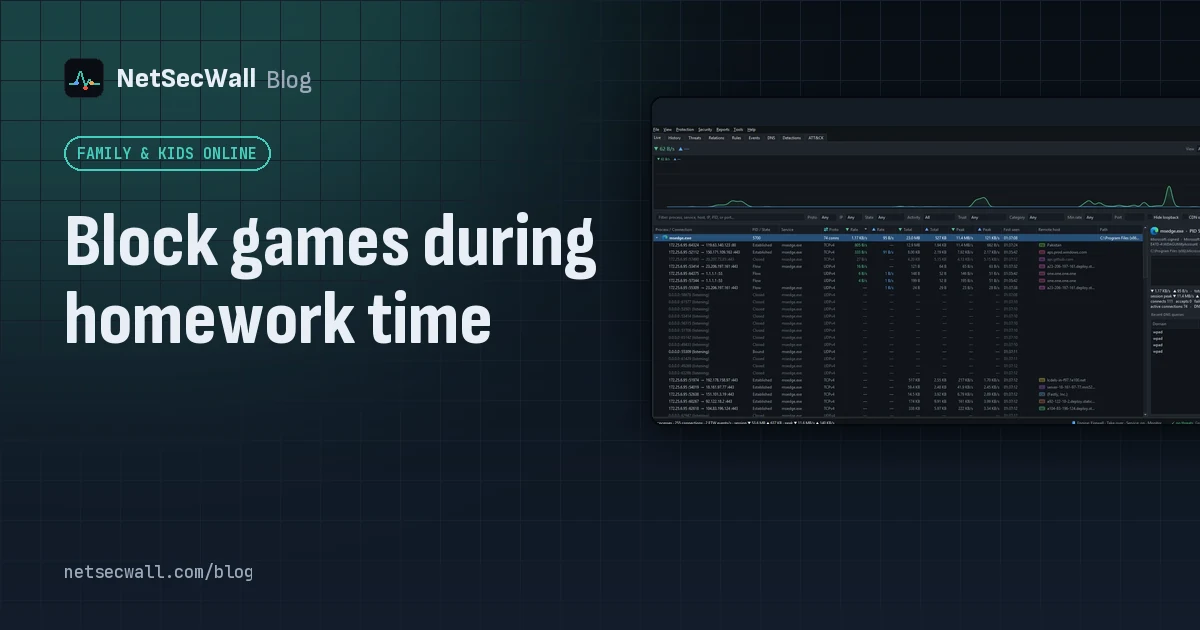
Block the game programs themselves, not just gaming websites. NetSecWall can cut a game's internet for good or for an hour, block gaming sites, and hold new apps until you approve them.
Block games during homework time
Block the game programs themselves, not just gaming websites. NetSecWall can cut a game's internet for good or for an hour, block gaming sites, and hold new apps until you approve them.
 Can kids get around parental controls? An honest answer
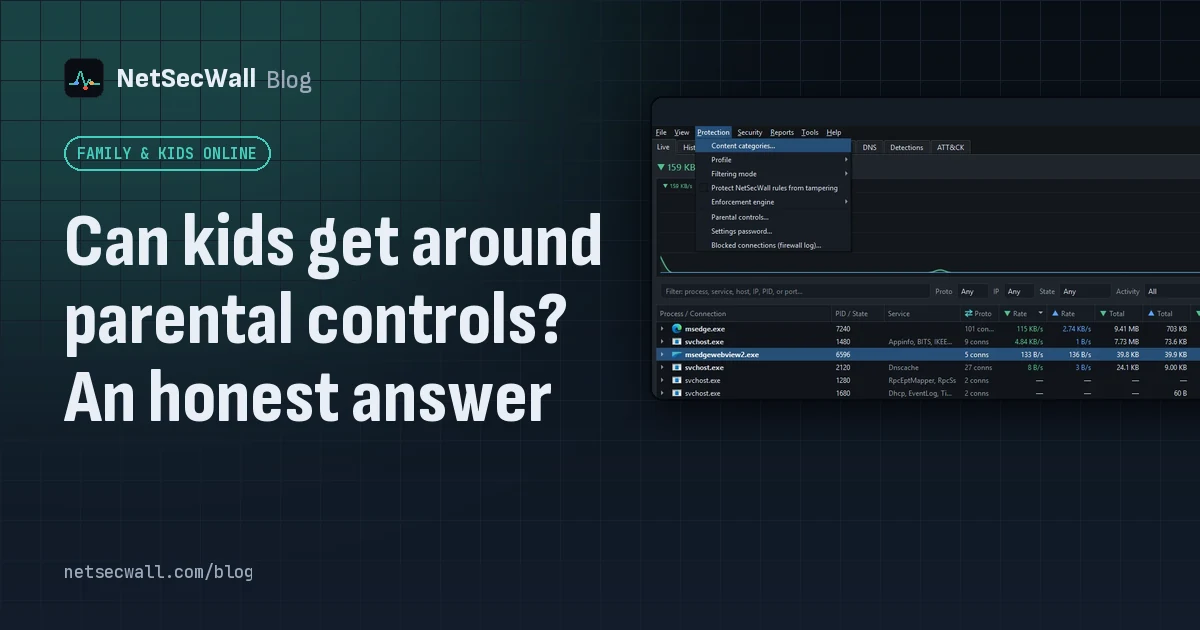
Yes. A determined child can get around almost any parental control, especially with admin rights, another device or a VPN. You can make it much harder, and talking to them does more than any setting.
Can kids get around parental controls? An honest answer
Yes. A determined child can get around almost any parental control, especially with admin rights, another device or a VPN. You can make it much harder, and talking to them does more than any setting.
 A daily internet limit that counts time online, not screen time
A screen-time limit counts every minute the PC is in use. NetSecWall's daily internet time limit counts only time when the PC has an open connection, in 30-second steps, and resets at midnight.
A daily internet limit that counts time online, not screen time
A screen-time limit counts every minute the PC is in use. NetSecWall's daily internet time limit counts only time when the PC has an open connection, in 30-second steps, and resets at midnight.