Block games during homework time
Block the game programs themselves, not just gaming websites. NetSecWall can cut a game's internet for good or for an hour, block gaming sites, and hold new apps until you approve them.
NetSecWall for Windows
On this page
To block games during homework, go after the game programs, not just gaming websites. Find the program each game actually uses to go online, then cut its internet access: for an hour when homework starts, or permanently if it shouldn't be online on school days at all. Block the Games website category for browser games, and hold any newly installed program until you approve it. One honest limit up front: blocking the internet doesn't stop a game that plays offline.
Why homework time is hard to police on a PC
The same computer does both jobs. Homework needs the internet for research, school portals and shared documents, so you can't just switch everything off. Games arrive in several forms: installed games, launchers that start them, games that run in a browser tab, and chat apps where the gaming friends are. Many of them install into a child's own profile folder without needing an administrator, so new ones can appear without you knowing.
A technical block works best when it backs up a plan you've already agreed: when homework happens, what counts as homework, and when games are fine again. Talk that through first. The settings below make the plan easier to keep, and they won't do the explaining for you.
Find out what the games actually are
Before blocking anything, find the program that really connects. A game's desktop icon often starts a launcher, and the launcher starts the game, and each is a separate program with its own path.
- Open NetSecWall and go to the Live tab with View set to Apps.
- Ask your child to start the game, or start it yourself.
- Watch which rows appear. The Path column shows where each program lives. Games installed without administrator rights usually sit under
C:\Users\<name>\AppData\. - Right-click the program and choose Copy path if you want to note it down.
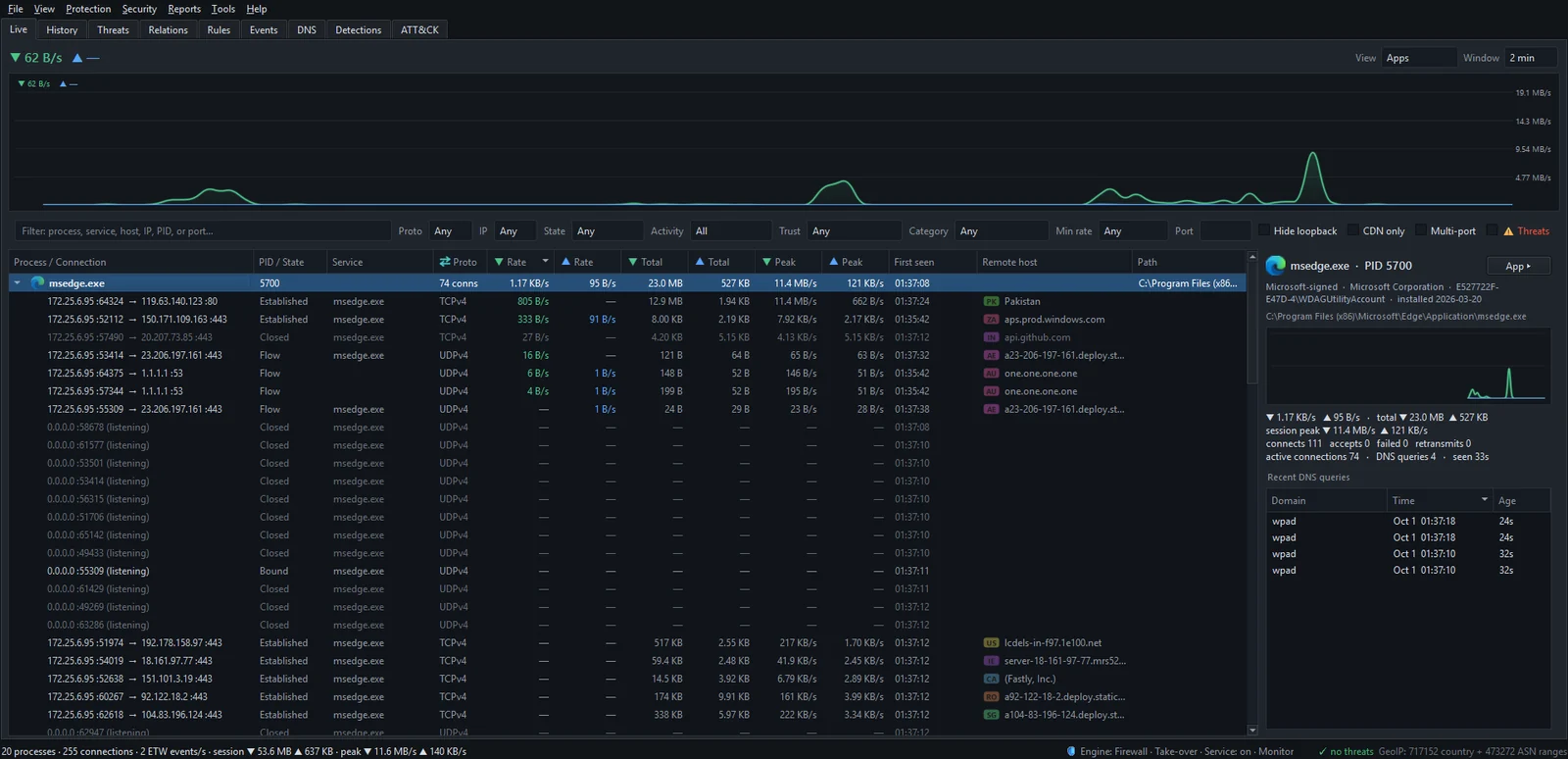
Seeing which apps use the internet covers the Live tab in more detail. Blocking needs NetSecWall's Family or Pro plan, or the 7-day trial.
Option 1: block a game for an hour when homework starts
This is the gentlest option, and it matches how homework actually works.
- In the Live tab, right-click the game or launcher.
- Choose Block this app (firewall) ▸ Block for 1 hour, or Block for 10 minutes for a short task.
- Type the settings password if you've set one.
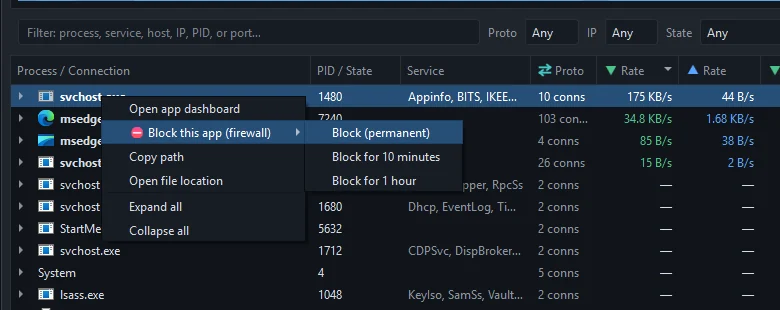
The block starts straight away, and NetSecWall also closes the program's open IPv4 TCP connections. When the hour is up, the block lifts itself. There is no automatic "homework hours" schedule for individual apps, though: someone has to start the timed block each day. The only schedule NetSecWall has is the bedtime, which cuts all internet.
Option 2: block a game's internet for good
If a game shouldn't go online at all on this PC, block it permanently.
- In the Live tab, right-click it and choose Block this app (firewall) ▸ Block (permanent). The background service remembers this kind of block and applies it from startup. Blocking an app covers this and the Rules tab.
- Or add it under Protection ▸ Parental controls… ▸ Always-blocked apps (games, chat, …) with Add app…, which keeps it with your other family settings. That list is applied by the NetSecWall app, so after a restart it comes back once NetSecWall is open again.
Blocks follow the program's path. If a game updates itself into a new folder, the block won't follow it, so check the Live tab after big updates.
Option 3: block gaming websites
For games that run in a browser tab, tick Games under Block these kinds of websites in Protection ▸ Parental controls…. It uses a public list of gaming websites, served and updated by NetSecWall. Like every list, it misses some sites, and because blocking works on addresses, it can occasionally catch a harmless neighbor. It targets websites, so it won't reliably stop installed game programs; that's what options 1 and 2 are for. Blocking website categories explains how category blocking works.
Protection ▸ Profile ▸ Focus (block social, games, news) blocks those three categories in one click, but it replaces your whole category selection, so the parental controls dialog is the better place if you use other categories too.
Option 4: stop new games getting online
Switch on Protection ▸ Filtering mode ▸ Learning — ask when a new app connects. Any new program that tries to connect is blocked until someone answers Allow, Allow once or Block in a pop-up; with no answer in 30 seconds, it stays blocked and NetSecWall asks again after its next restart. With a settings password set, both Allow buttons need the password, while Block doesn't. A new game your child installs can't reach the internet until you've said yes. Programs already online when you switch the mode on are trusted automatically.
Use time limits for the rest
If the worry is total time online rather than homework time, a daily internet limit caps it across everything, and an internet bedtime ends it at night. Both switch off all internet on the PC when they apply.
What this won't do
- Offline games still run. Blocking cuts the internet, not the program. Single-player games that don't need a connection are unaffected.
- Other devices are outside it. A console, a tablet or a phone on mobile data needs its own controls.
- It can't tell homework browsing from game browsing in the same browser, except by the website categories.
- A determined child with an administrator password can remove any local block. Give them a standard Windows account.
To try it on your child's PC, download the 7-day trial. Every feature is unlocked, no card needed.
Frequently asked questions
Can I block a game launcher instead of each game?
Blocking the launcher stops its store, downloads, friends list and updates. Games it starts are usually separate programs, so block those too if they play online.
Will blocking a game's internet delete its progress?
No. It only cuts the network. Games with cloud saves may not sync until the block is lifted.
Can my child just unblock the game?
Not from inside NetSecWall without the settings password, which guards blocking, unblocking and the Rules tab. From a standard Windows account they also can't stop NetSecWall's service or remove its firewall rules.
Does blocking the Games category block games like the ones on our PC?
Not reliably. It's a list of gaming websites, aimed at browser games and gaming sites. Block installed games by their program instead.
Can I schedule a block for homework hours every day?
Not per app. Use a 1-hour block when homework starts, or a permanent block for school days that you lift at the weekend.
Keep reading
 How to block adult websites on Windows 10 and 11
Use a family DNS filter on your router, a filter on the PC, or both. NetSecWall blocks its Adult / Porn category, around 900,000 domains, for every browser and app on the PC, behind a password.
How to block adult websites on Windows 10 and 11
Use a family DNS filter on your router, a filter on the PC, or both. NetSecWall blocks its Adult / Porn category, around 900,000 domains, for every browser and app on the PC, behind a password.
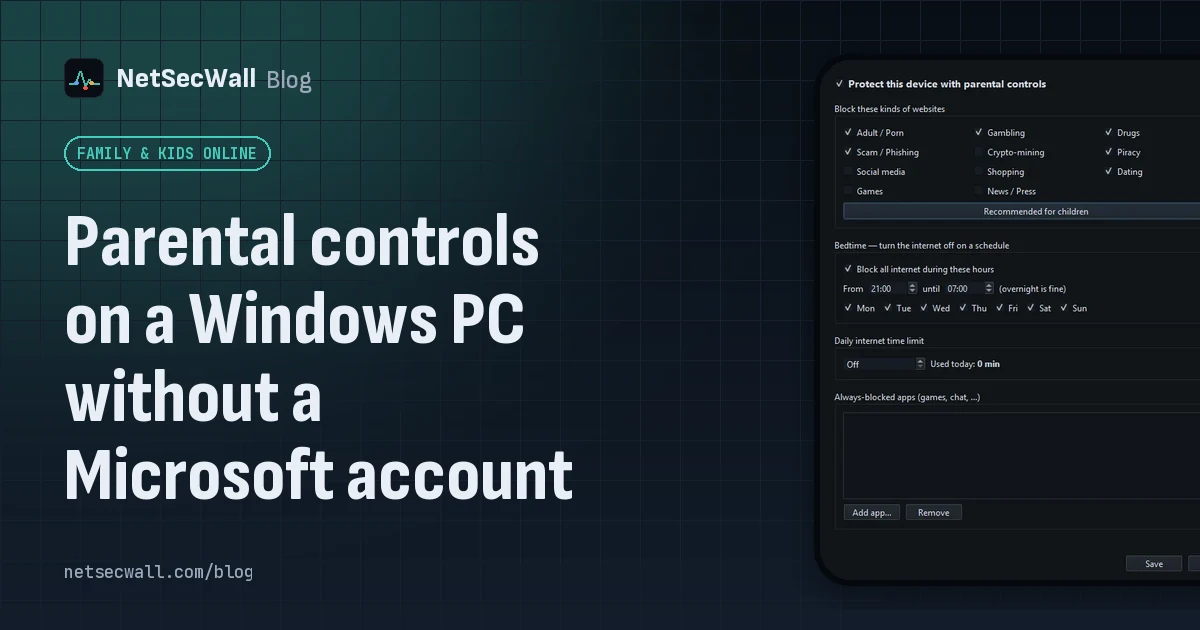 Parental controls on a Windows PC without a Microsoft account
Windows' own family features need Microsoft accounts. Without them, give your child a standard local account and use an on-PC tool that filters sites and sets a bedtime and daily limit.
Parental controls on a Windows PC without a Microsoft account
Windows' own family features need Microsoft accounts. Without them, give your child a standard local account and use an on-PC tool that filters sites and sets a bedtime and daily limit.
 How to block gambling sites on a PC
Block the Gambling website category on the PC and lock the setting behind a password someone else holds. No filter catches every gambling site, so pair the block with support beyond the computer.
How to block gambling sites on a PC
Block the Gambling website category on the PC and lock the setting behind a password someone else holds. No filter catches every gambling site, so pair the block with support beyond the computer.
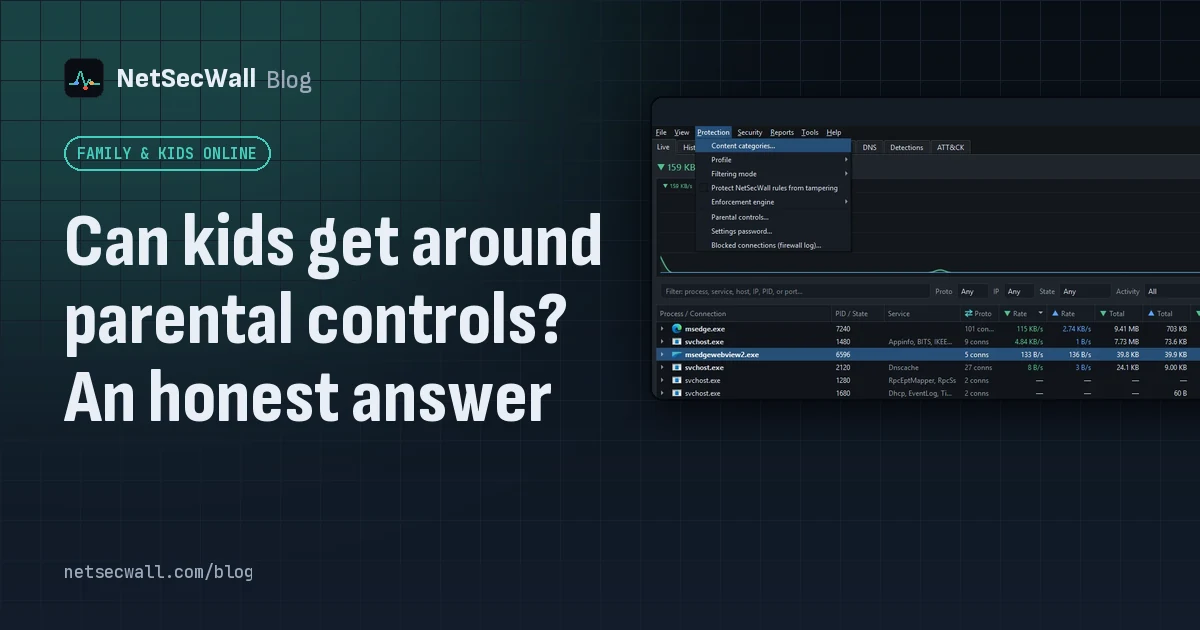 Can kids get around parental controls? An honest answer
Yes. A determined child can get around almost any parental control, especially with admin rights, another device or a VPN. You can make it much harder, and talking to them does more than any setting.
Can kids get around parental controls? An honest answer
Yes. A determined child can get around almost any parental control, especially with admin rights, another device or a VPN. You can make it much harder, and talking to them does more than any setting.