Can kids get around parental controls? An honest answer
Yes. A determined child can get around almost any parental control, especially with admin rights, another device or a VPN. You can make it much harder, and talking to them does more than any setting.
NetSecWall for Windows
On this page
- Why no control is unbreakable
- The common ways kids bypass parental controls
- Administrator rights
- Another device or network
- VPNs, proxies and browser extensions
- Encrypted DNS in the browser
- Restarting the PC
- Just asking nicely
- How to make controls harder to get around
- What NetSecWall's lock does and doesn't do
- Talk to them
Yes, kids can bypass parental controls, and a determined teenager usually will find a way around some of them. An administrator password, a second device, a VPN or a browser setting can each undo part of what you set up. That doesn't make controls pointless. It changes the goal: make the rules the normal state of the PC, make getting around them a deliberate act you're likely to notice, and keep talking, because the conversation is the part that actually holds.
Why no control is unbreakable
Every parental control on a PC runs on a machine your child uses every day, often for hours, often with more curiosity than you have time for. Children share workarounds with each other quickly. And whoever holds administrator rights on a Windows PC can change anything on it, including the software meant to limit them.
Controls on one device also stop at the edge of that device. The phone in their pocket, a friend's laptop and the school computer are all somewhere else.
None of this is a reason to give up. Seatbelts don't prevent every injury either. It's a reason to set up controls well, to know their gaps, and not to treat them as a substitute for trust.
The common ways kids bypass parental controls
Administrator rights
This is the big one. An administrator can stop services, uninstall software, delete firewall rules and change system settings. No control that lives on the PC survives an administrator who wants it gone.
Make it harder: give your child a standard Windows account, and make sure every administrator account on the PC has a password they don't know. Type it where they can't see; watching someone type is the oldest workaround there is.
Another device or network
A phone on mobile data, a friend's tablet or a school laptop sits outside anything on your PC. Controls on the PC do follow the PC: NetSecWall's blocks apply on any network the PC joins, including a phone hotspot. They don't follow your child.
Make it harder: set up the phone's own controls, and agree where devices live at night.
VPNs, proxies and browser extensions
A VPN or proxy wraps traffic in a tunnel to one address. Any filter that works by website, on the PC or the router, then sees only the tunnel. Most VPN apps need an administrator to install, but proxy extensions run inside the browser and don't.
In NetSecWall, the website categories can't see past a tunnel. Bedtime, the daily limit and blocked apps still apply, because they cut the PC's internet or the program itself. Learning mode (Protection ▸ Filtering mode ▸ Learning — ask when a new app connects) holds any new program, a portable VPN app included, until you allow it, and allowing needs your password. Extensions live inside the browser, so they don't show up as new programs.
Encrypted DNS in the browser
Browsers can look up site names with their own encrypted DNS. Chrome and Edge call the setting Use secure DNS; Firefox lists it as DNS over HTTPS. NetSecWall learns site names through Windows' own DNS client, so lookups made this way are invisible to it, and the website filter can miss them.
Make it harder: switch the setting off in every browser on your child's account, and check it now and then. Encrypted DNS explained has the background.
Restarting the PC
This one is specific to how NetSecWall works, and it's better you hear it from us. The website categories and permanent app blocks are held by NetSecWall's background service and come back as soon as Windows starts. Bedtime, the daily limit and the parental always-blocked apps are applied by the NetSecWall app, which needs administrator rights and doesn't start by itself at sign-in. After a restart, those three don't apply until NetSecWall is opened again. NetSecWall doesn't run in Windows Safe Mode either.
Make it harder: make reopening NetSecWall part of the routine after restarts, and notice if the PC restarts more often than it should.
Just asking nicely
Sometimes the workaround is a parent in a hurry typing the password in front of an audience, or "can you unlock it just for this?" Keep the password private and decide the exceptions deliberately.
How to make controls harder to get around
- Give your child a standard Windows account, and keep administrator passwords private.
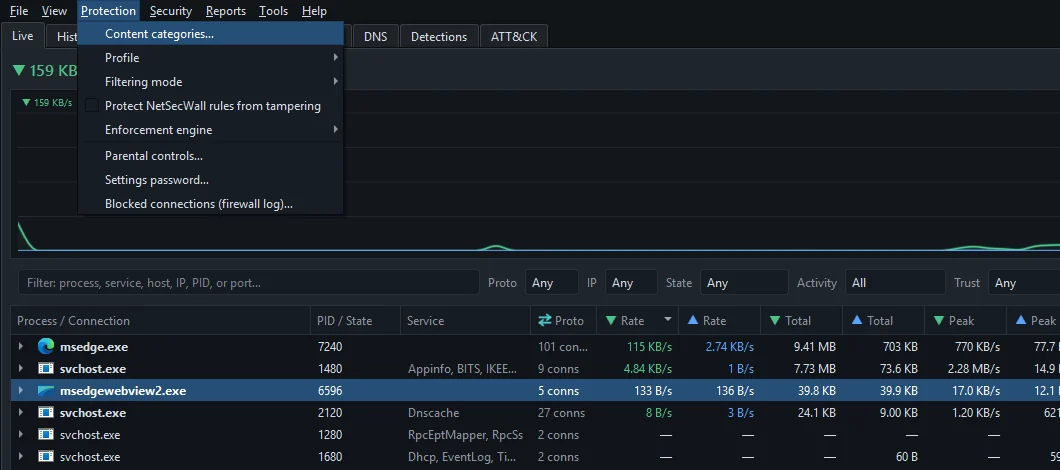
- In NetSecWall, set Protection ▸ Settings password… before anything else.
- Keep the background service installed, so website blocks start with Windows.
- Turn on Learning — ask when a new app connects, so new programs need your approval.
- Switch off the browsers' own encrypted DNS on your child's account.
- Reopen NetSecWall after restarts.
- Look at the History and Events tabs now and then, openly, not as surveillance.
What NetSecWall's lock does and doesn't do
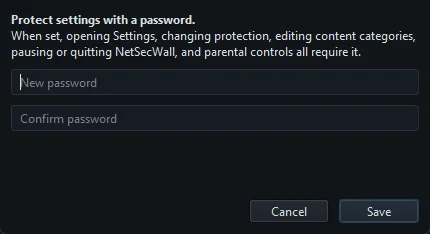
Once a settings password is set, NetSecWall asks for it before anything that would weaken protection from inside the app: opening Settings or Parental controls, changing website categories, profiles, the filtering mode or the enforcement engine, pausing or quitting NetSecWall, switching Block ALL internet in the tray, viewing or changing the Rules tab, blocking or unblocking an app, allowing a new app, and stopping or uninstalling the background service from its menu. After a correct entry it stays unlocked for two minutes.
What it doesn't do:
- Stop a Windows administrator. An administrator can stop the service, uninstall NetSecWall or remove its rules from outside the app.
- Reach other devices. Only this PC.
- See inside tunnels or lookups made with a browser's own encrypted DNS.
- Catch everything. Website lists miss sites and occasionally block harmless ones.
- Recover a forgotten password. There's no reset, so store it somewhere other than the PC.
The details are in locking NetSecWall with a settings password and the parental controls overview.
Talk to them
The most effective control is a child who understands the rules and knows they can come to you. Tell them the controls exist; NetSecWall's acceptable use policy expects that on family devices, and hidden controls tend to produce better hiding rather than better habits. Explain why each rule is there. Loosen them as your child shows they can handle more.
If you find a workaround, treat it as a conversation first. A child who went around a block was usually after something specific, and that's worth knowing. Parental controls without a Microsoft account walks through a sensible setup from the start.
To set this up on your family's PC, download the 7-day trial. Parental controls are included, no card needed.
Frequently asked questions
Can my child uninstall NetSecWall?
Not from a standard Windows account, because uninstalling needs an administrator. Inside NetSecWall, stopping or removing the background service also needs the settings password.
Will my child know that parental controls are on?
They should, and you should tell them. When NetSecWall runs on their desktop, its tray icon and notifications, such as "internet paused" at bedtime, make it visible, and its acceptable use policy expects the person using a family device to know the controls exist.
Does NetSecWall tell me when my child tries to get around it?
There's no bypass alert. With Learning mode on, new programs are held and your decisions appear in the Events tab, and the History tab shows what connected and when.
Do the controls apply to my own account on the same PC?
Yes. Website blocks, bedtime and the daily limit work at the firewall, so they apply to everyone on that PC, including you.
Should I worry if my child uses a VPN?
Not automatically. Schools, games and privacy-minded apps use them too. It does mean website filtering can't see that traffic, so it's worth a calm conversation.
Keep reading
 How to block adult websites on Windows 10 and 11
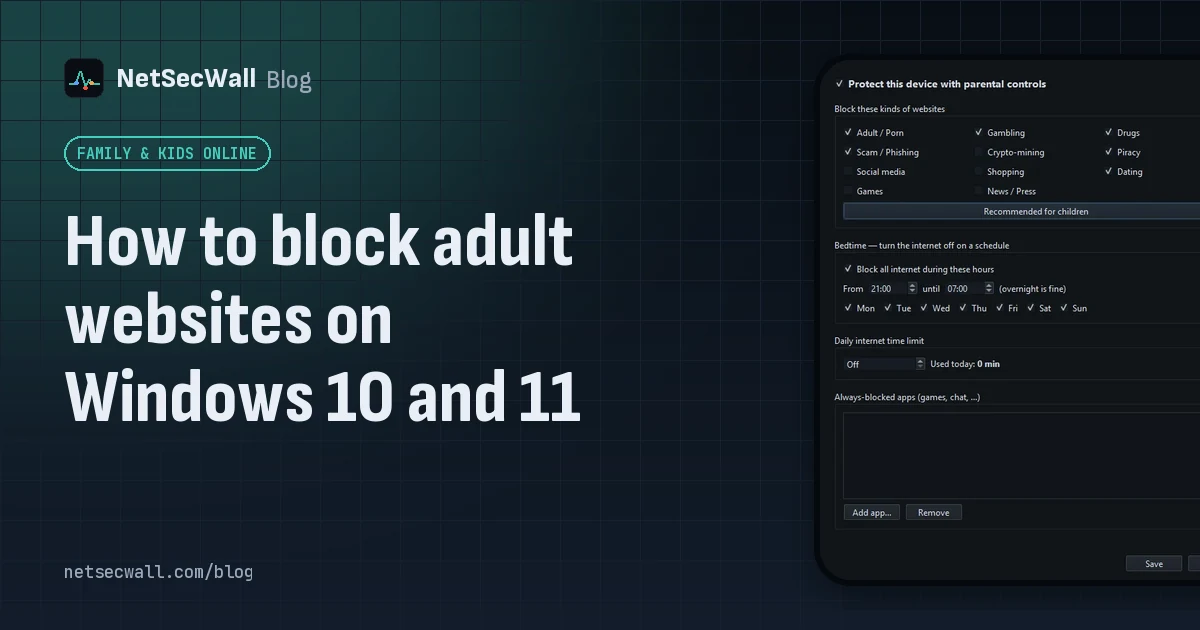
Use a family DNS filter on your router, a filter on the PC, or both. NetSecWall blocks its Adult / Porn category, around 900,000 domains, for every browser and app on the PC, behind a password.
How to block adult websites on Windows 10 and 11
Use a family DNS filter on your router, a filter on the PC, or both. NetSecWall blocks its Adult / Porn category, around 900,000 domains, for every browser and app on the PC, behind a password.
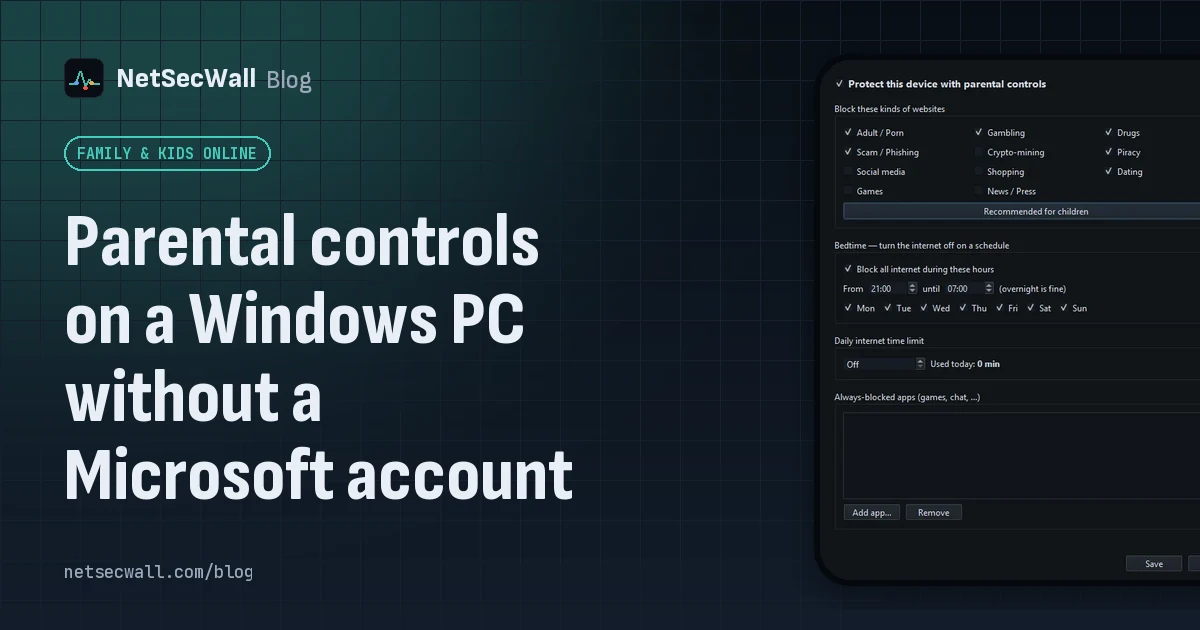 Parental controls on a Windows PC without a Microsoft account
Windows' own family features need Microsoft accounts. Without them, give your child a standard local account and use an on-PC tool that filters sites and sets a bedtime and daily limit.
Parental controls on a Windows PC without a Microsoft account
Windows' own family features need Microsoft accounts. Without them, give your child a standard local account and use an on-PC tool that filters sites and sets a bedtime and daily limit.
 How to block gambling sites on a PC
Block the Gambling website category on the PC and lock the setting behind a password someone else holds. No filter catches every gambling site, so pair the block with support beyond the computer.
How to block gambling sites on a PC
Block the Gambling website category on the PC and lock the setting behind a password someone else holds. No filter catches every gambling site, so pair the block with support beyond the computer.
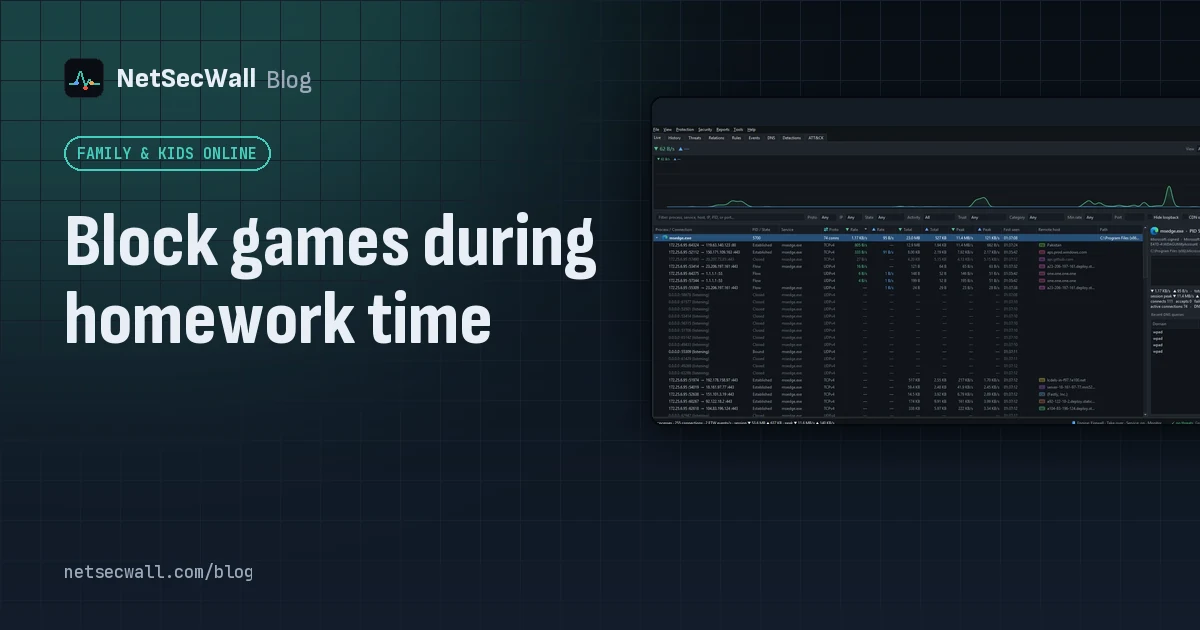 Block games during homework time
Block the game programs themselves, not just gaming websites. NetSecWall can cut a game's internet for good or for an hour, block gaming sites, and hold new apps until you approve them.
Block games during homework time
Block the game programs themselves, not just gaming websites. NetSecWall can cut a game's internet for good or for an hour, block gaming sites, and hold new apps until you approve them.