Block website categories: ads, adult, gambling, social media and more
Open Protection ▸ Content categories… and tick Block for any of the 13 categories, or pick a Profile preset. NetSecWall then blocks the addresses those sites resolve to, in every app.
NetSecWall for WindowsOn this page
To block website categories, open Protection ▸ Content categories… and tick Block for each category you want gone — ads, adult sites, gambling, social media and nine others — or apply a preset from Protection ▸ Profile. NetSecWall then blocks the IP addresses that sites in those categories resolve to, so the block applies to every browser and app on the PC. It is list-based and IP-based, so expect it to miss some sites and occasionally catch a harmless one.
The 13 categories
Ads · Tracking · Adult / Porn · Gambling · Drugs · Scam / Phishing · Crypto-mining · Piracy · Social media · Shopping · Dating · Games · News / Press
Each category is built from public domain lists (StevenBlack, The Block List Project and the Université Toulouse 1 lists), downloaded from NetSecWall's own servers. Out of the box nothing is blocked; Monitor is on for Ads, Tracking and Social media, which only labels that traffic.
Block website categories in the Content categories window
- Open Protection ▸ Content categories… (enter the settings password if asked).
- Tick Block next to each category you want blocked. Blocking starts straight away.
- Leave Monitor ticked for categories you only want labeled.
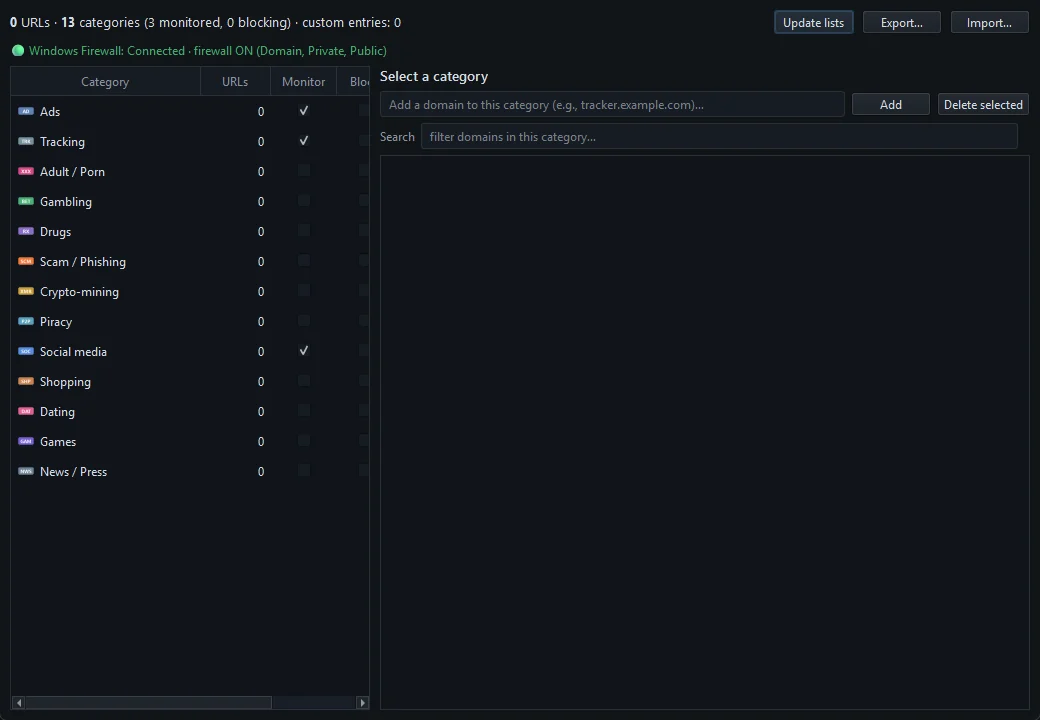
Monitor labels traffic: matching connections get a category badge in the Live tab, and you can group by it with the By Category view or filter by it. Block enforces it. Click a category to see its domains; you can also add your own there, as described in block a specific domain.
Use a Profile preset
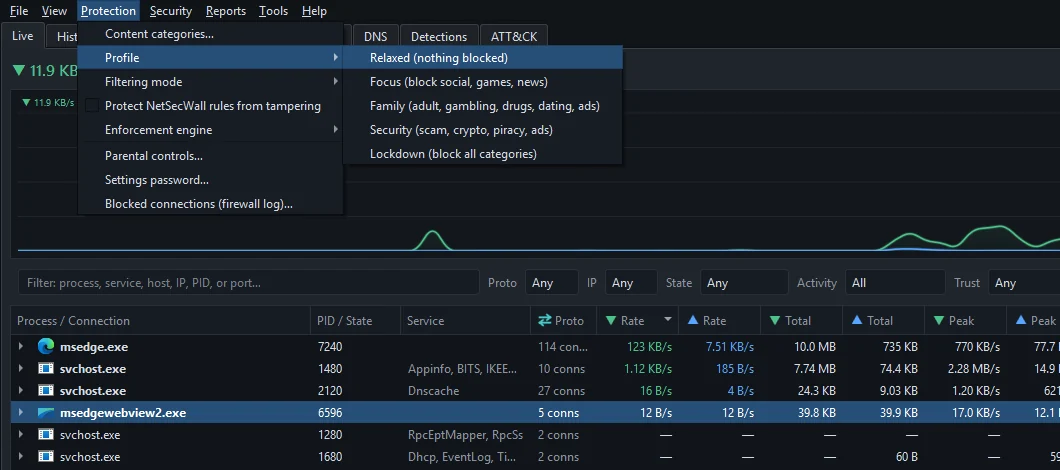
Protection ▸ Profile applies a ready-made set in one click. A preset replaces your whole category selection.
| Preset | Categories it blocks |
|---|---|
| Relaxed (nothing blocked) | None |
| Focus (block social, games, news) | Social media, Games, News / Press |
| Family (adult, gambling, drugs, dating, ads) | Ads, Tracking, Adult / Porn, Gambling, Drugs, Dating |
| Security (scam, crypto, piracy, ads) | Ads, Tracking, Scam / Phishing, Crypto-mining, Piracy |
| Lockdown (block all categories) | All 13 |
The same Monitor and Block checkboxes are also on Tools ▸ Settings… ▸ Content categories, with a link to each list's source and Update category lists now. For a child's PC, Protection ▸ Parental controls… (Family and Pro) offers 11 of the categories behind the settings password — see set up parental controls.
How category blocking works, and where it falls short
When a program on your PC looks up a domain that belongs to a blocked category, NetSecWall adds the public addresses it resolves to to its block rules — Windows Firewall rules named NetLens Content Block …, and the packet filter if that engine is on. That design has limits worth knowing:
- It is reactive. The first packets to a brand-new address can get through before the block is in place. A page may start to load, then stall.
- It is IP-based. Many sites share addresses, especially on CDNs. Blocking one can block its neighbors on the same address. See why apps connect to CDNs.
- It relies on seeing the lookup. NetSecWall reads the names Windows resolves. A browser using its own encrypted DNS (DoH) hides those names, so category blocking can miss sites it visits. Encrypted DNS explained.
- Lists are imperfect. They miss new sites and sometimes include harmless ones.
- It is whole domains only. NetSecWall doesn't see URLs or page contents, so it can't block one page or one video.
If a site you need is caught by mistake, open its category in the Content categories window, find the domain and click Delete selected. For a domain that came from a downloaded list, that works as an exception.
If a category rule seems to be breaking something, look for Content Block rules in the Rules tab. Deleting them doesn't help — NetSecWall recreates them while the category is set to Block — so untick Block instead. No internet after blocking something? covers other causes.
Keep the lists current
Lists refresh automatically about once a day while Tools ▸ Feeds ▸ Auto-update feeds daily is on (the default). To refresh now, click Update lists in the Content categories window or choose Tools ▸ Feeds ▸ Update category lists now. The first download can take a minute; the adult list alone holds hundreds of thousands of domains.
Frequently asked questions
Does category blocking work in every browser?
Yes, because it works at the network level rather than inside a browser. The exception is a browser that resolves names over its own encrypted DNS, whose lookups NetSecWall can't see.
Why was a site I didn't block also blocked?
It most likely shares an IP address with a site in a blocked category. Blocking is by address, so both go together.
Why did a blocked site load for a moment?
Blocking is reactive: the block is added when the site's address is resolved, so the first packets can slip through before the rule is in place.
Can I block just one page of a website?
No. NetSecWall blocks whole domains by their IP addresses and never sees URLs or page contents.