Set up parental controls on a child's PC, step by step
Set a settings password first, then open Protection ▸ Parental controls…, switch protection on, pick website categories, add a bedtime or daily limit if you want, and click Save.
NetSecWall for WindowsOn this page
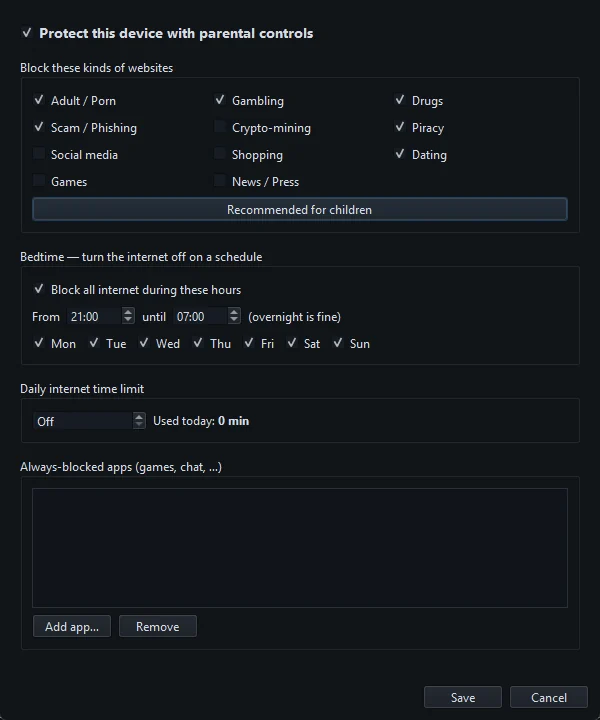
To set up parental controls in NetSecWall, first set a settings password, then open Protection ▸ Parental controls…. Tick Protect this device with parental controls, choose which kinds of websites to block (Recommended for children is a sensible start), add a bedtime, a daily time limit or always-blocked apps if you want them, and click Save. The limits are enforced by the firewall, so they apply to every browser and every app on the PC.
Parental controls are part of the Family and Pro plans, and of the 7-day trial.
Before you start
- Install NetSecWall on the child's PC. Installing and running it needs Windows administrator rights.
- Give your child a standard Windows account and keep the administrator account for yourself. Anyone with administrator rights can remove NetSecWall.
- Tell your child the controls exist. NetSecWall's acceptable use policy requires that the person using a family device knows about them. It also works better: a child who knows the rules asks for more time instead of hunting for a way around them.
Set up parental controls, step by step
- Open Protection ▸ Settings password…, type a password twice and click Save. Without a password, anyone at the PC can switch everything off. Details in the settings password.
- Open Protection ▸ Parental controls…. Enter the password when asked.
- Tick Protect this device with parental controls. This is the master switch. Nothing below applies without it.
- Under Block these kinds of websites, click Recommended for children. It ticks Adult / Porn, Gambling, Drugs, Scam / Phishing, Piracy and Dating.
- Add or remove categories to suit your family. The others are Crypto-mining, Social media, Shopping, Games and News / Press.
- Optional: under Bedtime — turn the internet off on a schedule, tick Block all internet during these hours and set the times and days. See setting an internet bedtime.
- Optional: under Daily internet time limit, set the minutes per day. See setting a daily time limit.
- Optional: under Always-blocked apps (games, chat, …), click Add app… and choose the program's
.exefile. Repeat for each app. - Click Save.
The first time you block a category, NetSecWall may need to download its domain list. A tray message says "Downloading the content-filter lists — this can take a minute." Blocking starts once the list is in.
What your child will see
- A blocked website fails to load, like a site that is down. There is no "blocked" page, because NetSecWall blocks the site's addresses rather than reading web pages.
- An always-blocked app opens but can't connect to anything.
- At bedtime or when the daily limit runs out, a tray message titled "Parental controls — internet paused" says "Bedtime or the daily time limit is active." Every program loses the internet until the curfew ends or the day rolls over. Then "Parental controls — internet back on" appears.
- Trying to change anything, whether opening parental controls or Settings, quitting NetSecWall or allowing a new app, brings up a Parental password prompt.
Which plans include parental controls
Parental controls come with the Family and Pro plans, and every install gets them during the 7-day trial. On the Monitor or Plus plan, the menu item explains that parental controls are part of the Family and Pro plans. See which plan you need.
Honest limits
- A Windows administrator can get around it. NetSecWall is a password-protected lock on this PC, not a tamper-proof one. An administrator can uninstall it or change the firewall directly. That is why your child should use a standard account.
- It stops at the edge of this PC. A phone on mobile data, a tablet, or a friend's laptop is outside what NetSecWall can see or control.
- Filters miss things and sometimes over-block. Categories come from public domain lists, which never cover everything. Blocking works on a site's addresses once they are looked up, so the first moment of a brand-new site can get through, and a shared address can block a harmless site too.
- App blocks follow the file's location. If a game is reinstalled into a different folder, block the new copy.
- Bedtime and the daily limit are checked by the NetSecWall app, every 30 seconds. Keep NetSecWall running (in the tray is fine). It doesn't start by itself when Windows starts, so open it again after each restart. Starting it asks for administrator approval, and the settings password stops anyone quitting it.
For a fuller answer to "can my kid get around this?", read can kids bypass parental controls.
Write the settings password down somewhere that isn't this PC. There is no way to recover it.
Frequently asked questions
Do I need a Microsoft account to use NetSecWall parental controls?
No. Everything is set on the PC itself, behind NetSecWall's own settings password. A NetSecWall license or trial is all you need.
Will parental controls block my own browsing on the same PC?
Yes, while they are switched on. They apply to the whole PC, not to one Windows account. Enter the password to change them, or untick the master switch while you use the PC.
Can I block YouTube or one specific website?
You can't block a single page or URL. To block one site, add its domain to a category you block, in Protection ▸ Content categories…. See blocking a specific domain.
What happens when the trial ends?
If you don't choose a plan, NetSecWall locks and stops monitoring and blocking, including parental controls. Your settings stay on the PC and come back when a Family or Pro plan is active.