windows 11
Posts tagged “windows 11”.
 How to block a country on Windows
Windows has no country switch, so you block the country's IP ranges with firewall rules. NetSecWall does it with one right-click; geolocation is approximate, and CDNs and VPNs blur borders.
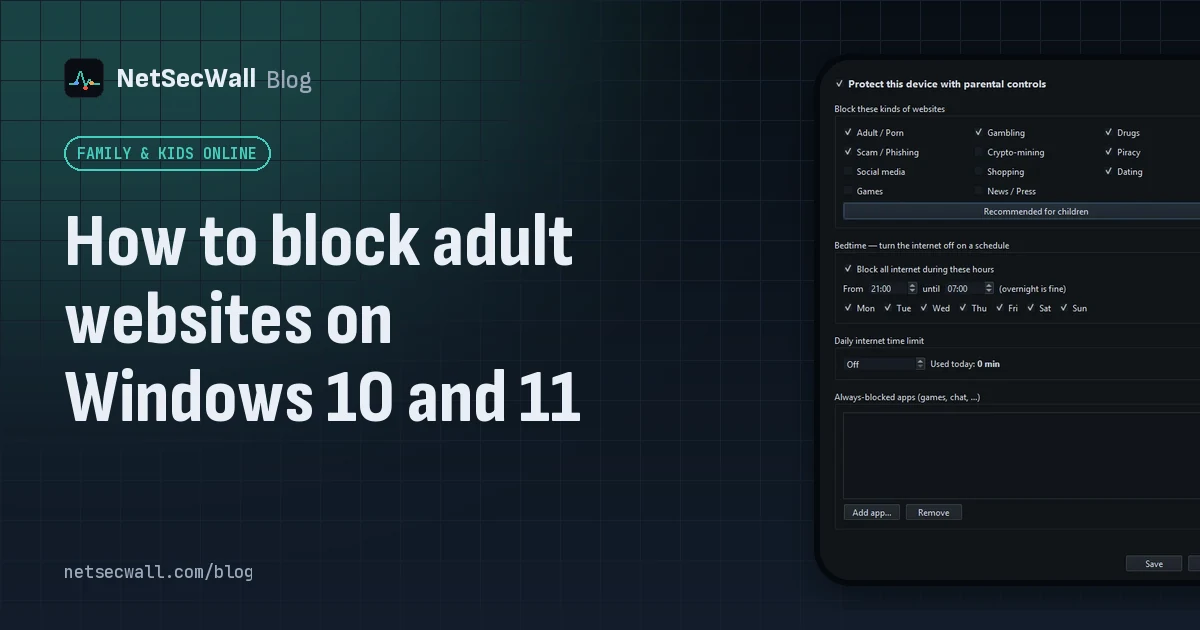 How to block adult websites on Windows 10 and 11
Use a family DNS filter on your router, a filter on the PC, or both. NetSecWall blocks its Adult / Porn category, around 900,000 domains, for every browser and app on the PC, behind a password.
 How to block gambling sites on a PC
Block the Gambling website category on the PC and lock the setting behind a password someone else holds. No filter catches every gambling site, so pair the block with support beyond the computer.
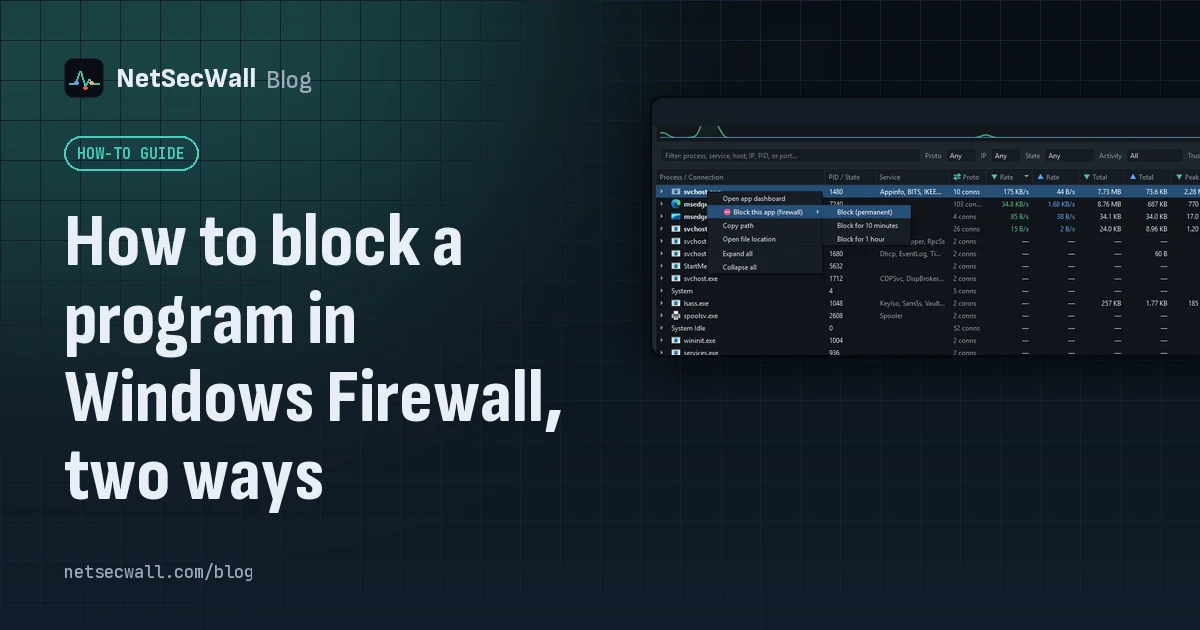 How to block a program in Windows Firewall, two ways
Create an outbound rule for the program's .exe in Windows Defender Firewall with Advanced Security, set to Block the connection. Or right-click the program in NetSecWall and choose Block.
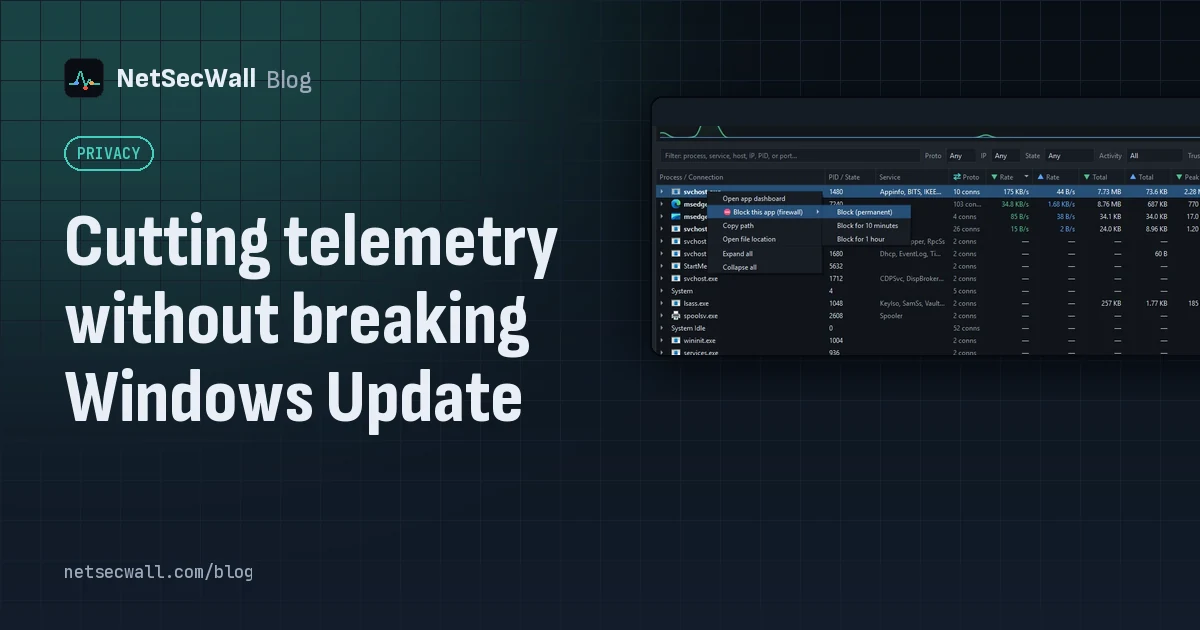 Cutting telemetry without breaking Windows Update
Use Windows' own diagnostic data settings for Windows, and block telemetry one app at a time for everything else. Blocking svchost.exe or Microsoft domains wholesale is what breaks Update.
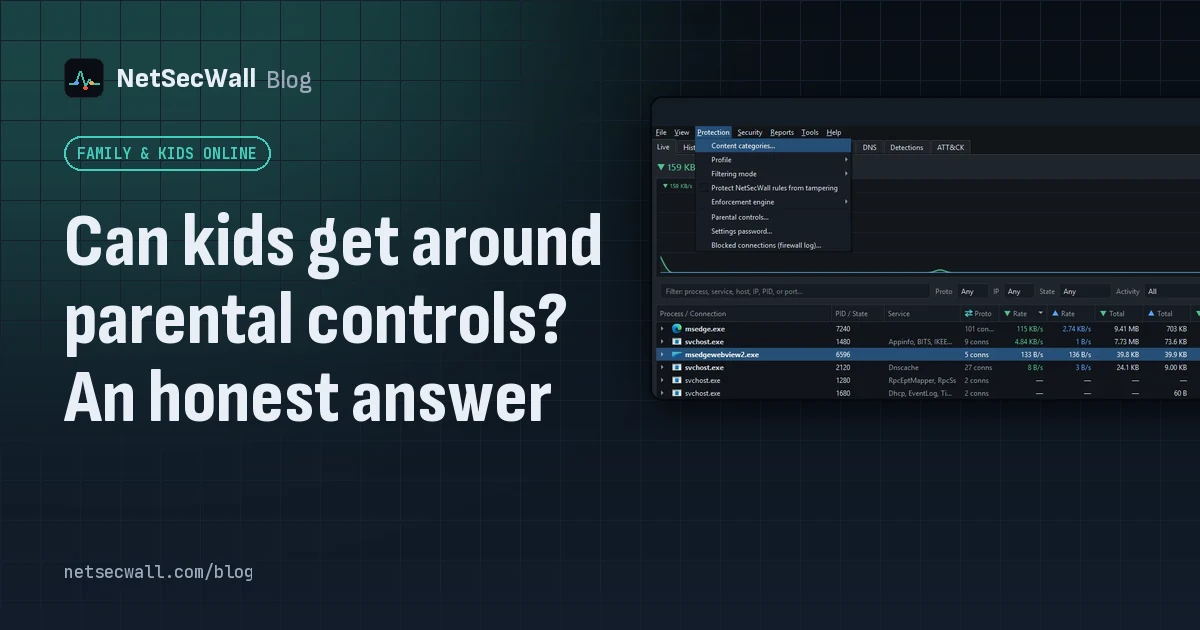 Can kids get around parental controls? An honest answer
Yes. A determined child can get around almost any parental control, especially with admin rights, another device or a VPN. You can make it much harder, and talking to them does more than any setting.
 Keep the app, cut its internet: blocking without uninstalling
Block the program's outbound connections instead of removing it. The app still opens and works offline; it just can't reach the internet until you lift the block.
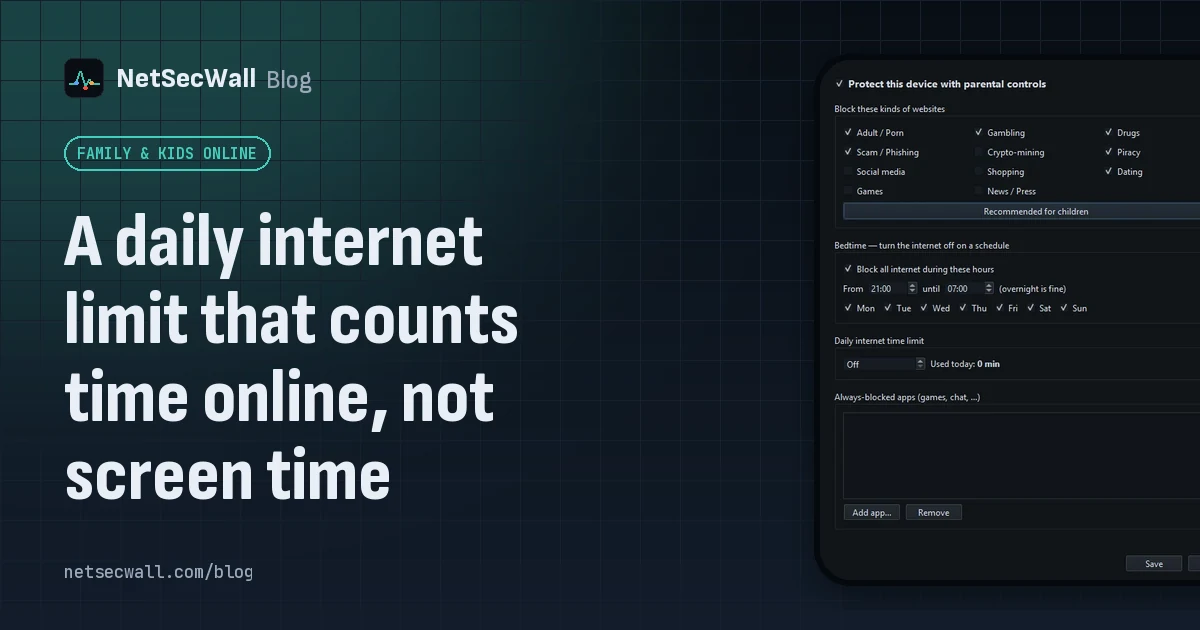 A daily internet limit that counts time online, not screen time
A screen-time limit counts every minute the PC is in use. NetSecWall's daily internet time limit counts only time when the PC has an open connection, in 30-second steps, and resets at midnight.
 Encrypted DNS (DoH): what it hides, and from whom
DNS over HTTPS encrypts the names your PC looks up, so the Wi-Fi owner and your ISP can't read them. The resolver you use still sees every name, and the addresses you then connect to stay visible.
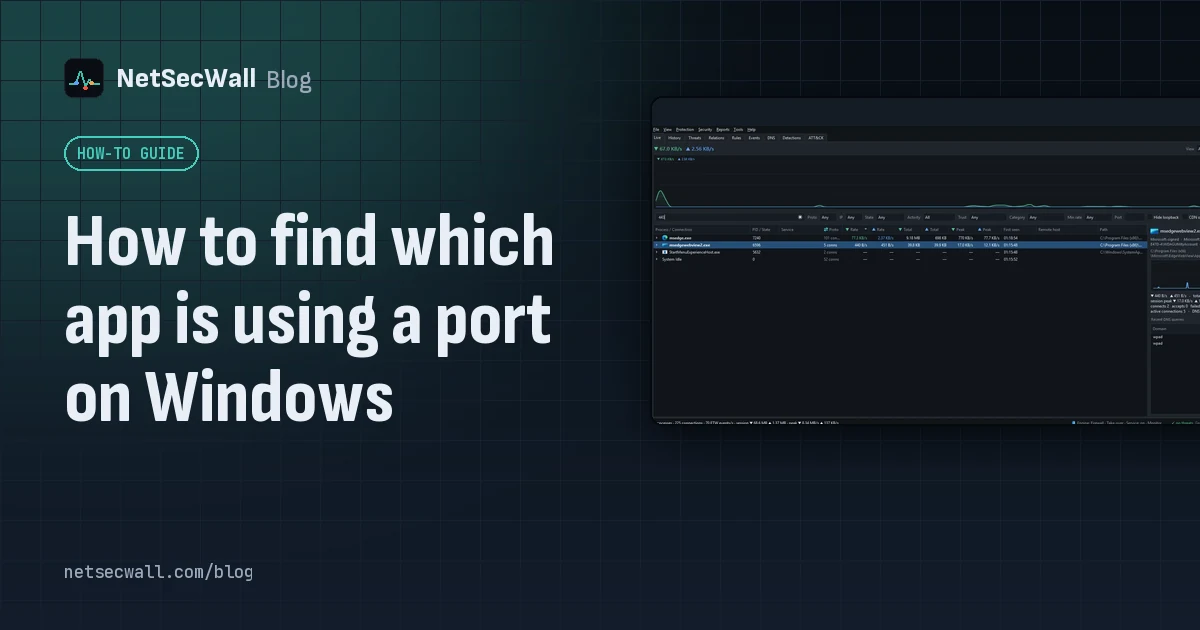 How to find which app is using a port on Windows
Run netstat -ano to get the process ID (PID) that owns the port, then look that PID up in Task Manager. PowerShell's Get-NetTCPConnection and Resource Monitor give the same answer.
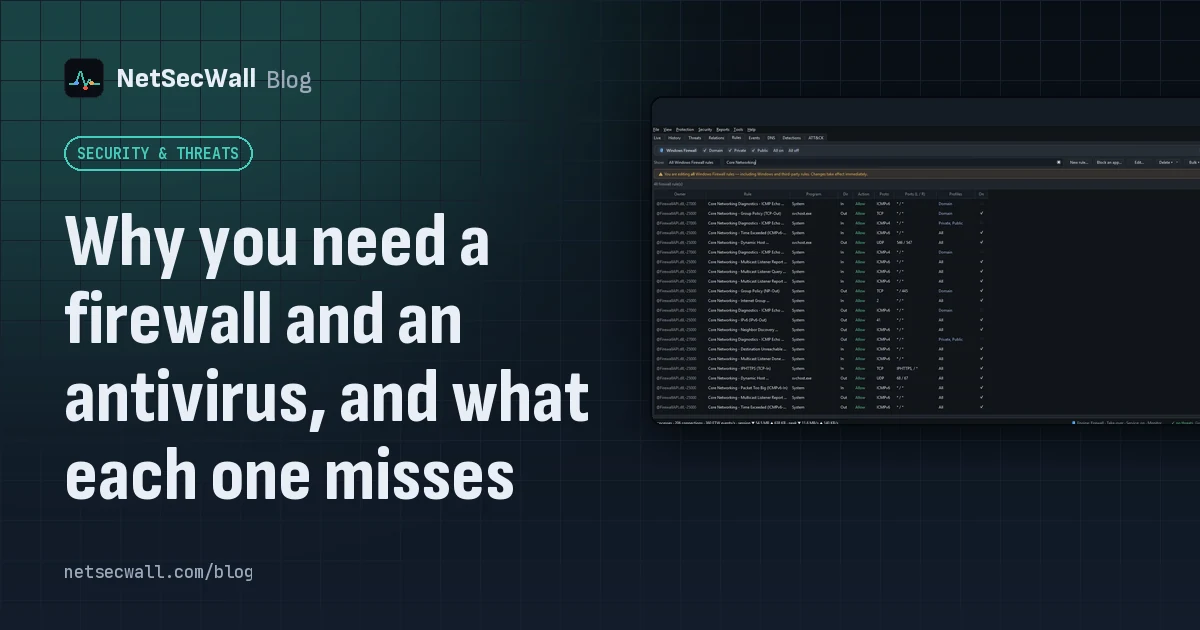 Why you need a firewall and an antivirus, and what each one misses
An antivirus judges files and program behavior; a firewall judges connections. Each misses what the other sees, from a clean-looking tool phoning out to malware that never touches the network.
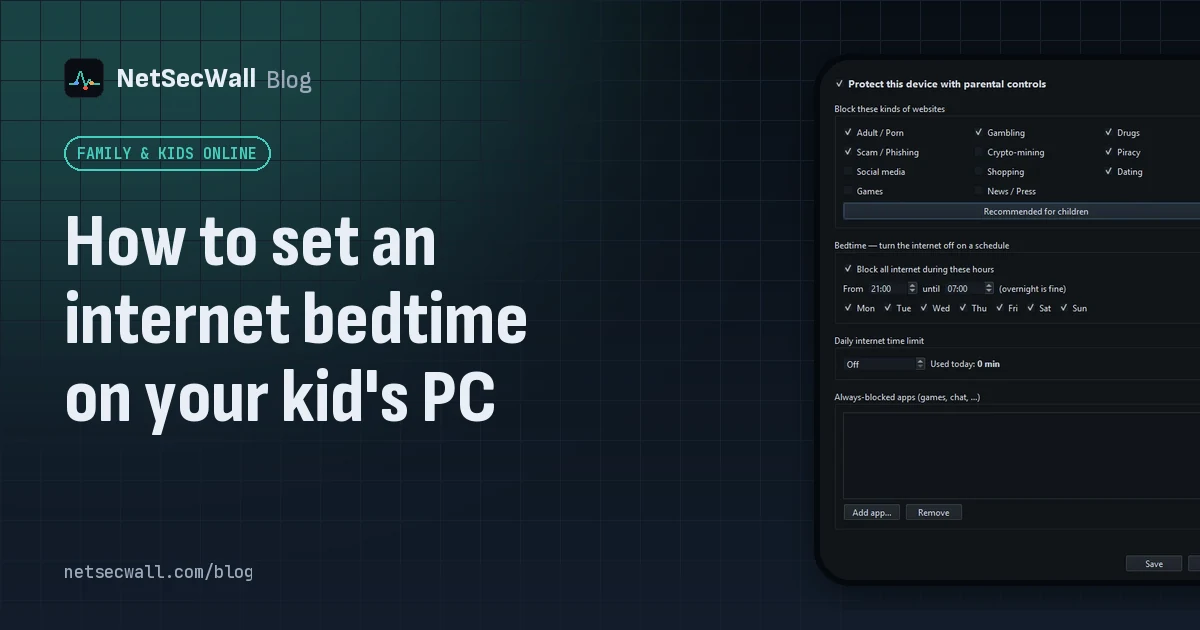 How to set an internet bedtime on your kid's PC
Set a schedule that switches the internet off at night, on your router or on the PC itself. NetSecWall's bedtime blocks all internet on the PC between two times you choose, overnight included.
 How to monitor network traffic per app on Windows
Task Manager and Resource Monitor show a live per-app figure. To see where each app connects, how much it sends, and what it did yesterday, you need a per-app monitor that keeps history.
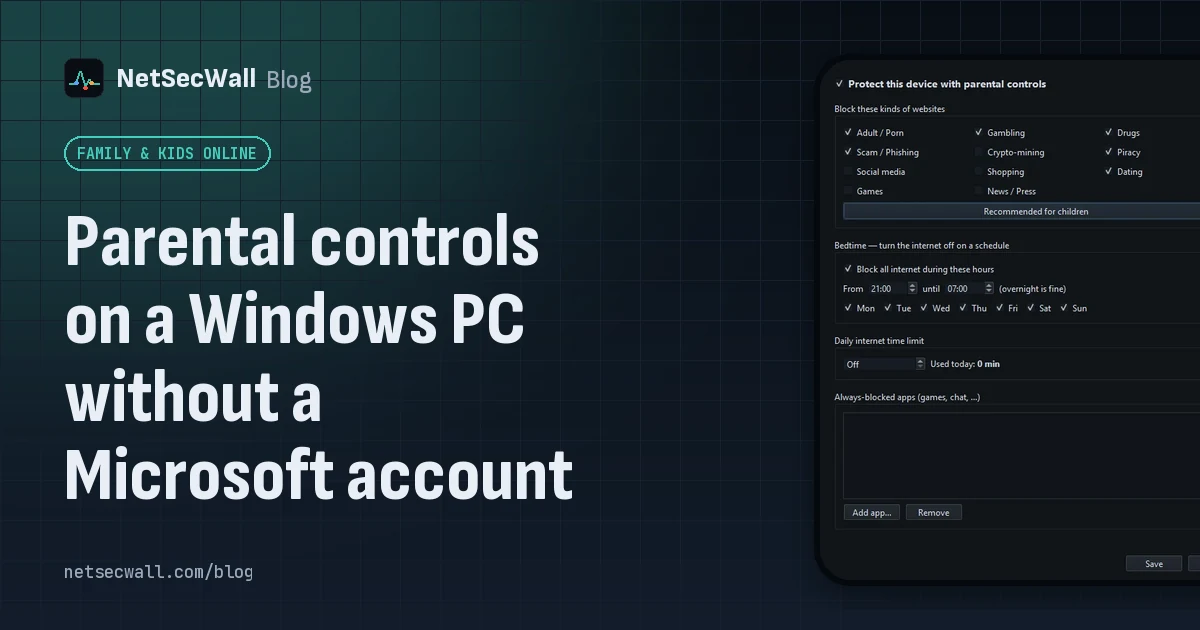 Parental controls on a Windows PC without a Microsoft account
Windows' own family features need Microsoft accounts. Without them, give your child a standard local account and use an on-PC tool that filters sites and sets a bedtime and daily limit.
 Why is my PC uploading data when I'm not using it?
Usually it's cloud sync, a backup, Windows Update sharing pieces of updates, telemetry or a forgotten browser tab. Sort your apps by upload rate to find the one responsible.
 On a hotspot or metered connection? Stop background apps burning data
Mark the network as metered, pause updates and sync, then watch what still uses data. NetSecWall's session data cap warns you at 80% and 100%, and a timed block silences one app for an hour.
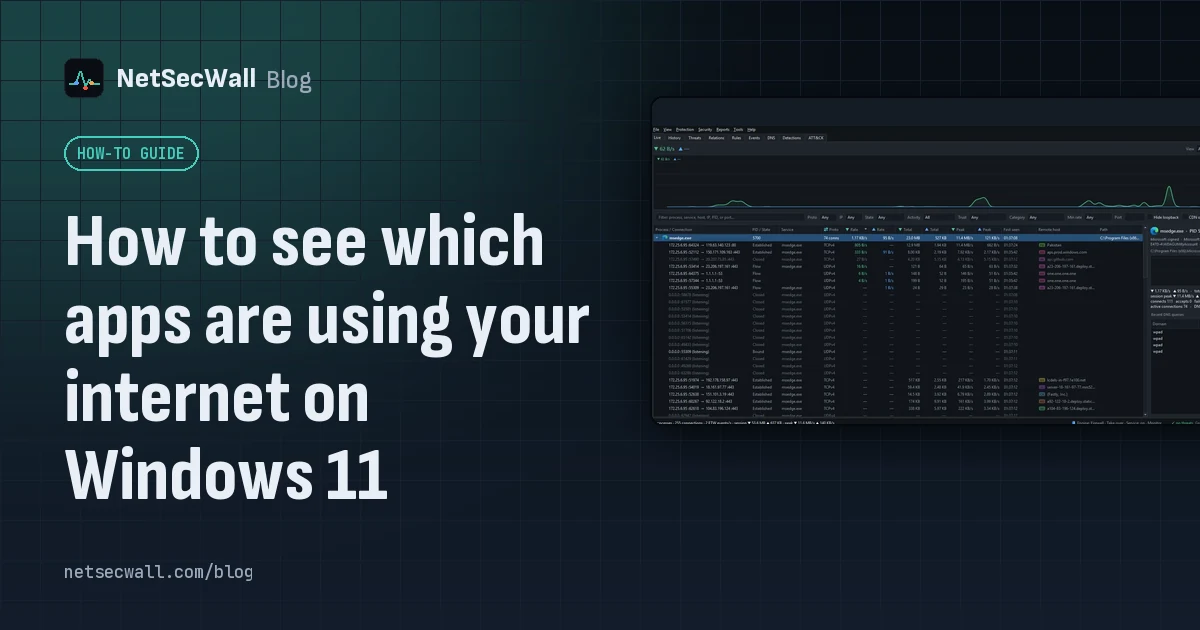 How to see which apps are using your internet on Windows 11
Task Manager's Network column shows which apps are busy right now; Resource Monitor and netstat show where each one connects. For history, countries and alerts you need a per-app monitor.
 How to stop apps from phoning home on Windows
See what each app contacts, decide which calls you'd miss, then block the rest: the whole app, just its updater or crash reporter, or ad and tracking domains across every app.
 What your DNS lookups reveal about the apps on your PC
Before most connections, an app asks DNS for a name. A per-app list of those names shows which services each program uses, what it checks in with, and odd lookups worth a second look.
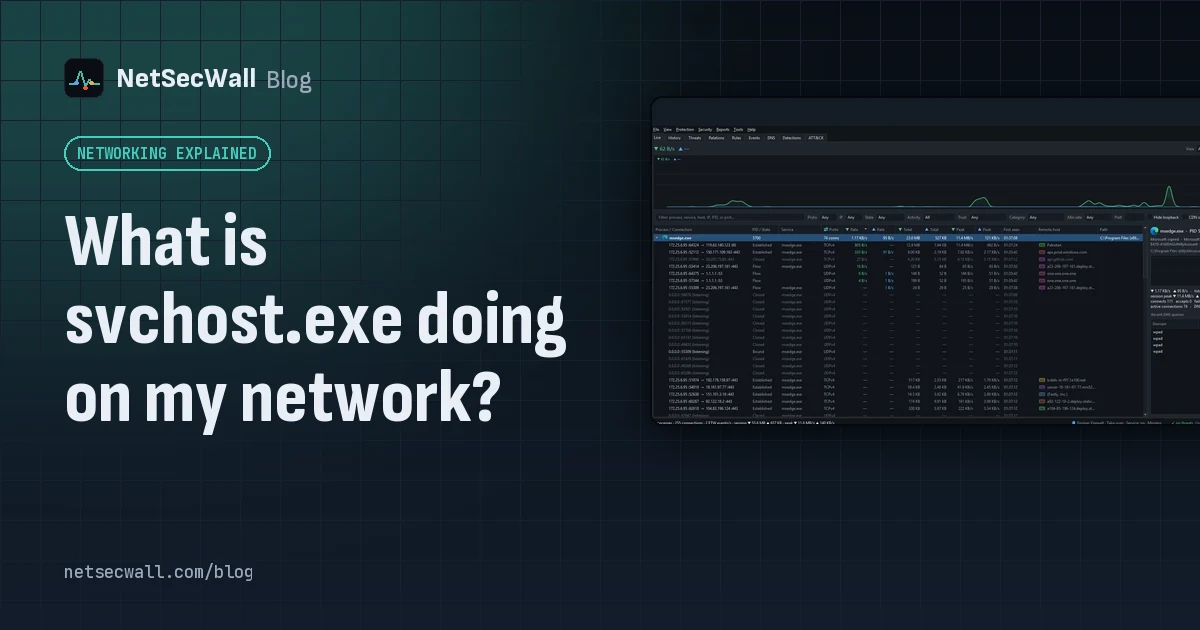 What is svchost.exe doing on my network?
svchost.exe hosts Windows services, and several of them need the internet: Windows Update, BITS, Delivery Optimization, time sync and the DNS Client. The real question is always which service.
 Which countries are your apps sending data to?
Group your PC's connections by country to see where each app's servers are. Expect surprises that aren't problems: CDNs and cloud regions put servers far from the company that owns them.