Parental controls on a Windows PC: an overview
NetSecWall's parental controls combine four tools behind one settings password: a website category filter, an internet bedtime, a daily time limit and always-blocked apps.
NetSecWall for WindowsOn this page
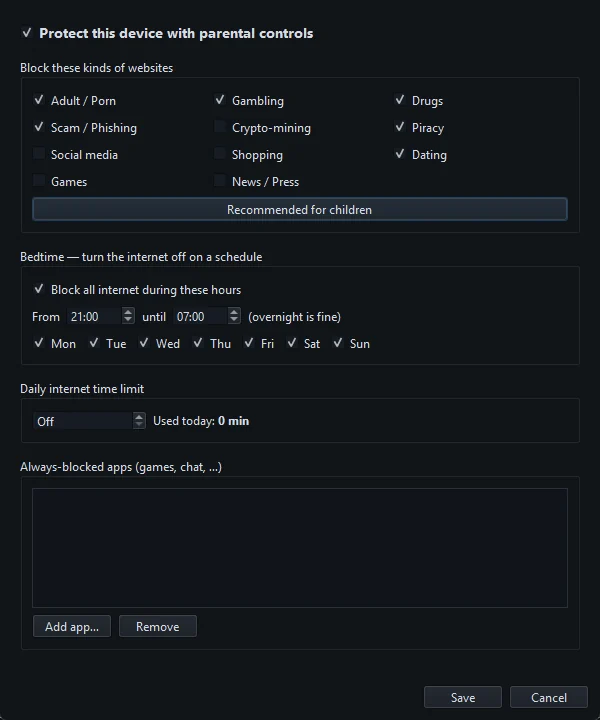
NetSecWall's parental controls for a Windows PC are four independent tools in one dialog, Protection ▸ Parental controls…: a website category filter, an internet bedtime, a daily time limit and a list of always-blocked apps. Use one and ignore the rest if you like. They're enforced by the firewall, so they apply to every browser and every app on the PC, and a settings password stops them being switched off. They're part of the Family and Pro plans, and the trial.
The master switch
Nothing applies until Protect this device with parental controls is ticked. Set everything up, tick it, and click Save. The first time, NetSecWall may need a minute to download the larger category lists.
Website categories
Tick the kinds of sites to block: Adult / Porn, Gambling, Drugs, Scam / Phishing, Crypto-mining, Piracy, Social media, Shopping, Dating, Games and News / Press. Recommended for children ticks Adult / Porn, Gambling, Drugs, Scam / Phishing, Piracy and Dating.
The categories are built from public domain lists, and blocking works on the addresses those domains resolve to. The honest description: it catches the great majority, and it will both miss things and occasionally block something harmless. Treat it as a strong filter, not a guarantee. See blocking website categories.
Internet bedtime
Block all internet during these hours, from one time until another (overnight is fine), on the days you tick. The default is 21:00 to 07:00, every day. It follows the PC's clock, so a machine left on overnight comes back online by itself in the morning. Anything open when bedtime starts is cut: a game session drops rather than finishes. Step by step: set an internet bedtime.
Daily time limit
Set a number of minutes of internet per day, in steps of 15 (0 means off). Time is counted in 30-second steps whenever any program has a connection open to an address outside the PC. A PC with nothing online doesn't use it up, but apps syncing in the background do. The dialog shows Used today, and the count resets when the date changes. Once the limit is reached, the internet stays off for the rest of the day. See set a daily internet time limit.
When bedtime or the limit starts, a tray message says "Parental controls — internet paused", and another says "internet back on" when it ends.
Always-blocked apps
Add a game, a chat client or any other program with Add app… and it can't reach the internet at all, while browsing carries on as normal.
The settings password
None of this means much if the person it applies to can switch it off. Set a password in Protection ▸ Settings password…. Once it's set, you need it to open Settings or Parental controls, change protection, pause or quit NetSecWall, view the Rules tab, or allow a new app in Learning mode. After a correct entry it stays unlocked for two minutes. See the settings password.
There is no recovery for this password. It's stored only as a hash on the PC, and support can't reset it. Write it down somewhere that isn't the PC it protects.
What parental controls can't do
- They stop at the edge of this PC. A phone on mobile data, another laptop or a friend's house are outside what any PC-based tool can see.
- They aren't tamper-proof. Someone with Windows administrator rights on the PC can get around them. Give children a standard Windows account, not an administrator one.
- Filtering is imperfect, as described above.
Be open about it
NetSecWall's acceptable use policy requires that the person using a monitored device knows the controls exist. That's not only a legal point. A child who discovers hidden controls learns that they're being watched rather than that the internet has limits, and the usual result is a workaround rather than a conversation. Can kids get around parental controls? is an honest look at the ways they try.
Frequently asked questions
Do I need a Microsoft account for these parental controls?
No. They're set on the PC itself, in NetSecWall, and don't use Microsoft Family Safety or any online account.
Do the controls work in every browser?
Yes. They're enforced by the firewall rather than a browser extension, so they apply to every browser and app on the PC. Category filtering can't see inside pages, though; it blocks whole sites by address.
What happens to open connections at bedtime?
They're cut. Bedtime and the daily limit use the same "block all internet" switch as the panic button, so everything outbound stops at once.
Can my child just close NetSecWall?
Closing the window only hides it to the tray, and it keeps enforcing. Once you've set a settings password, quitting or pausing NetSecWall needs it.