Keep the app, cut its internet: blocking without uninstalling
Block the program's outbound connections instead of removing it. The app still opens and works offline; it just can't reach the internet until you lift the block.
NetSecWall for Windows
On this page
- Why keep an app but take it offline
- What the app experiences
- The Windows way
- Block an app's internet access without uninstalling it in NetSecWall
- Block an app that is running
- Block an app that isn't running
- Catch the helper programs
- Which kind of block to use
- How to undo it
- Things worth knowing
- The short version
You don't have to uninstall a program to stop it using the internet. An outbound firewall rule for the program's .exe leaves it installed and running, while every connection it tries simply fails. You can set that up in Windows Defender Firewall, or in NetSecWall with a right-click, either permanently or for 10 minutes or an hour.
Why keep an app but take it offline
There are plenty of good reasons to want the program without its connection:
- Offline tools. A photo editor, a document viewer or a code editor doesn't need the internet to do its job. Taking it offline means it can't send anything, whatever its privacy settings say.
- Games and launchers. A single-player game you want to play without the launcher's news, ads and surprise updates.
- Old software. A program that's no longer updated but still opens a file format you need. Its network code is as old as the rest of it, and it has no reason to be online.
- Unwanted updates. An app that updates itself to versions you'd rather not have.
- Focus. A chat app you want quiet for the next hour, without closing it.
- Testing. Seeing how a new program behaves offline before you trust it.
One honest caveat: if an app checks its license online, taking it offline may stop it working. Blocking isn't a way around a vendor's license terms, and it won't behave like one.
What the app experiences
A blocked program isn't killed, quarantined or modified. It loses network access and behaves as it would on a PC with no internet. How gracefully that goes depends on the program:
- A well-written app shows "no connection" and retries later.
- A badly written one hangs on a timeout, sometimes for a long time.
- An app that checks a license or account at startup may refuse to run.
- Anything in the middle of a transfer loses that transfer.
Your files and settings are untouched, and everything comes back when you lift the block.
The Windows way
Windows Defender Firewall allows outgoing connections by default, so you need an outbound block rule for the program's path in Windows Defender Firewall with Advanced Security. It works well and persists until you delete it. The full steps, and where it gets fiddly, are in how to block a program in Windows Firewall.
Two things it doesn't do: rules don't expire, so a one-hour block means remembering to delete the rule, and nothing tells you when a helper program you didn't know about starts connecting instead.
Block an app's internet access without uninstalling it in NetSecWall
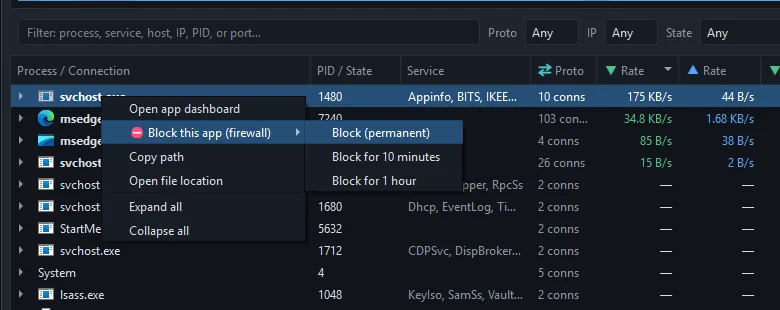
Block an app that is running
- Open the Live tab and find the program. Type part of its name in the filter bar if the list is long.
- Right-click the program's row.
- Choose Block this app (firewall), then Block (permanent), Block for 10 minutes or Block for 1 hour.
- If you've set a settings password, enter it.
NetSecWall creates an outbound block for that program's path and closes its open IPv4 TCP connections, so it goes offline at once instead of at its next connection. The steps with more detail are in block an app from the internet.
Block an app that isn't running
Open the Rules tab, click Block an app… and pick the program's .exe. The block is in place before the program next starts.
Catch the helper programs
Many apps use more than one executable: an updater, a crash reporter, a background service, a web helper. Block the main .exe and one of those may still get out. The easy way to find them is Learning mode: Protection ▸ Filtering mode ▸ Learning — ask when a new app connects. Programs already online are approved when you switch it on. After that, any program connecting for the first time is held until you answer Allow, Allow once or Block. See Learning mode.
Which kind of block to use
| Option | How long it lasts | After NetSecWall restarts | Good for |
|---|---|---|---|
| Block (permanent) | Until you remove it | Applied again at every start | Apps that should never go online |
| Block for 10 minutes | 10 minutes | Gone | Testing what a block breaks |
| Block for 1 hour | 1 hour | Gone | Focus time, a meeting |
| Block in the Learning pop-up | Until you remove it | Applied again at every start | New programs you didn't expect |
| No answer to the pop-up in 30 seconds | This session | You're asked again | — |
Timed blocks lift themselves. If NetSecWall exits before the time is up, the block goes with it.
How to undo it
Open the Rules tab with Show set to NetSecWall rules. App blocks are named NetLens App Block: … followed by the program. Select the rule and choose Delete ▾ ▸ Delete selected, or press Delete. Unblocking an app covers the details.

Things worth knowing
- Blocks follow the path. A block is keyed to the executable's location. An update in place keeps it. If the app moves, for example a reinstall to another folder or an app that installs each version into a new folder, block it again.
- Other programs aren't covered. If the app opens a link in your browser or hands a download to a Windows service, that traffic goes out under the other program's name.
- Blocks are enforced while NetSecWall runs. With the background service installed, which the installer does by default, that's from boot, before anyone signs in. See the background service and the tray.
- Plans. Blocking is part of the Family and Pro plans, and of the 7-day trial.
The short version
Uninstalling is for software you don't want. Blocking is for software you want to keep on your terms. To try it with a timer first, download NetSecWall; every feature is unlocked for 7 days, no card and no account.
Frequently asked questions
Will the app know it has been blocked?
It sees connections failing, which looks the same as being offline. Most apps say they can't connect; nothing tells them a firewall did it.
Can I still update an app I've blocked?
Yes. Remove the block, run the update, and block the app again afterward. If the vendor uses a separate updater program, you can leave that one allowed and block the rest.
Does blocking an app also cut it off from my home network?
Yes. The block covers every outbound connection the program makes, including ones to devices on your own network, such as a printer or a network drive.
Does a blocked app keep running in the background?
Yes. Blocking stops the connections, not the program. If you want it gone from the background too, close it, and switch off its startup entry in Task Manager's Startup apps page.
What's the difference between Block for 1 hour and turning off Wi-Fi?
Turning off Wi-Fi takes the whole PC offline. A timed block takes one program offline and leaves everything else connected.
Keep reading
 How to block a country on Windows
Windows has no country switch, so you block the country's IP ranges with firewall rules. NetSecWall does it with one right-click; geolocation is approximate, and CDNs and VPNs blur borders.
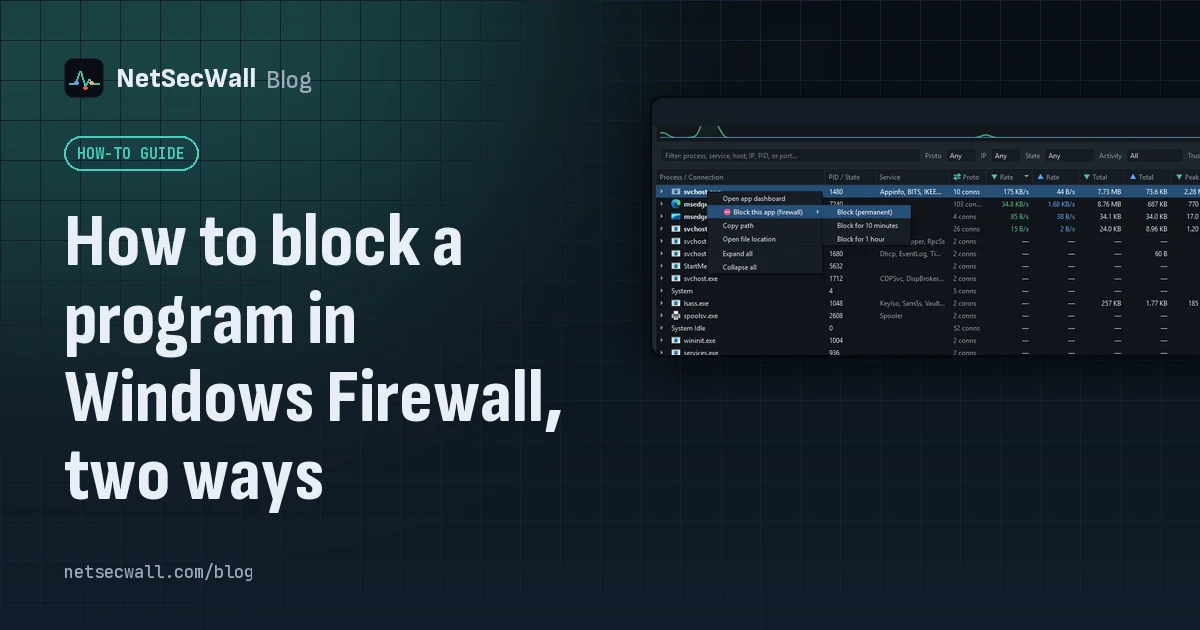 How to block a program in Windows Firewall, two ways
Create an outbound rule for the program's .exe in Windows Defender Firewall with Advanced Security, set to Block the connection. Or right-click the program in NetSecWall and choose Block.
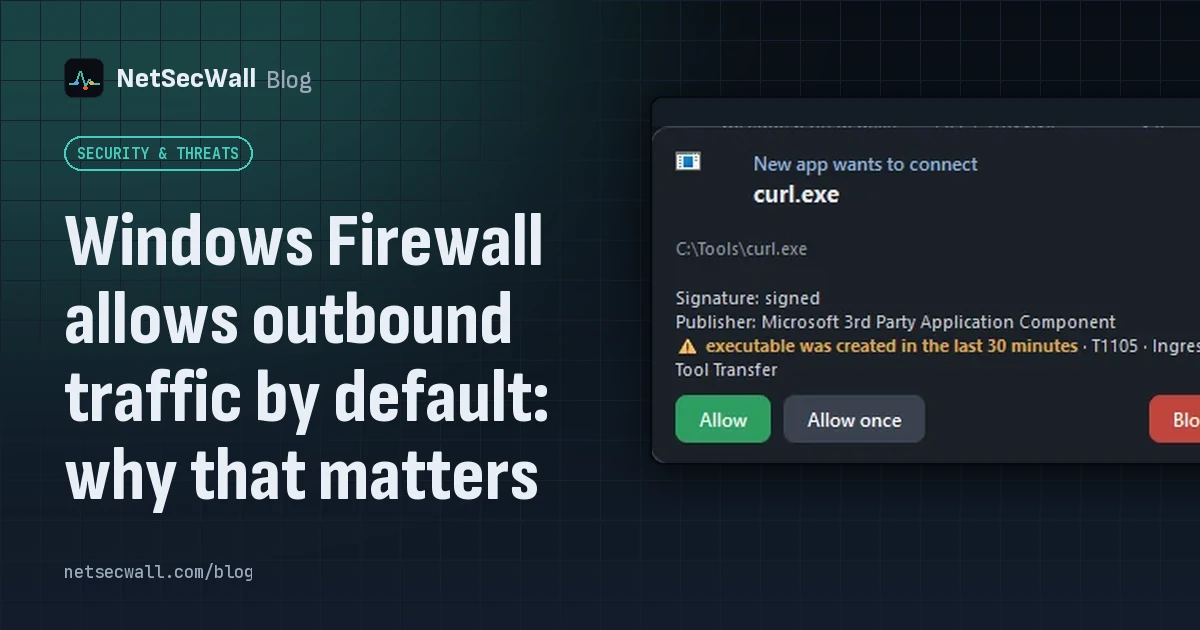 Windows Firewall allows outbound traffic by default: why that matters
Out of the box, Windows Defender Firewall blocks unsolicited inbound connections but lets every program connect out. That keeps things working, and it means nothing stops an unwanted app phoning home.
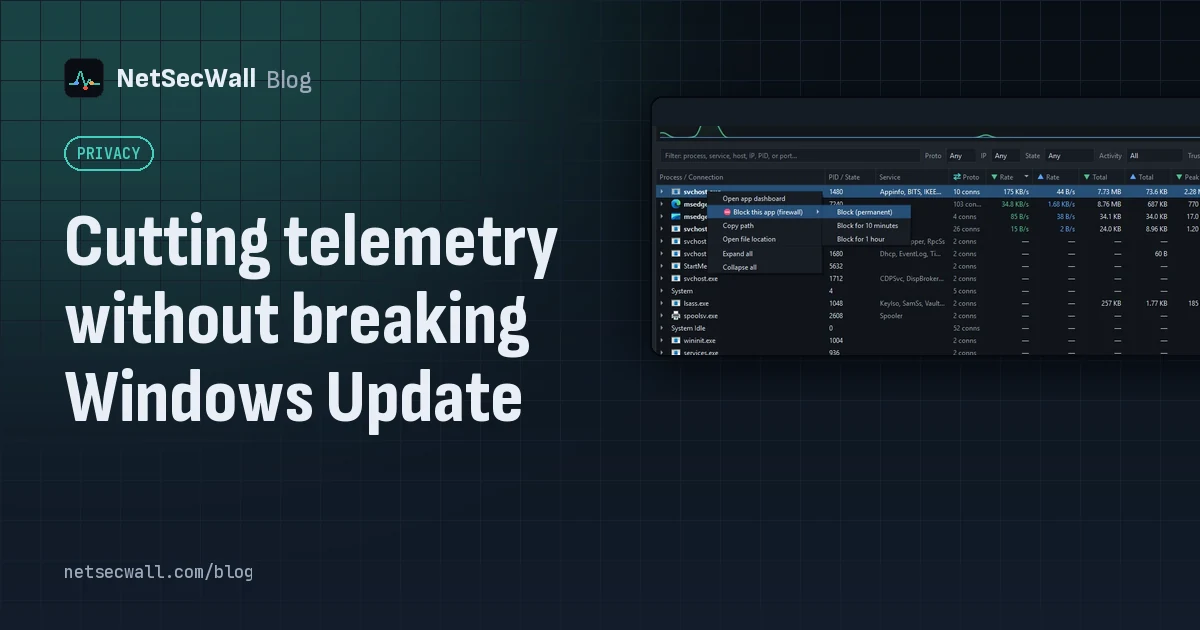 Cutting telemetry without breaking Windows Update
Use Windows' own diagnostic data settings for Windows, and block telemetry one app at a time for everything else. Blocking svchost.exe or Microsoft domains wholesale is what breaks Update.