How to block a program in Windows Firewall, two ways
Create an outbound rule for the program's .exe in Windows Defender Firewall with Advanced Security, set to Block the connection. Or right-click the program in NetSecWall and choose Block.
NetSecWall for Windows
On this page
To block a program in Windows Firewall, create an outbound rule for the program's .exe in Windows Defender Firewall with Advanced Security, with the action Block the connection. It takes a couple of minutes and works the same on Windows 10 and 11. NetSecWall creates the same kind of rule from a right-click on the running program, and lists it next to Windows' own rules in its Rules tab.
Why it has to be an outbound rule
Windows Defender Firewall blocks unsolicited incoming connections by default but allows outgoing ones. A program that fetches updates, sends analytics or talks to its server is making outgoing connections, so blocking it takes an outbound rule. An inbound block rule does nothing about a program reaching out. Inbound vs outbound connections explains the difference, and why Windows allows outbound by default explains why it matters.
That's also why the familiar Control Panel page, Allow an app or feature through Windows Defender Firewall, can't help here. It manages which apps may accept incoming connections. It has no outbound switch.
When a block rule and an allow rule both match, the block wins.
Way 1: Windows Defender Firewall with Advanced Security
Find the program's path
You need the full path to the .exe. Right-click the program's shortcut and choose Open file location, or, if it's running, find it on Task Manager's Details page, right-click it, and choose Open file location. Then right-click the file and choose Copy as path.
Create the rule
- Press Win+R, type
wf.msc, and press Enter. - In the left pane, click Outbound Rules.
- In the Actions pane on the right, click New Rule….
- Choose Program and click Next.
- Choose This program path, paste the path (remove the quotes) or click Browse…, and click Next.
- Choose Block the connection and click Next.
- Leave Domain, Private and Public ticked and click Next.
- Give the rule a name you'll recognize later, such as "Block ExampleApp", and click Finish.
The rule applies straight away. Restart the program so it starts from a clean slate.
You can create the same rule with one line of PowerShell, run as administrator. It's handy when you need the same block on several PCs.
New-NetFirewallRule -DisplayName "Block ExampleApp" -Direction Outbound -Program "C:\Program Files\ExampleApp\app.exe" -Action Block
To remove it later, run Remove-NetFirewallRule -DisplayName "Block ExampleApp".
Where it gets fiddly
- Several executables. Many apps use a separate updater, helper or crash reporter. Each needs its own rule.
- Paths that change. Some apps install each version into a new folder, and a rule for the old path stops matching.
- Microsoft Store apps. Packaged apps can need a rule scoped to their app package rather than a path, which is set in the rule's properties.
- Finding the culprit. Windows won't tell you when a new program starts connecting. You have to spot it first, in Resource Monitor or
netstat -abno. - No timers. A rule stays until you disable or delete it.
Way 2: one right-click in NetSecWall
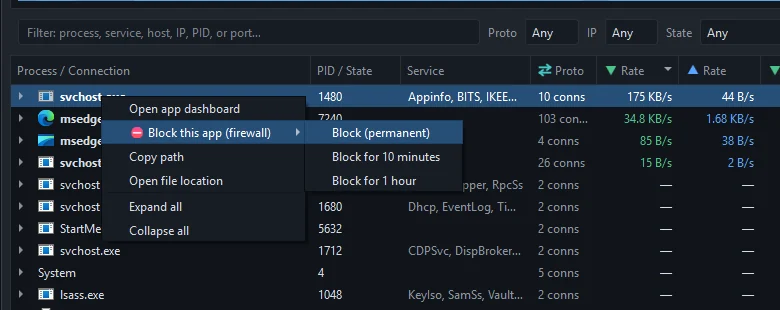
- Open the Live tab and find the program. It's listed as soon as it has a connection open; the filter bar narrows the list.
- Right-click the program's row.
- Choose Block this app (firewall) ▸ Block (permanent), or Block for 10 minutes or Block for 1 hour to try it first.
- If you've set a settings password, enter it.
NetSecWall adds an outbound block for that program's path and closes the program's open IPv4 TCP connections, so the block takes effect immediately.
For a program that isn't running, open the Rules tab and click Block an app…. For programs you haven't met yet, Protection ▸ Filtering mode ▸ Learning — ask when a new app connects holds each new program until you choose Allow, Allow once or Block; see Learning mode.
With the default Windows Firewall (rules) engine, the block is an ordinary Windows Firewall rule named NetLens App Block: … in the rule group "NetLens", so you'll see it in wf.msc as well. With the Packet filter (WFP) engine, NetSecWall enforces the block with its own Windows Filtering Platform filter instead. Which engine to use compares the two.
Blocking is part of the Family and Pro plans, and of the 7-day trial.
See both kinds of rule in the Rules tab
The Rules tab shows NetSecWall's rules and Windows' rules side by side.
- Set Show to NetSecWall rules to see only the blocks and approvals NetSecWall made.
- Set it to All Windows Firewall rules to see everything in Windows Defender Firewall, including the rule you made in
wf.msc. Its Owner column reads "Windows / other". - Type a name, program or port into Filter (name, program, port)… to find a rule quickly.
- The header has switches for Windows Firewall's Domain, Private and Public profiles.

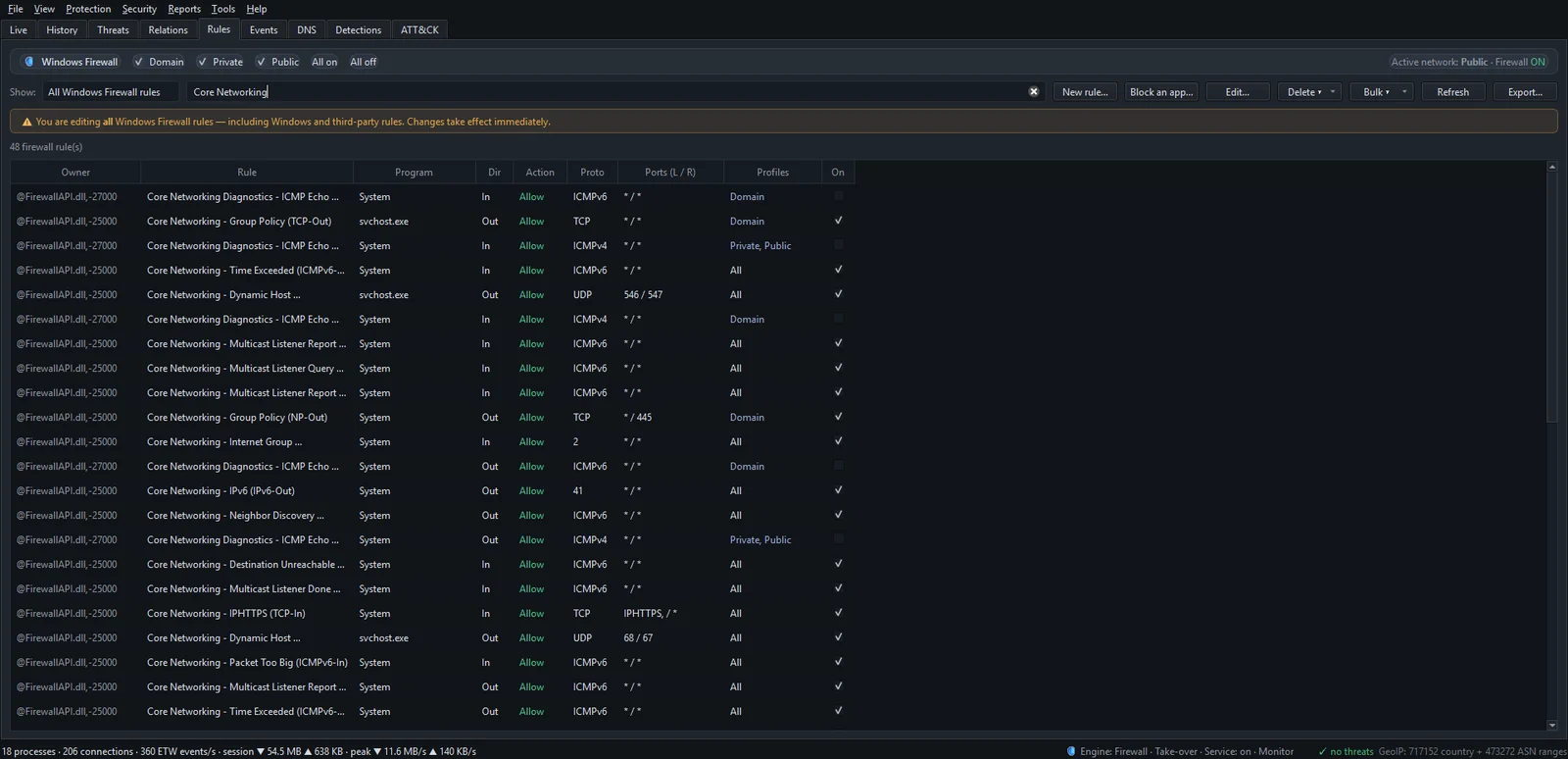
New rule… creates an ordinary Windows Firewall rule for a program, port or address from inside NetSecWall. It isn't available while the background service is running; use wf.msc then. Managing rules from the Rules tab covers editing, bulk actions and export.
Which way to use
Rule made in wf.msc or with New rule… |
Block made in NetSecWall | |
|---|---|---|
| Where you start | The program's path | The program in the Live tab |
| Timed blocks | No | 10 minutes or 1 hour |
| Prompt for new programs | No | Learning mode |
| When NetSecWall isn't running | Still applies | Doesn't apply |
That last row matters. NetSecWall removes its own rules when it stops and puts them back when it starts; with the background service installed, that's from boot. If you need a block that holds whether NetSecWall is running or not, make it in wf.msc or with New rule….
The short version
Windows can block any program with an outbound rule; it just makes you find the program and type the path. To do it from a list of what's actually connecting, download NetSecWall and try every feature free for 7 days. For more on keeping a program installed but offline, see blocking without uninstalling.
Frequently asked questions
Does blocking a program in Windows Firewall stop it from running?
No. The program keeps running; only its network connections fail. To stop it running, close it and remove it from Task Manager's Startup apps.
Why is a program I blocked still connecting?
Usually because a different executable is doing the talking, such as an updater or helper, or because the program now runs from a different path. Check the rule is enabled, set to Outbound, and covers all three profiles.
How do I unblock a program in Windows Firewall?
Open wf.msc, click Outbound Rules, right-click your rule and choose Disable Rule or Delete. For a NetSecWall block, delete the rule in NetSecWall's Rules tab.
Will NetSecWall change the rules I made in wf.msc?
No. It lists them and leaves them alone unless you edit or delete one yourself, and it asks first before editing a rule it didn't create.
Can I block a program on Windows 10 the same way?
Yes. Windows Defender Firewall with Advanced Security and the New Outbound Rule Wizard are the same on Windows 10 and 11, and NetSecWall supports both.
Keep reading
 How to block a country on Windows
Windows has no country switch, so you block the country's IP ranges with firewall rules. NetSecWall does it with one right-click; geolocation is approximate, and CDNs and VPNs blur borders.
How to block a country on Windows
Windows has no country switch, so you block the country's IP ranges with firewall rules. NetSecWall does it with one right-click; geolocation is approximate, and CDNs and VPNs blur borders.
 Keep the app, cut its internet: blocking without uninstalling
Block the program's outbound connections instead of removing it. The app still opens and works offline; it just can't reach the internet until you lift the block.
Keep the app, cut its internet: blocking without uninstalling
Block the program's outbound connections instead of removing it. The app still opens and works offline; it just can't reach the internet until you lift the block.
 Cutting telemetry without breaking Windows Update
Use Windows' own diagnostic data settings for Windows, and block telemetry one app at a time for everything else. Blocking svchost.exe or Microsoft domains wholesale is what breaks Update.
Cutting telemetry without breaking Windows Update
Use Windows' own diagnostic data settings for Windows, and block telemetry one app at a time for everything else. Blocking svchost.exe or Microsoft domains wholesale is what breaks Update.
 Why you need a firewall and an antivirus, and what each one misses
An antivirus judges files and program behavior; a firewall judges connections. Each misses what the other sees, from a clean-looking tool phoning out to malware that never touches the network.
Why you need a firewall and an antivirus, and what each one misses
An antivirus judges files and program behavior; a firewall judges connections. Each misses what the other sees, from a clean-looking tool phoning out to malware that never touches the network.