Find what's eating your bandwidth in the background
Sort Task Manager's Network column or Resource Monitor's Network Activity to catch what is using your bandwidth right now. To catch what used it an hour ago, you need per-app history.
NetSecWall for Windows
On this page
If you're asking what is using my bandwidth, start with Task Manager: sort the Processes tab by the Network column and the busiest program rises to the top. Resource Monitor shows the same thing with addresses and separate send and receive figures. Both only show the present, so a hog that ran for twenty minutes and stopped needs a tool that keeps history.
Signs that something is using your connection
A background bandwidth hog rarely announces itself. You notice the side effects:
- Video buffers or drops to low quality on a connection that is usually fine.
- Voice and video calls stutter, or people say you sound robotic.
- Online games lag, even though nothing else seems to be running.
- Web pages hesitate before they start loading.
- A capped plan or a hotspot runs out sooner than it should.
Uploads cause more trouble than people expect. Home connections usually have far less upload than download capacity, and when the upload side is full, everything that needs a quick reply slows down, including calls, games and ordinary browsing.
The usual suspects
Most bandwidth hogs are legitimate programs doing their job at an inconvenient time:
- Windows Update, and Delivery Optimization, which can also share update files with other PCs. Its settings, including bandwidth limits, are in Windows Update's advanced options.
- Cloud sync and backup. Add a folder of photos to a sync client and it may upload for hours.
- Game launchers and app stores downloading updates, sometimes tens of gigabytes.
- Browsers. A background tab playing video, or a site that keeps refreshing media, is easy to forget.
- Something you don't recognize. Usually harmless, but steady uploads from an unknown program deserve a closer look. Spotting malware by its network traffic explains what to look for.
Find what is using your bandwidth with Windows tools
- Press Ctrl+Shift+Esc to open Task Manager.
- On Processes, click the Network column header to sort by current network use.
- Expand the top entry to see which of its processes is busy.
- For more detail, type
resmonin the Start menu, open the Network tab, and sort Network Activity by Total (B/sec). Each row shows the program, the address it's talking to, and bytes sent and received per second.
Two gaps show up quickly. First, both tools are live only: if the upload finished before you opened them, there's nothing to see. Second, Windows services share svchost.exe, so the busy row may not say which service it is. What svchost.exe is doing on your network helps decode it.
Catch it with NetSecWall
NetSecWall watches every program's traffic all the time and keeps a local history, so you can see what's busy now and what was busy while you were away.
Right now: the Live tab, sorted by rate
The Live tab sorts programs by download rate (Rate ▼) by default, so the heaviest downloader is already at the top. Click Rate ▲ to sort by upload instead. The graph above the list shows total throughput for the last two minutes; widen the Window to 5 or 10 minutes to see a longer stretch.
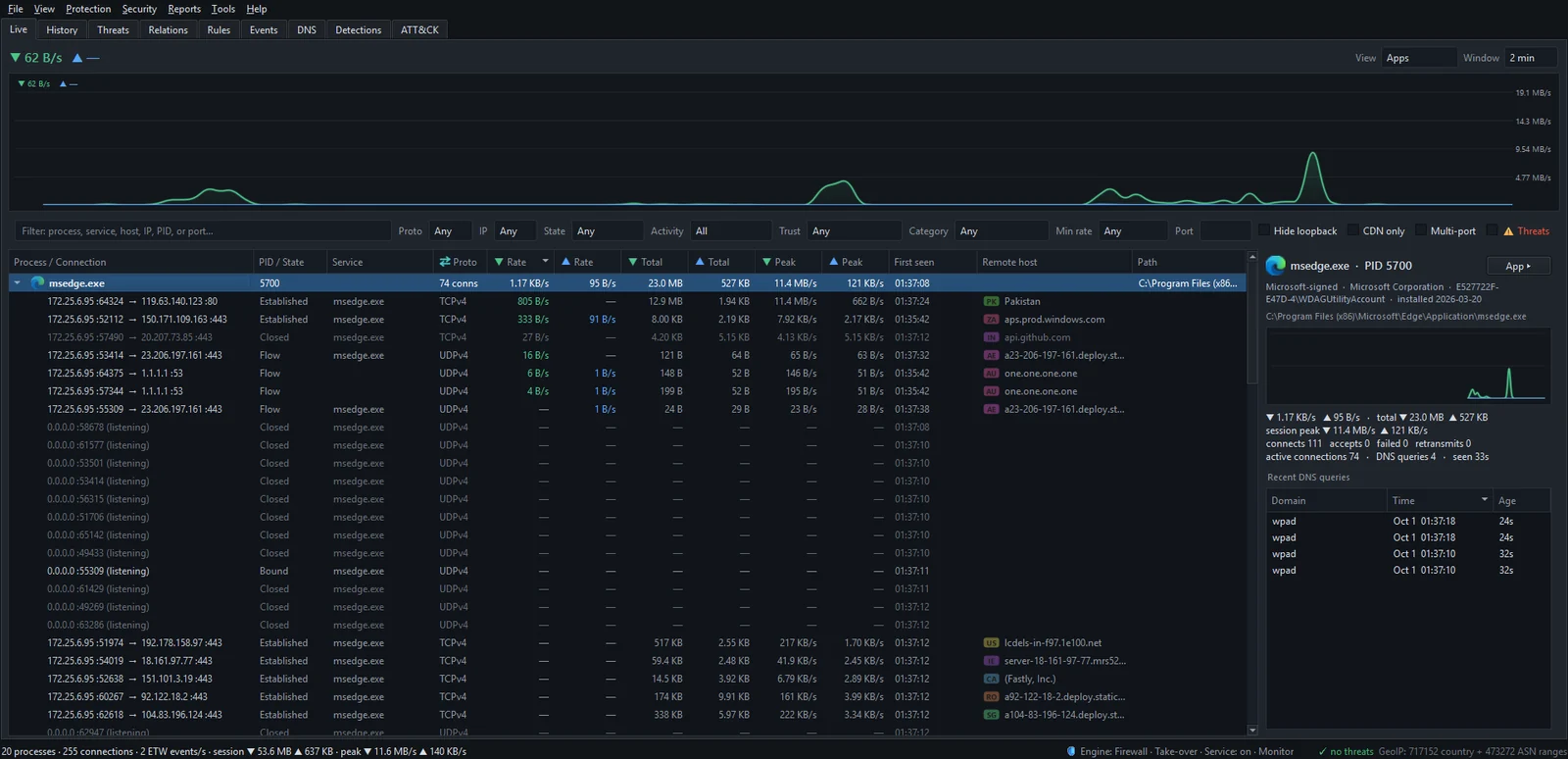
Two filters narrow a busy list: Min rate (for example, ≥ 100 KB/s) hides everything quiet, and Activity ▸ Uploading shows only programs that are sending. For svchost.exe, the Service column names the Windows service responsible.
Afterwards: History totals
Open the History tab, set Group by to Apps and Range to Today or Yesterday. The list is sorted by total traffic, so the answer to "what used it all" is at the top. The timeline above shows when the traffic happened; click a busy bar to zoom into that hour.

Double-click an app to open its dashboard, with daily download and upload bars and the hosts it used most. That usually tells you whether it's a one-off update or a daily habit. History, search and reports covers the rest.
Next time: get a warning
- Tools ▸ Set session data cap… sets a total for the current NetSecWall session. You get a tray alert at 80% and again at 100%.
- Security ▸ Alerts & detection… has two per-app alerts: App exceeds its per-session data budget (500 MB by default) and App uploads more than the threshold (100 MB by default).
These alerts warn; they don't block. Nothing is cut off until you decide.
Then: pause it or stop it
Once you know the culprit, fix it at the source if you can: pause the sync client, schedule updates for the night, or lower the launcher's download speed. If you just need the connection back for a while, right-click the program in Live and choose Block this app (firewall) ▸ Block for 10 minutes or Block for 1 hour. The block lifts itself when the time is up, and NetSecWall closes the program's open IPv4 TCP connections straight away rather than waiting for them to end.
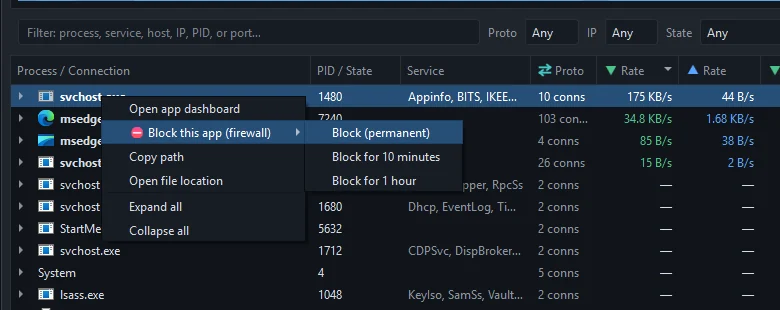
Don't block svchost.exe as a whole. It carries Windows Update, time sync, license activation and more. Use Windows Update's own settings to pause or limit updates instead.
For a permanent block, see how to block an app from the internet, or keep the app and cut only its internet.
What NetSecWall can't do here
- It doesn't limit bandwidth. It can block a program or let it through, but it can't cap it at, say, 1 MB/s. Some programs have their own speed limit settings; use those.
- It only sees this PC. If the PC is quiet and the connection is still slow, the hog is another device on your network, such as a phone, a console or a TV. Your router's device list is the place to look.
- It needs administrator rights, and blocking is part of the Family and Pro plans.
To find your own background hog, download the 7-day trial. If you're on a hotspot, stopping background apps from burning data goes further.
Frequently asked questions
Why is my upload maxed out when I'm not doing anything?
Usually cloud sync, backup, or Windows Delivery Optimization sharing update files. Sort by upload rate in a per-app monitor to see which one, then pause or limit it in that program's settings.
Can I limit an app's bandwidth instead of blocking it?
Not with NetSecWall, which only allows or blocks. Many sync clients, launchers and Windows Update's Delivery Optimization have their own bandwidth limits in their settings.
Is svchost.exe using a lot of bandwidth a virus?
Almost always not. svchost.exe hosts Windows services, and heavy traffic usually comes from Windows Update or Delivery Optimization. Check which service it is before doing anything.
Can NetSecWall show other devices on my Wi-Fi?
No. It monitors programs on the PC it's installed on. For phones, consoles and TVs, check your router's list of connected devices.
Does blocking an app for an hour break it?
The app simply can't reach the internet for that hour. When the block lifts, it reconnects and usually carries on where it left off.
Keep reading
 How NetSecWall sees every connection without a driver
NetSecWall reads what Windows already records: kernel network events through ETW, DNS answers, and the TCP and UDP tables. It sees which app talks to which address without capturing a single packet.
How NetSecWall sees every connection without a driver
NetSecWall reads what Windows already records: kernel network events through ETW, DNS answers, and the TCP and UDP tables. It sees which app talks to which address without capturing a single packet.
 How to monitor network traffic per app on Windows
Task Manager and Resource Monitor show a live per-app figure. To see where each app connects, how much it sends, and what it did yesterday, you need a per-app monitor that keeps history.
How to monitor network traffic per app on Windows
Task Manager and Resource Monitor show a live per-app figure. To see where each app connects, how much it sends, and what it did yesterday, you need a per-app monitor that keeps history.
 Why is my PC uploading data when I'm not using it?
Usually it's cloud sync, a backup, Windows Update sharing pieces of updates, telemetry or a forgotten browser tab. Sort your apps by upload rate to find the one responsible.
Why is my PC uploading data when I'm not using it?
Usually it's cloud sync, a backup, Windows Update sharing pieces of updates, telemetry or a forgotten browser tab. Sort your apps by upload rate to find the one responsible.
 How to find which app is using a port on Windows
Run netstat -ano to get the process ID (PID) that owns the port, then look that PID up in Task Manager. PowerShell's Get-NetTCPConnection and Resource Monitor give the same answer.
How to find which app is using a port on Windows
Run netstat -ano to get the process ID (PID) that owns the port, then look that PID up in Task Manager. PowerShell's Get-NetTCPConnection and Resource Monitor give the same answer.