How to see which apps are using your internet on Windows 11
Task Manager's Network column shows which apps are busy right now; Resource Monitor and netstat show where each one connects. For history, countries and alerts you need a per-app monitor.
NetSecWall for Windows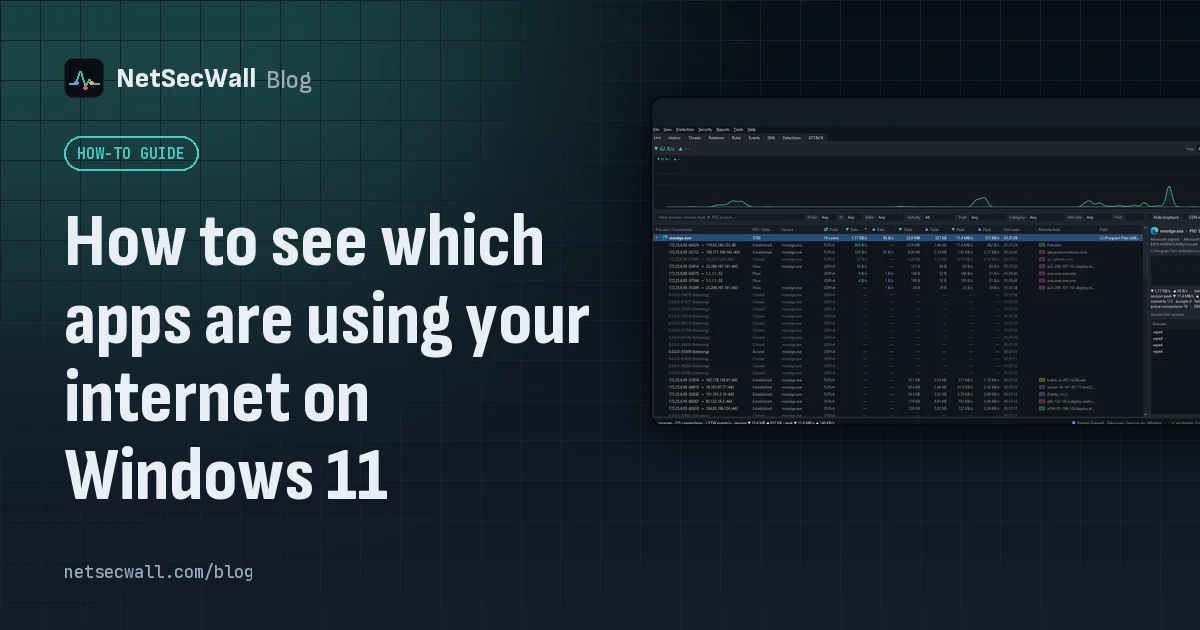
On this page
Windows 11 has three built-in ways to see which apps are using the internet: Task Manager's Network column for who is busy right now, Resource Monitor's Network tab for where each app connects, and netstat -abno for a text list of every connection and the program behind it. None of them keeps a history, or tells you which company or country is behind an address. A per-app network monitor such as NetSecWall does both.
Task Manager: who is using the network right now
The fastest check, and often enough:
- Press Ctrl+Shift+Esc to open Task Manager.
- Stay on the Processes page.
- Find the Network column. If it isn't there, right-click any column header and tick Network.
- Click the Network header to sort the busiest programs to the top.
Windows services are grouped as Service Host: … entries; expand one to see which service it is. The Network column adds sending and receiving together, and it doesn't show where the traffic goes. It answers "who is busy", not "who is talking to what".
Resource Monitor: where each app connects
Resource Monitor shows destinations as well as rates:
- Press Win+R, type
resmon, and press Enter. - Open the Network tab.
- In Processes with Network Activity, sort by Send (B/sec), Receive (B/sec) or Total (B/sec).
- Tick the checkbox next to a program. The Network Activity and TCP Connections panes now show only that program: its remote addresses, ports, rates and latency.
- Listening Ports lists programs waiting for incoming connections.
It's a good tool with two gaps: it only shows what happens while it's open, and a bare IP address doesn't tell you who owns it.
netstat -abno: the command-line list
For a text list you can copy or save:
- Right-click Start and choose Terminal (Admin).
- Run:
netstat -abno
-a lists all connections and listening ports, -b shows the program behind each one, -n keeps addresses as numbers instead of slowly resolving names, and -o adds the process ID. Put a number at the end, such as netstat -abno 5, to repeat it every five seconds. The -b switch only works in an elevated terminal.
In PowerShell, Get-NetTCPConnection -State Established gives the same connections as objects, with an OwningProcess column you can match against Get-Process.
Data usage: 30 days of totals
Settings ▸ Network & internet ▸ Advanced network settings ▸ Data usage lists how much data each app used over the last 30 days, per network adapter. It's the only built-in view with any history, and it has no destinations, no times, and no split between upload and download.
What the built-in tools don't tell you
Put together, Windows' tools answer "who is busy now" and "which addresses right now". They don't answer:
- What happened while you weren't watching, hour by hour.
- Which domain, company or country is behind an address.
- Whether a program is signed, and by whom, without extra digging.
- When a new program starts connecting for the first time.
- How to block one from the same screen.
See which apps are using the internet with NetSecWall
NetSecWall reads Windows' own network events and connection tables and turns them into one live view, plus a history on your PC. It needs administrator rights to read the kernel's network events, which is why Windows asks for permission when you start it.
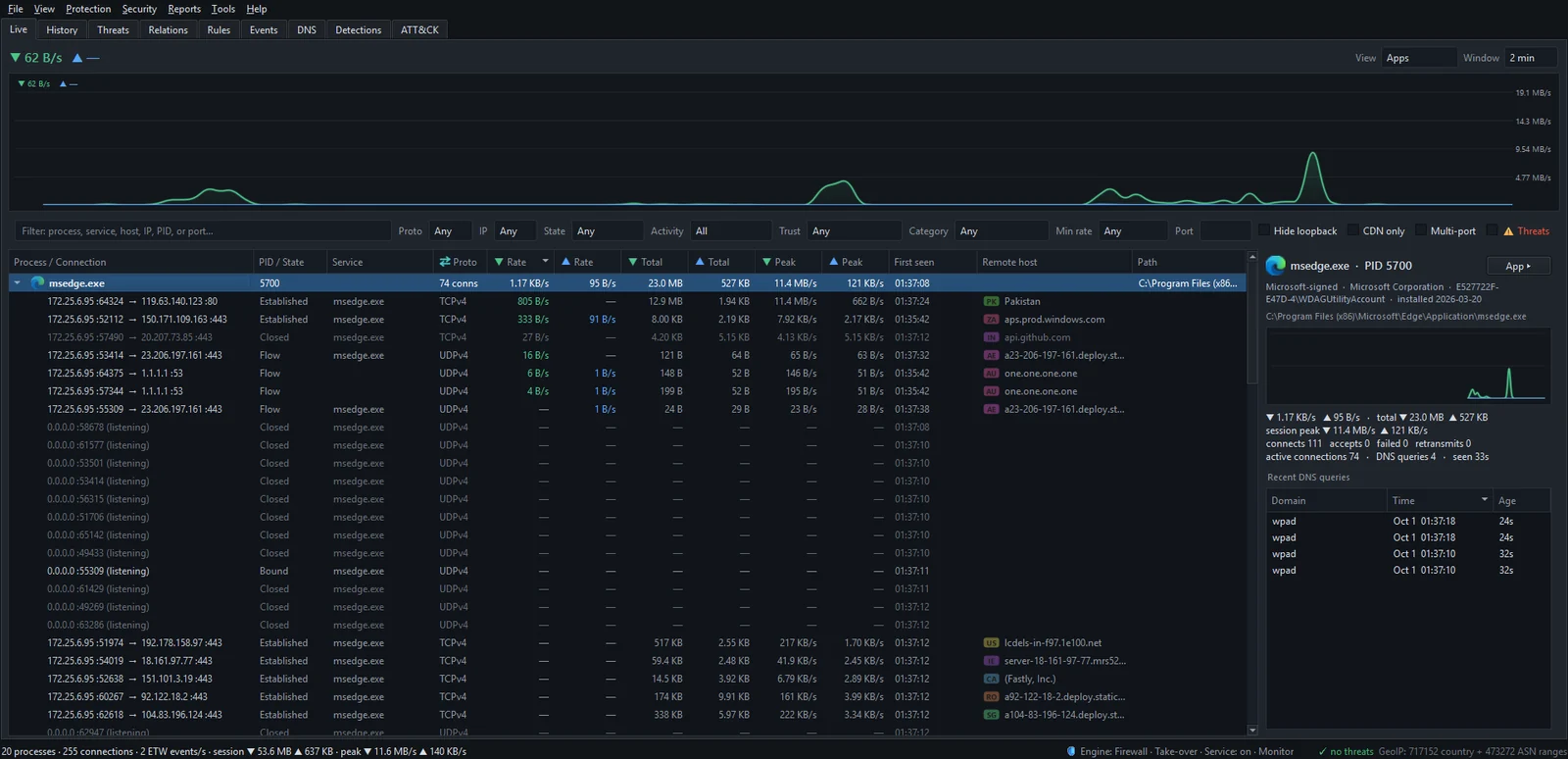
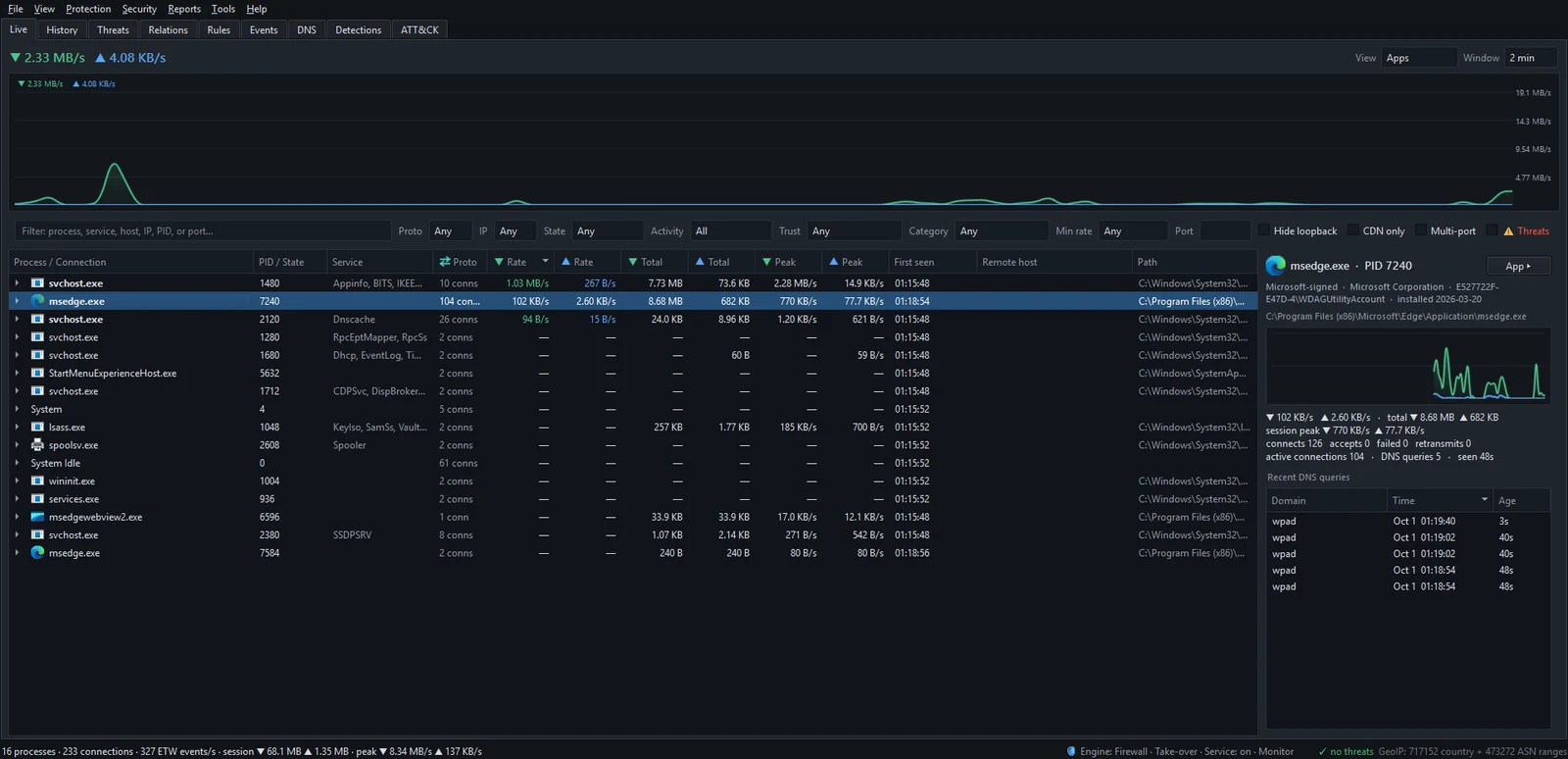
- Open the Live tab and set View to Apps. There's one row per program, and one per Windows service inside
svchost.exe, sorted by download rate. - Expand a row to see its connections: local and remote address and port, protocol, state, and remote host name.
- Read across for Rate, Total and Peak in both directions, plus First seen: when that program was first seen online.
- Select a row. The details pane shows whether it's signed and by whom, its install date, a graph of its traffic, and its Recent DNS queries.
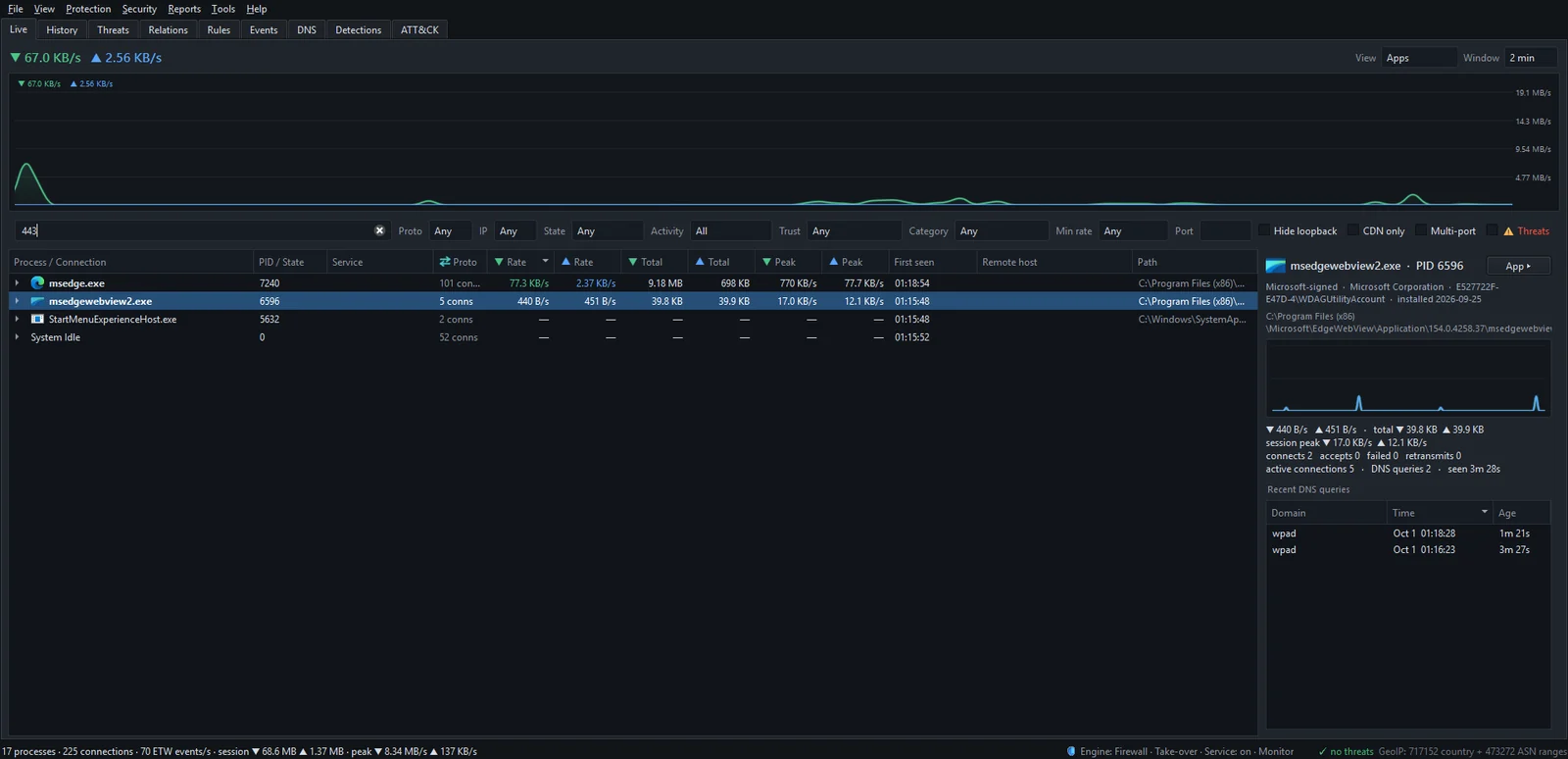
To narrow the list, use the filter bar. Type a program name, port or IP address, or choose from Proto, State, Activity (for example Uploading), Trust (for example Unsigned) and Min rate. The Threats checkbox shows only connections to addresses on threat-intelligence lists. Filtering the Live tab goes through every option.
The View selector also groups live traffic By IP, By Domain, By Country or By Category, which is handy when the question is "who is talking to this company" rather than "what is this app doing". For anything in the past, the History tab keeps per-minute totals per app and destination. Reading the Live tab covers each column.
Making sense of what you see
A first look at every connection on a PC is usually busier than people expect. Most of it is normal:
- Browsers open dozens of connections, because each page pulls from many domains.
svchost.exerows are Windows services such as Windows Update and time sync. Read the Service column; what svchost.exe is doing on your network explains the common ones.- CDN addresses from Cloudflare, Akamai, Amazon and others appear for nearly every app; see why every app connects to CDNs.
- Updaters and sync clients run in the background whether or not you opened them today.
What deserves a second look: an unsigned program running from a temp or downloads folder, an app you're not using that keeps a steady connection to one server, or anything in the Threats filter. How to spot malware by its network traffic covers those patterns.
The short version
For a quick check, Task Manager. For destinations, Resource Monitor or netstat -abno. For names, owners, countries, history and one-click blocking in one place, download NetSecWall and try every feature free for 7 days, no card and no account.
Frequently asked questions
Why does Task Manager show network use when I have nothing open?
Background work: Windows Update, cloud sync, app updaters, telemetry and apps that stay running in the tray. Expand any Service Host entries to see which Windows services are involved.
Do I need administrator rights to see which apps use the internet?
For some tools, yes. netstat -b refuses to run without an elevated terminal, and NetSecWall needs administrator rights to read Windows' kernel network events. Without them it can't show live transfer rates.
Can I see which app used the internet yesterday?
Not in detail with Windows alone; the Data usage page only keeps 30-day totals. NetSecWall's History tab has per-app totals by hour for Yesterday or any other range.
Does watching network traffic slow down my connection?
Not with NetSecWall's approach. It reads Windows' event stream and connection tables beside the traffic rather than sitting in its path, so it adds no latency to your connections.
What does "Listening" mean next to a program?
The program has opened a port and is waiting for incoming connections, rather than connecting out. TCP connection states decoded explains Listening, Established and the rest.
Keep reading
 How to find which app is using a port on Windows
Run netstat -ano to get the process ID (PID) that owns the port, then look that PID up in Task Manager. PowerShell's Get-NetTCPConnection and Resource Monitor give the same answer.
How to find which app is using a port on Windows
Run netstat -ano to get the process ID (PID) that owns the port, then look that PID up in Task Manager. PowerShell's Get-NetTCPConnection and Resource Monitor give the same answer.
 Encrypted DNS (DoH): what it hides, and from whom
DNS over HTTPS encrypts the names your PC looks up, so the Wi-Fi owner and your ISP can't read them. The resolver you use still sees every name, and the addresses you then connect to stay visible.
Encrypted DNS (DoH): what it hides, and from whom
DNS over HTTPS encrypts the names your PC looks up, so the Wi-Fi owner and your ISP can't read them. The resolver you use still sees every name, and the addresses you then connect to stay visible.
 How NetSecWall sees every connection without a driver
NetSecWall reads what Windows already records: kernel network events through ETW, DNS answers, and the TCP and UDP tables. It sees which app talks to which address without capturing a single packet.
How NetSecWall sees every connection without a driver
NetSecWall reads what Windows already records: kernel network events through ETW, DNS answers, and the TCP and UDP tables. It sees which app talks to which address without capturing a single packet.
 How to monitor network traffic per app on Windows
Task Manager and Resource Monitor show a live per-app figure. To see where each app connects, how much it sends, and what it did yesterday, you need a per-app monitor that keeps history.
How to monitor network traffic per app on Windows
Task Manager and Resource Monitor show a live per-app figure. To see where each app connects, how much it sends, and what it did yesterday, you need a per-app monitor that keeps history.