How to find which app is using a port on Windows
Run netstat -ano to get the process ID (PID) that owns the port, then look that PID up in Task Manager. PowerShell's Get-NetTCPConnection and Resource Monitor give the same answer.
NetSecWall for Windows
On this page
To find which app is using a port on Windows, run netstat -ano in a terminal, find the line with your port number, and note the process ID (PID) in the last column. Then look that PID up in Task Manager's Details tab. PowerShell's Get-NetTCPConnection and Resource Monitor answer the same question in different ways.
Why you'd need to know what's on a port
The usual trigger is an error. You start a development server, a game server or a database, and it refuses to run because "the address is already in use." Something else got to port 8080 or 3000 first. Other times you spot an unfamiliar listening port and want to know what opened it, or a firewall asks about a program you don't recognize.
A port is a number that identifies one end of a network conversation. A server program listens on a local port and waits for connections; a client program connects out to a remote port, such as 443 for HTTPS. For TCP, only one program can normally listen on a given address and port at a time, which is why the second program fails. If the numbers themselves are a mystery, what a port is covers the common ones.
Find the app with netstat and Task Manager
netstat ships with every version of Windows and needs no administrator rights for this.
- Open Terminal or Command Prompt.
- Run
netstat -ano | findstr /c:":8080 ", replacing 8080 with your port. - Read the matching lines. The columns are protocol, local address, foreign (remote) address, state, and PID. A line like
TCP 0.0.0.0:8080 0.0.0.0:0 LISTENING 6120means process 6120 is listening on port 8080. - Press Ctrl+Shift+Esc to open Task Manager, go to Details, and sort by the PID column to find process 6120. Or run
tasklist /fi "pid eq 6120"in the same terminal.
The /c: switch and the trailing space matter. Plain findstr :80 also matches :8080 and :8000, because it searches for text, not port numbers.
The flags mean: -a shows all connections and listening ports, -n keeps addresses as numbers (much faster), and -o adds the owning PID. If you run the terminal as administrator, netstat -abno also prints the executable name under each connection, so you can skip the Task Manager step. It is slow on a busy PC.
When the PID is svchost.exe or 4
Two answers need one more step:
- svchost.exe hosts Windows services. Run
tasklist /svc /fi "pid eq 1234"to list the services inside that process, then look them up in the Services console. For the bigger picture, see what svchost.exe is doing on your network. - PID 4 (System) usually means HTTP.sys, the Windows component that web servers such as IIS use to share ports 80 and 443.
netsh http show servicestatelists which programs registered which addresses with it.
Lines in the TIME_WAIT state often show PID 0. Those connections have already closed and are just waiting out a timer; no program owns them any more. TCP states decoded explains the rest of the state column.
Use PowerShell's Get-NetTCPConnection
PowerShell returns objects instead of text, so you can put the process name next to the port in one command:
Get-NetTCPConnection -LocalPort 8080 -ErrorAction SilentlyContinue |
  Select-Object LocalAddress, LocalPort, State, OwningProcess,
    @{Name='Process'; Expression={ (Get-Process -Id $_.OwningProcess).ProcessName }}
Two variations are worth keeping:
Get-NetTCPConnection -State Listen | Sort-Object LocalPortlists every listening TCP port on the PC.Get-NetUDPEndpoint -LocalPort 5353 | Select-Object LocalAddress, LocalPort, OwningProcessdoes the same for UDP, which has no connection state.
Without -ErrorAction SilentlyContinue, a port nobody is using produces a red "No matching MSFT_NetTCPConnection objects" error. That error is your answer: the port is free.
Resource Monitor for a point-and-click view
Type resmon in the Start menu and open the Network tab. The Listening Ports section shows image name, PID, address, port, protocol and firewall status for every listening program. Click the Port header to sort. The TCP Connections section shows outgoing connections with local and remote ports. Tick the box next to a program in the top pane and every other section filters to it.
Free up the port
The clean fix is to close the program that holds the port, stop its service, or change your own program to use another port. If a process is stuck, taskkill /PID 6120 asks it to close and taskkill /PID 6120 /F forces it.
Don't force-close PID 4 or a svchost.exe process. Stop the specific service in the Services console instead, or move your own program to a different port.
What these tools don't tell you
Each of these tools gives you a snapshot. A program that opens a port for two seconds every few minutes is easy to miss, none of them keeps a history, and none shows how much data went through each connection or which domain name an address belongs to. That matters when the question changes from "what is on this port" to "what has been talking on this port all week."
How NetSecWall shows ports for every app
NetSecWall lists every program with a network connection live, one row per program, with its PID in the PID / State column. Expand a program and each connection sits underneath as ip :port → ip :port, or :port (listening) for a port it is waiting on, with the state beside it.
To find what's using a port:
- Open the Live tab and set View to Apps.
- Type the port number in the Port box on the filter bar. It matches the local or the remote port, so it finds both the server and anything connected to it.
- Set State to Listening if you only want the program waiting for connections.
- Select the program. The details pane shows its path, its signature and publisher, and, for
svchost.exe, the Windows services inside it. - Right-click the program and choose Open file location or Copy path if you need to find it on disk.
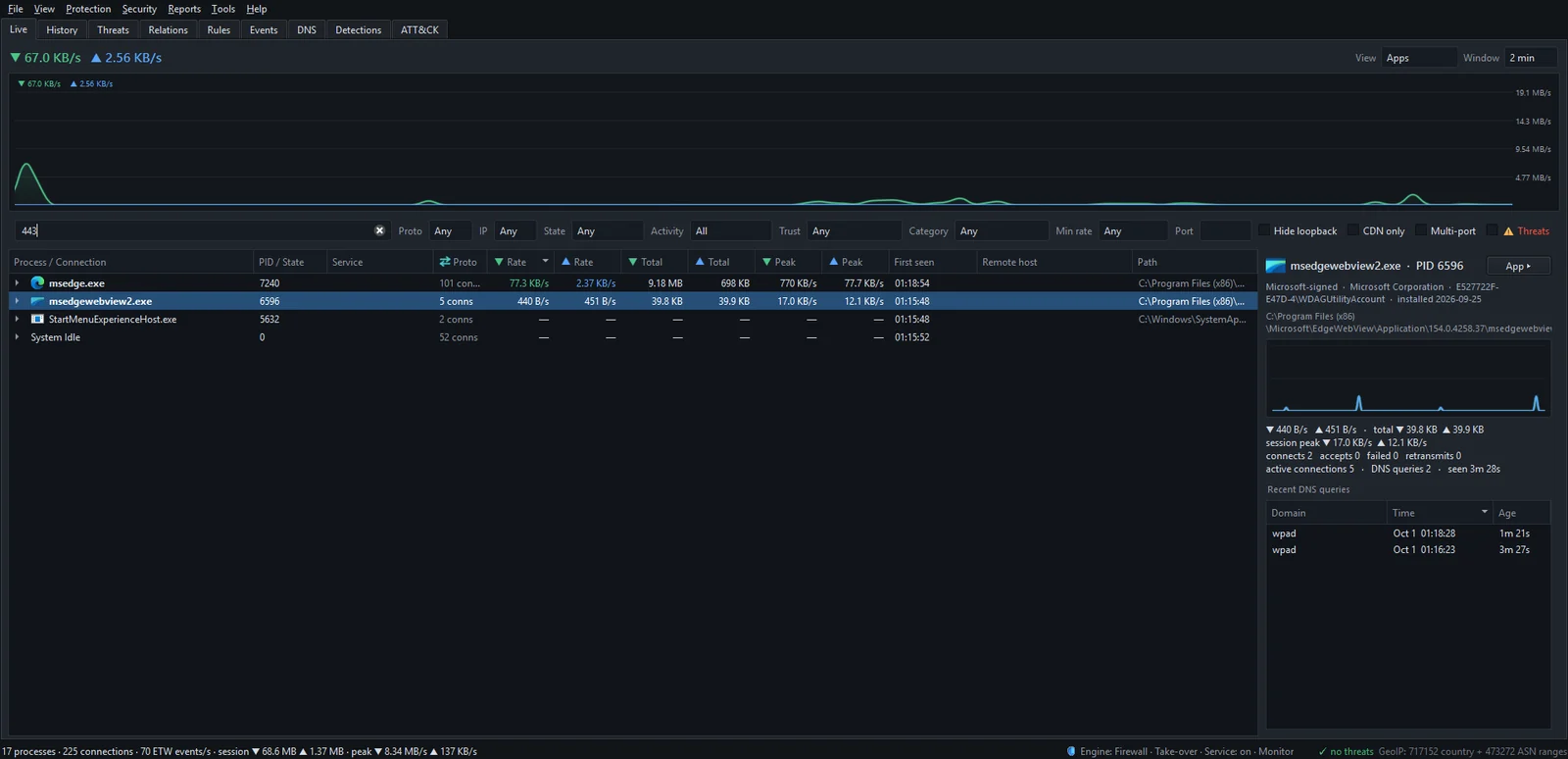
The main filter box also accepts a PID or a port number, and the Service column names the Windows service behind each svchost.exe row, which saves the tasklist /svc step. Filtering the Live tab covers the other filters, and reading a connection explains each column.
If you want to block a port rather than find it, the Rules tab's New rule… button creates an ordinary Windows Firewall rule for a port, address or direction. It isn't available while NetSecWall's background service is running; creating a custom firewall rule covers that case too.
NetSecWall needs administrator rights and runs on Windows 10 and 11 (64-bit). If you'd rather watch ports live than re-run commands, download the 7-day trial. Every feature is unlocked and no card is needed.
Frequently asked questions
What does PID mean in netstat?
PID is the process ID, a number Windows gives each running program. It changes every time the program starts, so look it up while the program is still running.
What does 0.0.0.0 mean in the local address column?
The program is listening on every IPv4 address the PC has, so other devices can reach it. 127.0.0.1 means only programs on the same PC can connect, and [::] is the IPv6 equivalent of 0.0.0.0.
Why does netstat -b say the requested operation requires elevation?
The -b flag reads information about other processes, which needs administrator rights. Open the terminal with Run as administrator, or use -ano and look the PID up in Task Manager instead.
Can two programs use the same port?
Two programs normally can't listen on the same TCP address and port. Many programs can connect out to the same remote port, such as 443, because each connection gets its own local port.
Is a program on a random high port a sign of malware?
No. Outgoing connections use temporary local ports, which on Windows come from 49152 to 65535 by default. What matters is which program owns the connection and where it goes.
Keep reading
 How to see which apps are using your internet on Windows 11
Task Manager's Network column shows which apps are busy right now; Resource Monitor and netstat show where each one connects. For history, countries and alerts you need a per-app monitor.
 ESTABLISHED, TIME_WAIT, LISTENING: TCP states decoded
TCP states show where a connection is in its life: LISTENING waits, SYN_SENT is dialing, ESTABLISHED is talking, CLOSE_WAIT and TIME_WAIT are the goodbye. Most are harmless; piles of some are clues.
 Encrypted DNS (DoH): what it hides, and from whom
DNS over HTTPS encrypts the names your PC looks up, so the Wi-Fi owner and your ISP can't read them. The resolver you use still sees every name, and the addresses you then connect to stay visible.
 How NetSecWall sees every connection without a driver
NetSecWall reads what Windows already records: kernel network events through ETW, DNS answers, and the TCP and UDP tables. It sees which app talks to which address without capturing a single packet.