How to monitor network traffic per app on Windows
Task Manager and Resource Monitor show a live per-app figure. To see where each app connects, how much it sends, and what it did yesterday, you need a per-app monitor that keeps history.
NetSecWall for Windows
On this page
- Why per-app traffic matters
- What Windows gives you out of the box
- Task Manager
- Resource Monitor
- Settings ▸ Data usage
- netstat and PowerShell
- What to look for once you can see it
- How NetSecWall monitors traffic per app
- The Live tab: what's happening now
- The History tab: what already happened
- The app dashboard: one program in depth
- Reports
- Limits worth knowing
Windows can already show you a rough per-app network figure: Task Manager's Network column and Resource Monitor's Network tab both break traffic down by program, live. What they don't do is tell you where each app connects over time, or what it did while you weren't looking. To monitor network traffic per app properly, you need live rates, destinations and a history you can search.
Why per-app traffic matters
Your router and your network adapter only know totals. A total tells you that something is busy; it doesn't tell you who. Almost every practical question about a PC's network is a per-app question:
- The connection is slow. Which program is using it?
- You're on a capped plan. Which app used 4 GB this week?
- You care about privacy. Which apps talk to which companies, and how often?
- Something feels off. Is an unknown program uploading when you're not at the keyboard?
Windows tracks which process owns each network connection, so the information exists. The tools just show different slices of it.
What Windows gives you out of the box
Task Manager
Press Ctrl+Shift+Esc. The Processes tab has a Network column showing each app's current throughput; click the header to sort. The App history tab keeps network totals for about 30 days, but by default it mostly covers Microsoft Store apps, not desktop programs.
Resource Monitor
Type resmon in the Start menu and open Network. Network Activity lists each process with the addresses it's talking to and bytes sent and received per second. TCP Connections and Listening Ports show ports and PIDs. It's the most detailed built-in view, but it is live only, and it names addresses, not the domains or companies behind them.
Settings ▸ Data usage
In Windows 11, Settings ▸ Network & internet ▸ Advanced network settings ▸ Data usage lists how much each app used over the last 30 days, per network. It's good for "who used my data" and can warn you at a limit you set. It shows totals only: no destinations, no timeline.
netstat and PowerShell
netstat -ano and Get-NetTCPConnection list connections and the programs that own them. They're snapshots with no byte counts. Finding which app uses a port shows both in use.
Put together, the built-in tools answer "who is busy right now" and "who used the most this month." They don't answer "where did it go," "when did it happen," or "what does this app normally do." svchost.exe adds another wrinkle: several Windows services share one process, so one row can hide Windows Update, time sync and others at once.
What to look for once you can see it
Per-app monitoring earns its keep when you know what's normal and notice what isn't:
- Who talks at all. Most PCs have a handful of programs you never think about with open connections: updaters, sync clients, launchers.
- Where they go. A domain name and the network that owns the address say far more than an IP number.
- Upload versus download. Downloads are usually you. Steady uploads are worth a look, especially when the PC is idle.
- Timing. Small connections to one host on a regular timer are how software checks in with a server. Usually that's an updater; occasionally it isn't.
How NetSecWall monitors traffic per app
NetSecWall reads the same kernel network events and connection tables Windows uses for its own tools, and attributes every byte to a program. It doesn't sit in the traffic path, installs no driver, and doesn't capture or decrypt packets. It records metadata only: which program, which address and port, how many bytes, and when. That record stays on your PC.
The Live tab: what's happening now
The Live tab shows one row per program, and one per Windows service inside svchost.exe, with download and upload rates, totals, peaks, when it was first seen, the remote host and the program's path. Expand a row to see each connection with its port, state, country and network owner.
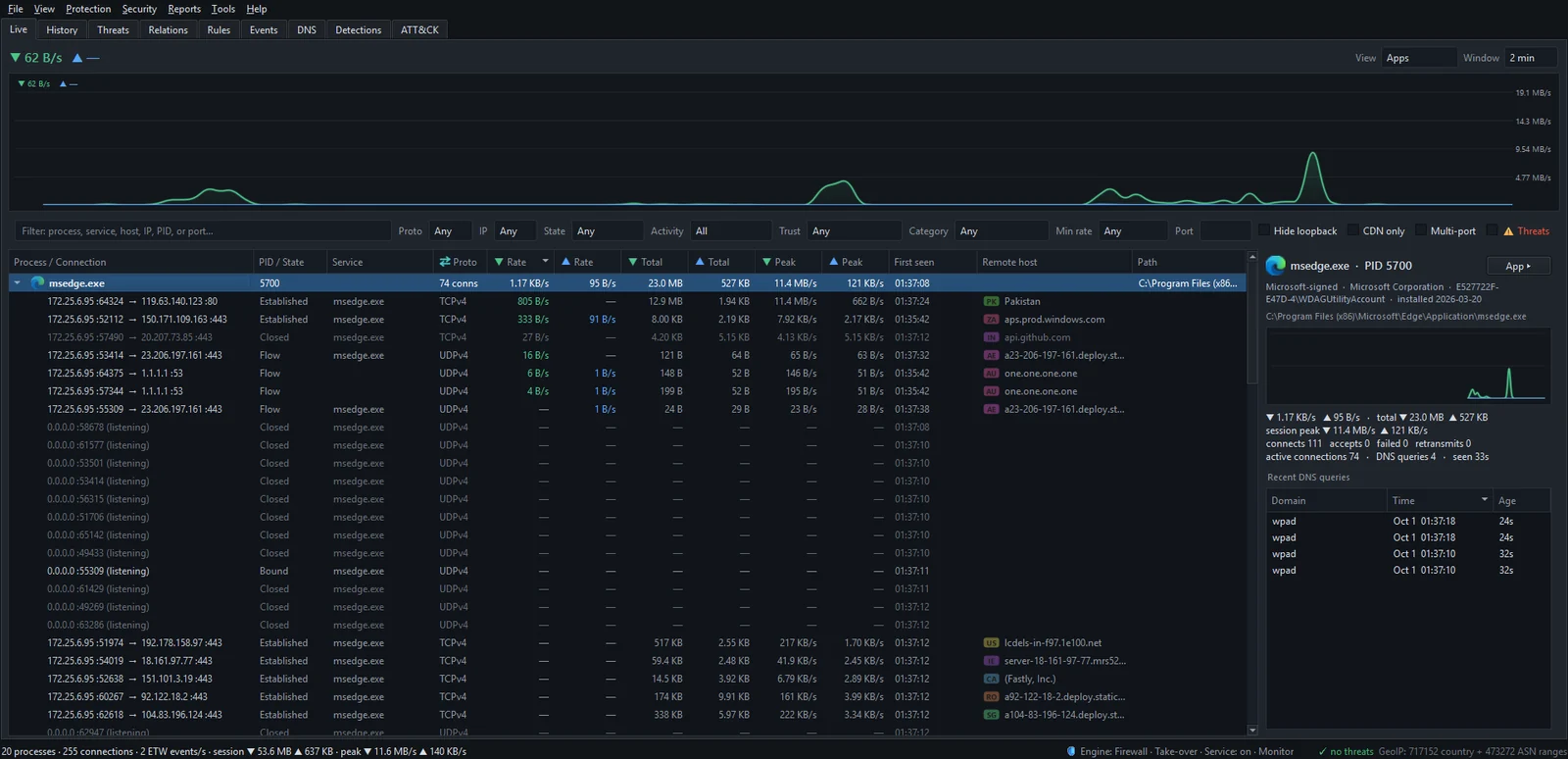
The View selector regroups the same traffic By IP, By Domain, By Country or By Category, which is the quickest way to see which companies your PC talks to. Select a program and the details pane shows its signature and publisher, a per-process graph, and its Recent DNS queries. Live monitoring walks through every column.
The History tab: what already happened
Everything the Live tab shows is written to a local database in one-minute buckets. The History tab lets you Group by Apps, IPs, Domains or Countries, pick a Range from Today to All time, and filter by app, address, domain, country or network owner. A timeline chart sits above the list; click a bar to zoom into that hour or day.

Export… saves the view as CSV or JSON if you want it in a spreadsheet. History, search and reports covers the filters.
The app dashboard: one program in depth
Double-click an app in History, or right-click it in Live and choose Open app dashboard. You get the program's details (publisher, signature, install date, services), daily download and upload bars, and the hosts it talked to most, for Today, Last 7 days, Last 30 days or All time. It works for programs that have already exited. See the app dashboard.
Reports
Reports ▸ Last 7 days…, Last 30 days… or Custom range… builds a report and opens it in your browser: total downloaded and uploaded, how many apps were active, alert and threat counts, and the top apps and endpoints by data. Reports are made when you ask for them; nothing is emailed.
Limits worth knowing
- NetSecWall needs administrator rights and runs on Windows 10 and 11, 64-bit.
- It sees destinations, not contents. It can't show which page you read on a site or what an app sent.
- Browsers that use their own encrypted DNS hide those lookups from the DNS log; you see the connection to the DNS provider instead.
- With a VPN on, some traffic may only show as the VPN app talking to its server.
- Country comes from IP geolocation, which is approximate, and big services answer from wherever their nearest server is.
- History grows over time. There is no automatic deletion; once a month at most, NetSecWall offers to prune data older than 30 days, and deletes nothing unless you agree.
Live monitoring and history are included in every plan. To see what your own apps do, download the 7-day trial: every feature unlocked, no card, no account.
Frequently asked questions
Can Windows show network usage per app without extra software?
Yes. Task Manager and Resource Monitor show live per-app traffic, and Settings shows 30-day totals per app. None of them keeps a searchable history of where each app connected.
Does monitoring every app slow down my internet?
NetSecWall reads events Windows already produces and doesn't route your traffic through itself, so it adds no delay to connections. The app itself uses some memory and CPU, more on a PC with many short connections.
Can NetSecWall see which websites I visit?
It sees the domain names programs look up and the addresses they connect to. It doesn't see full page addresses or page content, because it never decrypts traffic.
Does my traffic history leave my PC?
No. History, the DNS log and your rules stay in a local database. The license check sends a device fingerprint and basic system details, not your traffic.
How far back does NetSecWall's history go?
Back to when you installed it, unless you choose to prune. At most once a month it offers to delete data older than 30 days, and only does so if you click Prune now.
Keep reading
 Why is my PC uploading data when I'm not using it?
Usually it's cloud sync, a backup, Windows Update sharing pieces of updates, telemetry or a forgotten browser tab. Sort your apps by upload rate to find the one responsible.
Why is my PC uploading data when I'm not using it?
Usually it's cloud sync, a backup, Windows Update sharing pieces of updates, telemetry or a forgotten browser tab. Sort your apps by upload rate to find the one responsible.
 Find what's eating your bandwidth in the background
Sort Task Manager's Network column or Resource Monitor's Network Activity to catch what is using your bandwidth right now. To catch what used it an hour ago, you need per-app history.
Find what's eating your bandwidth in the background
Sort Task Manager's Network column or Resource Monitor's Network Activity to catch what is using your bandwidth right now. To catch what used it an hour ago, you need per-app history.
 How to find which app is using a port on Windows
Run netstat -ano to get the process ID (PID) that owns the port, then look that PID up in Task Manager. PowerShell's Get-NetTCPConnection and Resource Monitor give the same answer.
How to find which app is using a port on Windows
Run netstat -ano to get the process ID (PID) that owns the port, then look that PID up in Task Manager. PowerShell's Get-NetTCPConnection and Resource Monitor give the same answer.
 How to see which apps are using your internet on Windows 11
Task Manager's Network column shows which apps are busy right now; Resource Monitor and netstat show where each one connects. For history, countries and alerts you need a per-app monitor.
How to see which apps are using your internet on Windows 11
Task Manager's Network column shows which apps are busy right now; Resource Monitor and netstat show where each one connects. For history, countries and alerts you need a per-app monitor.