On a hotspot or metered connection? Stop background apps burning data
Mark the network as metered, pause updates and sync, then watch what still uses data. NetSecWall's session data cap warns you at 80% and 100%, and a timed block silences one app for an hour.
NetSecWall for Windows
On this page
To save data on a hotspot, tell Windows the connection is metered, pause Windows Update and cloud sync, and close launchers you don't need. Then check what is still using data, because the metered setting is a request that many programs ignore. NetSecWall adds a session data cap that warns you at 80% and 100%, and one-click blocks for the apps that won't behave.
Why a laptop burns through a hotspot
Windows and most desktop software assume unlimited home broadband. The moment they see an internet connection, they catch up: update checks and downloads, cloud sync, game launcher patches, browser tabs refreshing video, backup jobs. On a fibre line you never notice. On a phone hotspot, a hotel connection or a capped mobile plan, a single update can use more than you meant to spend all week.
The laptop doesn't know the connection is precious unless you tell it, and even then, only some programs listen.
What Windows' metered connection setting actually does
Marking a network as metered is the first step, and it's worth doing.
- Open Settings ▸ Network & internet ▸ Wi-Fi.
- Open the properties of the network you're connected to.
- Turn on Metered connection.
Windows remembers this per network, so it applies each time you join that hotspot. On Windows 10 the switch is on the network's page under Network & Internet ▸ Wi-Fi. Windows sometimes marks a phone hotspot as metered by itself; check the switch rather than assume.
What it changes:
- Windows Update holds back most downloads unless you have turned on Download updates over metered connections in Windows Update's advanced options.
- OneDrive pauses syncing on metered networks by default.
- Some Microsoft Store apps defer background downloads.
What it doesn't change: it's a flag that programs can read, not a block. Many desktop programs, including plenty of launchers, sync clients and updaters, never check it and carry on as usual.
Windows 11 also has Settings ▸ Network & internet ▸ Advanced network settings ▸ Data usage, which shows per-app totals for each network over 30 days and can warn you when you reach a limit you enter.
More ways to save data on a hotspot
- Pause Windows Update. Settings ▸ Windows Update ▸ Pause updates stops it for a week or more.
- Pause cloud sync. Most sync clients have a pause option in their tray menu; OneDrive offers 2, 8 or 24 hours.
- Close launchers and stores you aren't using, or turn off their automatic updates.
- Close video tabs and lower streaming quality. Video is usually the biggest single use.
- Leave big downloads for a better connection.
See what's still using data
After all that, something usually still trickles or streams. Task Manager's Network column shows who is busy right now. NetSecWall's Live tab does the same, sorted by download rate, and its History tab with Range set to Today shows what used data before you looked. Finding what's eating your bandwidth covers this step in detail.
Set a data cap alert in NetSecWall
A cap alert tells you when you've used more than you meant to, before the phone bill does.
- Open Tools ▸ Set session data cap….
- Enter a number of megabytes. The prompt reads "Alert when total (down+up) this session exceeds N MB (0 = off)".
- Click OK. The status bar now shows how much you've used, for example "data 412/1000 MB (41%)".
- Keep working. A tray alert appears at 80% of the cap, and a warning when you pass 100%.
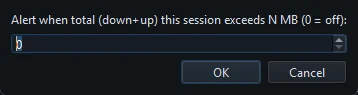
The data cap only warns. It never cuts off your connection. It counts everything since NetSecWall started, on any network, so it's a gauge for this sitting, not your carrier's meter. If you switch from the hotspot to home Wi-Fi, the count carries on.
To catch a single greedy app, open Security ▸ Alerts & detection…, tick App exceeds its per-session data budget, and set Per-app session data budget: (500 MB by default). Any program that goes over raises an alert. Choosing your alerts lists the others.
Cut off what you don't need
When an alert fires, or before you even connect, you can stop programs from using the hotspot at all. Blocking is part of the Family and Pro plans.
- One app, for a while. In the Live tab, right-click the program and choose Block this app (firewall) ▸ Block for 10 minutes or Block for 1 hour. It lifts itself. Block (permanent) keeps it off until you remove the rule; see blocking an app.
- New apps. Protection ▸ Filtering mode ▸ Learning — ask when a new app connects holds any program that hasn't been online before until you click Allow, Allow once or Block. Programs already online when you switch it on are trusted. See Learning mode.
- Everything. Protection ▸ Filtering mode ▸ Block all outbound (panic), or Block ALL internet in the tray menu, stops every outgoing connection until you turn it off.

Block all also cuts your VPN, your remote desktop sessions and anything else that needs the network. Use it for "I'm done for now," not for "block the noisy one."
NetSecWall itself downloads fresh blocklists and location data about once a day. If you want to hold that too, untick Tools ▸ Feeds ▸ Auto-update feeds daily while you're on the hotspot, and turn it back on later.
What to expect
NetSecWall can't throttle a program to a slower speed; it allows or blocks. It won't make a program use less data while it's allowed, and its count won't match your carrier's to the megabyte. What it gives you is a clear view of which programs are using the connection, a warning before you overspend, and a quick way to stop the ones you don't need. For Windows itself, cutting telemetry without breaking Windows Update covers what's safe to switch off.
To try it on your own laptop, download the 7-day trial. Every feature is unlocked.
Frequently asked questions
Does setting a connection as metered stop all background data?
No. Windows Update, OneDrive and some Store apps respect it. Many other desktop programs ignore it and keep downloading, so check what's still active.
Does Windows treat a phone hotspot as metered automatically?
Sometimes, but not reliably. Open the network's properties in Settings and check that Metered connection is on.
Will NetSecWall's data cap cut off my internet when I hit it?
No. It shows a tray alert at 80% and another past 100%. To actually stop traffic, block the app or turn on Block all outbound (panic).
Why doesn't NetSecWall's count match my phone's data counter?
They measure different things. NetSecWall counts this PC's traffic since it started; the phone counts everything shared through it over its own billing period, and carriers count their own overhead.
Can I block an app only while I'm on the hotspot?
Not automatically. NetSecWall's app blocks apply on every network, so use a timed block, or remove a permanent block when you're back on your usual connection.
Keep reading
 Why is my PC uploading data when I'm not using it?
Usually it's cloud sync, a backup, Windows Update sharing pieces of updates, telemetry or a forgotten browser tab. Sort your apps by upload rate to find the one responsible.
Why is my PC uploading data when I'm not using it?
Usually it's cloud sync, a backup, Windows Update sharing pieces of updates, telemetry or a forgotten browser tab. Sort your apps by upload rate to find the one responsible.
 Which countries are your apps sending data to?
Group your PC's connections by country to see where each app's servers are. Expect surprises that aren't problems: CDNs and cloud regions put servers far from the company that owns them.
Which countries are your apps sending data to?
Group your PC's connections by country to see where each app's servers are. Expect surprises that aren't problems: CDNs and cloud regions put servers far from the company that owns them.
 How to block a country on Windows
Windows has no country switch, so you block the country's IP ranges with firewall rules. NetSecWall does it with one right-click; geolocation is approximate, and CDNs and VPNs blur borders.
How to block a country on Windows
Windows has no country switch, so you block the country's IP ranges with firewall rules. NetSecWall does it with one right-click; geolocation is approximate, and CDNs and VPNs blur borders.
 How to block adult websites on Windows 10 and 11
Use a family DNS filter on your router, a filter on the PC, or both. NetSecWall blocks its Adult / Porn category, around 900,000 domains, for every browser and app on the PC, behind a password.
How to block adult websites on Windows 10 and 11
Use a family DNS filter on your router, a filter on the PC, or both. NetSecWall blocks its Adult / Porn category, around 900,000 domains, for every browser and app on the PC, behind a password.