How to update NetSecWall and check your version
On 1.2.1 or later, choose Help ▸ Check for updates… and click Download & install. On 1.1.0 or 1.2.0, download 1.2.1 from the website instead and run it over your install.
NetSecWall for WindowsOn this page
To update NetSecWall 1.2.1 or later, choose Help ▸ Check for updates… and click Download & install… when a new version is offered. NetSecWall checks the file, closes, installs the update and reopens, keeping your license, history and rules. If you are still on 1.1.0 or 1.2.0, don't wait for the app: download the current version from the website and run it over your install.
Check which version you have
- Help ▸ About NetSecWall shows the version number at the top.
- Help ▸ Update history… shows the current version, the version this copy was first installed as, and a list of every install and update with its date.
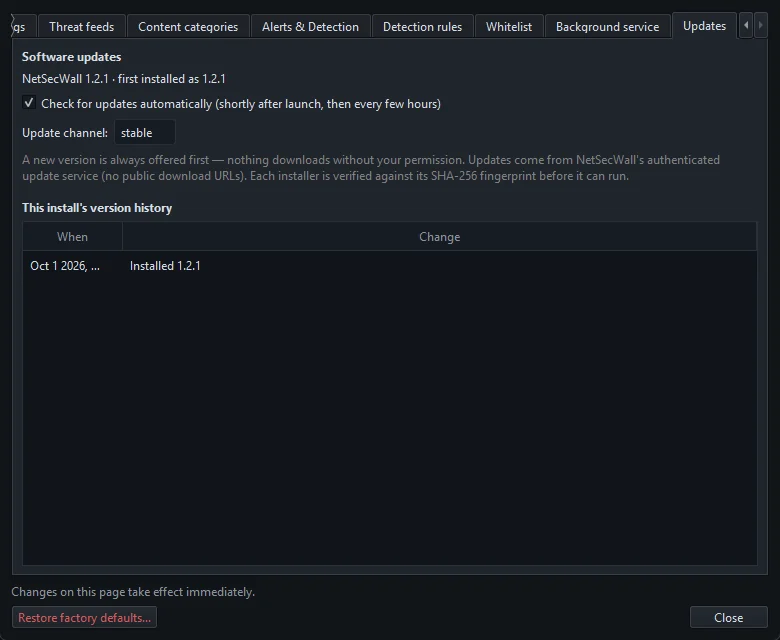
- Tools ▸ Settings… ▸ Updates shows the same version line.
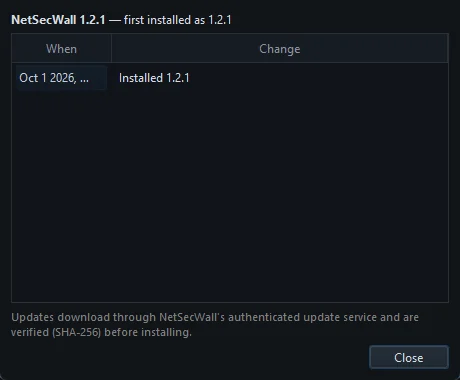
If you open a support ticket, include this version number. It saves a round trip.
How to update NetSecWall from inside the app
- Choose Help ▸ Check for updates….
- If you are current, NetSecWall says you're up to date and names the latest version.
- If there is a newer version, the Update available window shows it next to your version, with the download size, the channel and the release notes. Click Download & install….
- Wait for the download to finish. You can cancel it from the progress window.
- NetSecWall confirms the file was downloaded and verified. Click Yes to install it now. NetSecWall closes, updates and reopens.
If you've set a settings password, NetSecWall asks for it before installing. Choose Later to be asked again at the next check, or Skip this version to stop being offered that release. A release marked as required has no Skip button.
Nothing downloads without your permission, and your license, history, rules and settings stay as they were. If you use the background service, the update keeps it.

Automatic checks and the update channel
Open Tools ▸ Settings… ▸ Updates.
- Check for updates automatically (shortly after launch, then every few hours) is on by default. The first check runs about 20 seconds after NetSecWall starts, then every 6 hours. An automatic check only offers the update; it still waits for you to click Download & install….
- Update channel is stable by default. beta also receives pre-release builds, when there are any. Leave it on stable unless you want to try releases early.
What NetSecWall checks before it installs an update
Two checks run before an update may start:
- The SHA-256 fingerprint. The downloaded installer must match the fingerprint published in NetSecWall's update feed.
- The publisher's signature (from 1.2.1). The installer must be code-signed by the same publisher as the copy you are running. If it isn't, NetSecWall refuses it, deletes the file and tells you the update was not installed because it only installs updates signed by its publisher.
The same checks apply to updates pushed by an organization's Management Server. The background to this change is in NetSecWall 1.2.1: updates must be signed by us.
On 1.1.0 or 1.2.0? Update from the website
Versions 1.1.0 and 1.2.0 crash when an in-app update finishes downloading, so they are no longer offered in-app updates. 1.2.1 is the first version that updates itself.
On 1.1.0 or 1.2.0, Help ▸ Check for updates… won't offer 1.2.1 and can even report that you are up to date. You aren't. Update from the website once.
- Download the current installer from the download page.
- Check its checksum and signature if you like, as described in how to install NetSecWall.
- Run it. When the installer says NetSecWall is already installed, choose No to upgrade in place.
- Open NetSecWall and confirm the new version in Help ▸ About NetSecWall.
Your settings, history and license are kept. From then on, updates arrive in the app.
Where to see what changed
Every release is listed on the changelog. If something stops working after an update, troubleshooting common problems is the place to start.
Frequently asked questions
Will updating NetSecWall reset my rules or my license?
No. An update installs over your current copy and keeps the license, history, rules and settings. The license is bound to the PC on NetSecWall's server, so it is not affected either way.
Does NetSecWall update itself without asking?
No. It checks automatically, but nothing downloads or installs until you click Download & install… and then confirm the install.
Why was an update refused as not signed by the publisher?
From 1.2.1, NetSecWall only installs an update that is code-signed by the same publisher as the running copy. A file that fails that check is deleted and nothing changes. Download the installer from netsecwall.com instead, and open a support ticket if the problem repeats.
Do I need to uninstall the old version first?
No. Run the new installer over the old one and choose No at the prompt to upgrade in place. Uninstalling first only makes sense when you are repairing a broken install of the same version.