Choose your alerts, and get them on your phone
Open Security ▸ Alerts & detection… to pick which events raise an alert. Two are on by default. Add an ntfy topic or HTTPS webhook to push alerts to your phone (Pro plan and trial).
NetSecWall for WindowsOn this page
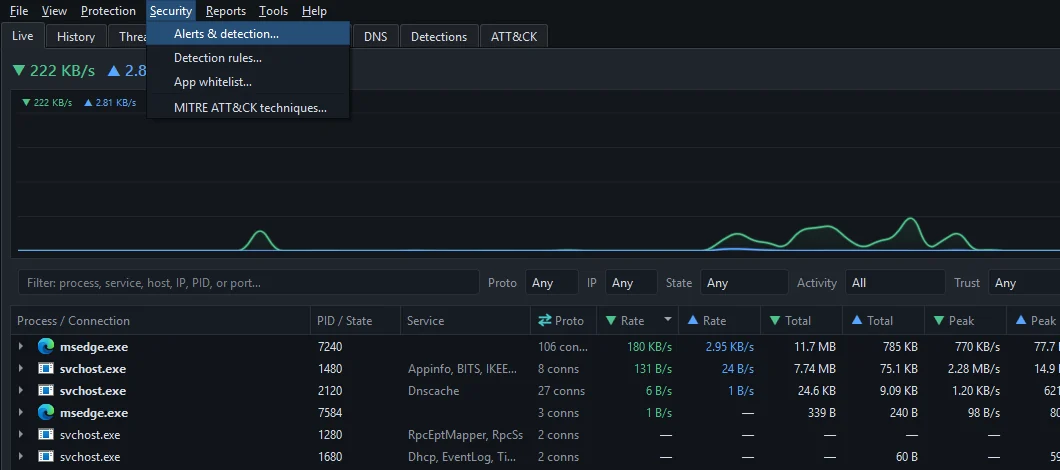
Every alert setting lives in one place: Security ▸ Alerts & detection…, which opens the Alerts & Detection tab of Settings. Two alerts are on out of the box, suspicious processes and changed app files. Everything else is off until you tick it. To push alerts to your phone, tick Enable remote alerts and enter an ntfy topic or an HTTPS webhook. Remote alerts are part of the Pro plan and the trial.
Open the alert settings
- Open the Security menu and choose Alerts & detection….
- Enter the settings password if you set one.
- Tick or untick what you want. Changes take effect immediately.
- Click Close.
Alerts appear as Windows tray notifications, at most one every 3 seconds. Security alerts are also written to the Events tab, with their severity and MITRE ATT&CK technique.
Every alert and its default
| Alert | Default | What raises it |
|---|---|---|
| New app connects to the internet | Off | A pop-up the first time each program connects out after NetSecWall starts |
| Unsigned app connects to the internet | Off | A pop-up when an unsigned program, or one with a broken signature, connects out |
| First connection to a new country | Off | The first connection to each country in a session |
| App uploads more than the threshold | Off | A program's upload this session passes the upload threshold |
| Possible beaconing (regular C2-like cadence) | Off | Small, regular check-ins to one host, the pattern of malware phoning home |
| Suspicious process online (LOLBins · masquerade · MITRE ATT&CK) | On | A program's risk score reaches 40 |
| App binary changed / signature regressed (supply-chain) | On | A program's file changed since it was last seen, or it was signed before and isn't now |
| App exceeds its per-session data budget | Off | A program's download plus upload this session passes its budget |
Two more alert types have no switch: threat-feed matches and known-bad file hashes always alert. The suspicious-process alert needs Advanced detection (Plus, Family, Pro or the trial). Beaconing is explained in what beaconing is.

Thresholds
- Upload alert threshold: 100 MB by default.
- Per-app session data budget: 500 MB by default.
"Session" means since NetSecWall started. Both only raise an alert. Neither limits nor blocks anything.
Automatic response
Auto-block highest-risk / known-bad apps (take-over mode only) is off by default. When you turn it on, NetSecWall blocks a program on its own when:
- its risk score reaches Auto-block at risk ≥ (85 by default, adjustable from 40 to 100), or
- its file matches a hash on your local IOC list (see hash checks).
The block works like Block this app: a rule is created, the program's open connections are closed, and an "Auto-blocked" alert tells you why. Each program is auto-blocked at most once per session. Undo it in the Rules tab. It needs a plan with blocking (Family, Pro or the trial) and does nothing in Companion mode.
A low threshold catches more, and blocks more by mistake. Near 40, ordinary tools such as PowerShell scripts or fresh installers can be cut off. Start at 85 and lower it only if you're prepared to review the Rules tab.
Newly-registered domain check
Check the registration age of domains that flagged apps contact is off by default. When on, NetSecWall looks up when a domain was registered, using the RDAP service at https://rdap.org/domain/. It does this only for domains that an already-flagged program looked up, at most five per program. It raises "⚠ Newly-registered domain" if a domain is 30 days old or younger. Why that matters: newly registered domains.
This sends those domain names to a third-party RDAP service. That is why it is off by default.
Push alerts to your phone with ntfy
ntfy is a free, open-source notification service with a phone app. NetSecWall posts each alert to https://ntfy.sh/<your topic>.
- Install the ntfy app on your phone.
- In the app, subscribe to a topic name you make up. Make it long and hard to guess, like the example in the field (
netsecwall-a8f3c2). - In Remote alerts, tick Enable remote alerts.
- Type the same name in ntfy topic:.
- Click Send test. Your phone should show a "NetSecWall test" notification that reads "Remote alerts are working."
On the public ntfy.sh server, anyone who knows a topic name can read its messages. Alerts contain program names and the addresses they contacted, so treat the topic name like a password.
To send alerts to your own system instead, enter an HTTPS address in Webhook URL:. NetSecWall posts JSON with source, title, body, severity and ts (a Unix timestamp). Plain http:// addresses are ignored. You can use ntfy and a webhook together.
Security alerts such as threat-feed matches, suspicious processes, changed files, known-bad hashes and auto-blocks are pushed. The lighter pop-ups (new app, unsigned app, high upload) stay on the PC. With the background service installed, detections are pushed even while the NetSecWall window is closed.
Frequently asked questions
Which NetSecWall alerts are on by default?
Two: "Suspicious process online" and "App binary changed / signature regressed". Threat-feed matches and known-bad hash matches always alert. Everything else is off until you tick it.
Why am I not getting alerts on my phone?
Check that you're on the Pro plan or the trial, that Enable remote alerts is ticked, and that the topic matches the one in the ntfy app exactly. For a webhook, the address must start with https://. Send test tells you quickly whether the path works.
Do the upload threshold and data budget stop an app?
No. They only raise an alert. NetSecWall doesn't limit bandwidth. To stop a program, block it.
What does remote alerting send off my PC?
Only the alert itself: a title, the program name and a short detail such as the address it contacted. It goes to ntfy.sh or to your webhook. Nothing is sent while remote alerts are off.