Stop alerts for trusted apps and publishers
Add a program by path, or a whole publisher, under Security ▸ App whitelist…. Whitelisted apps are no longer risk-scored, so they stop raising suspicious-process alerts and incidents.
NetSecWall for WindowsOn this page
To stop NetSecWall flagging programs you know are fine, whitelist trusted apps: open Security ▸ App whitelist… and add the program by its path (Add path…), or add everything signed by a publisher (Add publisher…). Whitelisted apps are no longer scored by behavioral detection. They drop off the Detections and ATT&CK tabs and stop raising "Suspicious process" alerts. If you'd rather adjust what detection looks for, Security ▸ Detection rules… lets you switch off or re-weight individual signals.
What the whitelist does, and what it doesn't
A whitelisted app is:
- never given a risk score, so it never appears on the Detections tab,
- never part of an incident on the ATT&CK tab,
- never reported by the "Suspicious process online" alert,
- never auto-blocked because of its risk score.
The whitelist does not switch off:
- threat-feed matches, if the app connects to a listed address,
- known-bad hash matches from your IOC list or VirusTotal,
- the "App binary changed / signature regressed" alert.
It also has nothing to do with blocking. Whitelisting an app doesn't unblock it or answer Learning-mode pop-ups, and blocking an app doesn't affect the whitelist.
Whitelist trusted apps by path or publisher
- Open Security ▸ App whitelist…. This opens the Whitelist tab of Settings. Enter the settings password if you set one.
- To trust one program, click Add path… and pick its
.exefile. - To trust every program from one company, click Add publisher… and type the publisher (signer) name.
- Check the list. Each entry shows its Type (Path or Publisher) and Value.
Changes take effect immediately. To take something off the list, select it and click Remove selected.
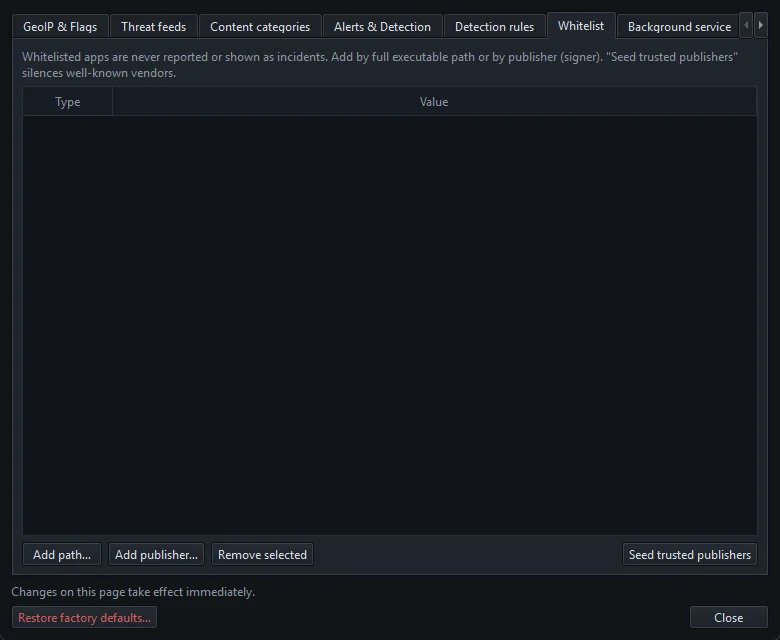
The publisher must match the signer name exactly, including capitals and punctuation, for example Slack Technologies, Inc.. Check the exact spelling on the publisher line of the Live tab's details pane.
Path or publisher? A path entry trusts one file location, whoever made the file. A publisher entry trusts every program signed by that company, wherever it's installed.
Seed trusted publishers
Seed trusted publishers adds 11 well-known signers in one click: Microsoft Corporation, Microsoft Windows, Google LLC, Mozilla Corporation, Apple Inc., Valve, Spotify AB, Discord Inc., Slack Technologies, Inc., Adobe Inc. and Dropbox, Inc.
"Microsoft Windows" signs Windows' own tools, including PowerShell, certutil and mshta. Those are exactly the programs the LOLBin and script signals watch, because attackers misuse them. Seeding silences those checks. If you want to keep that coverage, remove "Microsoft Windows" after seeding.
Allowlist selected vs the App whitelist
Both write to the same list.
| Allowlist selected (Detections tab) | Security ▸ App whitelist… | |
|---|---|---|
| What it adds | The exact path of the selected program | A path or a publisher |
| When to use it | You're looking at a false alarm right now | Setting up trust in advance, or reviewing it |
| Can it remove entries? | No | Yes, Remove selected |
A path entry trusts whatever file sits at that path. Avoid whitelisting programs that run from Downloads or a temp folder. Anything could be saved there under the same name later.
Tune detection rules instead
Sometimes one signal is the problem, not the program. Security ▸ Detection rules… opens the Detection rules tab, where you edit the lists and weights detection uses. Pick a list under Catalog:
- LOLBIN system tools, Script interpreters, System image names, Document / archive spawners, Shell / LOLBin children, Download-cradle markers: names and markers. Untick a row to ignore it, or use Add and Remove selected.
- RAT / C2 ports: the remote ports treated as suspicious.
- Signals (MITRE · weight): the 21 signals, each with its technique, tactic and weight. You can switch a signal off or change its weight. You can't add or remove signals.
Changes apply at once and are saved to detection-rules.json. Restore all rule defaults undoes all of them.
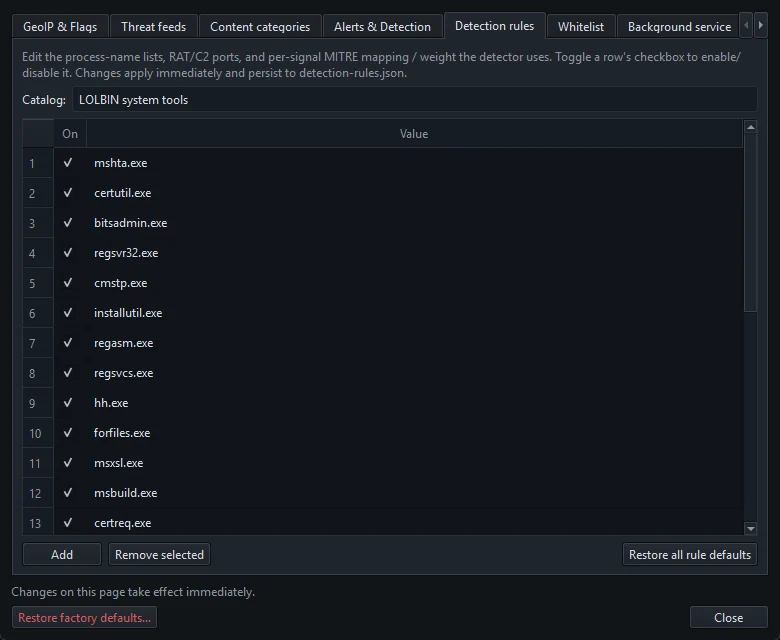
Two examples:
- You use an IRC chat client. IRC's usual ports, 6667 and 6697, are on the RAT / C2 port list because old botnets used IRC. Untick those two ports.
- Your IT scripts use PowerShell every day. Lower the weight of the
scriptsignal instead of trusting everything Microsoft Windows signs.
Rule changes apply to every program. Switching a signal off hides it everywhere, not just for the app that annoyed you. For more on why Windows tools get flagged, read living off the land.
Frequently asked questions
Does whitelisting an app let it through the firewall?
No. The whitelist only affects behavioral detection. Blocking and allowing network access are separate, in the Rules tab and Learning mode.
How do I undo Allowlist selected?
Open Security ▸ App whitelist…, select the program's path in the list and click Remove selected. It will be scored again straight away.
Will a whitelisted app still trigger a threat alert?
Yes, if it connects to an address on a threat feed or its file hash is on your IOC list or flagged by VirusTotal. The whitelist doesn't silence those.
Can I reset the whitelist and detection rules?
Yes. Restore factory defaults… in Settings resets both, along with other detection and alert settings. On the Detection rules tab, Restore all rule defaults resets only the rules.