The Detections tab: what a risk score means
The Detections tab scores each program that is online right now from 0 to 100 by adding up warning signs it shows. At 40 or more it is worth a look, but a score is a lead, not a verdict.
NetSecWall for WindowsOn this page
The Detections tab lists the programs that are reaching the internet right now and gives each one a behavioral risk score from 0 to 100. The score is the sum of the warning signs (signals) the program shows, such as a Windows system tool making its own internet connection, or a program running from your Downloads folder. A score of 40 or more is worth a look. It is not a verdict: plenty of ordinary software trips a signal or two.
The Detections tab is part of Advanced detection, included in the Plus, Family and Pro plans and the trial.
What the Detections tab shows
The table has four columns: Risk, Program, Signals (in plain words) and MITRE ATT&CK (the techniques those signals map to). Scores below 40 are grey, 40 to 69 amber, and 70 or more red. Hover over a program for its details card: path, publisher and signature.
By default the tab shows programs scoring 40 or more. Tick Show low risk to see every program with any signal at all.
The list is live. It covers programs with a connection open to an outside address at this moment, and it updates as they come and go. A program that stops connecting drops off the list, but the alert it raised stays on the Events tab. Whitelisted programs are never scored, so they never appear.
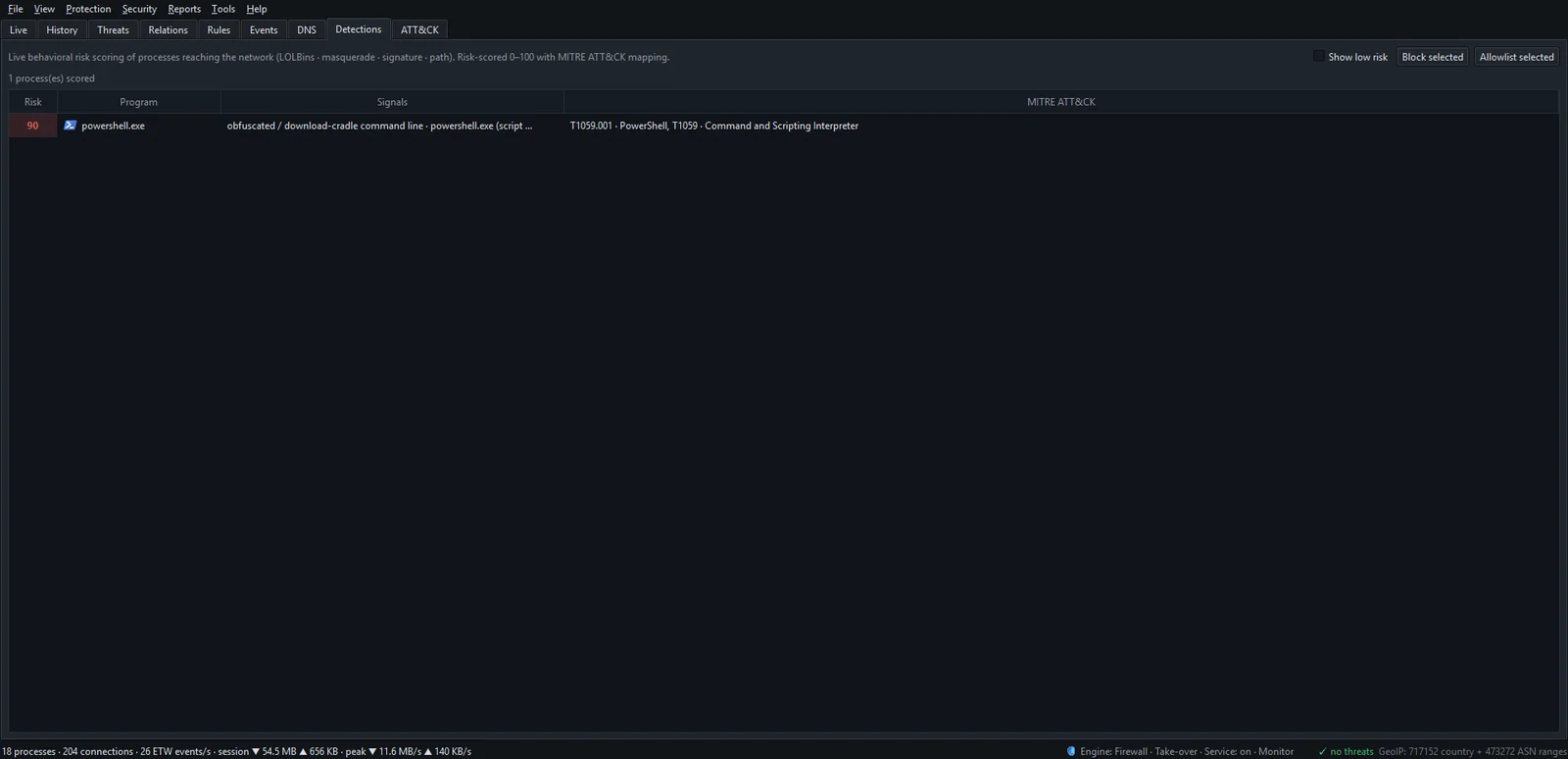
How the behavioral risk score is calculated
Each signal has a weight. NetSecWall adds up the weights of every signal a program trips and caps the total at 100. The main groups:
| Group | Signals and default weights | Typical example |
|---|---|---|
| System tools and scripts | LOLBin 60, script interpreter 35, download-cradle command line 40 (55 with two or more markers), document-to-shell chain 55 | certutil.exe fetching a file; Word launching PowerShell |
| Disguise and signatures | Masquerade 70, name imitating a system process 55, double extension 45, invalid signature in a system folder 60, invalid signature 40, fake Microsoft 55 | svchost.exe running outside System32; invoice.pdf.exe |
| Where it runs from | Temp or Downloads folder 30, file created in the last 30 minutes 20, odd location 40, unsigned DLL from a temp folder 45 | A program started from Downloads a minute after it arrived |
| Network behavior | Raw IPs with no DNS lookup 35, 25 or more hosts 30, Tor 40, beaconing 40, RAT/C2 port 30, machine-generated domain 45, large upload 30 | A program checking in with one server on a steady timer |
Two network signals, raw IPs and many hosts, count half for programs with a valid signature, because browsers using encrypted DNS look like that normally. The full list of 21 signals is under Security ▸ MITRE ATT&CK techniques…, and you can change weights in Security ▸ Detection rules….
What the score triggers:
- 40 or more: a "⚠ Suspicious process · risk N" alert (tray and Events tab), if that alert is on. It is on by default.
- 85 or more: an automatic block, but only if you turned on automatic response in alert settings. It is off by default.
MITRE ATT&CK mapping
Every signal maps to one technique in MITRE ATT&CK, a public catalog of attacker behavior. A LOLBin connection is T1218 System Binary Proxy Execution; beaconing is T1071 Application Layer Protocol. The mapping gives you a name to search for. The ATT&CK tab groups related findings into incidents. New to ATT&CK? Read MITRE ATT&CK explained for home users.
How to judge a high score
Work through it in this order:
- Read the signals. Most have an innocent explanation. "Running from a temporary/download folder" plus "created in the last 30 minutes" describes every installer you just downloaded.
- Check who made it. Hover the program. Is it signed by a publisher you recognize? Did you install it? Does the path make sense?
- Check where it goes. In the Live tab or the app dashboard, see which addresses it contacts. A known updater reaching its vendor's servers is normal. An unknown program talking to a bare IP is not.
- Check when it started. The Live tab's First seen column shows when NetSecWall first saw the program. Something that appeared today deserves more attention than something that has run for months.
- Decide. Block it, allowlist it, or leave it and keep an eye on it.
Common false alarms: PowerShell used by IT or update scripts, installers run from Downloads, and backup tools that upload a lot of data.
Block selected and Allowlist selected
- Block selected creates a block rule for the selected program and closes its current IPv4 TCP connections. It needs the settings password if one is set, and a plan with blocking (Family, Pro or the trial). To undo it, remove the rule in the Rules tab. See unblocking an app.
- Allowlist selected ("Stop scoring this app — it is trusted.") adds the program's exact path to the whitelist. It disappears from Detections and the ATT&CK tab and stops raising suspicious-process alerts. You can remove it later under Security ▸ App whitelist…. See whitelisting trusted apps.
An allowlist entry trusts whatever file sits at that path. Don't allowlist programs that run from Downloads or a temp folder.
Not an antivirus
A risk score describes how a program behaves on the network. NetSecWall does not scan files, does not remove malware and cannot see a program that never connects. Keep Microsoft Defender or another antivirus running alongside it.
Frequently asked questions
Is a high risk score proof that a program is malware?
No. It means the program shows several patterns that malware also shows. Read the signals and check the publisher, path and destinations before you decide.
Why does PowerShell appear on the Detections tab?
PowerShell is a script interpreter, and attackers use it to download and run code, so it scores when it connects out. Windows and many IT tools also use it legitimately. Check the command line and the destination.
Why is my Detections tab empty?
Usually because nothing online right now scores 40 or more, which is the normal state. Tick Show low risk to see lower scores. Whitelisted programs never appear.
Can NetSecWall block high-risk programs automatically?
Yes, if you turn on Auto-block highest-risk / known-bad apps in Security ▸ Alerts & detection…. It blocks at a risk of 85 or more by default and works in take-over mode only.