How to block an app from accessing the internet
Right-click the app in the Live tab and choose Block this app, then permanent, 10 minutes or 1 hour. NetSecWall adds a block rule and closes the app's open connections.
NetSecWall for WindowsOn this page
To block an app from the internet, right-click it in the Live tab and choose ⛔ Block this app (firewall), then Block (permanent), Block for 10 minutes or Block for 1 hour. NetSecWall adds an outbound block for that program and closes its open IPv4 connections straight away. The app keeps running; it just can't reach the network.
Blocking is part of the Family and Pro plans and the 7-day trial. On Monitor or Plus it is locked — see the plans.
Block an app from the internet in the Live tab
- Open the Live tab and set View to Apps.
- Find the program. Typing part of its name in the filter box narrows the list.
- Right-click the program's own row — the top-level row with its name, not one of the connection rows under it.
- Point to ⛔ Block this app (firewall).
- Choose Block (permanent), Block for 10 minutes or Block for 1 hour.
- If a settings password is set, enter it.
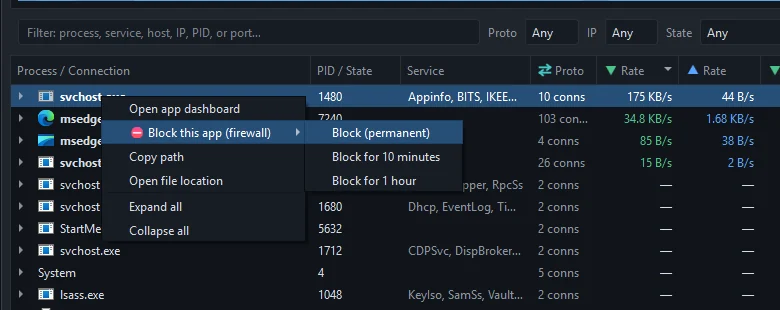
What happens when you block an app
- A block rule is created. It is an outbound block keyed to the program's full path. With the default Windows Firewall (rules) engine it is a Windows Firewall rule named
NetLens App Block: <program>; with Packet filter (WFP) it is a filter in the Windows Filtering Platform; with Both, it is both. The enforcement engines article explains the difference. - Open connections are cut. NetSecWall force-closes the app's established IPv4 TCP connections at once. Windows has no way to force-close IPv6 connections, so those end on their own — but new connections of either kind are blocked.
- Permanent blocks are remembered. NetSecWall applies them again every time it starts.
- Timed blocks lift themselves when the 10 minutes or the hour is up. They are not carried over a restart.
The blocked app gets no warning from NetSecWall. It behaves as if the PC were offline: it may show an error, retry, or wait quietly.
Blocks are enforced while NetSecWall is running — in the window, in the tray, or as the background service. Without the service, quitting NetSecWall lifts its blocks until you start it again. With the background service installed, they apply from the moment Windows boots.
Other ways to block an app
- Rules tab ▸ Block an app… — pick the program's
.exefile. Handy when the app isn't online right now. This is a permanent block; it doesn't force-close connections the app already has open. - The Learning mode pop-up ▸ Block — for programs connecting for the first time.
- Detections tab ▸ Block selected — for a program with a worrying risk score. Same permanent block, and it closes the app's live connections too.
- Protection ▸ Parental controls… ▸ Always-blocked apps — on Family and Pro, behind the settings password.
Don't block svchost.exe
Many Windows services run inside svchost.exe. Because a block is keyed to the executable, blocking svchost.exe blocks every one of them at once: Windows Update, time sync, license activation and more. Look at the Service column to see which service is actually talking, and read what svchost.exe is doing on your network before you act.
The same logic applies to other shared programs. Blocking a browser blocks every site in it; blocking a game launcher blocks every game it starts.
Check that the block worked
- Open the Rules tab.
- Set Show: to NetSecWall rules.
- Look for App Block: with the Owner NetSecWall, or WFP block: with the Owner NetSecWall · WFP if you use the packet filter.

Back in the Live tab, the app's connections close and no new ones appear. For a record of refused attempts, turn on the Windows log described in see what was blocked.
A block follows the file path, not the app's name. If an app updates itself into a new folder, block the new path too. Some apps also run a separate helper or updater program; block each executable you want offline.
To undo any of this, see unblock an app or remove a rule.
Frequently asked questions
Does blocking an app close the connections it already has open?
From the Live tab and the Detections tab, yes: its established IPv4 TCP connections close at once. IPv6 connections can't be force-closed by Windows and end on their own; new connections are blocked either way.
Can I block an app for a set amount of time?
Yes. Choose Block for 10 minutes or Block for 1 hour, and the block lifts itself when the time is up. Those are the only timed options.
Does the block still apply after I restart the PC?
A permanent block does. NetSecWall remembers it and applies it again whenever it starts — from boot if the background service is installed. Timed blocks don't survive a restart.
Can I block an app that isn't running right now?
Yes. Use Rules ▸ Block an app… and pick the program's .exe file. The block is waiting for it the next time it tries to connect.