How to set an internet bedtime on your kid's PC
Set a schedule that switches the internet off at night, on your router or on the PC itself. NetSecWall's bedtime blocks all internet on the PC between two times you choose, overnight included.
NetSecWall for Windows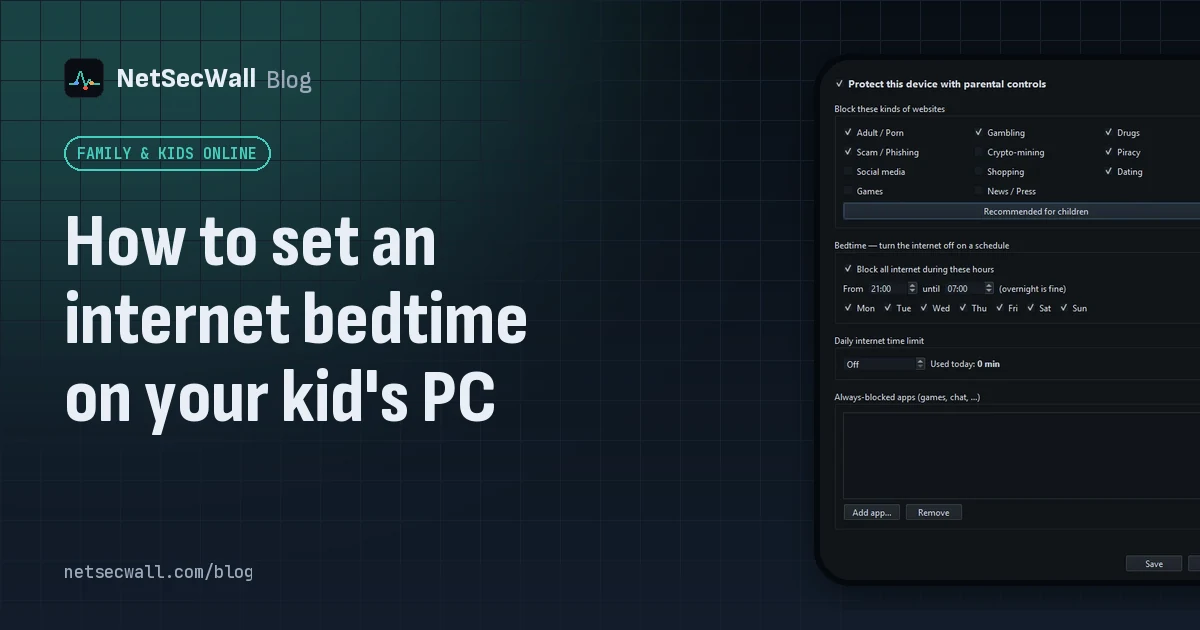
On this page
An internet bedtime is a schedule that switches the internet off at night and back on in the morning. You can set one on your home router, which covers every device on your Wi-Fi, or on the PC itself, which follows that PC to any network. In NetSecWall, it's one section of the parental controls: pick a start time, an end time and the days, and all internet on that PC stops in between.
Why an internet bedtime helps
Evenings are when "five more minutes" turns into an hour. A game, a group chat or an endless video feed is designed to be hard to put down, for adults as much as for children. A fixed cutoff takes the nightly negotiation out of it: the rule belongs to the house, and the PC simply follows it.
It works best when it isn't a surprise. Agree the time together, explain why, and build in a wind-down, such as a "ten minutes left" call from you, so a game or a conversation can end properly instead of being cut mid-sentence. An internet bedtime is a support for a routine you've already talked about, not a replacement for it.
Your options
A schedule on your router
Many home routers have a parental controls or access schedule page in their admin app. You pick a device and the hours it's allowed online.
- Good: it covers phones, tablets, consoles and TVs as well as the PC.
- Limits: not every router has it, and the ones that do identify devices by their hardware (MAC) address. Phones and Windows can use a random hardware address per network, so a device can turn up looking new and unscheduled. A router schedule also does nothing once a phone switches to mobile data.
A schedule on the PC
Software on the PC enforces the bedtime on that PC wherever it is: home Wi-Fi, a phone hotspot or a friend's network. It can't do anything for other devices. Windows' own schedules come through Microsoft Family Safety, which needs Microsoft accounts for you and your child and limits screen time rather than the internet.
Both
They don't conflict. A router schedule for the house and a PC schedule for the PC cover different gaps.
Set an internet bedtime in NetSecWall
Parental controls are part of NetSecWall's Family and Pro plans, and of the 7-day trial.
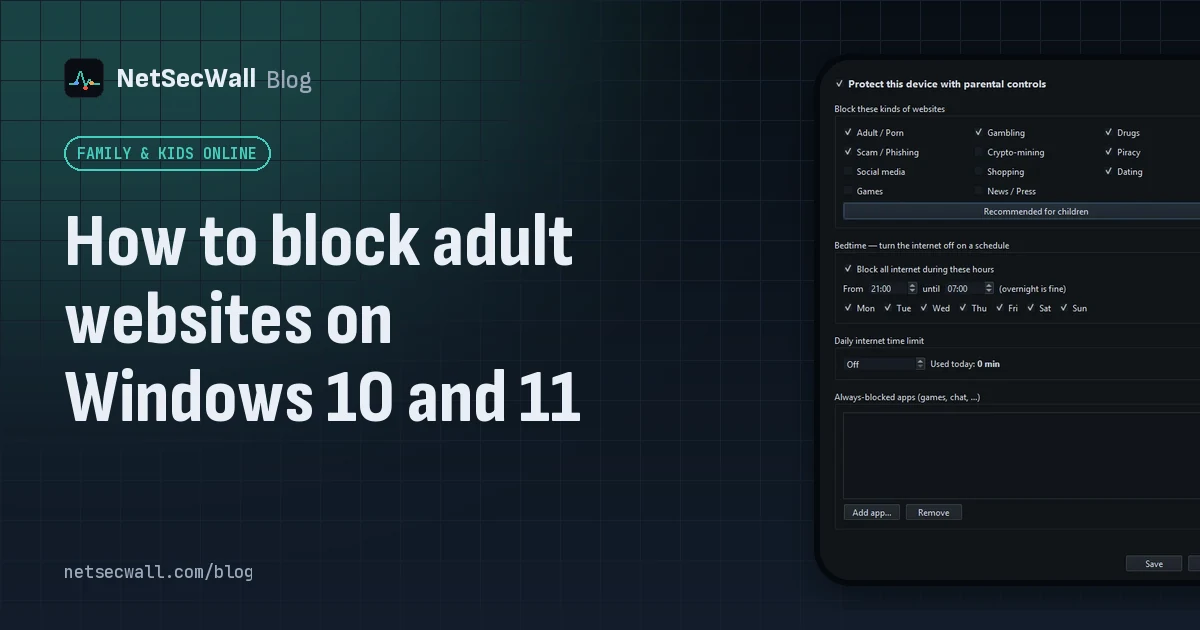
- Open Protection ▸ Parental controls…. If a settings password is set, type it.
- Tick Protect this device with parental controls.
- Under Bedtime — turn the internet off on a schedule, tick Block all internet during these hours.
- Set From and until, for example 21:00 until 07:00. The dialog notes "(overnight is fine)", so a window that crosses midnight works as you'd expect.
- Tick the days it applies, Mon to Sun.
- Click Save.
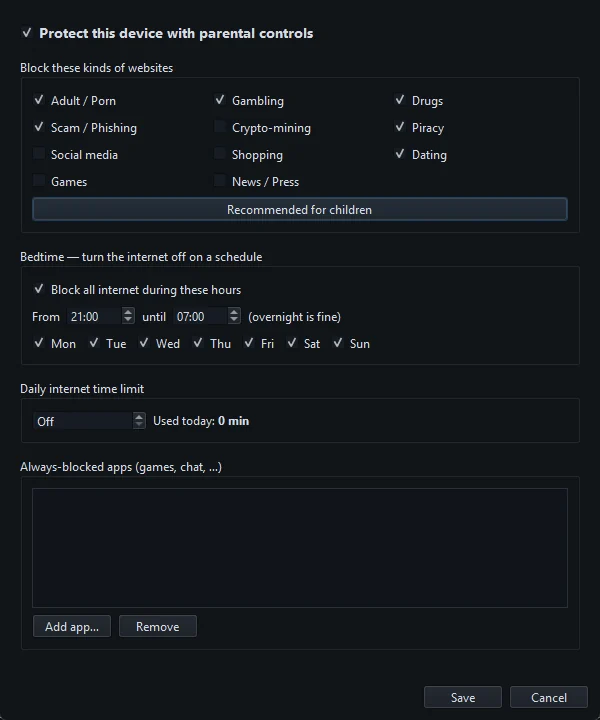
For an overnight window, the day you tick is the evening it starts. Tick Sun to Thu for school nights and the bedtime runs Sunday evening to Monday morning, and so on through Thursday night into Friday; Friday and Saturday nights stay free. If From and until are the same time, the dialog warns that the curfew would never apply.
Before you rely on it, open Protection ▸ Settings password… and set a password, so the bedtime can't simply be switched off. Locking NetSecWall with a settings password explains what it protects.
What your child sees
When bedtime starts, nothing on the PC can reach the internet. Pages won't load, and apps and games that need a connection can't get one. If NetSecWall is running on their desktop, a notification says Parental controls — internet paused, with "Bedtime or the daily time limit is active." In the morning, Parental controls — internet back on appears and everything connects again.
The PC itself keeps working. Documents, offline games and anything that doesn't need the internet carry on. Bedtime turns off the internet, not the computer, and it doesn't sign anyone out.
NetSecWall doesn't give a countdown before bedtime, so the wind-down is up to you.
Things to know before you rely on it
- It follows the PC's clock. NetSecWall checks every 30 seconds, so the cutoff lands within half a minute of the time you set.
- It needs the NetSecWall app running. Bedtime is timed by the app, not the background service, so keep NetSecWall open in the tray. It needs administrator rights and doesn't start by itself when someone signs in, so after a restart, open it again; on your child's standard account, Windows will ask for your administrator password.
- It's all or nothing on this PC. During bedtime, every app loses the internet, homework sites included. There's no exception list.
- It's one window. You get one pair of times and choose the days. You can't set a later time for weekends, but you can leave weekend nights unticked.
- It covers this PC only. A phone on mobile data is outside it.
Bedtime works alongside the daily internet limit: either one switches the internet off. For a step-by-step reference, see setting an internet bedtime, and for the bigger setup, parental controls without a Microsoft account.
No control on one PC is impossible to get around, especially for a teenager with an administrator password or a phone. Can kids get around parental controls? is honest about the gaps and how to narrow them.
To set a bedtime on your child's PC, download the 7-day trial. Parental controls are included, no card needed.
Frequently asked questions
Can I set a different bedtime for weekends?
Not a different time. NetSecWall has one bedtime window, and you choose which nights it applies to, so you can leave Friday and Saturday unticked.
Does bedtime turn off the PC or sign my child out?
No. Only the internet goes off. Everything that works offline keeps working, and your child stays signed in.
What happens if the PC is asleep when bedtime starts?
Nothing happens while it sleeps. When it wakes during the bedtime window, NetSecWall blocks the internet at its next 30-second check, as long as the app is running.
Will bedtime interrupt an online game?
It can. Bedtime starts on the clock, whatever is happening, so an online game or a call may lose its connection. Agree a wind-down time so it doesn't come as a surprise.
Can my child turn bedtime off?
Not from inside NetSecWall without the settings password. Because bedtime needs the app running, a restart pauses it until NetSecWall is opened again, and a child with an administrator password can remove any local control.
Keep reading
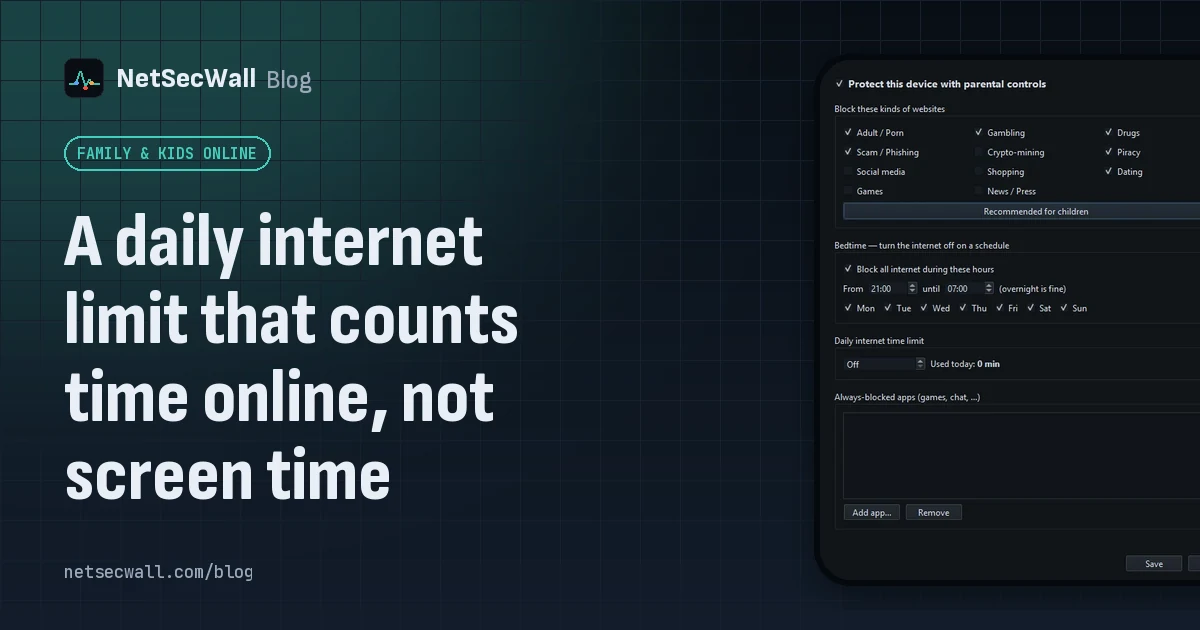 A daily internet limit that counts time online, not screen time
A screen-time limit counts every minute the PC is in use. NetSecWall's daily internet time limit counts only time when the PC has an open connection, in 30-second steps, and resets at midnight.
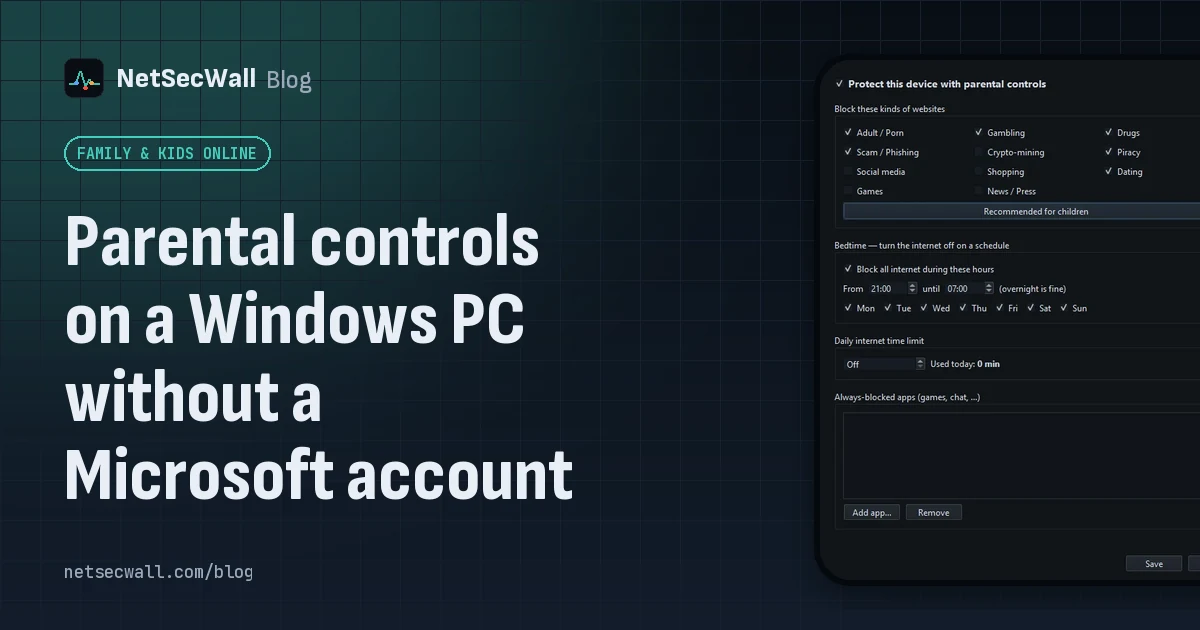 Parental controls on a Windows PC without a Microsoft account
Windows' own family features need Microsoft accounts. Without them, give your child a standard local account and use an on-PC tool that filters sites and sets a bedtime and daily limit.
 How to block adult websites on Windows 10 and 11
Use a family DNS filter on your router, a filter on the PC, or both. NetSecWall blocks its Adult / Porn category, around 900,000 domains, for every browser and app on the PC, behind a password.
 Block games during homework time
Block the game programs themselves, not just gaming websites. NetSecWall can cut a game's internet for good or for an hour, block gaming sites, and hold new apps until you approve them.