See which apps are using the internet right now
Open the Live tab in NetSecWall. Every program with an open connection gets a row showing its download and upload rate this second, and the busiest one sorts to the top.
NetSecWall for WindowsOn this page
To see which apps are using the internet right now, open NetSecWall and look at the Live tab. Every program with a network connection open gets one row, showing how fast it is downloading and uploading this second. The list is sorted by download rate, so the busiest program is at the top.
Open the Live tab
- Open NetSecWall from the Start menu, or click its icon in the system tray.
- Click the Live tab, the first tab in the window.
- Check that View, at the top right above the graph, is set to Apps.
- Read the list from the top. To sort by something else, click a column header; click it again to reverse the order.
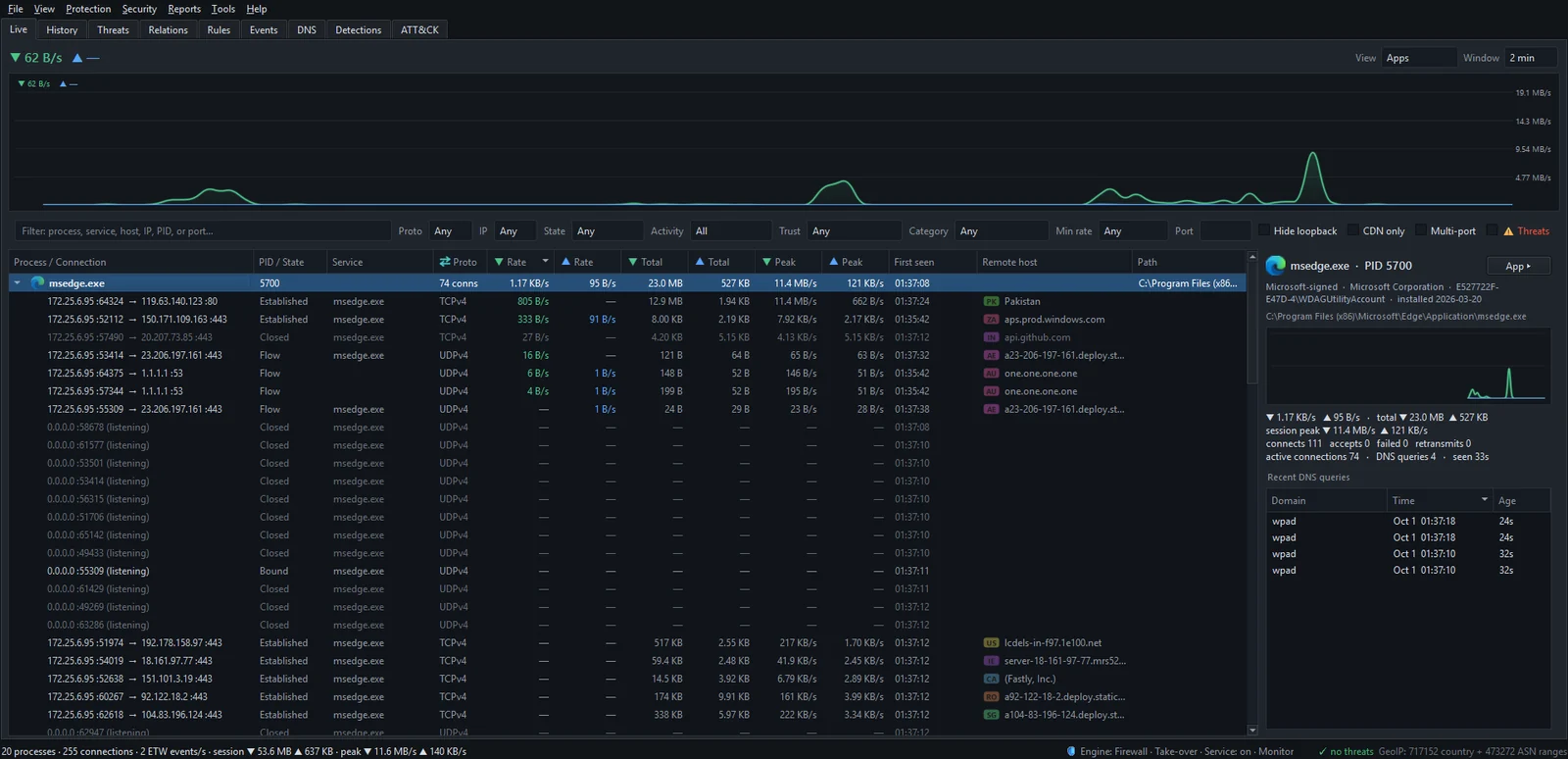
The large figures above the graph are the whole PC's download (▼) and upload (▲) rate, and the graph shows the last two minutes of it. The status bar at the bottom counts processes and connections.
Read the rate columns
| Column | What it tells you |
|---|---|
| Rate ▼ / ▲ | Download and upload speed right now, refreshed once a second. |
| Total ▼ / ▲ | Data moved by this process since NetSecWall started watching it. |
| Peak ▼ / ▲ | The fastest it has gone in this session. |
| First seen | The first time NetSecWall ever saw this program, taken from its history. |
| Proto | On a program row, how many connections it has open. |
| Service | For svchost.exe, the Windows services running inside that process. |
| Remote host | On a connection row, the server's name, or the network owner or country when no name is known. |
| Path | Where the program's file lives on disk. |
A program's name turns bold while it is moving data. Rates are shown in bytes per second; if you would rather compare them with your internet plan's Mbps, tick View ▸ Show rates in bits/s (Mbps).
Expand a program to see where it connects
Click the arrow next to a program to list its connections. Each child row reads local address :port → remote address :port. The PID / State column shows the connection's state: Established, Listening, Time-Wait and so on for TCP, Flow or Bound for UDP. A connection that has just ended stays for a few seconds, dimmed and marked Closed. Right-click anywhere in the list and choose Expand all to open every program at once.
For what the ports, states and country tags mean, see Reading a connection.
Use the details pane
Click a program and the pane on the right fills in:
- A trust line: Part of Windows, Microsoft-signed, Signed, Unsigned or Signature INVALID, followed by the publisher, the account it runs under and its install date.
- The full path and, for service hosts, a Services: line.
- A small graph of this program's traffic, with counters for connects, failed attempts, retransmits and DNS queries.
- Recent DNS queries: the names the program looked up, newest first.
- App ▸, which opens the app dashboard with the program's history. Select a connection instead of a program and IP ▸ opens that address's dashboard.
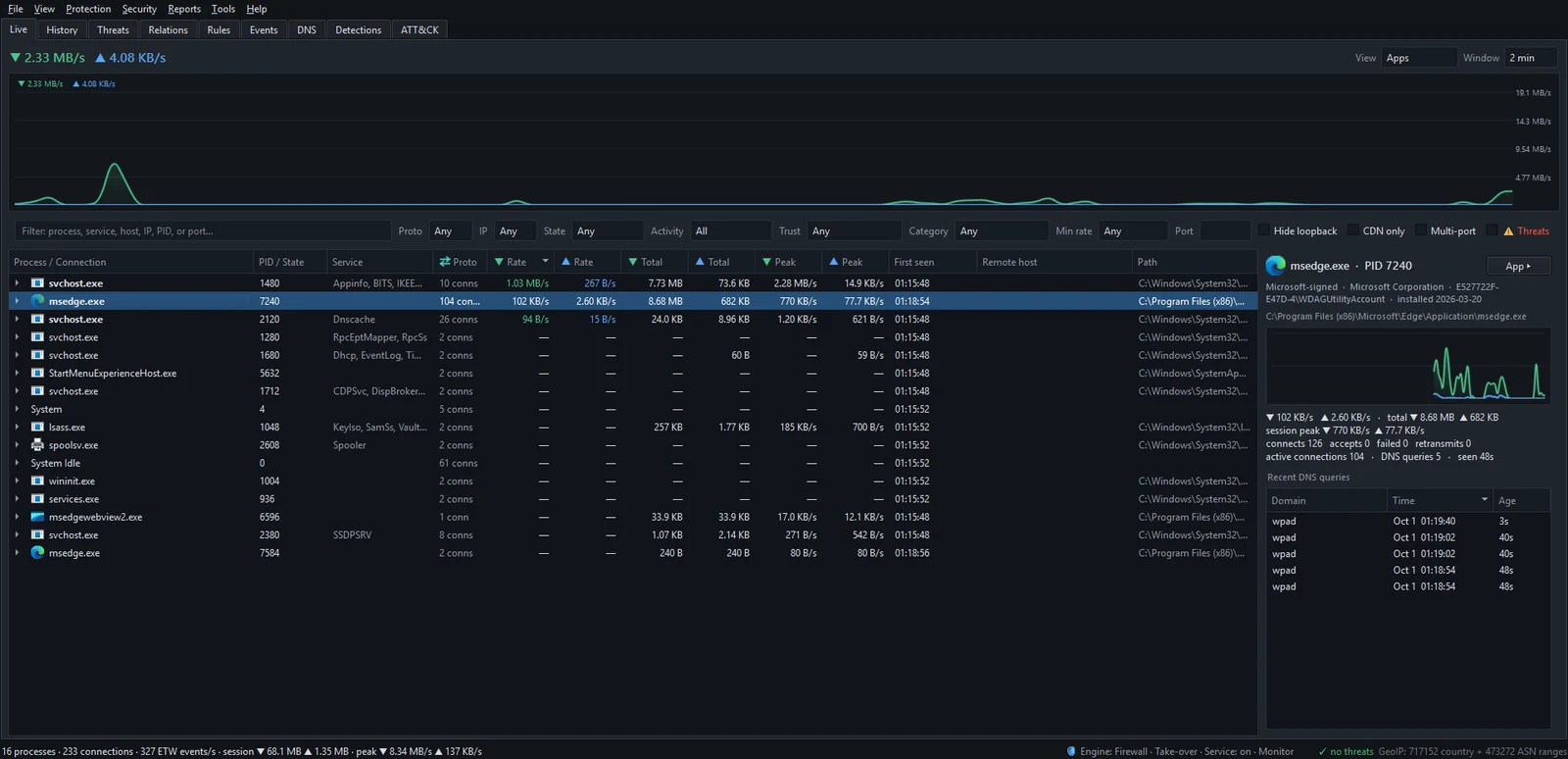
Windows services inside svchost.exe
Many Windows features, such as Windows Update, time sync and the DNS client, run inside shared svchost.exe processes. A list of a dozen rows all named svchost.exe would tell you nothing, so NetSecWall fills the Service column with the services each one hosts, and on each connection row it names the service or module that owns that socket.
Don't block svchost.exe as a whole. It carries Windows Update, time sync, license activation and more, and blocking it breaks all of them at once. Read the Service column to see which service is actually talking before you decide anything. What is svchost.exe doing on my network? covers the usual suspects.
If the list is empty, or every rate stays at zero, NetSecWall is usually not running with administrator rights. See The Live tab is empty or shows no transfer rates.
Frequently asked questions
Which app is using the most bandwidth on my PC?
Sort the Live tab by the download Rate column (the default) or by the upload one. For the biggest users over a day or a week rather than this second, open the History tab, pick a Range and sort by Total.
Why are there apps in the list I never opened?
Updaters, sync clients, browser background processes and Windows services connect on their own schedule, so seeing them is normal. Check the trust line and publisher in the details pane, or filter the list down to unsigned programs if you want a short list worth a closer look.
Does NetSecWall see what the apps are sending?
No. It records which program connected where, on which port, how much data moved and when. It does not capture packets, decrypt HTTPS or read the contents of anything.
How do I stop an app I see here from using the internet?
Right-click it and choose ⛔ Block this app (firewall) ▸, then Block (permanent), Block for 10 minutes or Block for 1 hour. Blocking is part of the Family and Pro plans and the trial. See How to block an app from accessing the internet.