What is svchost.exe doing on my network?
svchost.exe hosts Windows services, and several of them need the internet: Windows Update, BITS, Delivery Optimization, time sync and the DNS Client. The real question is always which service.
NetSecWall for Windows
On this page
svchost.exe is Windows' "Service Host": a container process that runs Windows services, and several of those services need the internet. When you see svchost network activity, it is usually Windows Update, its download helpers, the clock syncing, or the DNS Client looking up names for every other program on the PC. The useful question is never "why is svchost online?" but "which service inside it is?", and Windows and NetSecWall can both tell you.
What svchost.exe is
Many Windows services aren't programs of their own. They're DLLs, libraries of code, that need a process to run in. svchost.exe is that process. Each copy is started by Windows' service manager with instructions about which service or group of services to load.
That explains two things people find odd:
- There are dozens of them. Since Windows 10 version 1703, on PCs with more than about 3.5 GB of memory, Windows runs most services in their own separate svchost.exe, so one crashing service can't take others down. Fifty or more instances is normal.
- They're all the same file. The genuine one lives in
C:\Windows\System32(with a copy inSysWOW64on 64-bit Windows) and is part of Windows, signed by Microsoft.
To see which services a given copy hosts, open Task Manager, go to Details, right-click an svchost.exe and choose Go to service(s). In Command Prompt, tasklist /svc lists every process ID with its services.
Which services cause svchost network activity
These are the common ones. The first column is the service's short name, which is what NetSecWall and tasklist /svc show.
| Service | Full name | Why it uses the network |
|---|---|---|
| wuauserv | Windows Update | Checks for and downloads updates |
| BITS | Background Intelligent Transfer Service | Downloads in the background for Windows Update and other apps |
| DoSvc | Delivery Optimization | Fetches update files, and can exchange pieces with other PCs on TCP port 7680 |
| W32Time | Windows Time | Keeps the clock right over NTP, UDP port 123 |
| Dnscache | DNS Client | Looks up and caches names for the whole PC on port 53, and finds devices on your local network |
| Dhcp | DHCP Client | Gets and renews your IP address from the router |
| NlaSvc | Network Location Awareness | Works out which network you're on and whether it reaches the internet |
| CryptSvc | Cryptographic Services | Keeps certificate trust lists up to date |
| WpnService | Windows Push Notifications System Service | Holds a connection open so apps can receive notifications |
| DiagTrack | Connected User Experiences and Telemetry | Sends Windows diagnostic data to Microsoft |
A large burst of svchost traffic is nearly always the first three: an update being fetched, or Delivery Optimization sharing pieces of one. If your PC seems busy while you're doing nothing, why is my PC uploading data when I'm not using it? walks through the usual causes.
How to see which service is behind the traffic
In NetSecWall's Live tab, each svchost.exe instance is its own row with its process ID, and the Service column names the service or services it hosts. Expand the row and each connection underneath shows, in the same column, the service that owns that particular socket. That answers "which service?" per connection, not just per process.
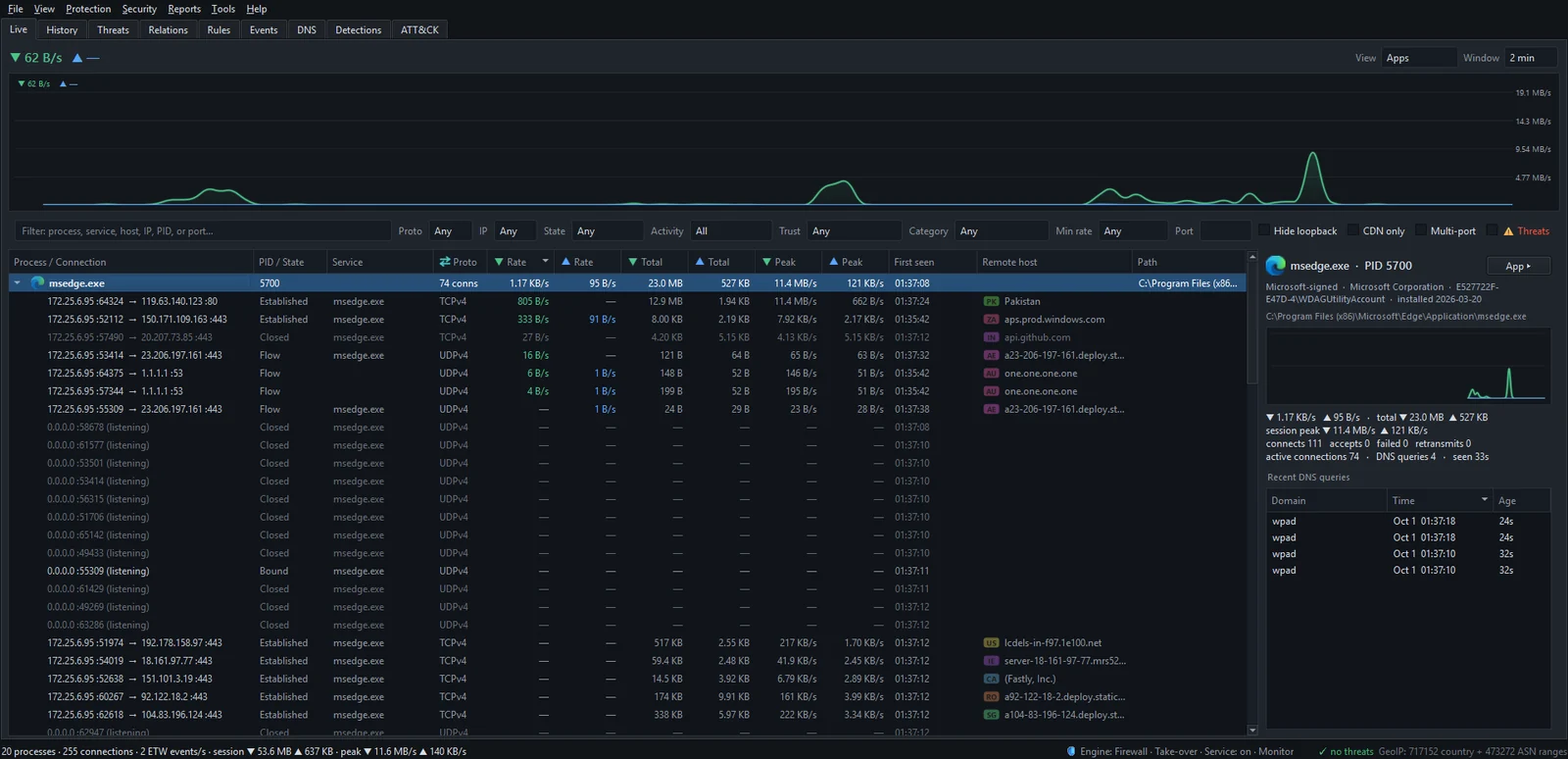
A few more ways to narrow it down:
- Type a service name such as
DoSvcorwuauservinto the filter box, "Filter: process, service, host, IP, PID, or port…". Only the matching svchost.exe rows remain. - Select an svchost.exe row. The details pane shows a Services: line listing everything that process hosts, along with its trust line and a live graph.
- Switch View to By Domain to see which names the Windows services are talking to, such as update and time servers.
Two things are worth knowing when you read the results. Because the DNS Client service does lookups on behalf of other programs, the svchost.exe that hosts it can show up in the DNS tab with names other apps asked for. And the History tab records traffic by program path, so all svchost.exe instances are combined there under one entry; use the Live tab when you need the split by service. Reading the Live tab covers the rest of the columns.
Why blocking svchost.exe wholesale breaks Windows
Blocking the program svchost.exe doesn't block one service. It blocks every service in every copy of it, all at once. Soon you would see:
- No names resolving for any app. The DNS Client can't reach your DNS server, so browsers and apps can't find anything, even though they aren't blocked themselves.
- Losing your network address when the DHCP lease runs out.
- Windows Update, the Store and app licensing failing.
- The clock drifting without time sync, which eventually breaks secure connections.
- The "No internet" icon, because the connectivity check fails.
In Windows Defender Firewall, a block rule beats an allow rule, so Windows' own "Core Networking" allow rules won't rescue you. Those rules are a good lesson in the right way to do it: most of them name svchost.exe together with one specific service, rather than svchost.exe as a whole.
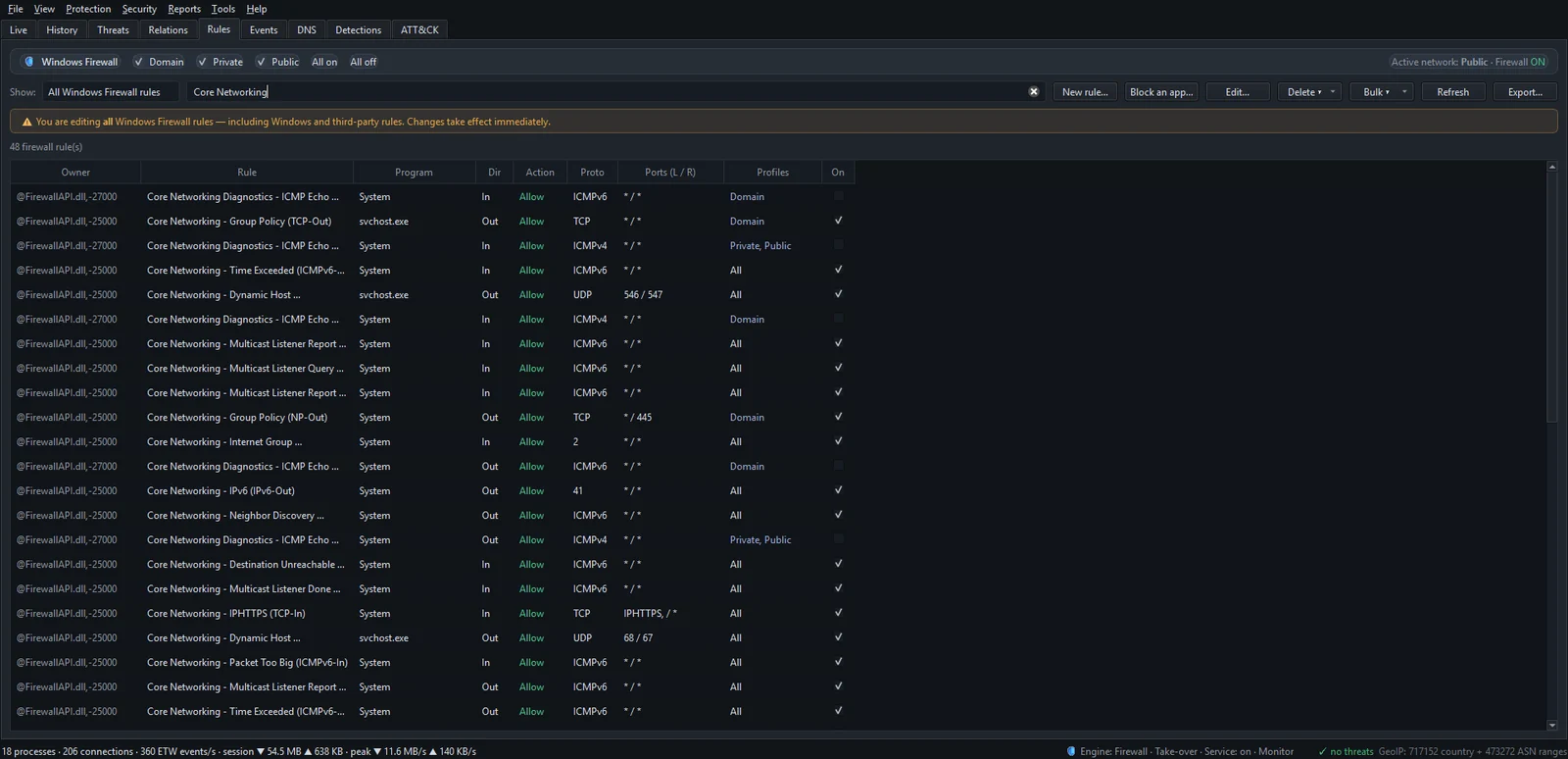
NetSecWall won't stop you from blocking svchost.exe, so treat that as your job. If you've already done it and lost the internet, no internet after blocking something? gets you back.
Controlling one service instead
NetSecWall's app blocks are tied to the executable path, and every svchost.exe has the same path, so it can't single out one service. Use one of these instead:
- Switch the feature off where Windows lets you. For Delivery Optimization in Windows 11, go to Settings ▸ Windows Update ▸ Advanced options ▸ Delivery Optimization and turn off Allow downloads from other PCs. For optional diagnostic data, use Settings ▸ Privacy & security ▸ Diagnostics & feedback.
- Write a firewall rule scoped to the service. In Windows Defender Firewall with Advanced Security (
wf.msc), a custom rule for%SystemRoot%\System32\svchost.execan be limited to one service under Services ▸ Customize… in the rule wizard. The PowerShell equivalent looks like this:
New-NetFirewallRule -DisplayName "Block DiagTrack outbound" -Direction Outbound -Program "%SystemRoot%\System32\svchost.exe" -Service DiagTrack -Action Block
That blocks one service's connections and leaves everything else in svchost.exe alone. The rule then shows in NetSecWall's Rules tab under All Windows Firewall rules. Which services are safe to cut, and which aren't, is the subject of cutting telemetry without breaking Windows Update.
When svchost.exe is worth a closer look
Because svchost.exe is everywhere, malware sometimes borrows the name. Real svchost.exe runs only from C:\Windows\System32 or C:\Windows\SysWOW64 and is part of Windows. Things that deserve attention:
- The wrong folder. An svchost.exe in
AppData,TemporDownloadsis not Windows. The Path column shows where each process runs from. - A near-miss name such as
scvhost.exeorsvch0st.exe. - No valid signature. Set the Trust filter to Unsigned; a genuine svchost.exe never appears there. The details pane shows Part of Windows for the real one.
On the Plus plan or higher, NetSecWall's detection engine flags the first two automatically: a system process name running outside the system folders is one of its strongest signals (MITRE ATT&CK T1036, Masquerading). The same trick is common with other Windows tools; see living off the land.
The short version
svchost.exe is a container, and the traffic belongs to the services inside it. Read the Service column, expect Windows Update, BITS, Delivery Optimization, time sync and the DNS Client to be online, and control a single service rather than blocking the container. To see which services on your PC are talking and to whom, download the 7-day trial.
Frequently asked questions
Why are there so many svchost.exe processes?
On PCs with more than about 3.5 GB of memory, Windows 10 and 11 run most services in their own svchost.exe so a failing service can't take others down with it. Dozens of instances is normal.
Is svchost.exe a virus?
The real one is a core part of Windows, stored in C:\Windows\System32 and signed by Microsoft. A file with the same name somewhere else, or an unsigned one, is not genuine and deserves a scan with your antivirus.
Why is svchost.exe using so much bandwidth?
Usually it's Windows Update, BITS or Delivery Optimization downloading an update, or Delivery Optimization sharing update pieces with other PCs. Check the Service column to see which one.
Can I stop Windows telemetry by blocking svchost.exe?
Not safely. Telemetry runs in one service, DiagTrack, while the same program hosts DNS, DHCP, updates and time sync. Block that one service with a service-scoped rule, or turn optional diagnostic data off in Settings.
Which services does Windows Update use?
The Windows Update service (wuauserv) checks for updates, and downloads are handled by BITS and Delivery Optimization (DoSvc). All three run inside svchost.exe.
Keep reading
 How to block a program in Windows Firewall, two ways
Create an outbound rule for the program's .exe in Windows Defender Firewall with Advanced Security, set to Block the connection. Or right-click the program in NetSecWall and choose Block.
 Why you need a firewall and an antivirus, and what each one misses
An antivirus judges files and program behavior; a firewall judges connections. Each misses what the other sees, from a clean-looking tool phoning out to malware that never touches the network.
 What is a port? 443, 53, 3389 and friends
A port is a number from 0 to 65535 that tells a computer which program a piece of network traffic is for. Servers wait on well-known ports like 443 or 53; your side uses a random high port.
 How to block a country on Windows
Windows has no country switch, so you block the country's IP ranges with firewall rules. NetSecWall does it with one right-click; geolocation is approximate, and CDNs and VPNs blur borders.