How to stop apps from phoning home on Windows
See what each app contacts, decide which calls you'd miss, then block the rest: the whole app, just its updater or crash reporter, or ad and tracking domains across every app.
NetSecWall for Windows
On this page
- What "phoning home" actually means
- Decide what's worth blocking
- Doing it with Windows alone
- How NetSecWall stops apps phoning home
- Step 1: see who calls whom
- Step 2: catch new callers with Learning mode
- Step 3: block an app, or just its helper
- Step 4: ads and tracking for every app at once
- What breaks, and how to undo it
- The short version
To stop apps phoning home, first find out what each one contacts, then block the part you don't want: the whole app if it doesn't need the internet, a separate updater or crash reporter if it has one, or ad and tracking domains across all apps. Windows Defender Firewall can do the blocking with outbound rules. What it doesn't do is show you who is calling, or ask you the first time a new program tries.
What "phoning home" actually means
An app phones home whenever it contacts its maker's servers without you asking it to. The common reasons:
- Update checks. Is there a newer version?
- License and account checks. Is this copy paid for, and is this user signed in?
- Usage analytics and telemetry. Which features you use, how often, for how long.
- Crash reports. What the app was doing when it failed.
- Ads and ad measurement. Fetching ads and reporting that they were shown.
- Remote configuration. Settings downloaded from the vendor that switch features on or off.
- Cloud features you actually use. Sync, sharing, collaboration, online help.
None of this is sinister by default. The question is which of these calls you'd miss if they stopped.
Decide what's worth blocking
| Kind of call | Usually safe to block? | What happens if you do |
|---|---|---|
| Ads and ad measurement | Yes | Ad spaces go blank or show placeholders |
| Analytics and telemetry | Usually | Nothing you'll notice, in most apps |
| Crash reports | Usually | The developer doesn't hear about crashes |
| Update checks | Think first | You stop getting security fixes |
| License and sign-in checks | Rarely | The app may refuse to start or drop to a limited mode |
| Cloud features | Not if you use them | Sync, sharing and online help stop |
Before blocking anything, look in the app's own settings. Many have a "send usage data" or "help improve" option, and switching it off is cleaner than a firewall rule. For Windows' own diagnostic data, the settings are in Settings ▸ Privacy & security ▸ Diagnostics & feedback, and there's a careful walkthrough in cutting telemetry without breaking Windows Update.
Doing it with Windows alone
Windows Defender Firewall allows outbound connections by default, so any app can reach any server unless an outbound block rule stops it. You can add one for a program's .exe in Windows Defender Firewall with Advanced Security; the steps are in how to block a program in Windows Firewall.
That works, with three gaps. You have to know which program is calling, which means catching it in Resource Monitor or netstat -abno at the right moment. Nothing tells you when a new program starts connecting. And firewall rules work on addresses, not domain names, so "block this app's analytics server but not its update server" isn't something a rule can express. The hosts file can point individual domain names at 0.0.0.0, but you need to know the names, long lists are where breakage comes from, and apps that bring their own DNS ignore it.
How NetSecWall stops apps phoning home
Step 1: see who calls whom
Open the DNS tab to see every domain each app looked up, with how many times and when it was first and last seen. Names often say what they're for, and an app that looks up an analytics domain forty times a day is telling you something. What your DNS lookups reveal goes into how to read that list. The Live tab's By Domain view shows the same thing live.
Step 2: catch new callers with Learning mode
Switch on Protection ▸ Filtering mode ▸ Learning — ask when a new app connects. Programs already online at that moment are approved. After that, any program that tries to connect for the first time is blocked while a pop-up asks you what to do.
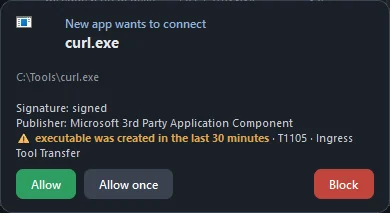
The pop-up shows the program's name, path, signature and publisher. Allow and Block are remembered. Allow once lasts until NetSecWall restarts. If you don't answer within 30 seconds, the app stays blocked for this session and you're asked again next time. Your answers show up in the Rules and Events tabs. Learning mode, step by step covers the details.
Step 3: block an app, or just its helper
Right-click any program in the Live tab and choose Block this app (firewall) ▸ Block (permanent), Block for 10 minutes or Block for 1 hour. NetSecWall creates an outbound block for that program and closes its open IPv4 TCP connections, so it goes quiet at once.
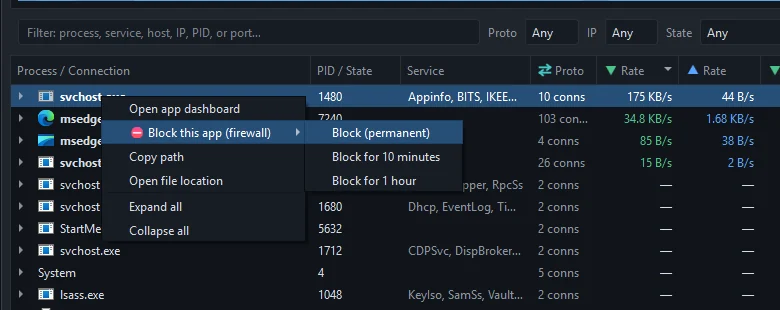
Blocks are keyed to the executable's path. That matters because many apps ship their updater or crash reporter as a separate .exe in the same folder. Block that one and leave the main program alone, and the app keeps working while the side channel goes silent.
Step 4: ads and tracking for every app at once
Open Protection ▸ Content categories… and tick Block for Ads and Tracking. Every connection from any app to a domain on those lists is then blocked. The presets under Protection ▸ Profile do this too, along with other categories: Security blocks ads, tracking, scam, crypto-mining and piracy. Applying a profile replaces your whole category selection, so pick individual categories if you've already customized them. See blocking website categories.
Category blocking works on the IP addresses a blocked domain resolves to. The first packets to a brand-new address can get through before the rule catches up, and because many sites share CDN addresses, blocking one tracker's address can occasionally block something harmless.
Blocking is part of the Family and Pro plans, and of the 7-day trial.
What breaks, and how to undo it
Blocking the wrong call has predictable symptoms. The app shows "offline" or hangs on a timeout. A license check fails and the app won't start. Updates quietly stop, which you won't notice until you look. The easy way to test is Block for 10 minutes: use the app for ten minutes, see what complains, and the block lifts itself.
To undo a permanent block, open the Rules tab, select the rule and delete it. Unblocking an app walks through it, including rules you made from the Learning-mode pop-up.
The short version
Watch first, then block narrowly: a helper before the whole app, ads and tracking before everything. If you'd like to see what your apps are calling before deciding, download NetSecWall and try every feature free for 7 days.
Frequently asked questions
Is phoning home the same as spyware?
No. Phoning home describes the connection, not its purpose. Most of it is update checks, license checks and analytics that vendors disclose in their privacy policies. Spyware is software that collects data without your knowledge or consent, and it phones home too, which is why watching the calls is useful either way.
Will blocking an app's internet stop it from working?
It depends on the app. Offline tools usually work normally. Apps that check a license or account online at startup may refuse to run, and anything built around the cloud stops being useful.
Can I stop telemetry but keep updates?
Sometimes. If the vendor ships a separate updater, leave it allowed and block the rest. If one program does both, you can block it and remove the rule when you want to update, then block it again.
Does blocking an app also stop data it hands to other programs?
No. If an app opens a link in your browser or passes work to a Windows service, that traffic goes out under the other program's name. A block covers the executable you blocked, not what it asks others to do.
Do I need Learning mode on forever?
No. It's most useful for the first week, while you answer prompts for the programs you actually use. After that you can switch back to Monitor only (no blocking); the app blocks you made keep applying.
Keep reading
 Cutting telemetry without breaking Windows Update
Use Windows' own diagnostic data settings for Windows, and block telemetry one app at a time for everything else. Blocking svchost.exe or Microsoft domains wholesale is what breaks Update.
Cutting telemetry without breaking Windows Update
Use Windows' own diagnostic data settings for Windows, and block telemetry one app at a time for everything else. Blocking svchost.exe or Microsoft domains wholesale is what breaks Update.
 How to block adult websites on Windows 10 and 11
Use a family DNS filter on your router, a filter on the PC, or both. NetSecWall blocks its Adult / Porn category, around 900,000 domains, for every browser and app on the PC, behind a password.
How to block adult websites on Windows 10 and 11
Use a family DNS filter on your router, a filter on the PC, or both. NetSecWall blocks its Adult / Porn category, around 900,000 domains, for every browser and app on the PC, behind a password.
 How to block gambling sites on a PC
Block the Gambling website category on the PC and lock the setting behind a password someone else holds. No filter catches every gambling site, so pair the block with support beyond the computer.
How to block gambling sites on a PC
Block the Gambling website category on the PC and lock the setting behind a password someone else holds. No filter catches every gambling site, so pair the block with support beyond the computer.
 Keep the app, cut its internet: blocking without uninstalling
Block the program's outbound connections instead of removing it. The app still opens and works offline; it just can't reach the internet until you lift the block.
Keep the app, cut its internet: blocking without uninstalling
Block the program's outbound connections instead of removing it. The app still opens and works offline; it just can't reach the internet until you lift the block.