Keep NetSecWall running 24/7: the background service and the tray
The NetSecWall background service starts with Windows and keeps monitoring and enforcing blocks even when the window is closed or nobody is signed in. Without it, NetSecWall works while the app runs.
NetSecWall for WindowsOn this page
NetSecWall runs in one of two ways. With the NetSecWall background service installed, monitoring, history and your blocks run from the moment Windows starts, before anyone signs in, whether the window is open or not. Without it, NetSecWall runs standalone: it works while the app is running, and closing the window just hides it in the system tray. The installer sets up the service by default.
The NetSecWall background service vs standalone mode
| With the background service | Standalone | |
|---|---|---|
| Starts | With Windows, before sign-in | When you open NetSecWall |
| Monitoring and history | Around the clock | While the app is running, including in the tray |
| Your blocks | Applied from boot | Applied while the app is running |
| The window | A lightweight client of the service | Does all the work itself |
| Data folder | C:\ProgramData\NetLens |
%LOCALAPPDATA%\NetLens\NetLens |
The service is called NetLensSvc and appears in Windows Services (services.msc) as NetSecWall Network Monitor. It runs as SYSTEM, starts automatically, and restarts itself if it crashes. "NetLens" is an older internal name, kept on purpose.
Why this matters for blocking: NetSecWall removes its own firewall rules when it stops and puts them back when it starts. Your blocks therefore hold for as long as NetSecWall is running. With the service, that is from boot onwards. In standalone mode, quitting the app lifts them until you open it again.
Stopping the service lifts NetSecWall's blocks until it starts again. On a shared or child's PC, set a settings password so that stopping or removing the service needs it.
On the pricing page, the always-on service is listed with phone and webhook alerts as the Pro plan's Alerts & 24/7 service. Those remote alerts are set up in choose your alerts, and get them on your phone.
Check whether the service is running
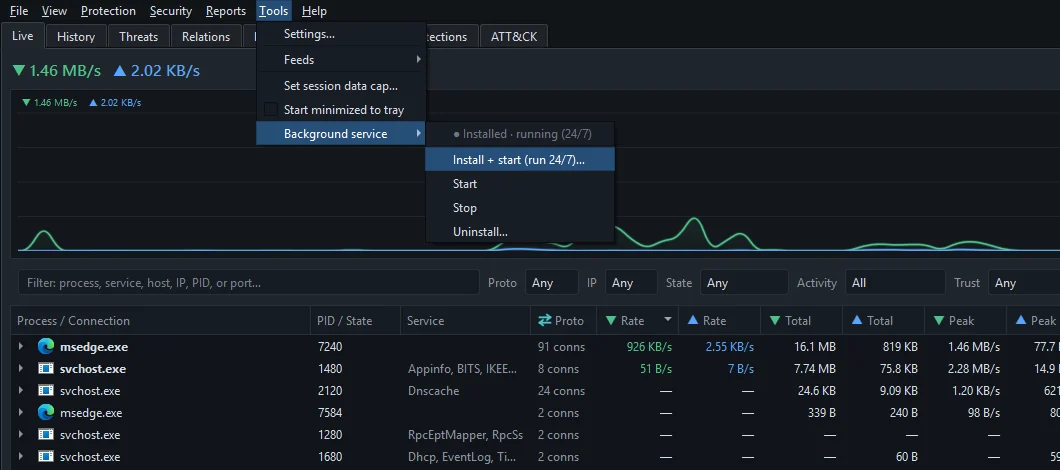
- Open Tools ▸ Background service.
- Read the status line at the top of the submenu: Installed · running (24/7), Installed · stopped, or Not installed (running standalone).
The mode chip in the status bar at the bottom of the window says the same thing in short: Service: on, Service: stopped or Standalone.
Install, start, stop or remove the service
To install it if you unticked it during setup:
- Choose Tools ▸ Background service ▸ Install + start (run 24/7)….
- Wait for the message that the background service was installed and started.
- Quit NetSecWall with File ▸ Quit and open it again, so the window reconnects as a client of the service.
- Check that the status bar shows Service: on.
The same submenu has Start, Stop and Uninstall…. Stop pauses background monitoring and enforcement until you start the service again. Uninstall… removes the service and returns NetSecWall to standalone mode after a restart of the app. Stop and Uninstall ask for the settings password if one is set.
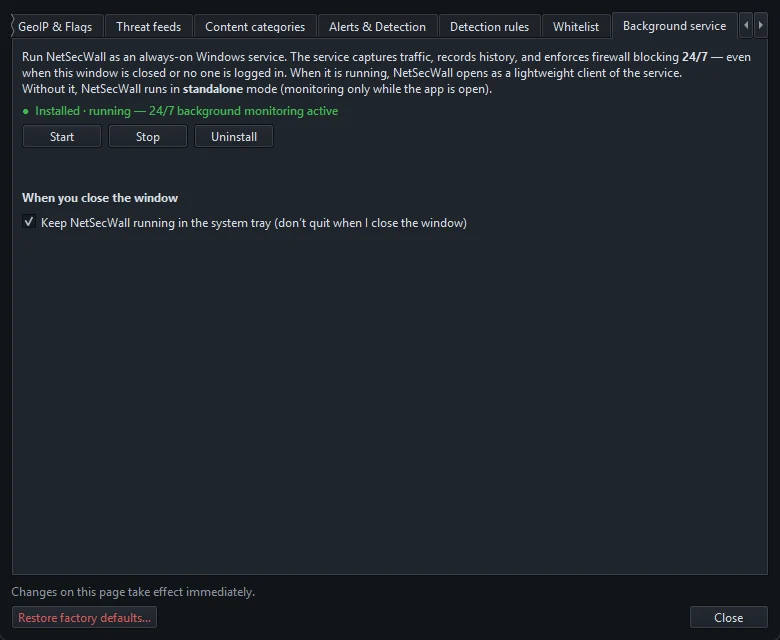
The same controls are on the Background service tab of Tools ▸ Settings…, which also says when a restart of NetSecWall is needed.
The setup wizard can install the service if it is missing, but it cannot remove it.
The system tray icon
With Keep NetSecWall running in the system tray (don't quit when I close the window) ticked on the Background service tab of Settings (it is on by default), closing the window hides NetSecWall in the notification area. The first time, a notice says NetSecWall is still running and that you can right-click the tray icon to quit. File ▸ Minimize to tray hides it straight away.
- Hover over the icon to see the current download and upload rates and how many programs and connections are open.
- Click the icon to bring the window back.
- Right-click it for Show NetSecWall, Pause monitoring, Block ALL internet and Quit.
Pause monitoring stops recording and live updates only; your blocks keep applying. Block ALL internet is the panic switch described in cut all internet access instantly. Quit closes the window completely; with the service installed, protection carries on without it. If a settings password is set, quitting needs it.
Start minimized to tray
Tick Tools ▸ Start minimized to tray and NetSecWall goes straight to the tray the next time you open it, without showing the window.
The NetSecWall window does not start by itself when you sign in to Windows. The service does the continuous work from boot; open the window when you want to look at something.
Frequently asked questions
Does closing the window stop NetSecWall?
No, not by default. Closing the window hides it in the tray and monitoring continues. With the background service installed, even quitting the window leaves monitoring and blocking running.
Do my blocks still work after I restart the PC?
With the background service installed, yes: the service re-applies them at boot, before anyone signs in. In standalone mode they come back once you open NetSecWall.
Does Pause monitoring turn off blocking?
No. It pauses recording and the live views. Every block keeps applying while monitoring is paused.
How do I remove the service but keep the app?
Choose Tools ▸ Background service ▸ Uninstall…, confirm, then restart NetSecWall. It runs standalone from then on, and you can add the service back from the same menu.