Windows Firewall allows outbound traffic by default: why that matters
Out of the box, Windows Defender Firewall blocks unsolicited inbound connections but lets every program connect out. That keeps things working, and it means nothing stops an unwanted app phoning home.
NetSecWall for Windows
On this page
In Windows Firewall, outbound traffic is allowed by default: Windows Defender Firewall blocks unsolicited inbound connections and lets every outbound one through, on the Domain, Private and Public profiles alike. Any program on your PC can connect to any address unless a specific rule says otherwise, and Windows never asks you about it. That's a deliberate trade-off for compatibility, and it's why outbound control is something you have to add yourself.
What the Windows Firewall outbound default means
Windows Defender Firewall is stateful. When a program on your PC opens a connection, the replies to it are let back in automatically. What it blocks are connections that start on the outside and weren't asked for, unless an inbound rule allows them. That's when you see the "Windows Defender Firewall has blocked some features of this app" prompt: a program wants to accept incoming connections.
Outbound works the other way round. Everything is allowed unless a block rule matches, and on a fresh install there are almost no outbound block rules. You can see the setting yourself:
- Press Win+R, type
wf.mscand press Enter. - Click Windows Defender Firewall Properties in the overview.
- On each of the Domain Profile, Private Profile and Public Profile tabs, Outbound connections reads Allow (default).
If the difference between the two directions is new to you, inbound vs outbound connections explains it in plain English.
Why Microsoft made that the default
Blocking outbound by default breaks almost everything. Every program, every background service, every updater and every helper tool would need its own allow rule. Dozens of Windows services share svchost.exe. Programs move to new folders when they update. And most people can't judge a prompt that says an unfamiliar process wants to reach an unfamiliar address.
Inbound is where unsolicited attacks from the network arrive, so that's the direction Windows locks down. Organizations that want default-deny outbound build it with managed policies and a team to maintain the allow list.
What slips through
With outbound open, a program you've installed can:
- send telemetry and usage data you never agreed to; see how to stop apps phoning home
- download and install extra components
- if it's malware, check in with its command server and send your data out
None of this means Windows is insecure. It means the firewall trusts whatever is already running on your PC, and deciding what deserves that trust is left to you.
Your built-in options
Block one program. In wf.msc, right-click Outbound Rules, choose New Rule…, pick Program, browse to the executable, choose Block the connection, tick the profiles and give it a name. How to block a program in Windows Firewall walks through both ways to do it.
Go default-deny. In the same Properties dialog you can set Outbound connections to Block, then create an allow rule for everything that should reach the internet. It works, but Windows won't tell you what it blocked or ask about anything new, and troubleshooting is up to you.
The gap in both: you're writing rules without seeing what's actually connecting.
Making outbound control manageable with NetSecWall
NetSecWall starts with visibility: the Live tab lists every program with an open connection, where it connects, and how much it sends. Then it gives you three ways to decide.
Learning mode. Choose Protection ▸ Filtering mode ▸ Learning — ask when a new app connects. Programs already online at that moment are treated as approved. After that, when a program NetSecWall hasn't seen connects, NetSecWall blocks it, cuts the TCP connections it opened and shows a "New app wants to connect" pop-up with its name, path, signature status, publisher and any detection finding.
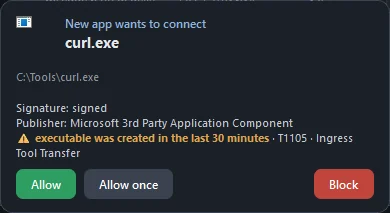
| Answer | What happens |
|---|---|
| Allow | Allowed permanently and remembered |
| Allow once | Allowed until NetSecWall restarts, then you're asked again |
| Block | Blocked permanently and remembered |
| No answer in 30 seconds | Blocked for this session only; you're asked again after a restart |
With a settings password set, both Allow buttons need it, so nobody else can wave a program through. The details are in Learning mode.
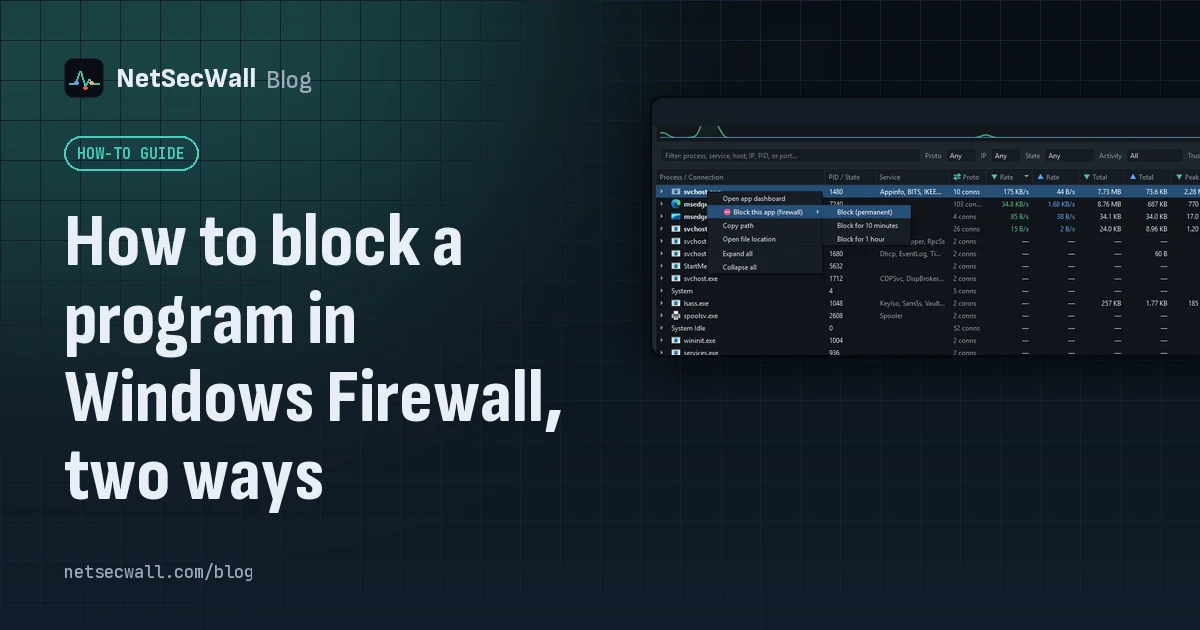
Per-app blocks. Right-click any program in the Live tab and choose Block this app (firewall), then Block (permanent), Block for 10 minutes or Block for 1 hour. The program's open TCP connections over IPv4 are cut at once. See how to block an app.
One review screen. The Rules tab lists every rule NetSecWall created, including your Learning-mode answers ("NetSecWall · Allowed", "NetSecWall · Allowed (once)"), next to Windows' own rules.
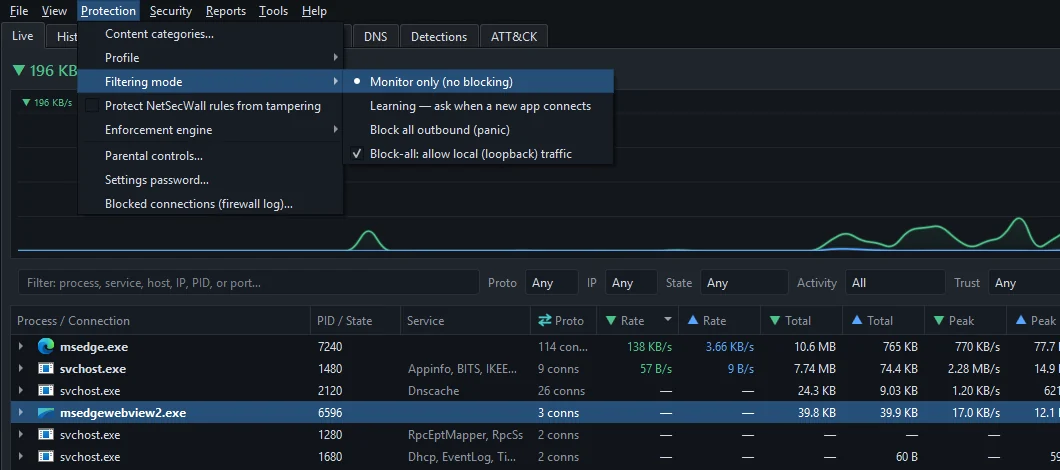
Under Protection ▸ Enforcement engine, Windows Firewall (rules) puts NetSecWall's blocks into Windows Defender Firewall as ordinary outbound rules, visible in wf.msc. Packet filter (WFP) enforces them through the Windows Filtering Platform instead, which keeps working when another tool owns the firewall. Which engine to use compares them.
A sensible way to start
- Leave NetSecWall in Monitor only for a few days and look at what connects.
- Block anything you already know you don't want.
- Switch to Learning.
- Answer the pop-ups. Use Allow once when you're unsure.
- Look through the Rules tab once a week and tidy up.
What NetSecWall doesn't change
- It doesn't switch Windows to default-deny. There's no allow-list-only mode. Learning mode trusts whatever is online when you turn it on, and it reacts to a new program's first connection rather than stopping it before any packet leaves.
- Blocks follow the file path. A program that moves to a new folder needs a new rule.
- Blocks hold while NetSecWall runs. NetSecWall removes its own rules when it stops and puts them back when it starts. With the background service installed, that's from boot, before anyone signs in. Rules you create with New rule… on the Rules tab are ordinary Windows Firewall rules and stay regardless.
- Don't block
svchost.exewholesale. It carries Windows Update, time sync and much more. Read the Service column in the Live tab to see which Windows service a connection belongs to before you act.
Blocking and Learning mode are in the Family and Pro plans, and in the 7-day trial.
Frequently asked questions
Does Windows Firewall block any outgoing connections by default?
Only those that match an outbound block rule, and a fresh install has very few. Everything else is allowed on every profile.
Is it safe to set Windows Firewall to block all outbound traffic?
It won't harm the PC, but it will break anything without an allow rule, including updates, until you add rules one by one. Windows won't prompt you, so you have to diagnose each failure yourself.
Why doesn't Windows ask me when an app connects to the internet?
Windows Defender Firewall only prompts for inbound connections, when a program wants to accept them. There's no built-in prompt for outbound connections.
Will blocking an app's internet access break it?
Some apps work fine offline, some lose features such as sync or updates, and a few refuse to start. A timed block of 10 minutes or an hour is an easy way to find out.
Does NetSecWall replace Windows Defender Firewall?
No. With the Windows Firewall engine, NetSecWall's blocks are rules inside Windows Defender Firewall. It adds the visibility and the prompts on top.
Keep reading
 Keep the app, cut its internet: blocking without uninstalling
Block the program's outbound connections instead of removing it. The app still opens and works offline; it just can't reach the internet until you lift the block.
 How to block a country on Windows
Windows has no country switch, so you block the country's IP ranges with firewall rules. NetSecWall does it with one right-click; geolocation is approximate, and CDNs and VPNs blur borders.
 How to block a program in Windows Firewall, two ways
Create an outbound rule for the program's .exe in Windows Defender Firewall with Advanced Security, set to Block the connection. Or right-click the program in NetSecWall and choose Block.
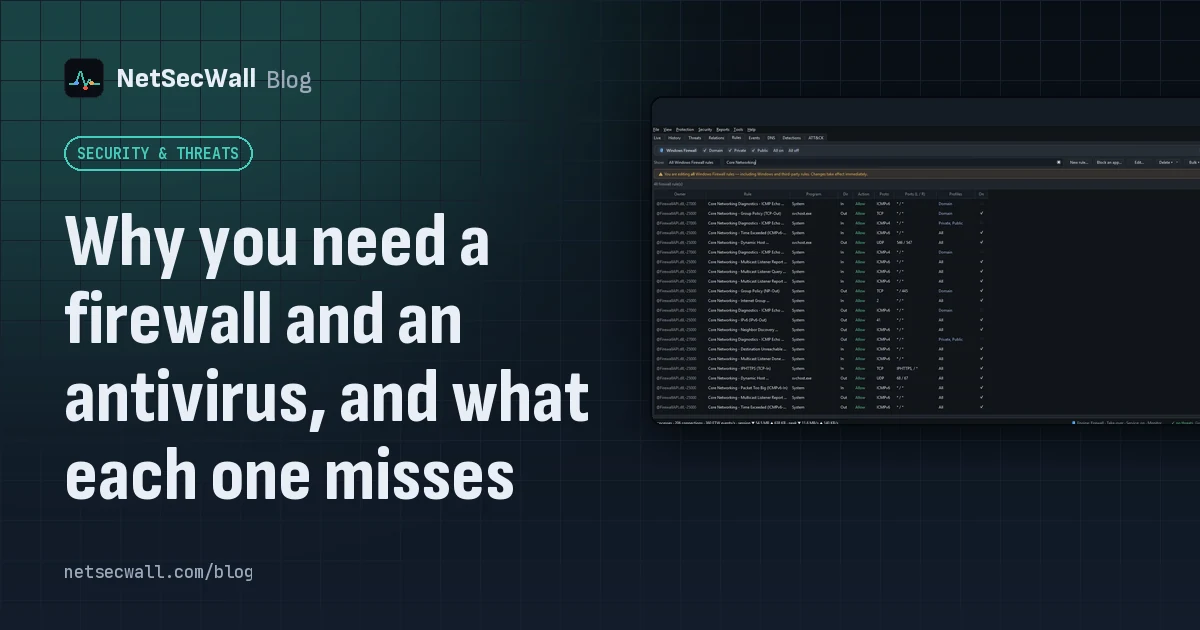 Why you need a firewall and an antivirus, and what each one misses
An antivirus judges files and program behavior; a firewall judges connections. Each misses what the other sees, from a clean-looking tool phoning out to malware that never touches the network.