Learning mode: approve each new app before it connects
Turn on Protection ▸ Filtering mode ▸ Learning. A program new to NetSecWall is held back the moment it connects, and a pop-up asks you to Allow, Allow once or Block it.
NetSecWall for WindowsOn this page
Learning mode lets you approve new apps before they connect. Choose Protection ▸ Filtering mode ▸ Learning — ask when a new app connects, and from then on any program NetSecWall hasn't approved is blocked the moment it tries to reach the network, while a New app wants to connect pop-up asks you to Allow, Allow once or Block it. Apps that are already online when you switch it on are approved automatically, so you are only asked about genuinely new ones.
Learning mode is part of blocking, so it needs the Family or Pro plan, or the 7-day trial.
How to approve new apps before they connect
- Open the Protection menu (Alt+P).
- Point to Filtering mode.
- Choose Learning — ask when a new app connects.
- If a settings password is set, enter it.
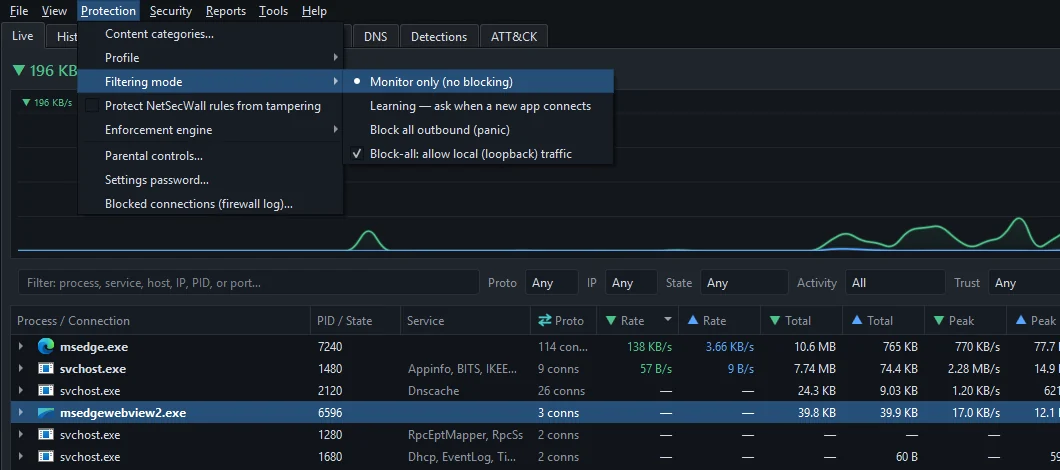
A tray message confirms it: "Ask-to-connect ON — New apps will be blocked until you allow them." The mode chip in the status bar changes to Approval.
Apps already online are approved for you
At the moment you switch Learning mode on, every program with a network connection open is added to the approved list. That keeps the first hour from turning into a wall of pop-ups. Those programs appear in the Rules tab as Allowed rows. If you want to be asked about one of them after all, delete its Allowed row and it will be treated as new the next time it connects.
The "New app wants to connect" pop-up
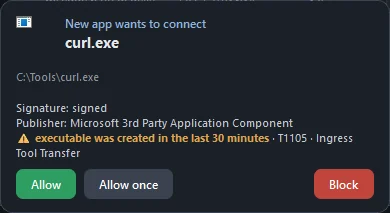
The pop-up shows the program's icon, name and full path, its signature (signed, unsigned, bad signature or unknown signer), its publisher, and any finding from behavioral detection with its MITRE ATT&CK technique. When the detection score is 40 or more, the title reads ⚠ New app wants to connect.
The app is already blocked while the pop-up is on screen. Nothing gets out until you allow it.
| Your answer | What happens | How long it lasts |
|---|---|---|
| Allow | The app connects | Permanently; remembered |
| Allow once | The app connects | Until NetSecWall restarts |
| Block | The app stays blocked | Permanently; remembered |
| No answer in 30 seconds | The app stays blocked | This NetSecWall session only; you are asked again after a restart |
Allow once lasts until NetSecWall itself restarts — the app or its background service — not until the program you allowed closes.
With a settings password
If a settings password is set, both Allow buttons show a padlock and ask for it ("Needs the parental password"). Block never needs the password, and neither does letting the pop-up time out. On a family PC this means a child can say no to a new program but can't let one out.
Where your decisions show up
- Rules tab (Show: NetSecWall rules): an allowed app appears as Allowed: with the Owner NetSecWall · Allowed, or NetSecWall · Allowed (once). A blocked app gets an ordinary app block rule with the Owner NetSecWall (or NetSecWall · WFP with the packet-filter engine).
- Events tab: every answer is recorded, with details such as "you allowed it to connect", "allowed for this session only", "you blocked it from connecting" and "blocked for this session (no answer to the prompt)".

Changed your mind? Delete the row to be asked again, or right-click an Allowed row and choose Block 1 allowed app(s). Unblock an app or remove a rule has the details.
Turn Learning mode off
Choose Protection ▸ Filtering mode ▸ Monitor only (no blocking). New apps then connect without asking. Your saved answers stay: apps you blocked remain blocked until you delete their rules. For how Learning mode fits with the other modes and presets, see filtering modes, profiles and the panic switch.
Frequently asked questions
What happens if I don't answer the pop-up?
After 30 seconds the app is blocked for the current NetSecWall session only. The timeout isn't saved as your choice, so you are asked again after NetSecWall restarts.
Does Allow once last until I close the program?
No. It lasts until NetSecWall restarts. The program can close and reopen in the meantime and still connect.
Why wasn't I asked about an app I expected?
It was probably online when you turned Learning mode on, so it was approved automatically. Delete its Allowed row in the Rules tab and you will be asked the next time it connects.
Is Learning mode a deny-by-default firewall?
No. Only programs NetSecWall hasn't approved yet are held back. Everything you allowed, and everything that was online when you switched the mode on, connects normally.