How to block a country's IP ranges on Windows
In the Live tab, switch View to By Country, right-click the country and choose Block all IP ranges. NetSecWall adds outbound Windows Firewall rules for that country's addresses.
NetSecWall for WindowsOn this page
To block a country's IP ranges, open the Live tab, set View to By Country, right-click the country and choose ⛔ Block all IP ranges of CC (CC is the two-letter country code). NetSecWall creates outbound Windows Firewall rules covering every IPv4 range its GeoIP data assigns to that country, so no program on the PC can open a connection to them. It is a blunt tool: geolocation is approximate, and big services are served from many countries.
Block a country's IP ranges in the By Country view
- Open the Live tab.
- Set View to By Country. The list shows the countries your PC is talking to right now, by country code.
- Right-click the country you want to block.
- Choose ⛔ Block all IP ranges of CC.
- Confirm "Create firewall rules blocking all CC IP ranges (N ranges)?" with Yes.
- If a settings password is set, enter it.
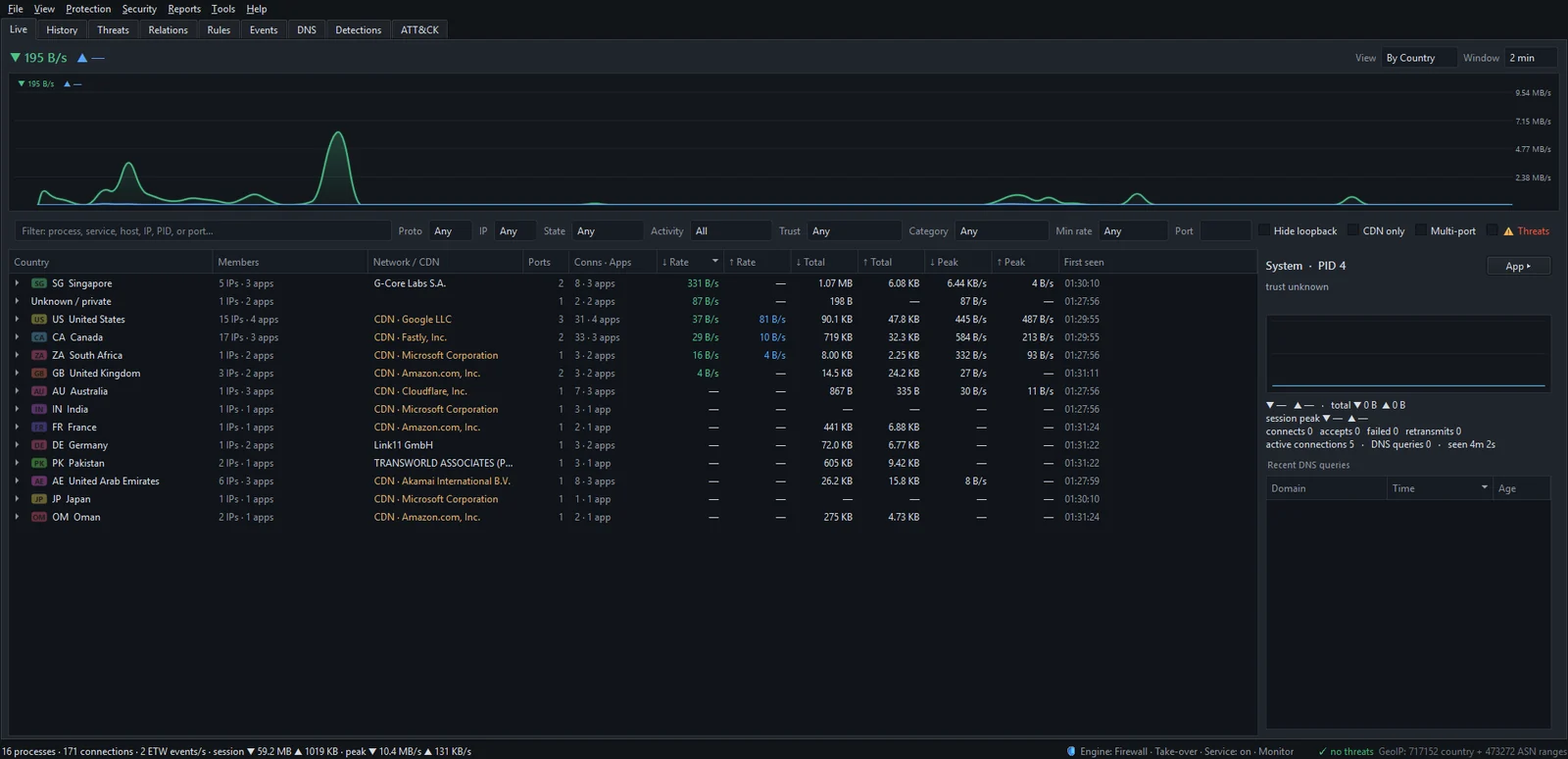
A country only appears in this view while something on the PC is connected to it, so you can block it once an app has connected there. If NetSecWall says "No IP ranges available for CC (is GeoIP loaded?)", download the GeoIP data with Tools ▸ Feeds ▸ Update GeoIP database now and try again.
What a country block does
- Rules named
NetLens Geo Block: CC 1,CC 2, … are added to Windows Firewall. The ranges are split across several rules, and the Rules tab lists them as Geo Block: CC 1 and so on, with the Owner NetSecWall. - Outbound only. Programs on this PC can't connect to addresses in that country. Incoming connections are not covered; for those, create a custom inbound rule.
- IPv4 only. The block uses the country's IPv4 ranges. IPv6 addresses in that country are not included.
- Windows Firewall engine only. Country blocks are Windows Firewall rules. If Protection ▸ Enforcement engine is set to Packet filter (WFP) alone, or NetSecWall is in Companion mode, the block is held back and not enforced until the Windows Firewall engine is in use again. See which engine to use.
- The ranges are fixed when you block. GeoIP data is refreshed daily, but a block keeps the ranges it was created with. Block the country again to pick up changes.
Country blocks are not saved. They stay in force while NetSecWall keeps running — in the window, the tray or the background service — but quitting NetSecWall, stopping its service or restarting Windows removes them, and they are not recreated. Block the country again after a restart.
Unblock a country
- In Live ▸ By Country, right-click the country and choose Unblock CC.
- Once a country is blocked, it may drop out of the By Country list, because nothing can connect to it. In that case open the Rules tab, type
Geo Blockin the filter box, select that country's rows and press Delete.
How reliable is country blocking?
Treat it as a coarse filter, not a guarantee:
- Geolocation places the server, not the company. A company based in one country often serves you from machines in another, and the GeoIP tables are an approximation to begin with. How accurate is IP geolocation? goes into why.
- CDNs blur the map. Large sites and apps are delivered from edge servers in many countries. Blocking a country that hosts a nearby edge can break sites you never meant to touch, and it won't stop a service that simply answers from somewhere else. See why every app connects to CDNs.
- VPNs change the picture. With a VPN on, your traffic goes to the VPN server first, so country rules become much less meaningful.
If you need to cut off a known address range precisely, a custom firewall rule with Remote addresses is the more exact tool.
Frequently asked questions
Does blocking a country stop incoming connections from it?
No. NetSecWall's country blocks are outbound only. To refuse incoming connections from an address range, create a custom rule with Direction set to Inbound.
Why can't I find the country I want to block?
The By Country view only lists countries your PC is connected to at the moment. Wait until something connects there, or block the addresses you know with a custom firewall rule.
Does a country block survive a restart?
No. It lasts while NetSecWall is running. Quitting NetSecWall, stopping the background service or restarting Windows removes it, and you need to block the country again.
Will blocking a country also block websites hosted there?
Only when your PC connects to an address the GeoIP data places in that country. Many sites are served from CDN servers close to you, so they may keep working — or break unexpectedly if their nearby server sits in the blocked country.